TABLE OF CONTENTS
Introduction
The Canvas Notebook works with Canvas Pages for you to highlight important or unclear sentences and include your own notes. If you click on the Notebook link in the course navigation menu, it will remain empty until you use this feature on a specific page.
To Add Material to your Notebook
Open a page from your course's modules.
If your instructor does not use Pages, you will not be able to use the Notebook feature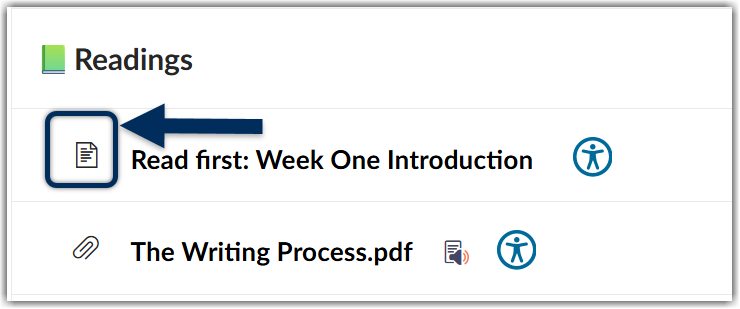
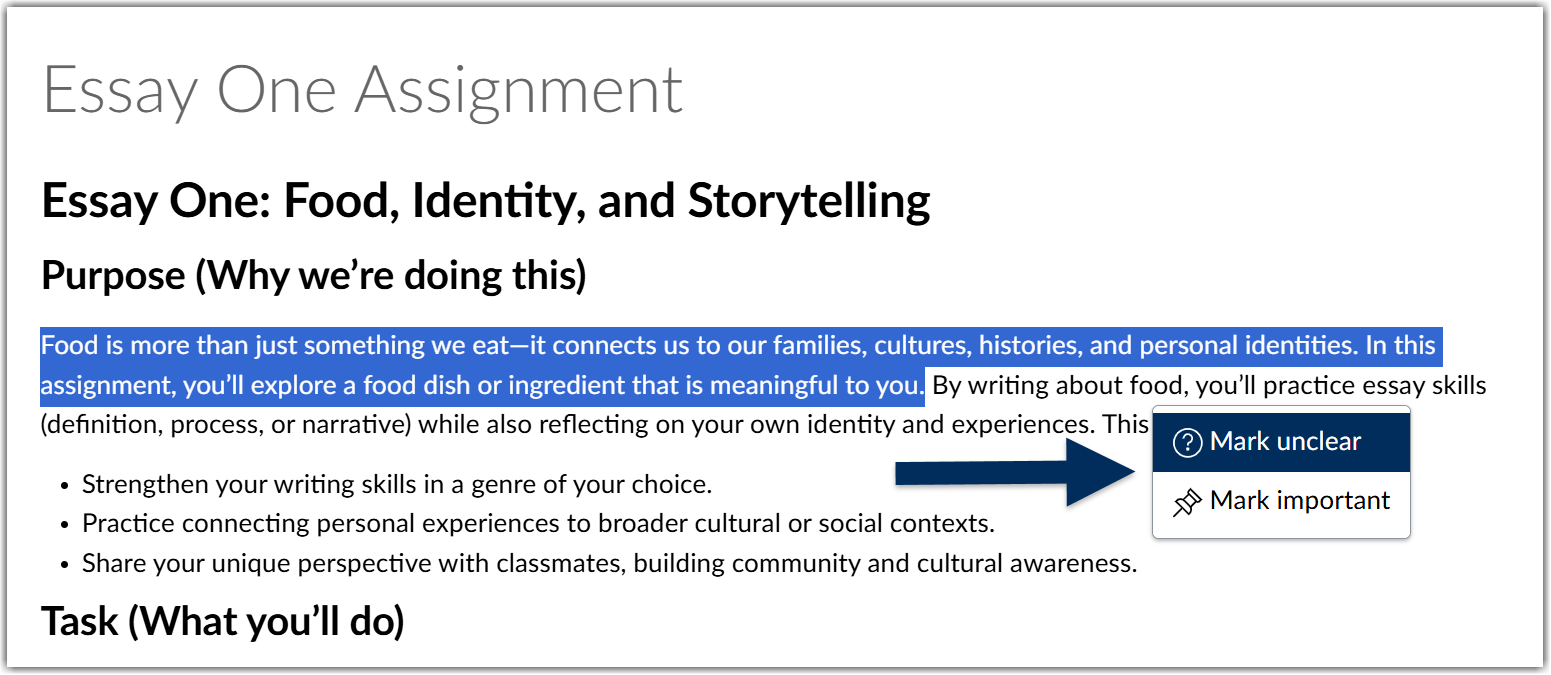
As you read the content, highlight a sentence that stands out to you. A popup menu will appear for you to select either important or unclear.
Once you have identified the sentence as either important or unclear, a side view will show you your highlighted content. You can add an additional note or delete the highlighted content from your notebook.
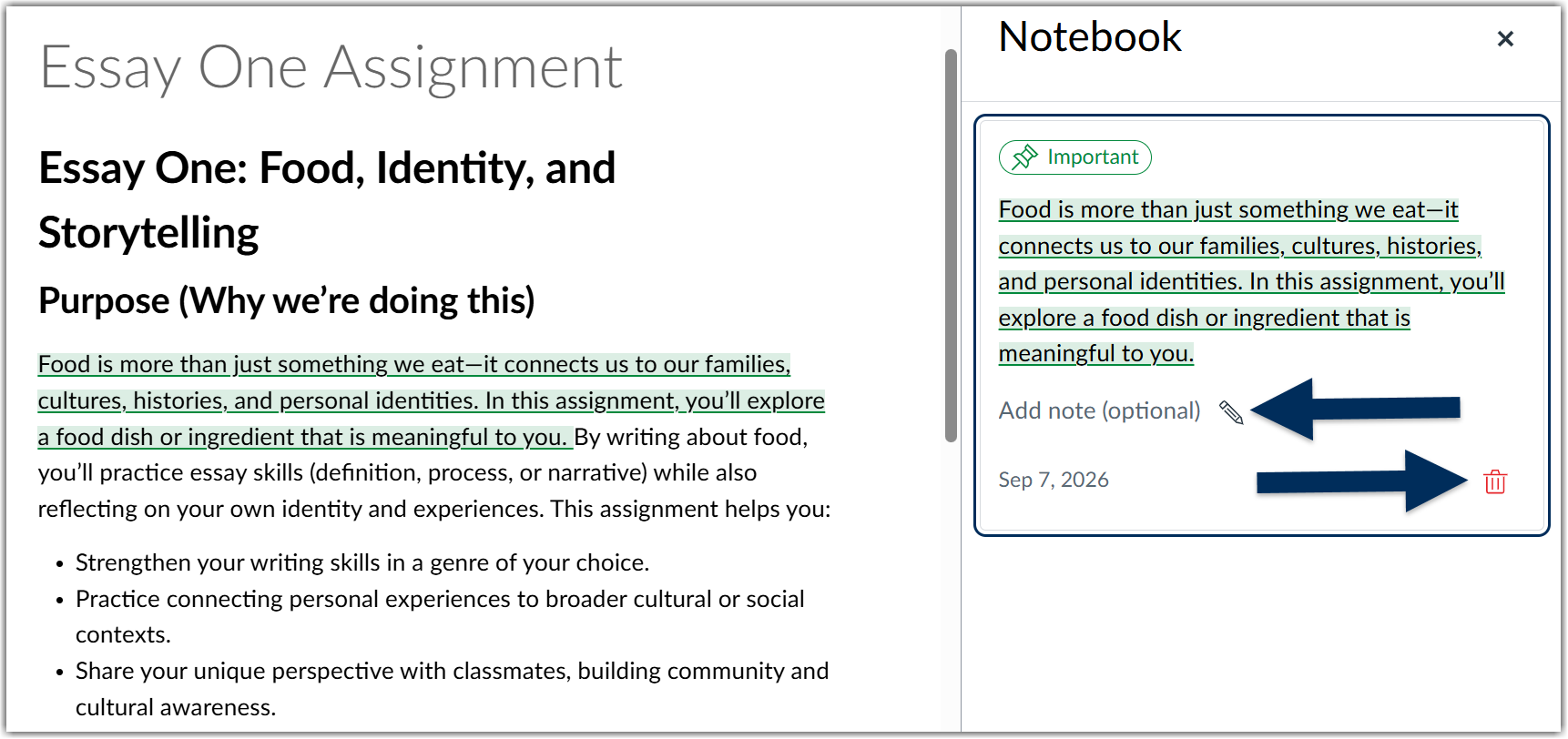
Your Notebook for that page will remain open as you continue to read through the content. If you would rather close the Notebook, you can simply click the "X" located in the upper righthand corner of your Notebook.
Reviewing Notes
There are two ways you can review information you have included in your Notebook.
Review Notes for a Specific Page
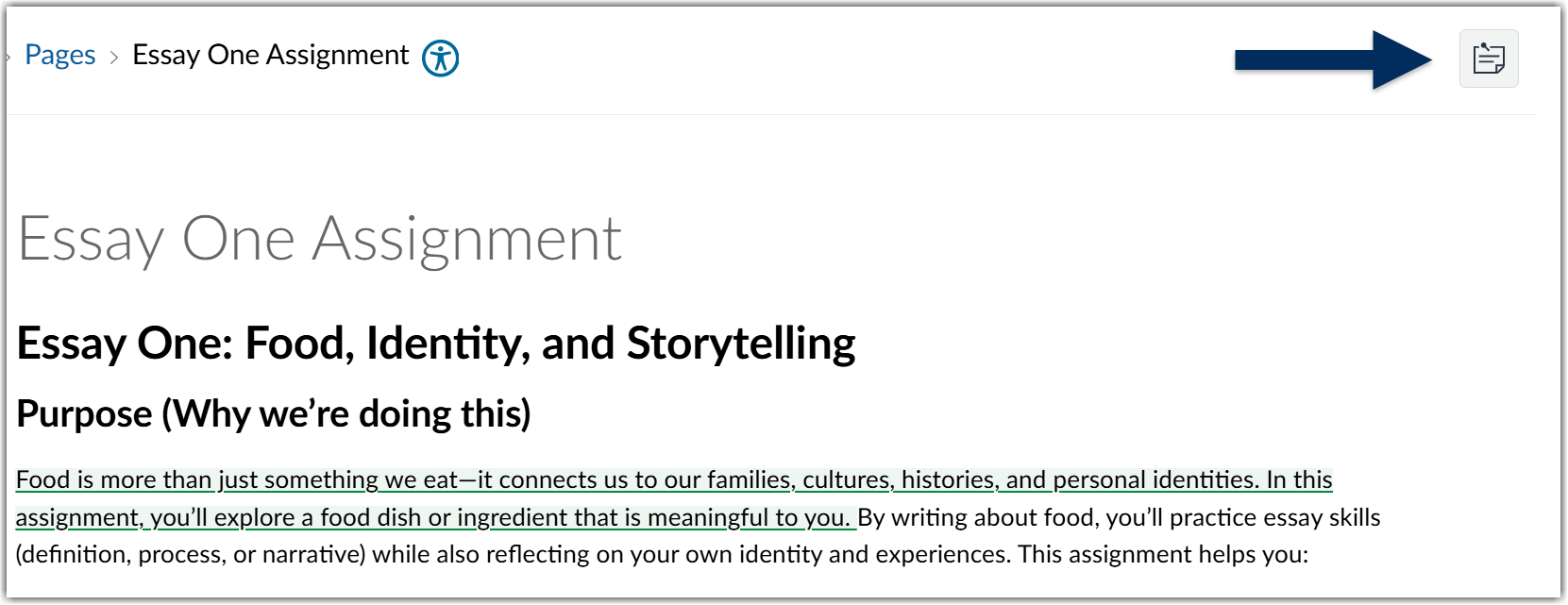
To review notes for a page, you can click on the notebook symbol in the upper righthand corner. This symbol looks like a pinned paper with notes. It is available on every page, regardless of notes created.
Review all of your Notes
To view all of your notes for different pages, click on the blue hyperlink Notebook tab located in the course navigation menu.
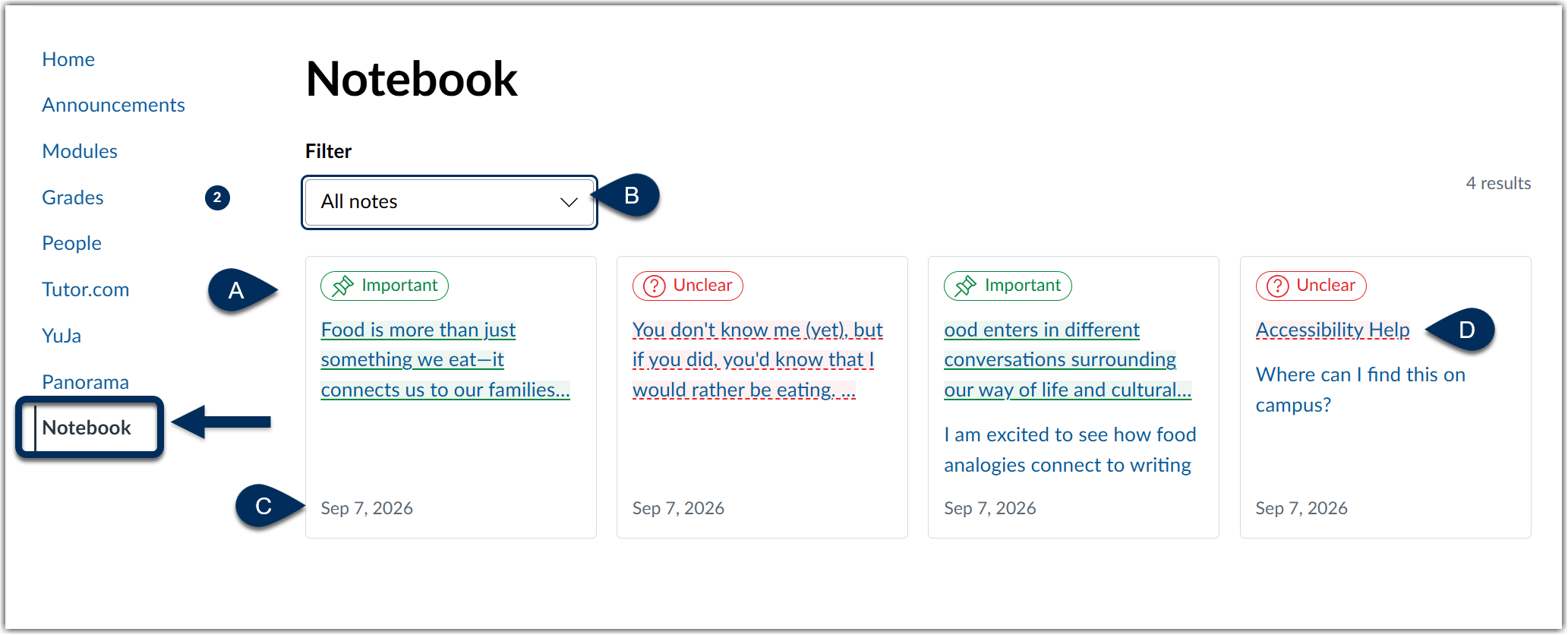
From your main Notebook page, you can:
- View all of your notes for every page
- Filter all of your notes to only view Important or Unclear
- See the date you created create note
- Click on a note to take you to the specific Canvas page that note is found
Was this article helpful?
That’s Great!
Thank you for your feedback
Sorry! We couldn't be helpful
Thank you for your feedback
Feedback sent
We appreciate your effort and will try to fix the article