Replying to Canvas Messages in Davidson-Davie Gmail

When you try to reply to emails received from Canvas, do your message bounce back? Sometimes students message you from Canvas and you want to quickly respond from Gmail, without needing to log into Canvas separately. However, if you reply with your alias email, normally firstname_lastname@davidsondavie.edu, it will bounce back! This is caused by a mismatch between your email address in Canvas and your email address you are using in Gmail. In Canvas, your email is the one that ends with your employee ID number. 


There are two solutions that will allow you to respond to emailed messages from students in Canvas, each with their own pros and cons. 


Solution #1: Add your alias email address to your Canvas settings as a secondary email address.

The benefit of this option is that you add your alias email address in Canvas once, edit your notification settings, and then you can reply to emails directly in Gmail every time. The downsides are that you may receive some notifications multiple times if you do not update your notification settings properly and adding the secondary email may break your access to Intelliboard reports (the Analytics button on the Canvas menu).


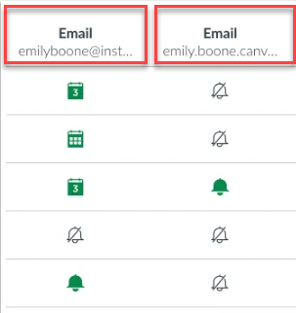
Learn how to add a secondary email to your Canvas account. When you add and confirm your secondary email address in Canvas, you will also need to update your notification settings to ensure that you do not receive duplicate emails. After adding a secondary email address, you will see two email columns in your notification settings. Toggle off the options for your non-alias email address and enable notifications for your alias email address instead.

Canvas email notification settings 

Solution #2: Toggle to your other email address in your Gmail replies.

The benefit of this option is that you don’t have to alter any of your settings in Canvas, which means you keep access to Intelliboard reports and do not need to alter your notification settings. The downside is that you will need to remember to click to the correct ‘From’ email address in Gmail every time you reply to an email from Canvas. 


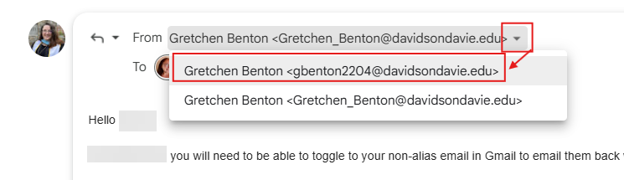
Most of us use our alias email by default in Gmail. If you do, you will need to toggle over to send the reply from your non-alias email in order to reply to Canvas messages. Click the email address near the top of your reply email in Gmail, in the ‘From’ section, click the drop down menu to change your email address to the email address that matches your Canvas account (the one that ends with your ID numbers). 


email message toggle