TABLE OF CONTENTS
Introduction
You have many tools at your disposal to ensure your Canvas course is accessible. We currently have YuJa Panorama as the more inclusive accessibility tool; however, Canvas also has its own built-in checker. See this as the easiest to reach tool--that butter knife that will work like a screwdriver when you don't have time to grab a real one but will work in a pinch.
How to Access Canvas' Accessibility Checker
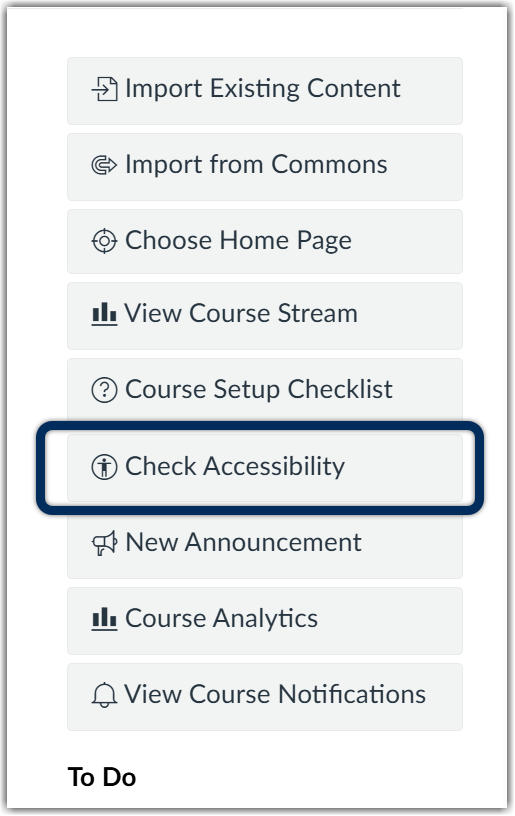
When you open the Canvas homepage of your course, along the right-hand side before the To-Do list, you will find Canvas' built in Accessibility checker.
A new page will open to include all of your Canvas-created pages and assignments along with the number of issues found for each one, and a visual breakdown of your overall accessibility issues, including frequently made errors. The content with issues to address will be listed first, including the number of issues flagged.
Note: If you have made any edits to your files using YuJa Panorama before you use Canvas' Check Accessibility, make sure you first select the Update Report button.
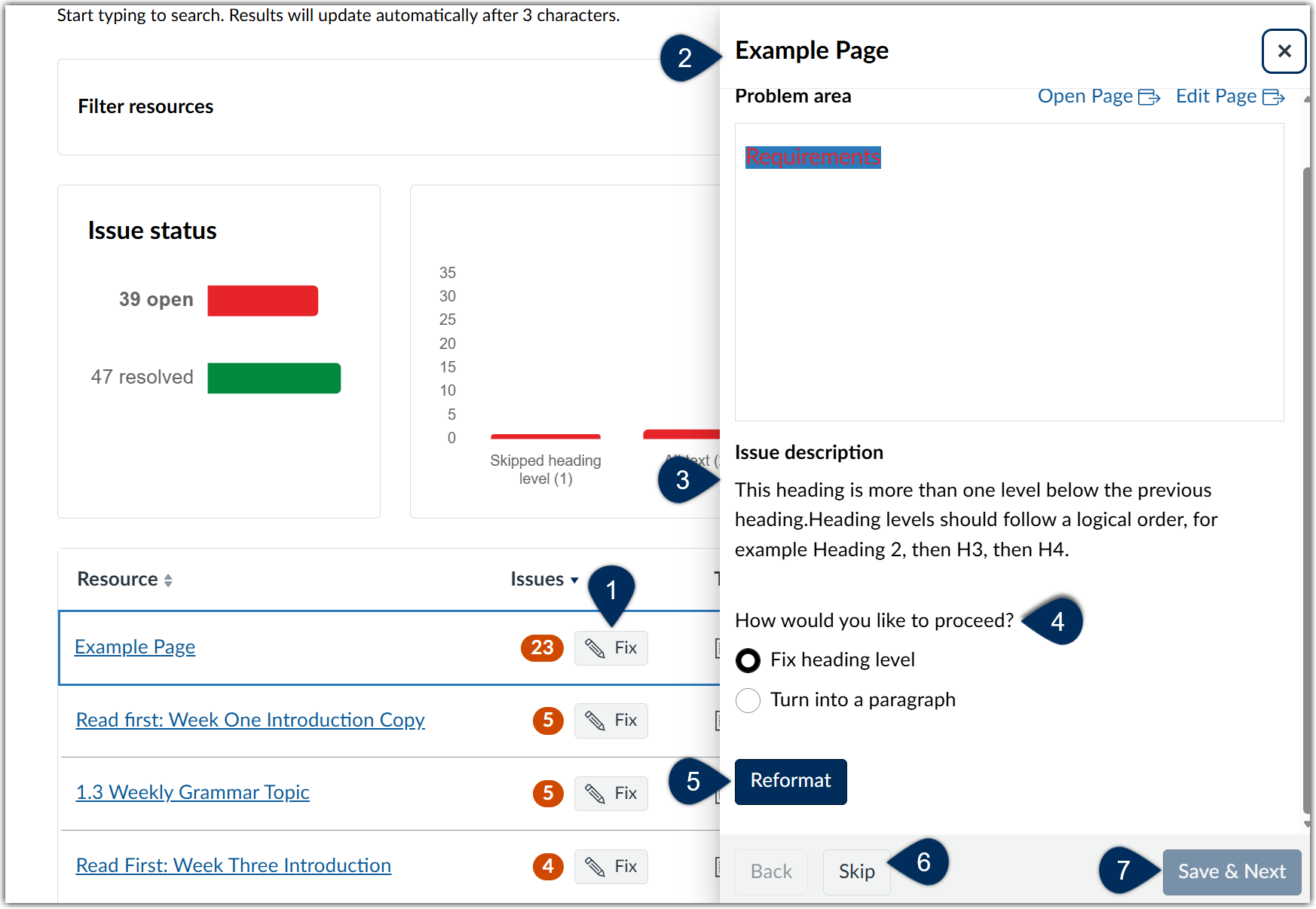
- Marker 1: Click on the Fix box located with each individual Canvas element that you plan to improve to open Canvas' built-in accessibility tool.
- Marker 2: A drawer along the right-hand side of the screen will open to show you each issue one at a time
- Marker 3: Canvas will provide an issue description
- Marker 4: and walk you through how to correct the issue automatically
- Marker 5: Confirm the changes to be made by clicking the Reformat button
- Marker 6: If you would like to skip making improvements because you'd like to change the issue manually, click the Skip button
- Marker 7: You can save your changes and move through to the next document without closing the drawer and clicking on a new link.
Canvas Accessibility Features
As mentioned in the introduction, there are some limitations to Canvas' built-in accessibility checker, but YuJa Panorama can help fill in the gaps. If you are more comfortable with using Canvas' tool, it can provide checks and support for Canvas elements using the Rich Content Editor.
- Missing image alt text or not marked as decorative
- Image alt text exceeds 200 characters.
- Image filename used as alt text: The alt text matches the image filename instead of describing the image.
- Tables without headers
- Table header scope
- Tables without captions
- Duplicate or broken links
- Misformated lists
- Skipped heading levels
- Note that the tool does not check if the first header starts with H2 or whether the headings are sequential with the rest of the content in the page.
- A heading exceeds 120 characters.
- An H1 heading is used within the page content.
- Small text does not meet WCAG 2.1 Level AA color contrast requirements
- Large text does not meet WCAG 2.1 Level AA color contrast requirements
YuJa vs Canvas
Not sure which accessibility tool to use? Here's a quick table to compare the two tools:
| Tool | Pros | Cons |
|---|---|---|
| Canvas Accessibility Checker |
|
|
| YuJa Panorama |
|
|
Was this article helpful?
That’s Great!
Thank you for your feedback
Sorry! We couldn't be helpful
Thank you for your feedback
Feedback sent
We appreciate your effort and will try to fix the article