External Tools
An external tool in Canvas (often also called an App or LTI) is a third-party application or website integrated directly into the Learning Management System (LMS) to extend its functionality. They enable seamless access to external resources like textbook publisher content, Zoom, or specialized educational tools (e.g., Perusall, Yuja) without leaving Canvas.
The benefits of using an external tool integrated into the Canvas site may include (depending on features available from the vendor):
- Keeping students in the LMS
- Ease of access - login/single sign on
- Grade passback
- Integration with bookstore inclusive access tool, Vital Source, including subscription management (consult bookstore for more details)
Tools Installed - Davidson Davie Canvas Site
There are many kinds of Apps, LTIs, and External Tools that we use in Canvas and the location of where these items can be accessed will vary. To see details about the placement/location for each see the chart below. For help with textbook publisher tools, we encourage you to reach out directly to your customer support rep at that company to learn how their tool works with Canvas. For most other tools, you can submit an email to canvas@davidsondavie.edu for support.
| Tool Name | Function | Tool Placements | Primary Contact | Important Notes |
|---|---|---|---|---|
| Access Pearson | Textbook/Courseware Publisher | Link Selection Course Navigation Editor Button Assignment Selection | Pearson Support | Pearson/Canvas Integration Guides |
| ALEKS (McGraw Hill) | Textbook/Courseware Publisher | Course Navigation | ALEKS Instructor Support ALEKS Student Support | See support links for Instructor and Student guides. |
| Alta (Knewton) | Textbook/Courseware Publisher | Request cartridge from vendor. | Knewton Support | Adding Knewton Alta Assignment to Canvas |
| Amplify (Desmos) | Math Review Tool | Account Navigation Link Selection Course Navigation | Amplify Support | |
| Carolina Distance Learning | Textbook/Courseware Publisher | Assignment Selection Link Selection | Carolina Distance Learning Support | Using Carolina Online Gateway with Canvas |
| Cengage | Textbook/Courseware Publisher | Modules Index Menu (Modal) Link Selection Assignment Selection Course Assignments Menu | Cengage Support | Adding Graded Cengage items into Canvas |
| CertMaster (Comptia) | Textbook/Courseware Publisher | Module Menu (Modal) Course Assignments Menu | Comptia Support | See support link for Instructor and Student guides. |
| ChemType (Wiris) | Accessible Chemistry Notation | Text Editor | canvas@davidsondavie.edu | Available by request |
| Copyleaks | Plagiarism Detection | Must enable Plagiarism Review options for Copyleaks in Assignment settings | canvas@davidsondavie.edu | Canvas Instructor Guide Canvas Student Guide |
| Copyleaks - Teacher Scan Tool | Plagiarism Detection | Link Selection | canvas@davidsondavie.edu | Keep hidden! For teacher only, to scan items not submitted correctly. |
| eLab (Labyrinth Learning) | Textbook/Courseware Publisher | Assignment Selection Link Selection | Your Labyrinth Sales Rep Labyrinth Customer Support | Labyrinth Integration Details |
| Evolve (Elsevier) | Textbook/Courseware Publisher | Link Selection | Elsevier Evolve Support | Evolve Support Center Guides |
| Google Assignments (Google Drive) | File Sharing | Assignment Selection Collaboration Editor Button Homework Submission Link Selection | canvas@davidsondavie.edu | Using Google Drive & Google Assignments LTI on Canvas |
| Intelliboard Pro | Data and Analytics Tool | Global Navigation | canvas@davidsondavie.edu | Visit Analytics on the Canvas menu |
| Labster | Lab Simulation Tool | Assignment Selection Migration Selection Course Navigation Link Selection | customer.support@labster.com | How to add Labster simulations to your course |
| Lucid Chart | Digital Whiteboarding | Course Navigation | Visit Help (?) button on Canvas menu for Canvas Support Chat | Using Lucid in Canvas |
| Lumen One | Textbook/Courseware Publisher | Link Selection | Lumen Support support@lumenlearning.com | Lumen Guides |
| Lumen Waymaker | Textbook/Courseware Publisher | Request cartridge from vendor. Contact Lumen rep: maxim@lumenlearning.com | Lumen Support support@lumenlearning.com support.lumenlearning.com | Lumen Guides |
| NROC (EdReady) | Textbook/Courseware Publisher | NROC Support canvas@davidsondavie.edu | Access by request only | |
| MathType (Wiris) | Accessible Mathematics Notation | Text Editor | canvas@davidsondavie.edu | MathType in Canvas |
| McGraw Hill (Connect) | Textbook/Courseware Publisher | Module Menu Course Navigation | McGraw Hill Support | See support link for Instructor and Student guides. |
| Perusall | Course text Collaboration and Annotation | Assignment Selection Course Navigation Link Selection | Perusall Support | Instructor guides Student guides |
| ReadSpeaker | Speech to Text | Readspeaker widget on left side of all Canvas pages | canvas@davidsondavie.edu | WebReader in Canvas DocReader in Canvas |
| Sage Vantage | Textbook/Courseware Publisher | Link Selection Editor Button Assignment Selection | Vantage Training & Vantage LMS Support email lmssupport@sagepub.com | Recommended method: click the + button to add to a module. |
| Science Interactive - Lab Portal | Textbook/Courseware Publisher | Link Selection Assignment Selection | Science Interactive Support or email your SI Representative | Linking SI in Canvas Directions |
| SmarterProctoring | Online Test Proctoring Tool | Course Navigation Link Selection Assignment Selection | SmarterProctoring Support (Help, while in app) Davidson Davie Testing Center | SmarterProctoring Guides |
| SmartEvals | Course Evaluations/Feedback | support@smartevals.com | Coming soon! For now, monitor email for evals | |
| Tutor.com | Online Tutoring | Course Navigation | Davidson-Davie Learning Commons | Available for curriculum courses only |
| uCertify | Certification Test Preparation | Course Navigation Link Selection Assignment Selection Course Assignments Menu | support@ucertify.com | Support Portal with Guides |
| Vital Source | eCampus Bookstore Inclusive Access subcription management | Course Navigation Link Selection | iasupport@ecampus.com and bookstore@davidsondavie.edu | Email IAsupport for directions or help, CC bookstore email as needed |
| Wiley | Textbook/Courseware Publisher | Assignment Selection Course Navigation Editor Button | Wiley Support | WileyPLUS Guides |
| Yuja Lumina | Video Management | Course Navigation Module Text Editor Assignment Selection | canvas@davidsondavie.edu Yuja Video Guides (Faculty/Staff) YuJa Video (Student Guides) | Use as your primary video tool; do not upload large media files directly to Canvas! |
| Yuja Panorama | Accessibility Tools | Course Navigation | canvas@davidsondavie.edu | Yuja Panorma Faculty Guides Student Guides |
| Zoom | Video Conferencing | Link Selection | canvas@davidsondavie.edu |
If there is a tool that you need but do not see on our list, please send an email to canvas@davidsondavie.edu. We will work with you and the vendor/company to review your integration needs.
Understanding Tool Placements
Review the tool placement details below to understand how to find and use the tools you need. I have included a few of the most common placements you will use below. You may also reference the full guide of Canvas screenshots of each tool placement location.
Course Navigation
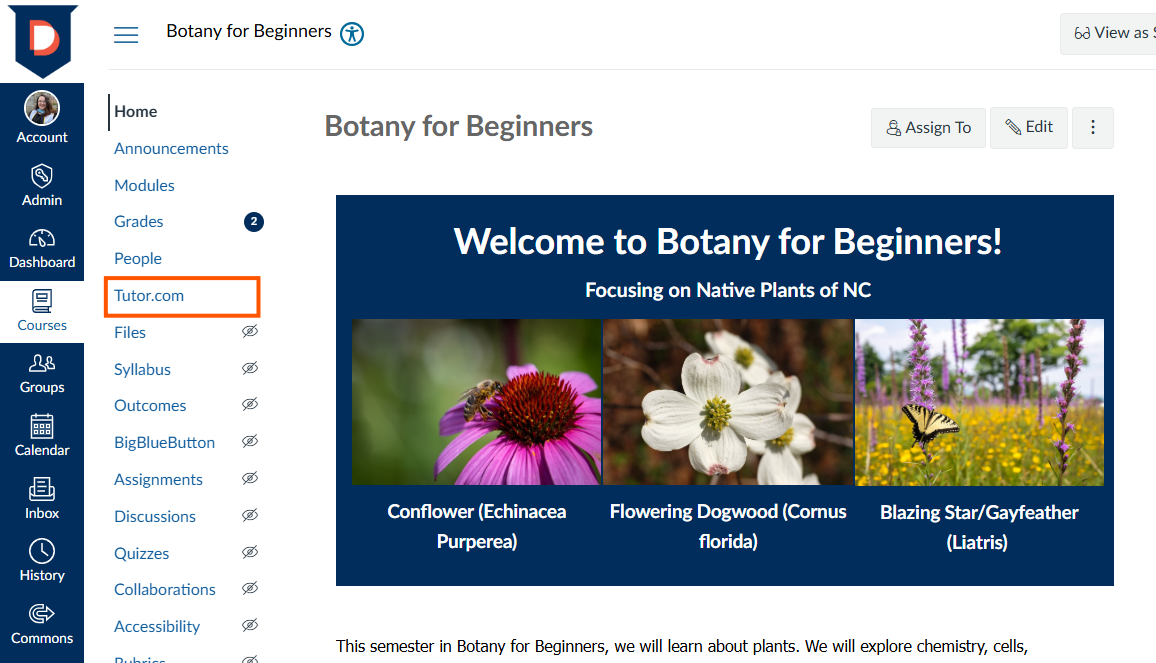 If you do not see your tool in your course menu, click Settings in your course navigation menu and then click Navigation near the top of the page. Drag the tool from the disabled section at the bottom into the top to enable it or use the ... menu beside the tool to enable it and make the tool visible for all course users.
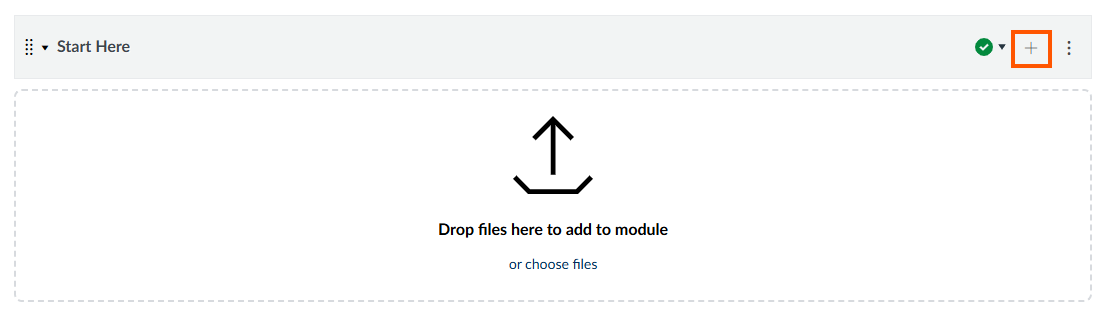
Link Selection (Module page + External Tool)
On the Modules page, click the + button on the top right of any Module.
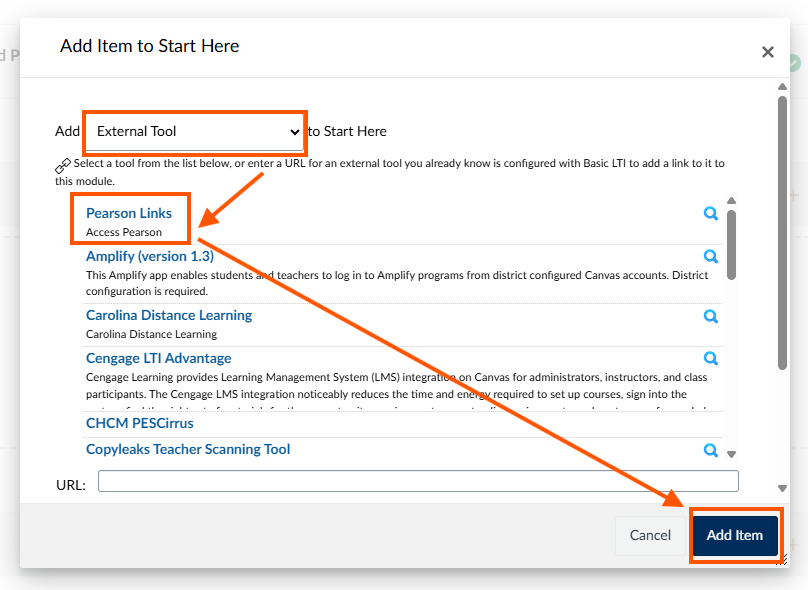
Then select External Tool from the dropdown menu. Scroll down to choose your tool and then select Add Item.
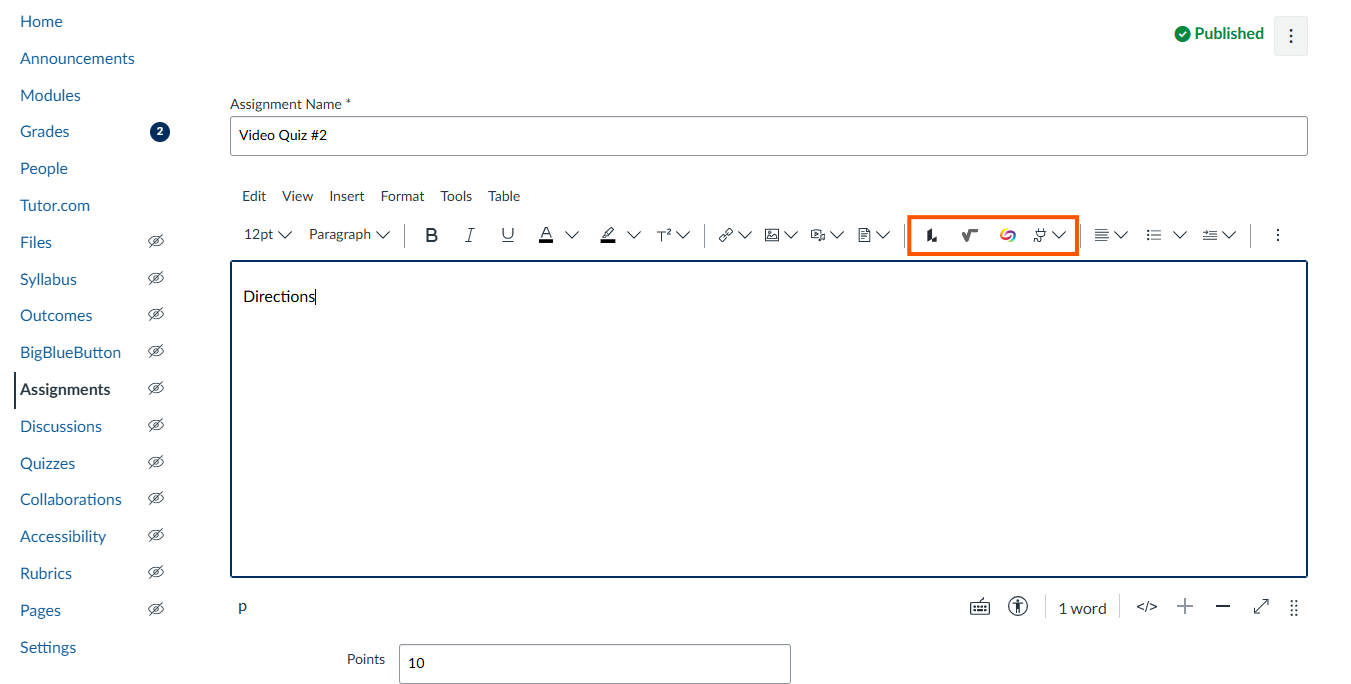
Text Editor
In the text editor box, the apps icon looks like a power plug. Click the Apps icon and then View All There are also some custom icons like those for Lucid, Yuja and MathType that allow you to add content from an external tool directly into the textbox. If you do not see the icon you need, you can also see all available Tools for the text editor by clicking Tools, Apps, and then View All.
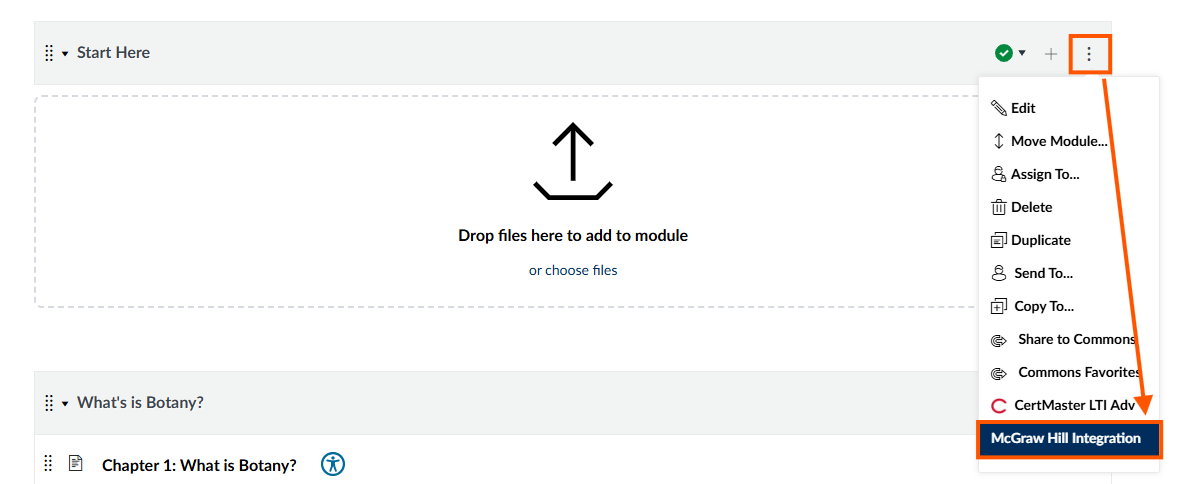
Module Menu (modal)
On the Modules page, click the three dot menu at the top of any module. Tools in this menu will be at the bottom of the drop down list.
Was this article helpful?
That’s Great!
Thank you for your feedback
Sorry! We couldn't be helpful
Thank you for your feedback
Feedback sent
We appreciate your effort and will try to fix the article