Uploading Files to Canvas Assignments and Forums
Sometimes you might need to upload an image or file to an assignment or forum. This article will walk you through the process step by step.
Uploading a File to an assignment
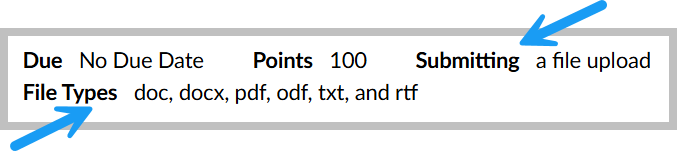
Start by opening the assignment in Canvas. At the top, you will see information about the assignment including whether a file submission is necessary and the types of files accepted if your instructor has limited the file types. Make sure that your file format matches one of the accepted file types.
Click the button that says “Start Assignment” to begin the process of turning in your assignment. This will take you to the part of the screen where you can upload your file.
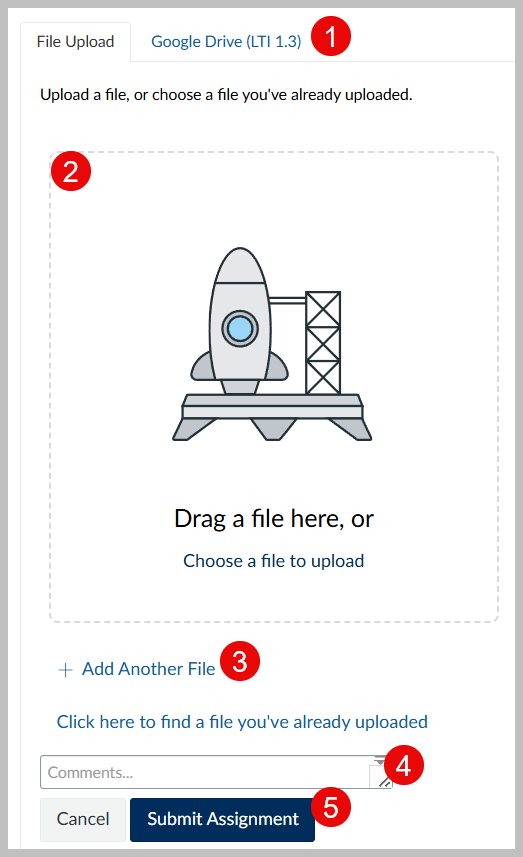
If your file is in your Google Drive, you can link your Google Drive and upload from your drive.
You can drag your file to the box with the image of a rocket or you can click on the box to open your files and select the file from your computer.
You can also add more files by clicking on the “+ Add Another File” option.
You can include comments for your instructor in the comments box.
Once you’ve added your file, you can click “Submit Assignment” to complete your assignment.
Uploading a File to a Forum
Start by opening the forum in Canvas and clicking “Reply” to start your forum post.
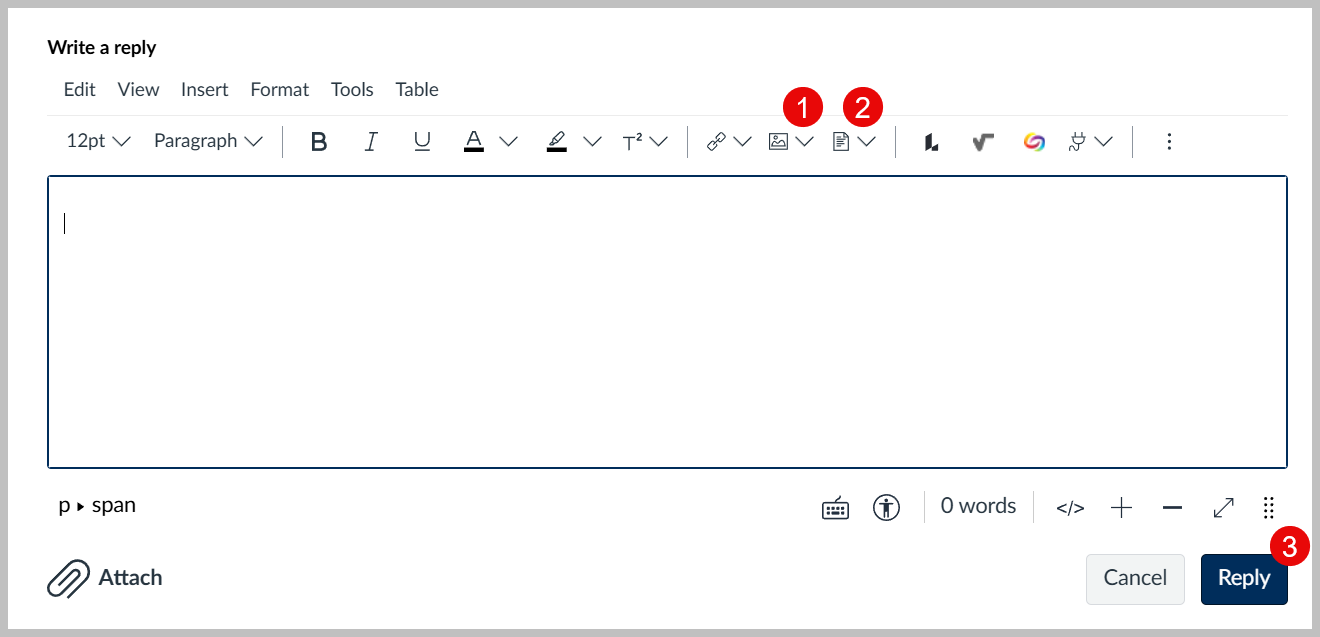
The icon that looks like a picture will embed an image into your post. Click the icon and choose “Upload Image” to choose an image from your computer.
The icon that looks like a piece of paper will add a link to a file to your post. Click the icon and choose “Upload File” to choose a file from your computer. Make sure your file is in the correct format that your instructor has required.
Once you’ve written your reply and added the required files to your post, you can click “Reply” to post your reply.
Was this article helpful?
That’s Great!
Thank you for your feedback
Sorry! We couldn't be helpful
Thank you for your feedback
Feedback sent
We appreciate your effort and will try to fix the article