Canvas Course Analytics for Instructors
You can access Course Analytics from the Course Analytics button in the Course Home Page
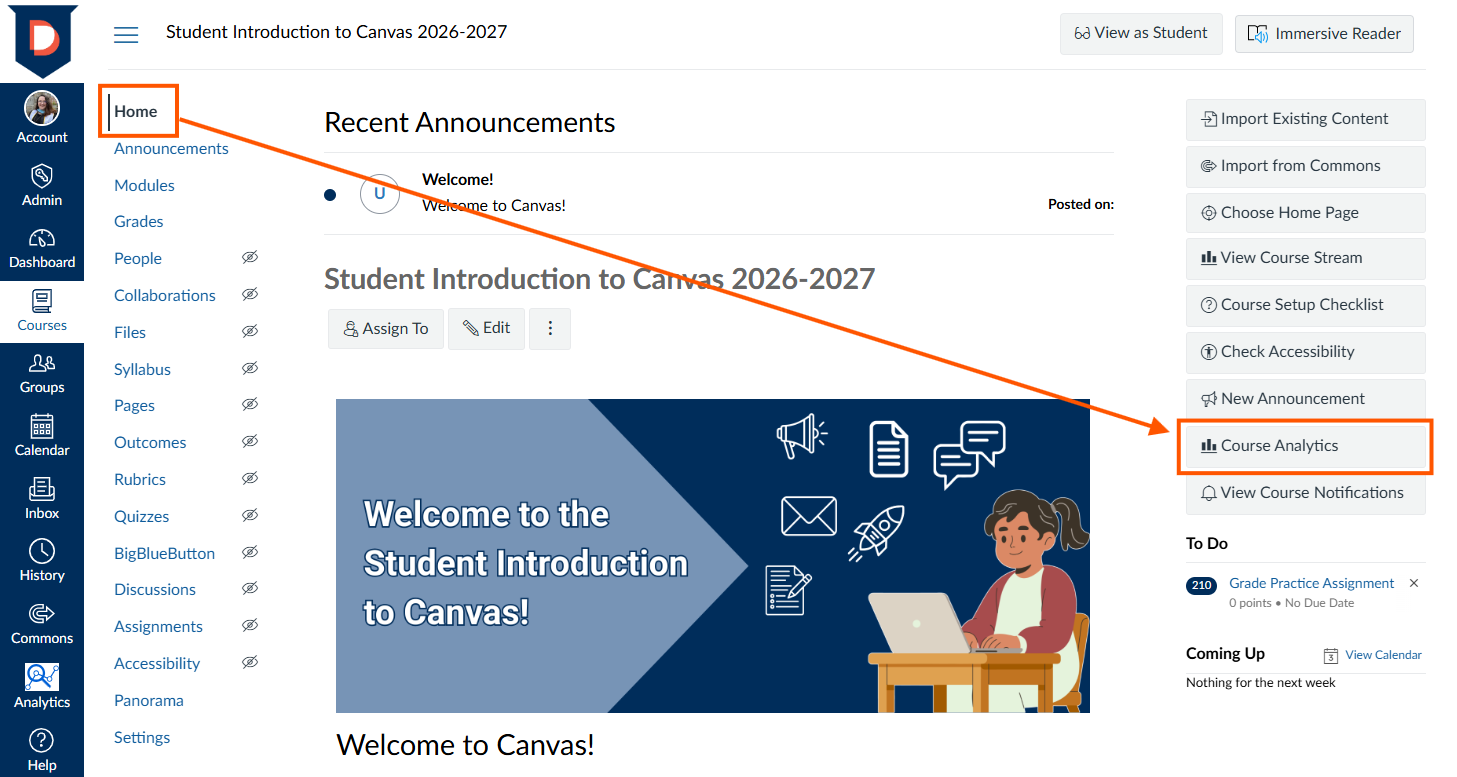
Navigating Course Analytics
You can use Course Analytics to track course grades for student submissions, course activity, individual student data, communication data, submission status data, and online attendance.
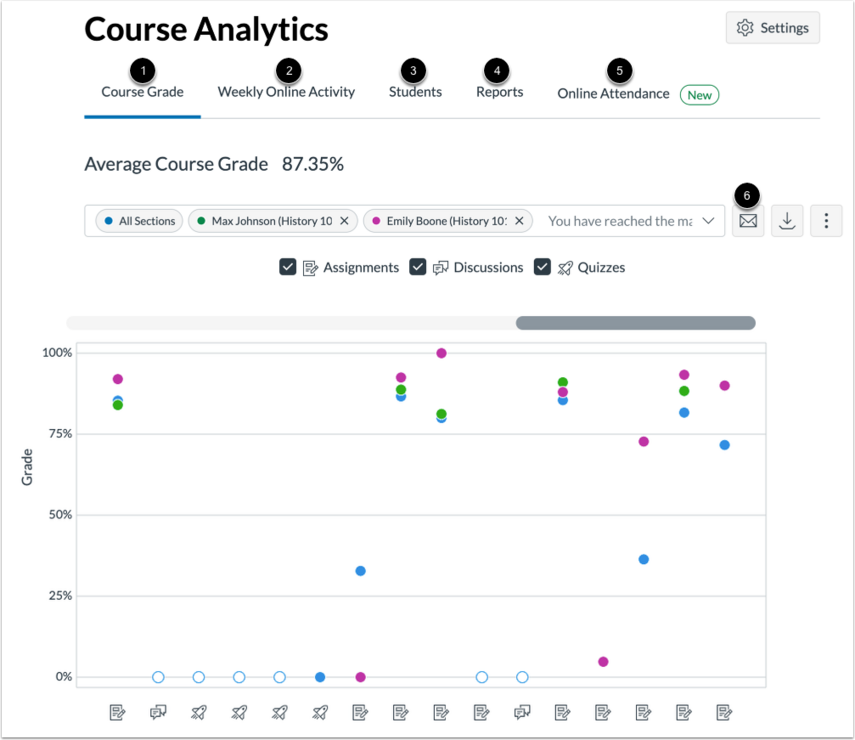
As an instructor, you can perform various activities using the following tabs in Course Analytics:
- Course Grade [1]: View average course grade analytics as an interactive chart graph or a data table. You can also compare the course average with an individual assignment, course section, or student filter using the chart graph comparison or data table comparison.
- Weekly Online Activity [2]: Access page view and participation data as an interactive chart graph or a data table. You can also compare the course average weekly online participation analytics with an individual student or section using the chart graph comparison or data table comparison.
- Students [3]: View grade and participation analytics for individual students. You can also view message communication data between you and individual students.
- Reports [4]: Run and download reports on missing, late, or excused assignments. The Class Roster report provides a list of enrolled students along with their contact information. The Course Activity report provides a list of daily user interactions in course resources.
- Online Attendance [5]: Discover whether students have met online attendance criteria that has been selected by an admin. Admins must enable and configure this report.
You can also use Course Analytics to communicate [6] with students based on the analytics. You can:
- Send a message to all students based on specific course grade or participation criteria.
- Send a message to an individual student based on specific course grade or participation criteria.
Notes:
- Data is for viewing only and cannot directly be changed.
- Page views and participation metrics include an aggregate across all devices, including Canvas mobile apps.
- Courses with a course weight higher than 50,000 may not load properly. For courses with a course weight under 50,000, any loading issues should be reported to Canvas Support. Additionally, courses with a section weight over 100,000 (calculated as the number of sections multiplied by the number of students) cannot load Course Analytics and will display a message indicating the course is too large to load.
Was this article helpful?
That’s Great!
Thank you for your feedback
Sorry! We couldn't be helpful
Thank you for your feedback
Feedback sent
We appreciate your effort and will try to fix the article