Needing to check on when students accessed different course materials or submissions? The Access Report will show you what students accessed in your course with a timestamp.
Where Do I Find the Access Report?
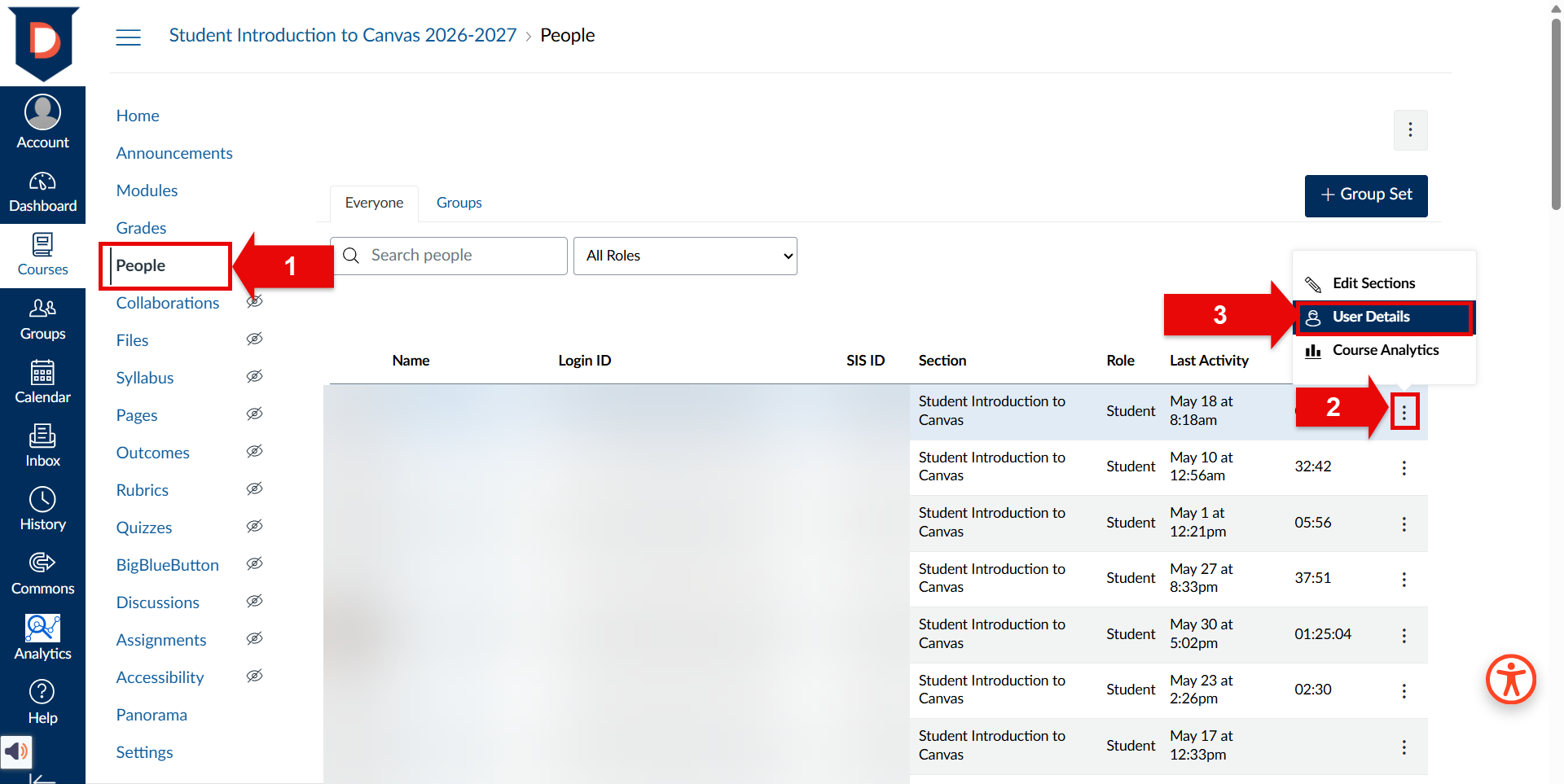
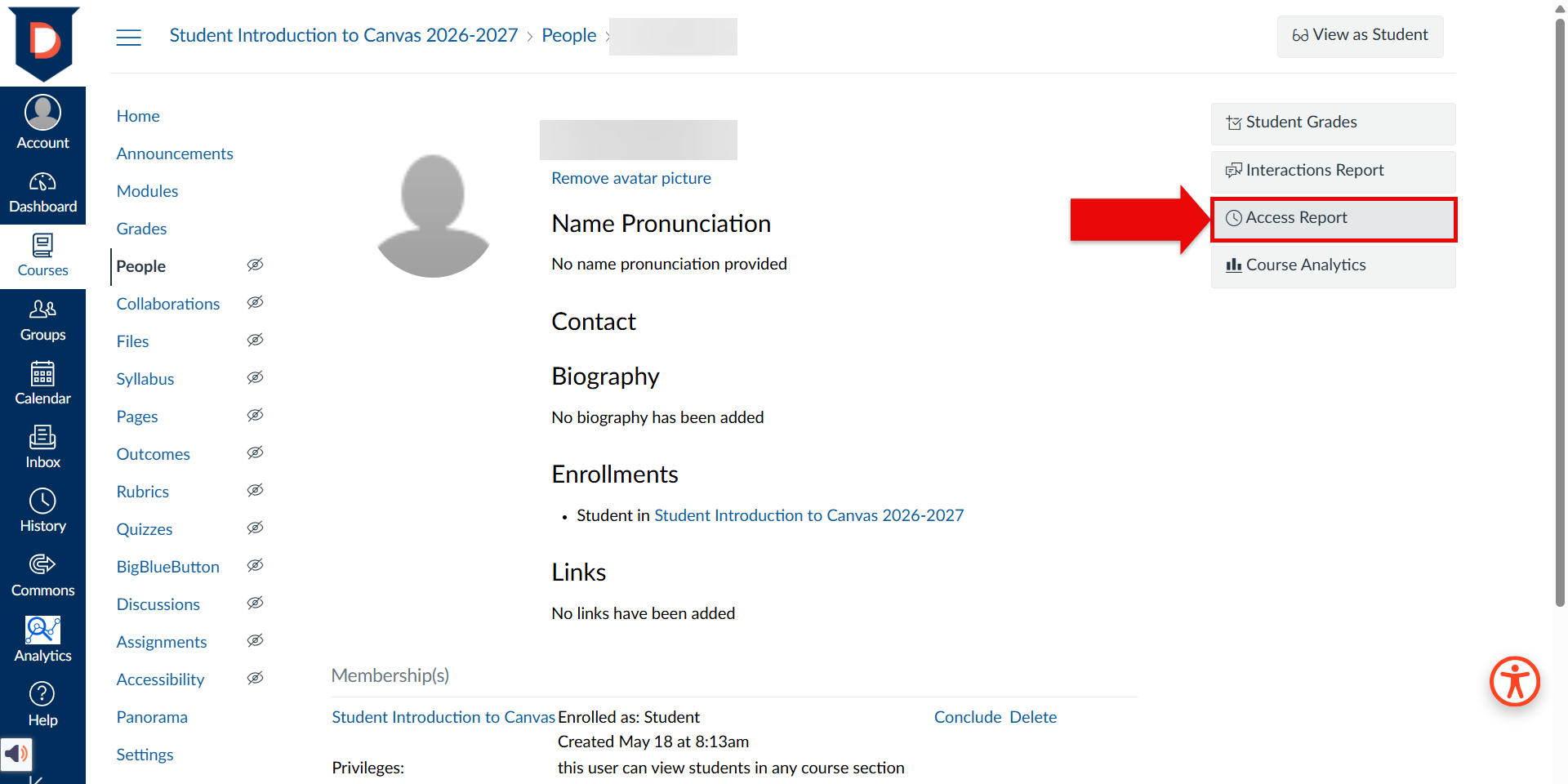
You can find the Access Report in 4 steps:
- Open the course you are wanting to view
- Select People in your Course Navigation Bar
- Select the 3 dots at the right side of the row of student information and select User Details
- Select Access Report in the top right corner of that student's information page
For a visual of these steps, take a look at the screenshots below:
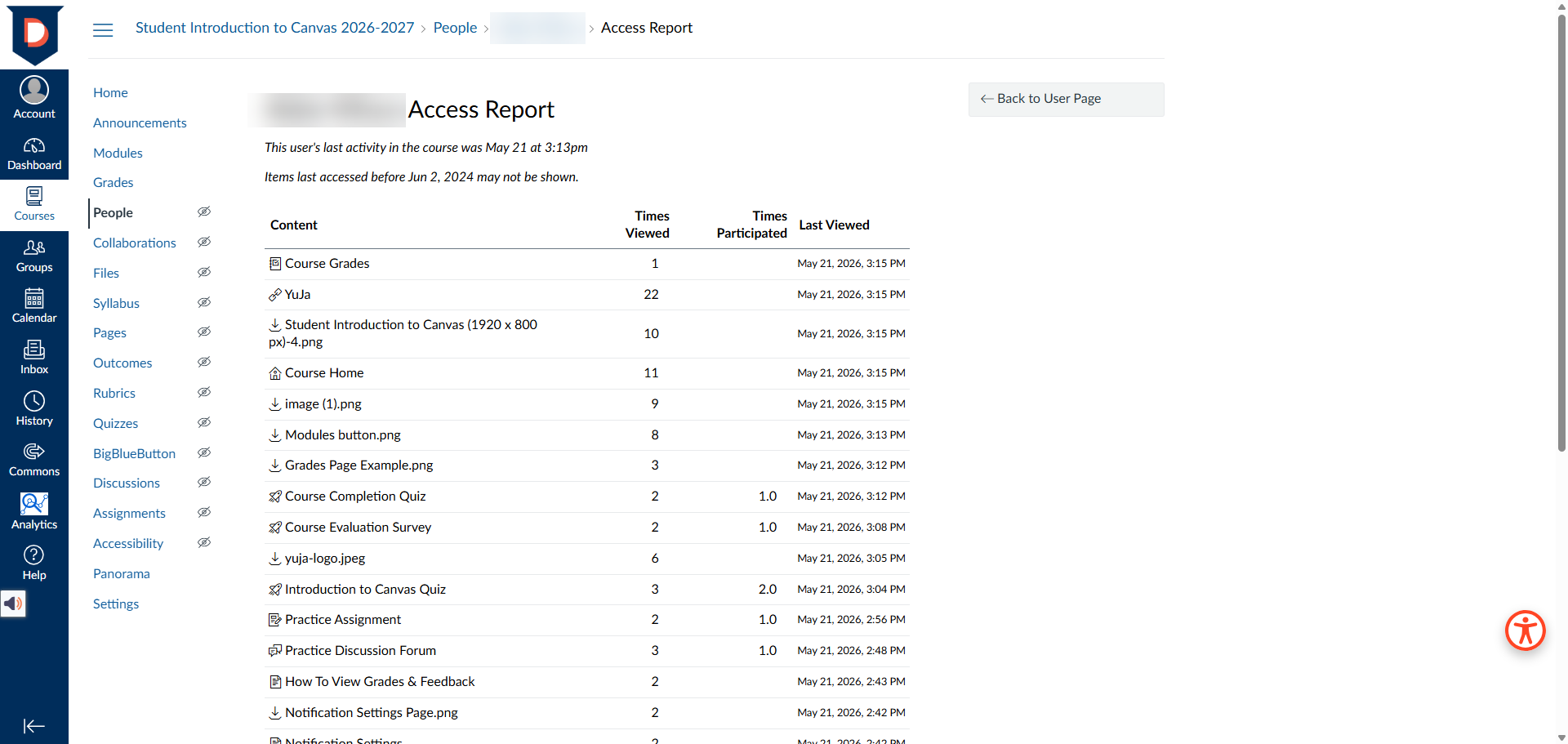
From left to right, each row shows:
- Content: the item name with an icon of content type
- Times Viewed: how many times the student viewed that specific material
- Times Participated: how many times the student submitted something (such as a discussion board, quiz, or assignment)
- Last Viewed: the last time the student viewed that item
Each item will only show once with the timestamp of the last time it was viewed. For example, this student viewed a YuJa video 22 times and last viewed it on May 21, 2026, 3:15 PM. It does not show every timestamp of when YuJa was viewed.
Was this article helpful?
That’s Great!
Thank you for your feedback
Sorry! We couldn't be helpful
Thank you for your feedback
Feedback sent
We appreciate your effort and will try to fix the article