Introduction
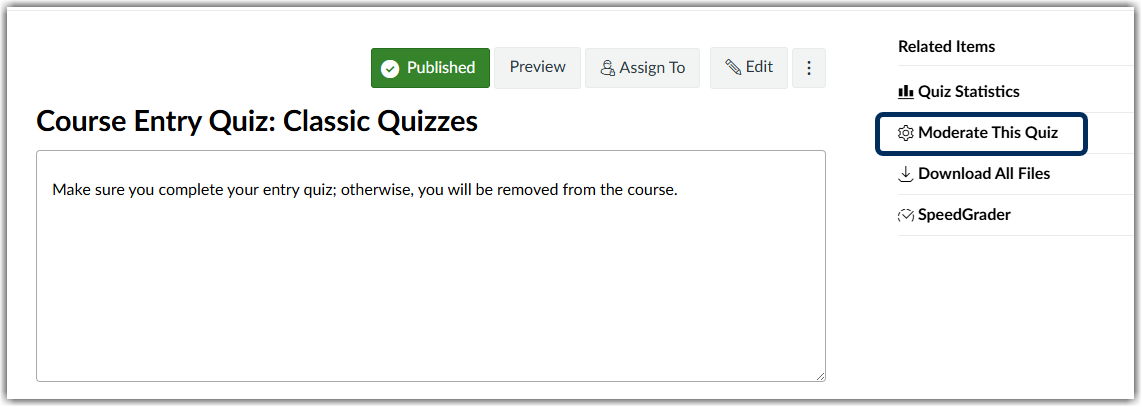
There are a number of ways you can access student reports, or logs. However, if you are only interested in student logs for a specific quiz, it is easiest to go through the Moderate this Quiz feature from the specific quiz page.
Accessing Student Attempts, Option One
- Click on the link for the quiz you wish to view logs.
- Click on the Moderate this Quiz link located on the righthand side of the quiz page.
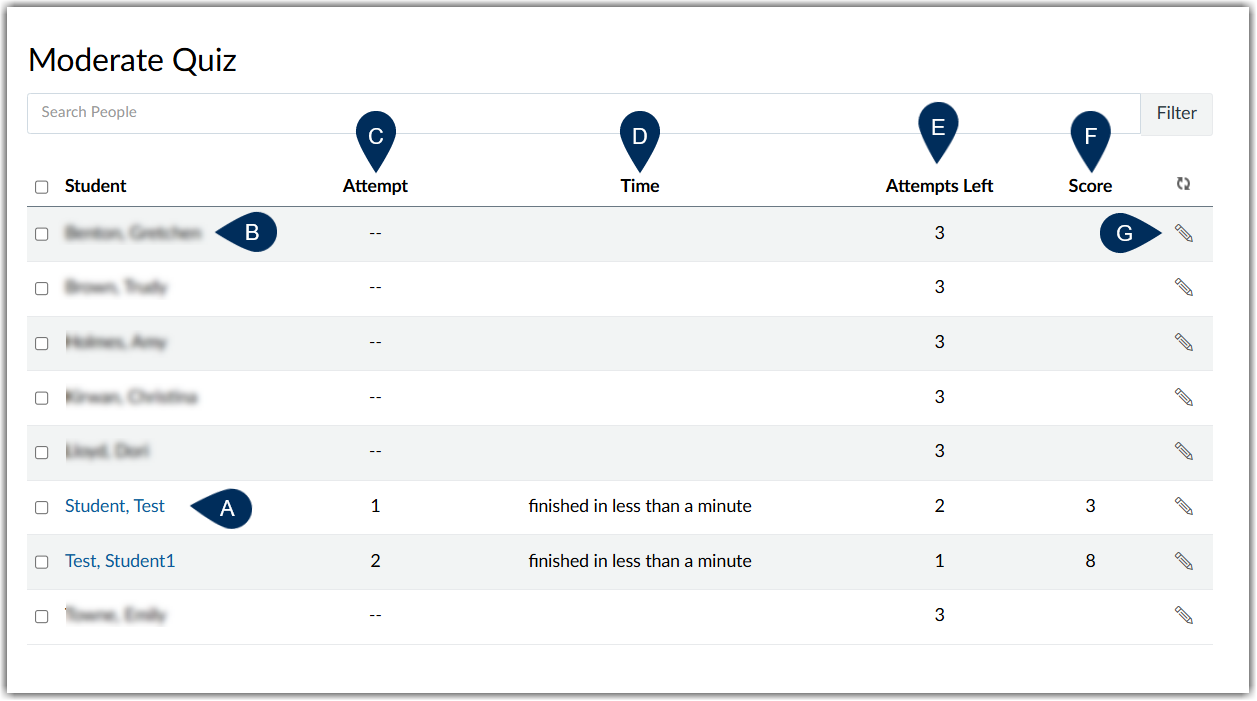
Moderate Quiz Homepage
You will see the following from the Moderate Quiz homepage:
- Students who have attempted the quiz thus far as hyperlinks (marker A)
- Students who have not taken the quiz will also be listed but not hyperlinked (marker B)
- The number of attempts taken (marker C)
- Length of time taken for the attempt (marker D)
- If the student is currently taking the quiz or has not submitted the quiz, and the quiz has not yet closed, you will see the live time log indicating the student has the quiz open. If a student believes they have finished the quiz, but you see this, make sure they go back into the quiz, resume attempt, and submit their work before the quiz closes.
- The number of attempts left (if applicable) (marker E)
- Score (marker F)
- A pencil icon to add an extension or an additional attempt (marker G)
Click on a hyperlinked student name to access student work.
Accessing Student Attempts, Option Two
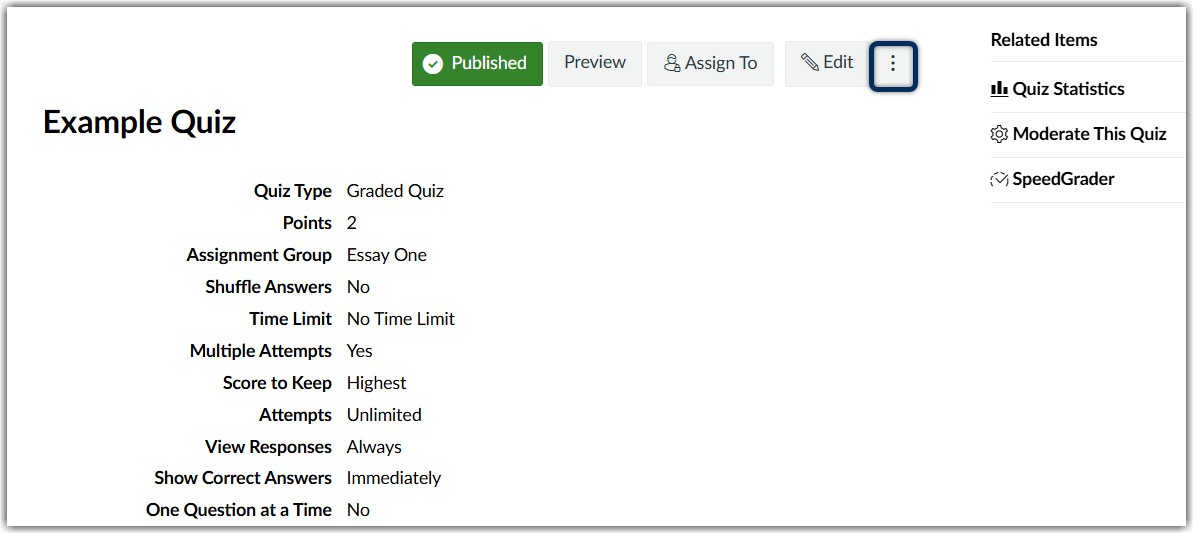
- Select the three-dot menu next to the Edit button
- From the dropdown menu, select Show Student Quiz Results
- Students will now be divided into two columns, though who attempted (hyperlinked) and those who did not.
- Clicking on a hyperlinked name from this option will take you to the Attempts Page.
Attempts Page
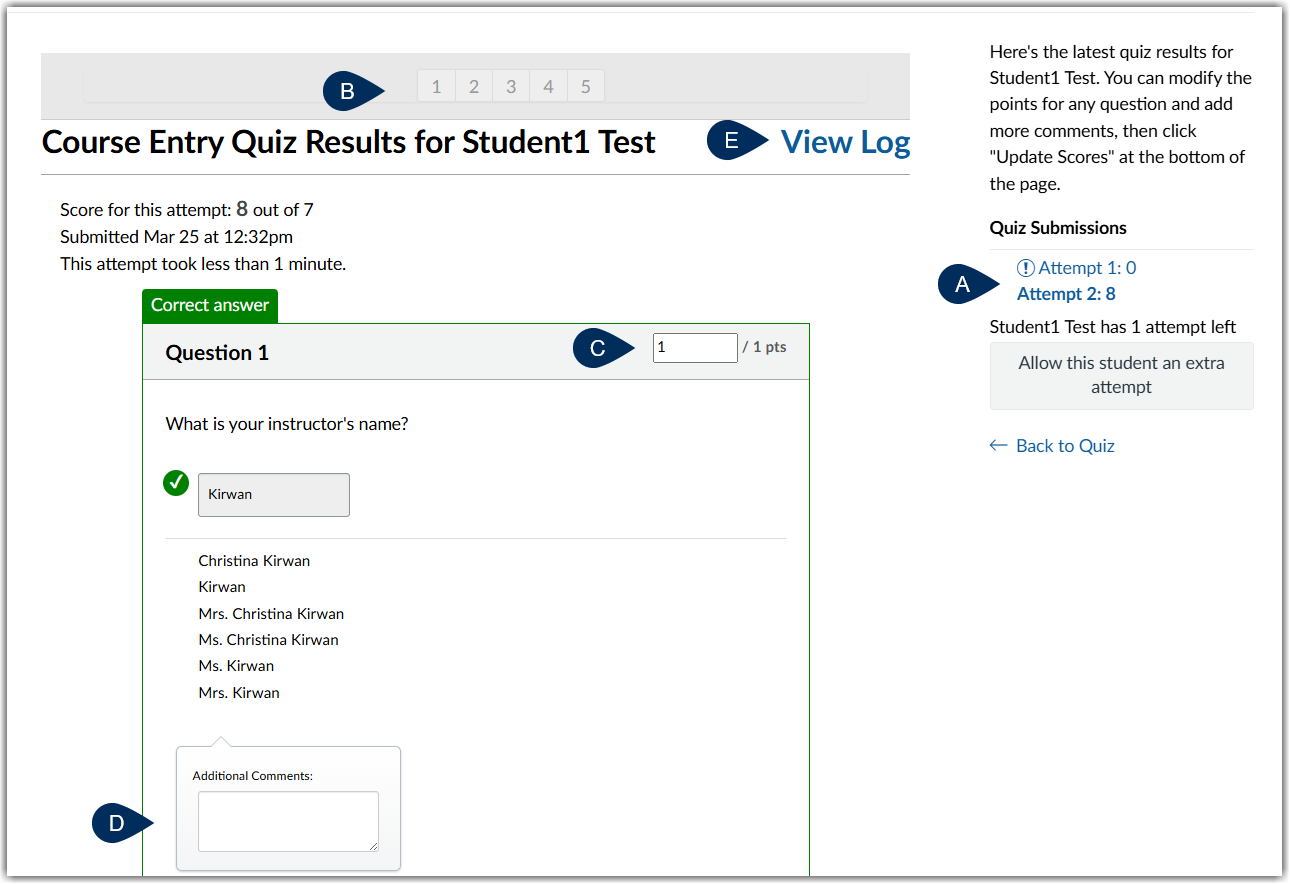
The attempts page will look similar to a SpeedGrader view. From this page you can:
- View all of the student's attempts one at a time (marker A)
- Jump to a specific question (marker B)
- Adjust individual points (marker C)
- Provide additional comments for specific questions (marker D)
- Add fudge points (located at the bottom of the page)
- View log (marker E)
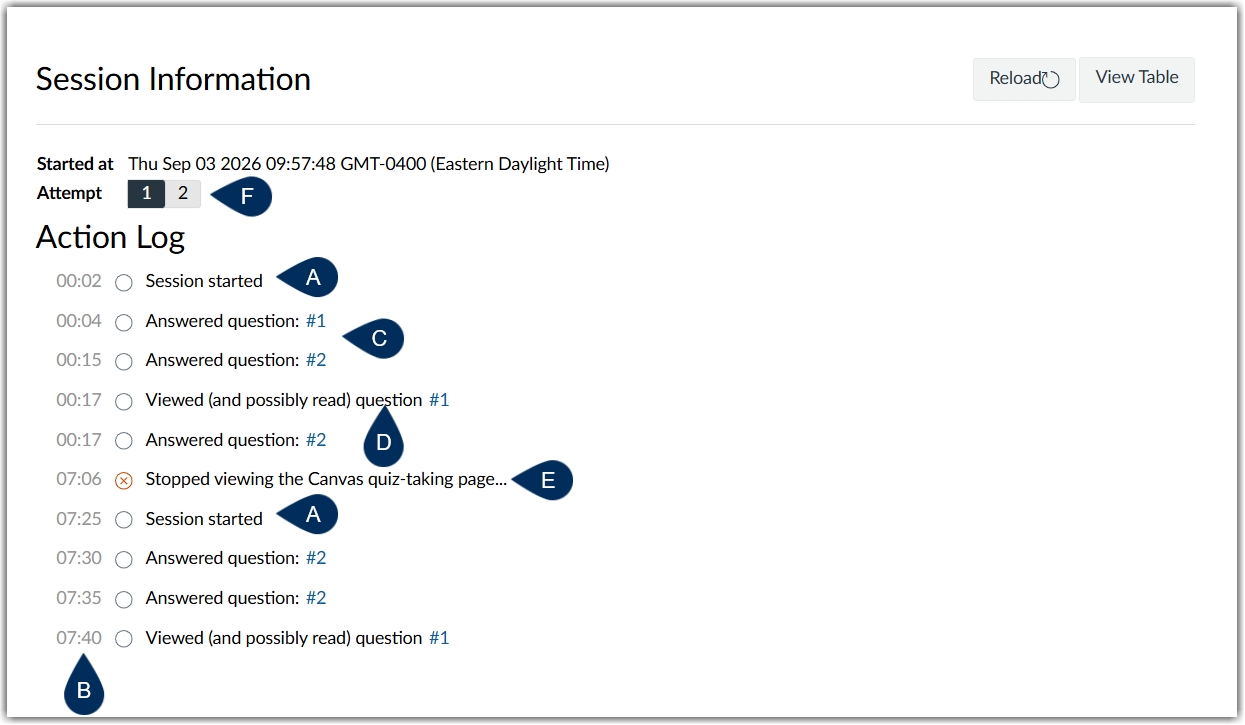
Quiz Log Page
From this page, you can toggle between attempts to view the student's Action Log. With the action log, you can view:
- When the student started or resumed the quiz as Session Started (markers A)
- How long they spent of each question (marker B)
- Each question attempted as a hyperlink (marker C)
- With this hyperlink, you can view their selection(s) for each attempt
- Questions the student has viewed (and possibly read) for each question not answered (marker D)
- Stopped viewing the Canvas quiz-taking page, meaning the student has navigated away from the quiz by closing the browser tab, opened a new tab, or navigated to a different program (marker E)
- View the data for each attempt made (marker F)
Was this article helpful?
That’s Great!
Thank you for your feedback
Sorry! We couldn't be helpful
Thank you for your feedback
Feedback sent
We appreciate your effort and will try to fix the article