Grade Video Quizzes
Most of the quiz question types can be graded automatically based on the answers chosen by the instructor, but short answer questions have to be graded by the instructor.
Locate Quizzes in YuJa
To find short answer questions that need grading, you’ll need to first log in to your YuJa account and follow the steps below.
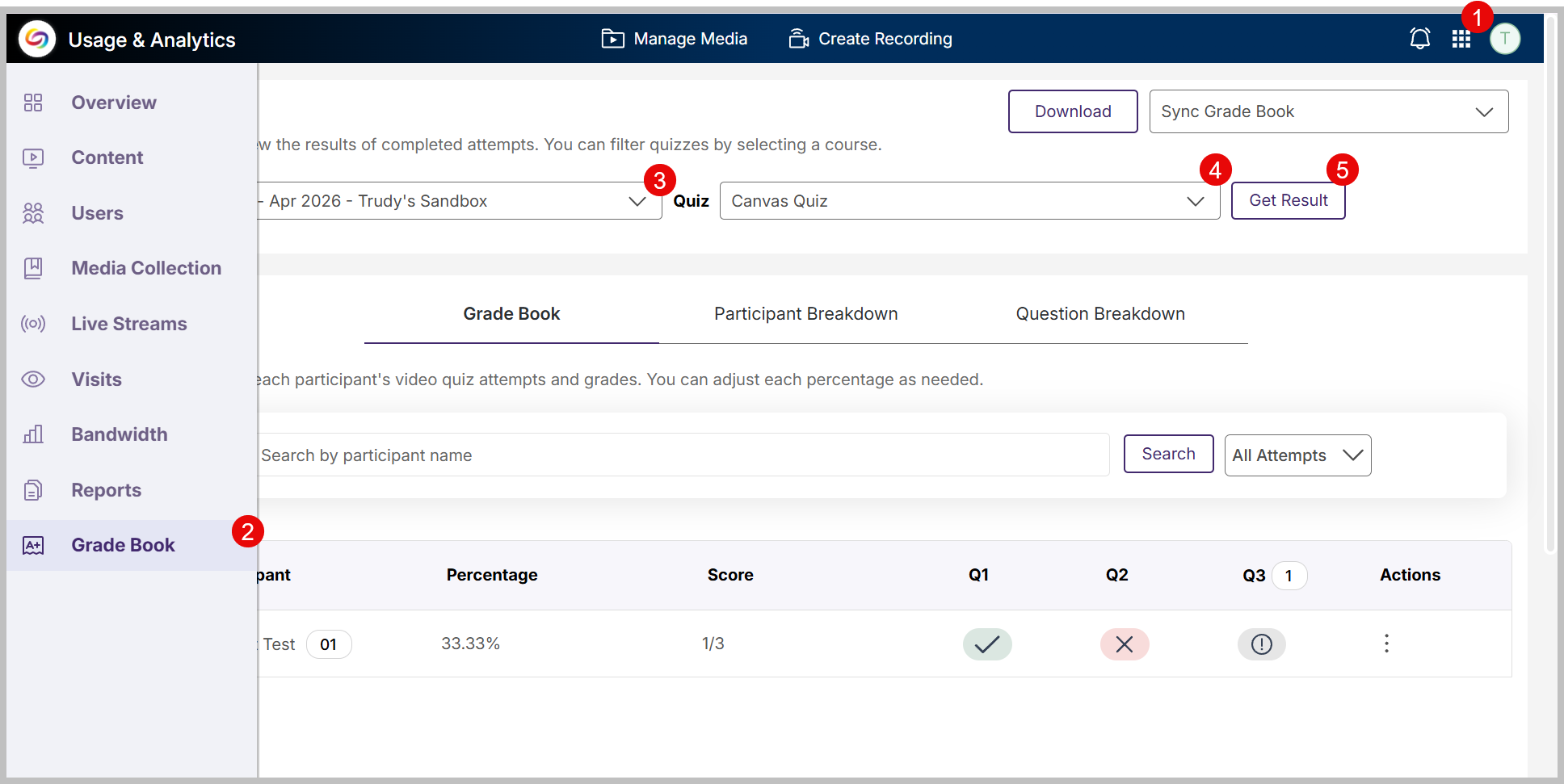
Click on the main menu icon which looks like a three by three grid of squares in the top right corner and choose “Usage & Analytics” from the options.
You will see a new menu on the left side of the screen that expands when you hover over it. Choose the bottom link which says “Grade Book”.
You will see two drop down menus. From the one on the left, select your course name.
From the one on the right, select the name of the quiz.
Once you have selected the course and quiz, click “Get Result” to bring up the quiz with short answer questions to be graded.
Grade Short Answer Questions
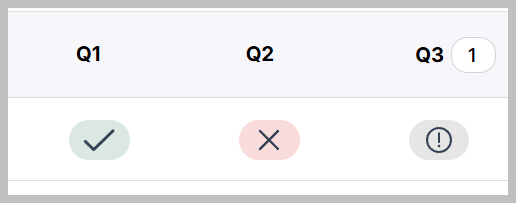
Quiz questions that have already been graded will appear red for incorrect or green for correct. Questions that need to be graded will appear gray.
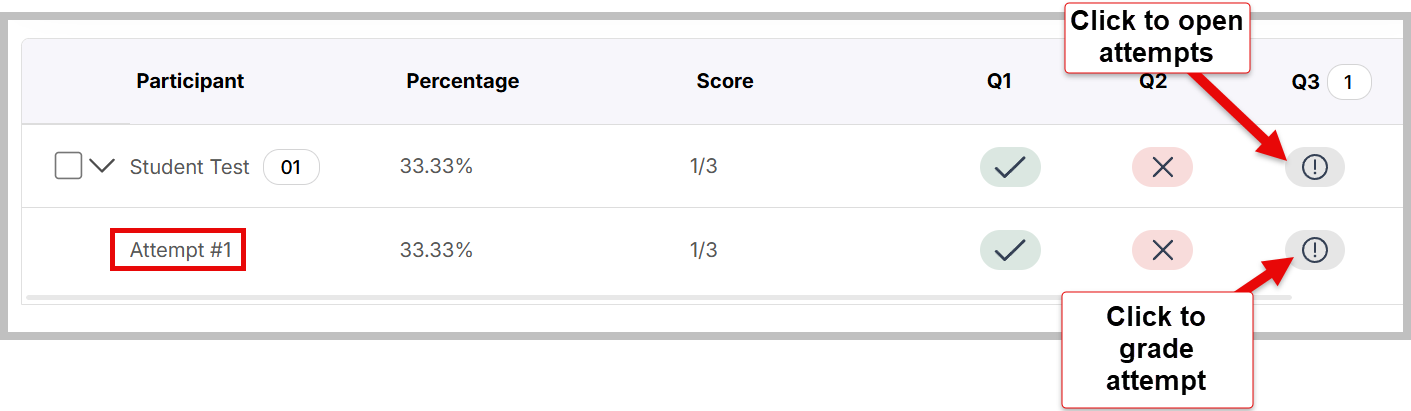
When you click on the gray icon, attempts by the student will appear below. Click on the attempt you want to grade.
A box will open with the name of the quiz, a drop-down box for moving between students, a drop-down box for moving between questions, the question, the student’s answer, and a place to check correct or incorrect or award partial points.
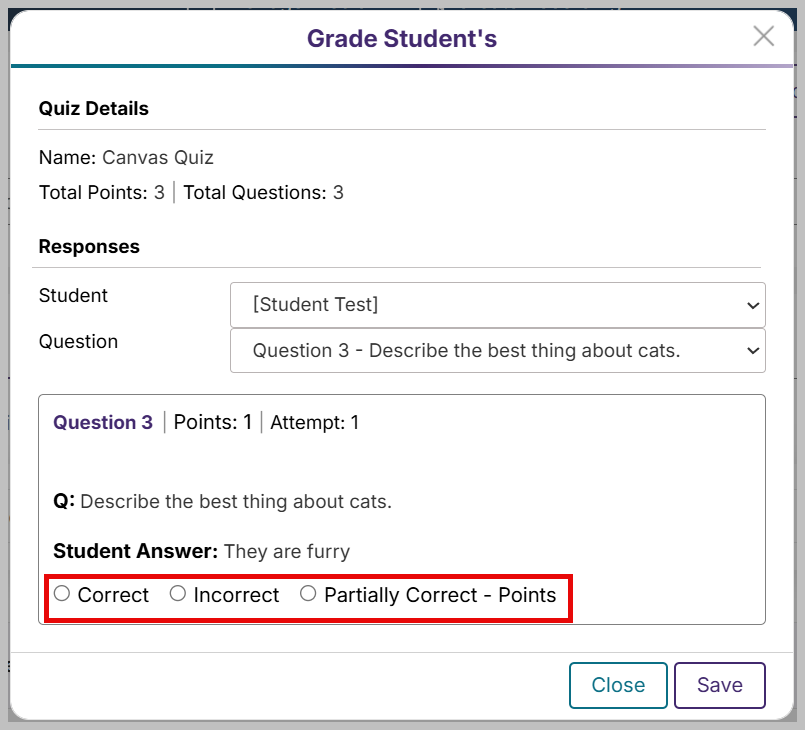 Make sure you save. The grade should be updated in your Canvas grade book.
Quick Tips
You might have noticed that there is a button in the gradebook for “Sync gradebook” with the choices “On-Demand LMS Student Gradebook Sync” and “On-Demand LMS Quiz Gradebook Sync”. These are for times when there seems to be a disconnect between YuJa and Canvas. Be aware that using these will overwrite any grades that you have changed or adjusted to YuJa assignments in your Canvas grade book. The “On-Demand LMS Student Gradebook Sync” can be used for individual students. The “On-Demand LMS Quiz Gradebook Sync” will sync the quiz you’ve selected for all students in the course. Use caution when engaging these options.
Was this article helpful?
That’s Great!
Thank you for your feedback
Sorry! We couldn't be helpful
Thank you for your feedback
Feedback sent
We appreciate your effort and will try to fix the article