Sometimes, we may experience issues with websites, including Canvas. Whether that be finding something in our courses, needing to reach out to a teacher, getting help from a tech support team or more, we've got just the tools to help you find who to contact.
TABLE OF CONTENTS
Where Is The Help Bar?
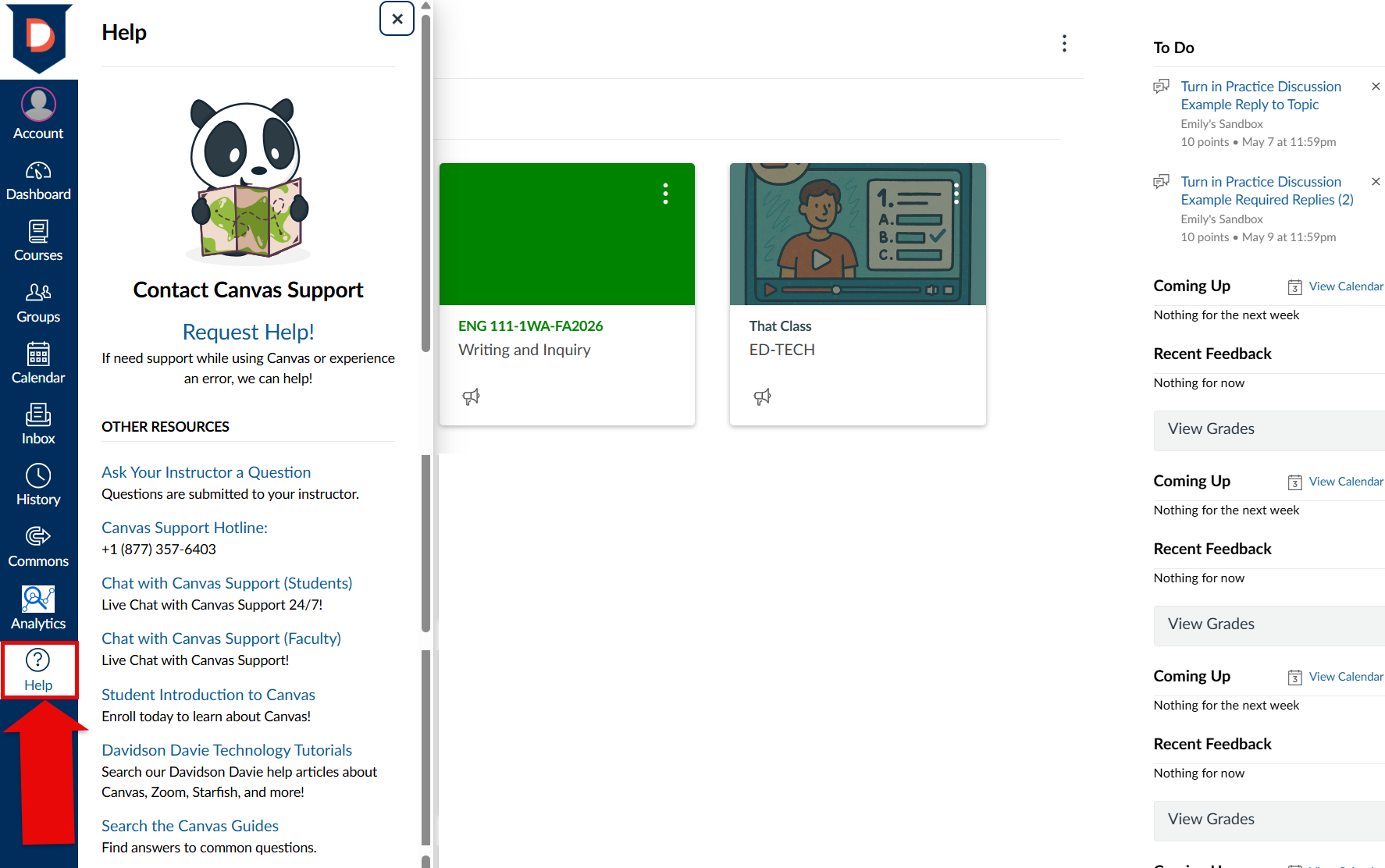
The help bar is located on your Global Navigation bar. This is the navy blue bar on the left in Canvas. Help is located at the bottom of this bar with a "?" icon. Select this to open your Help bar. Take a look at the image below to have a visual of where to locate this.
What Options Are Available To Me?
There are all kinds of support tools that we offer in Canvas that can help with issues you may be experiencing. Check out the list below to see what each option is and what it can do for you.
Request Help
This creates a ticket in Canvas's system. This will create an email between you and a Canvas support team member and will receive quick, but not immediate responses.
Ask Your Instructor a Question
This is where you can directly message your instructor. These messages are sent via your Canvas Inbox and the conversation can be found in that location. Your instructor will receive a notification and reply. This response will be seen in your Canvas Inbox. You will receive a notification once your instructor replies. Notifications are sent as an email to your Davidson-Davie email account. See the screenshot below and follow the steps after to see how to use this tool:
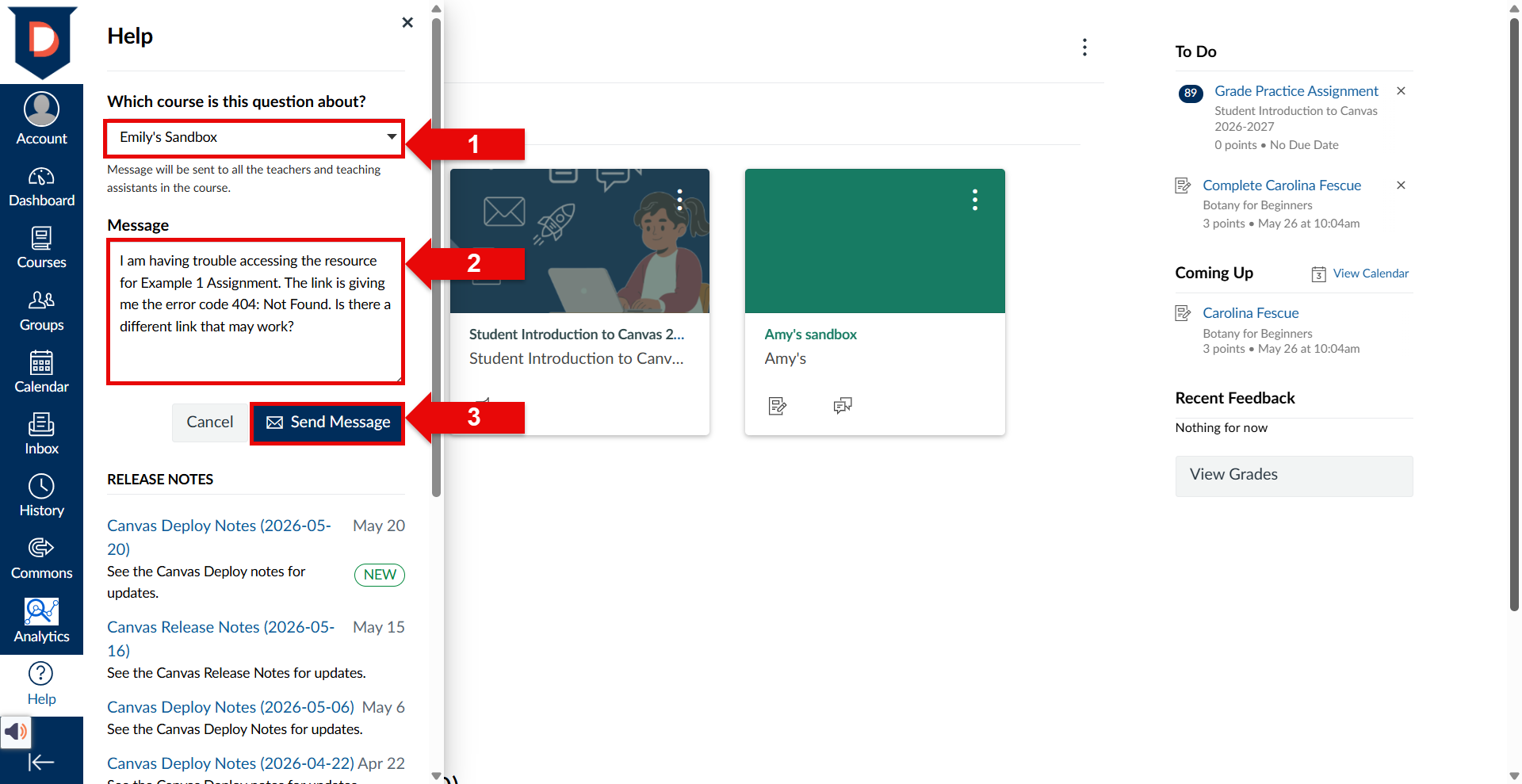
- Which course is this question about? - Select the dropdown menu to view a list of your courses. Select the course you have a question about. The example is messaging about a question in Emily's Sandbox.
- Message - Type the message that you are wanting to send. The example is sending this to her instructor: "I am having trouble accessing the resource for Example 1 Assignment. The link is giving me the error code 404: Not Found. Is there a different link that may work?"
- Send Message - Selecting this button will send the message through the Canvas Inbox. If you decide that you no longer need to send the message, there is a cancel button located to the left of this button.
Keep in mind: A message sent through this option will be sent to all the teachers and teaching assistants in the course. You cannot select a specific instructor.
Canvas Support Hotline
This is the phone number you can call that will connect you with a Canvas representative.
Chat with Canvas Support (Students)
This is a Live Chat with a real person through Canvas Support 24/7. They are able to chat at anytime on any day with you. After the conversation ends, you will receive an email that details what the representative did and every message sent and received during the chat. This is taken from the email and you may notice it mentions the chat is from a different time zone. Do not worry, if you need a timestamp of when the conversation was held, you can use the timestamp on the summary email that was sent to you. Check out the screenshot below to see what the chat looks like! You will also find a text version of the conversation below the screenshot. 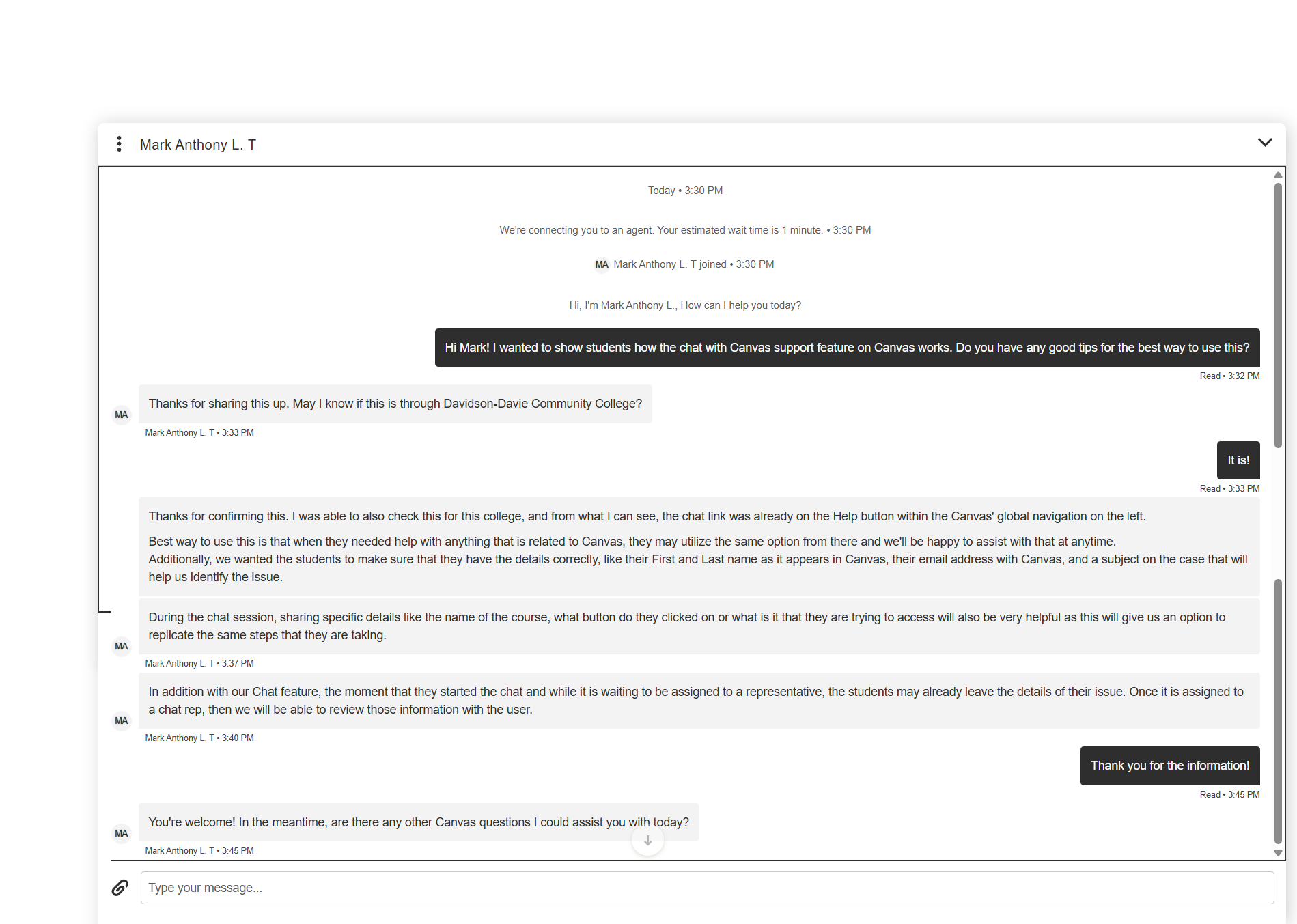
Conversation started • 5/22/2026, 03:30:34 AM GMT+8
Mark Anthony L. T joined the conversation • 03:30:42 AM GMT+8
Hi, I'm Mark Anthony L., How can I help you today?
Emily Towne • 5/22/2026, 3:32:40 AM
Hi Mark! I wanted to show students how the chat with Canvas support feature on Canvas works. Do you have any good tips for the best way to use this?
Mark Anthony L. T • 5/22/2026, 3:33:23 AM
Thanks for sharing this up. May I know if this is through Davidson-Davie Community College?
Emily Towne • 5/22/2026, 3:33:38 AM
It is!
Mark Anthony L. T • 5/22/2026, 3:36:33 AM
Thanks for confirming this. I was able to also check this for this college, and from what I can see, the chat link was already on the Help button within the Canvas' global navigation on the left.
Best way to use this is that when they needed help with anything that is related to Canvas, they may utilize the same option from there and we'll be happy to assist with that at anytime.
Additionally, we wanted the students to make sure that they have the details correctly, like their First and Last name as it appears in Canvas, their email address with Canvas, and a subject on the case that will help us identify the issue.
Mark Anthony L. T • 5/22/2026, 3:37:34 AM
During the chat session, sharing specific details like the name of the course, what button do they clicked on or what is it that they are trying to access will also be very helpful as this will give us an option to replicate the same steps that they are taking.
Mark Anthony L. T • 5/22/2026, 3:40:48 AM
In addition with our Chat feature, the moment that they started the chat and while it is waiting to be assigned to a representative, the students may already leave the details of their issue. Once it is assigned to a chat rep, then we will be able to review those information with the user.
Emily Towne • 5/22/2026, 3:45:32 AM
Thank you for the information!
Mark Anthony L. T • 5/22/2026, 3:45:49 AM
You're welcome! In the meantime, are there any other Canvas questions I could assist you with today?
Emily Towne • 5/22/2026, 3:47:04 AM
That will be it. Thank you!
Mark Anthony L. T • 5/22/2026, 3:47:12 AM Read
I appreciate your time and thanks for contacting Canvas Support. Have a great one!
Thanks for contacting support. If you’d like a copy of the chat transcript please click the 3 dot icon at the top left of this chat window to download.
Student Introduction to Canvas
This is a free, short, self-enroll, and self-paced course that shows you the basics of using Canvas. This is a great tool to get started and familiarize yourself with the website. It is not a requirement by the school and does not affect your grade. Some instructors may require their students to complete this course to make sure students are more confident with their use in Canvas.
Davidson Davie Technology Tutorials
These are help articles that demonstrate how to work with Canvas, Zoom, Starfish, YuJa, and other technology tools associated with Davidson-Davie. These are located on our FreshDesk site.
Search the Canvas Guides
Find answers to commonly asked questions that Canvas receives! These guides are general Canvas guides, so if you are looking for articles more specific to the Davidson-Davie Canvas, it is recommended to go to the Davidson Davie Technology Tutorials.
Tips
- The images depicting the Help bar do show extra tools that are available to someone in an instructor role. You will not see Chat with Canvas Support (Faculty).
- When requesting assistance with an issue, be specific! Share the course name, what you are trying to access, what error you are receiving, and a screenshot. These may vary depending on what you are reporting, but the more details, the quicker your issue will be resolved.
- Notifications received from your Canvas Inbox (as described in the Ask Your Instructor a Question tool) will be received as long as you do not turn off inbox notifications in settings. If you are not receiving notifications, please check your settings in your account to verify that these are not turned off. Notifications are preset as "on" when you first login and will be received by your Davidson-Davie email account.
Was this article helpful?
That’s Great!
Thank you for your feedback
Sorry! We couldn't be helpful
Thank you for your feedback
Feedback sent
We appreciate your effort and will try to fix the article