At the beginning of the semester, you may want to copy all or some content from a previous Canvas course into your new course shell. To do this, you will utilize the Import function.
Import Course Content
- Go to the course you'd like to import content into.
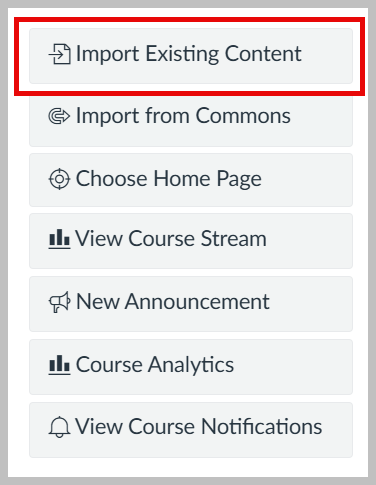
- On the right side of the screen where you see a list of options, choose the option for "Import Existing Content".
- On the next page, choose "Copy a Canvas Course" in the Content Type drop-down menu.
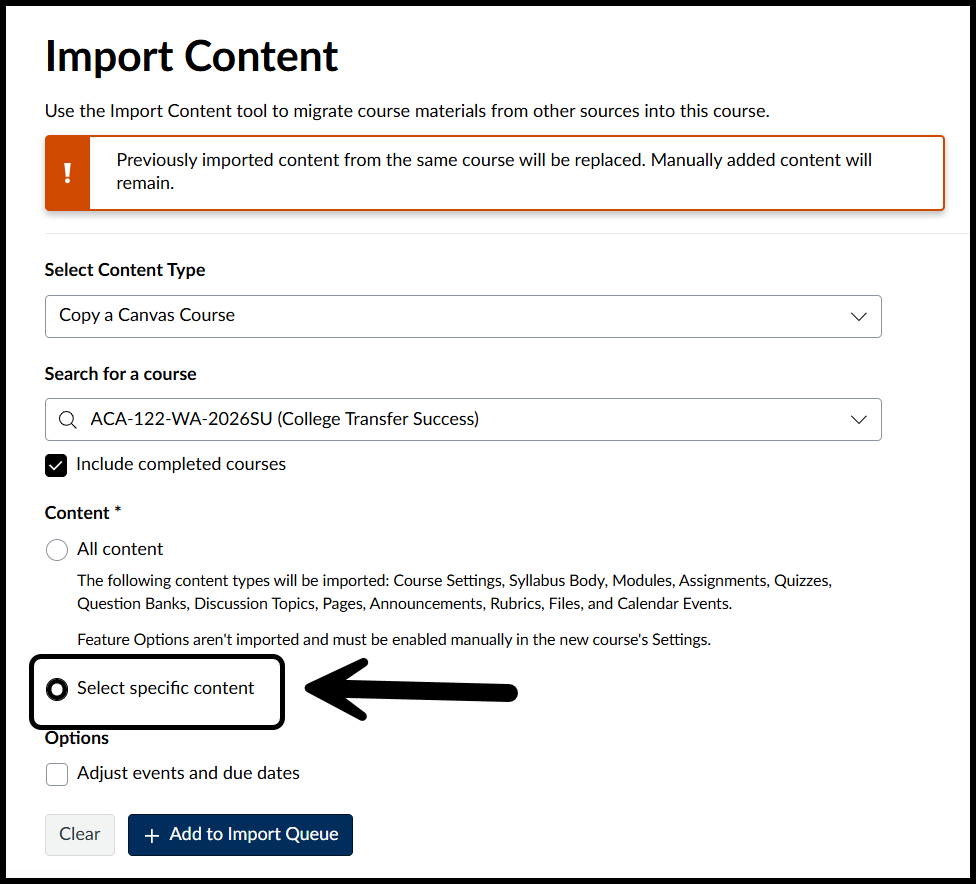
- Search for the course that currently holds the content you'd like to copy.
- Click the "Select specific content" radio button
- You can also check the box to adjust events and due dates based on the dates of your new course.
- Now you're ready to click "Add to Import Queue"
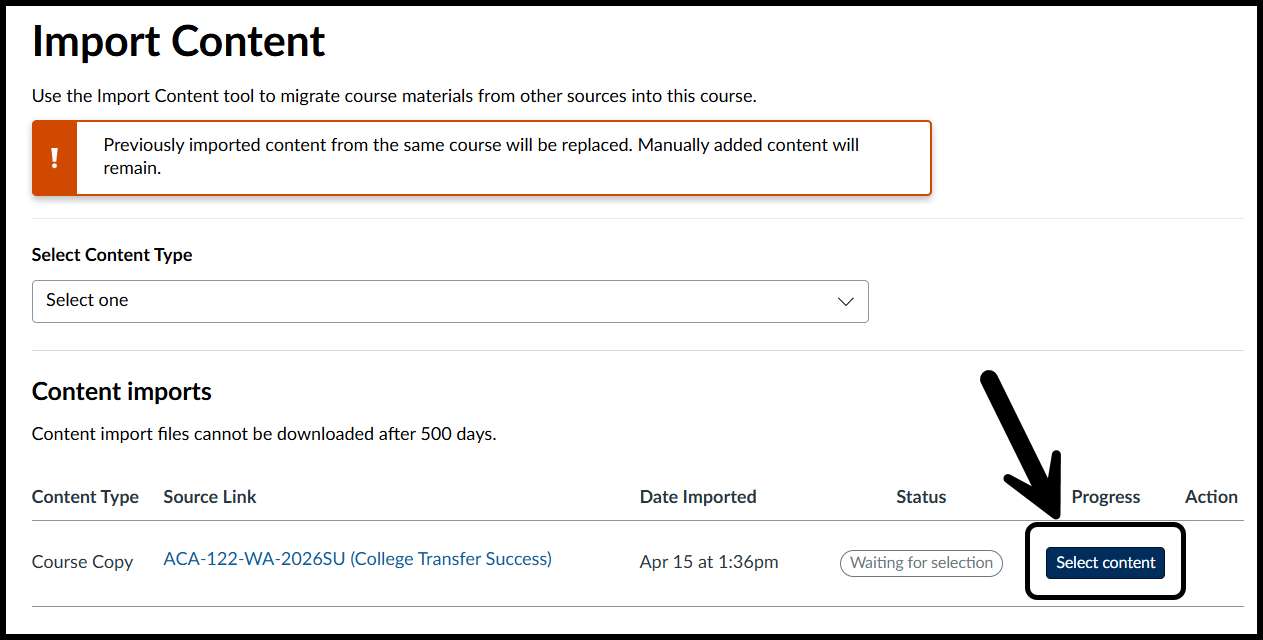
- A progress bar will be shown lower on the page so that you can track the progress of your import.
- Once complete, click on the "Select content" button.
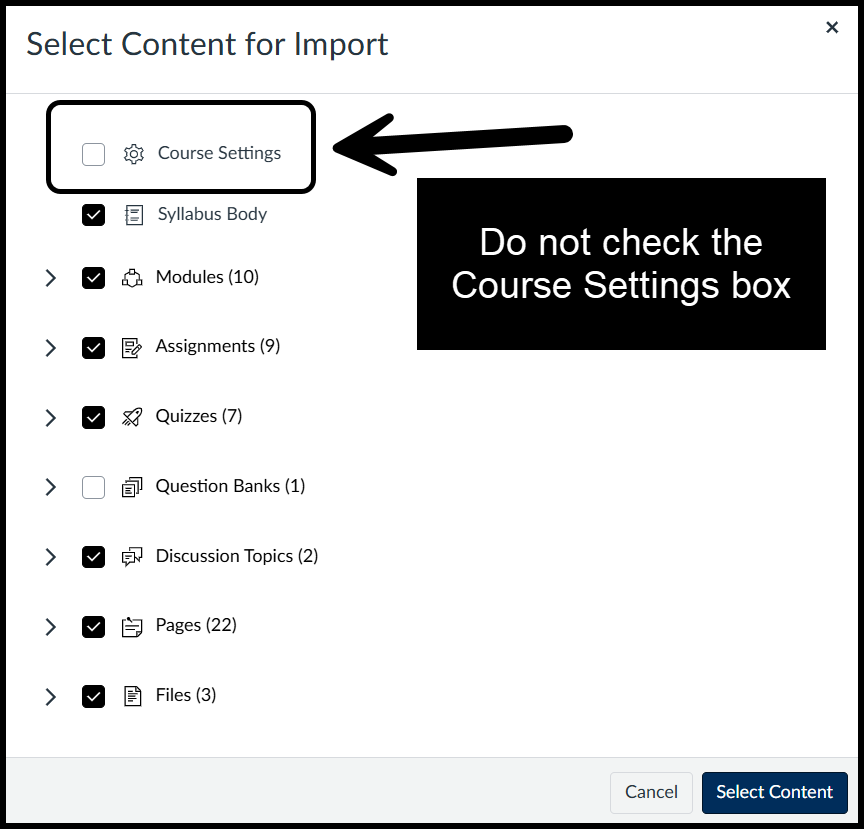
- The popup provides a list of content for you to choose from. Do not click on the Course Settings button when pulling content from a template or old Moodle course. Selecting that option will override the Front Page template that's built into your course shell.
- Once the process is complete, your course content will show up in the Modules section.
Oops, I Clicked the "Course Settings" Box
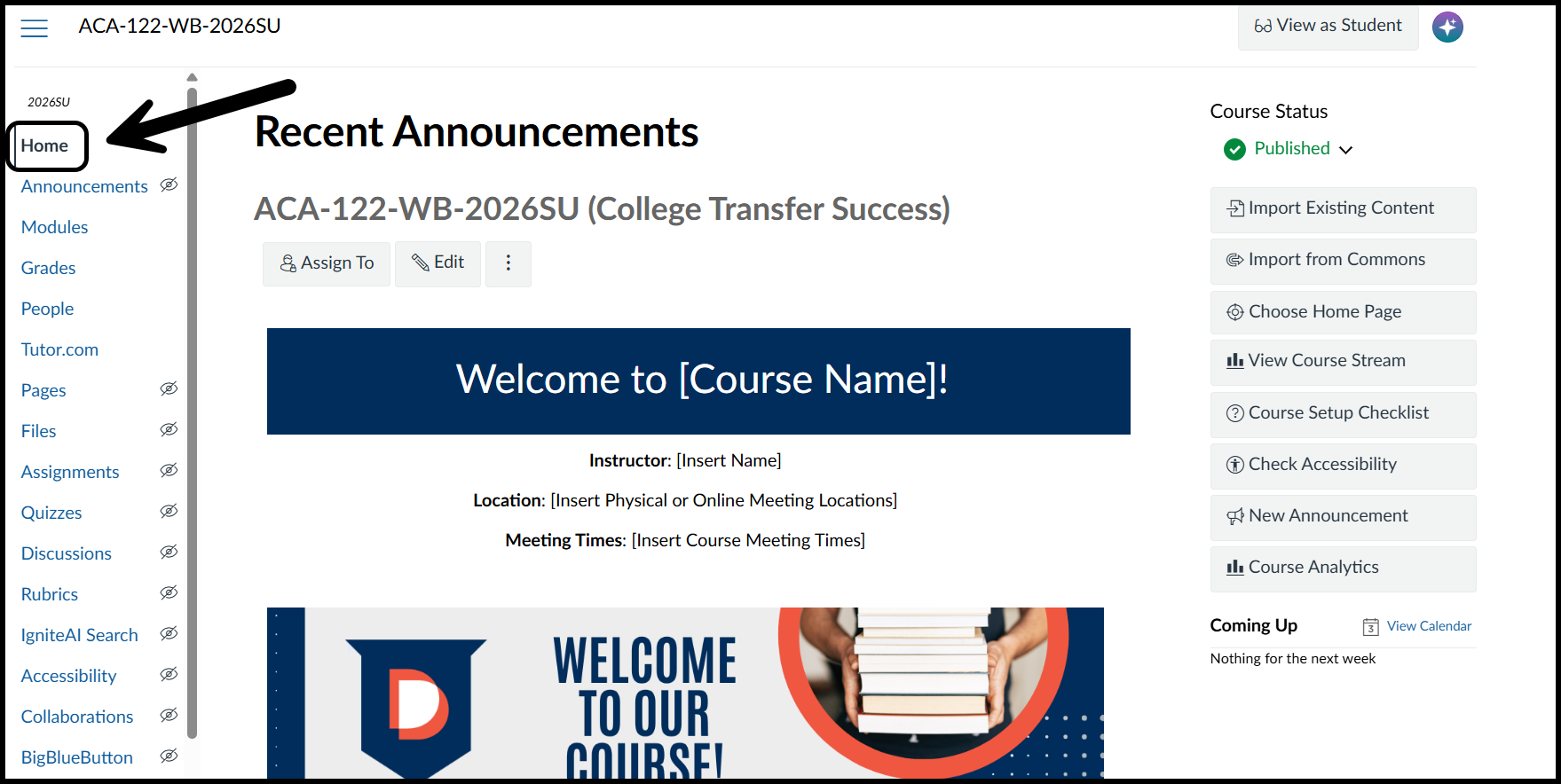
After content is imported, your "Home" page should still contain the template for you to edit, as shown below.
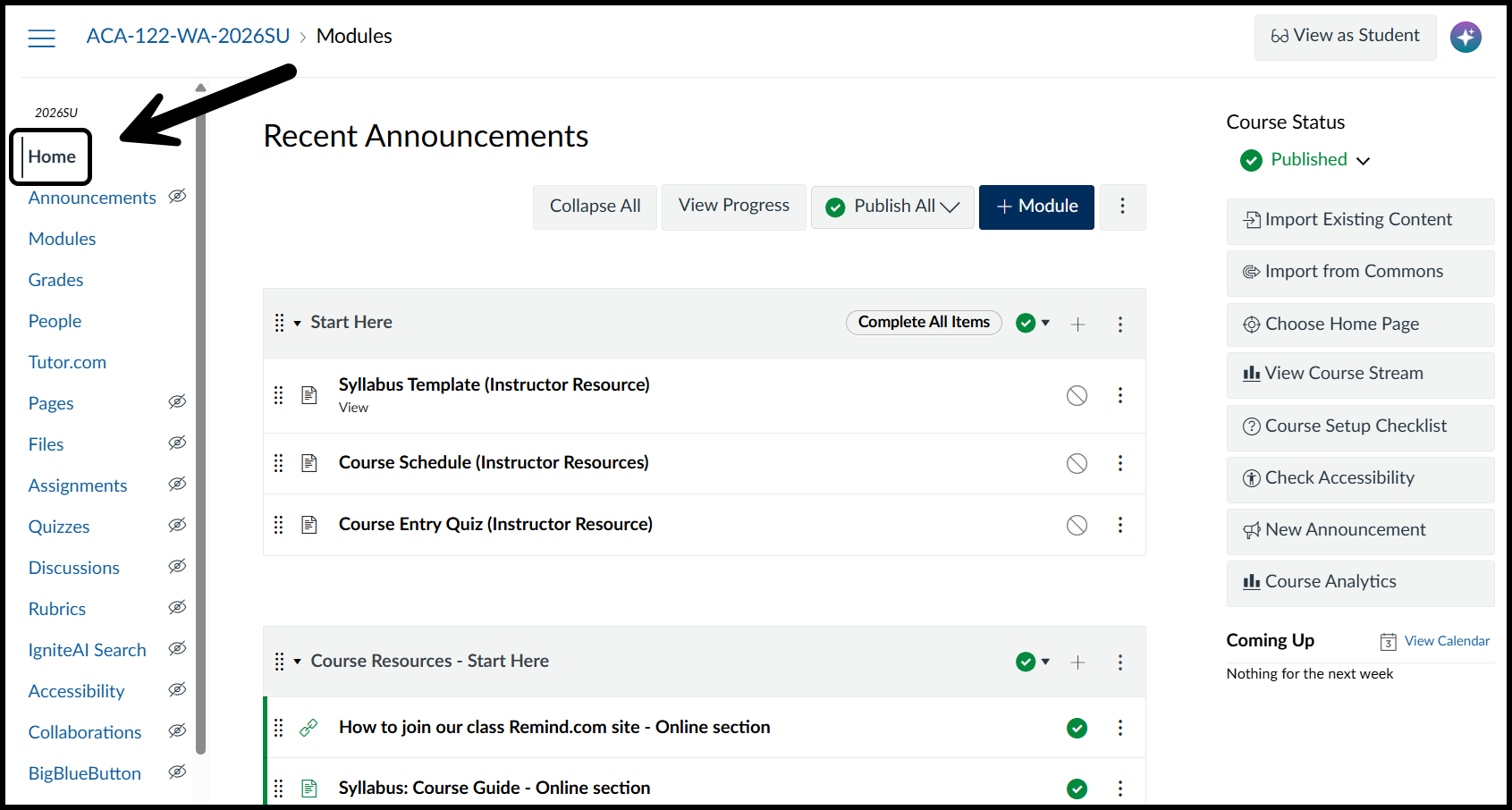
If your Home page shows the modules, as shown below, you'll need to change the home page.
To change the home page:
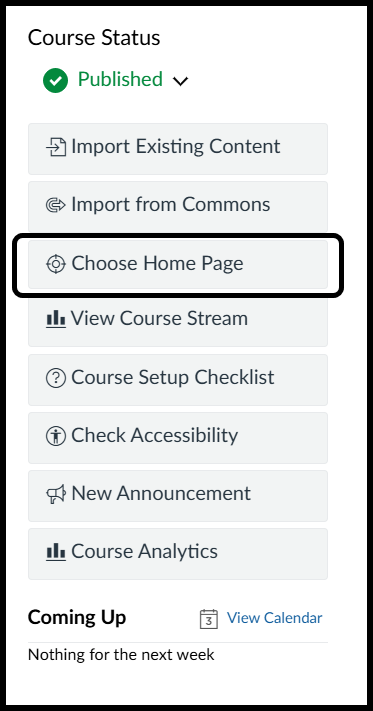
- Click on "Choose Home Page" from the menu on the right side of the screen.
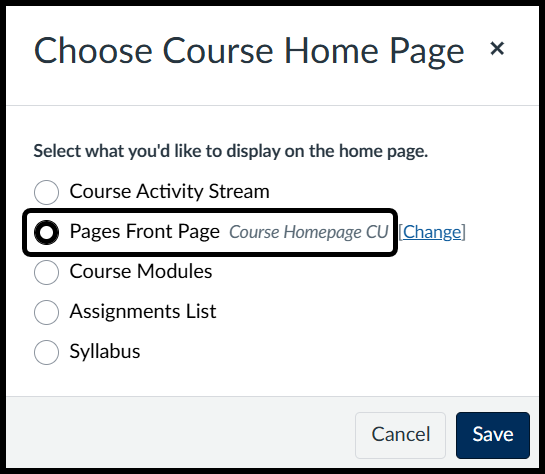
- In the popup box, choose "Pages Front Page" from the list of options and "Save"
- Now your Home page will contain the template for you to edit.
Was this article helpful?
That’s Great!
Thank you for your feedback
Sorry! We couldn't be helpful
Thank you for your feedback
Feedback sent
We appreciate your effort and will try to fix the article