TABLE OF CONTENTS
Introduction
Quickly edit the due dates for all of your assignments from one page.
- In the Course Navigation menu, click the Assignments tab.
- On the Assignments page, click the three-dot Options menu to select the Edit Assignment Dates option
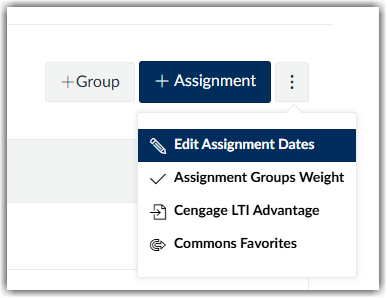
Edit Assignment Dates Page
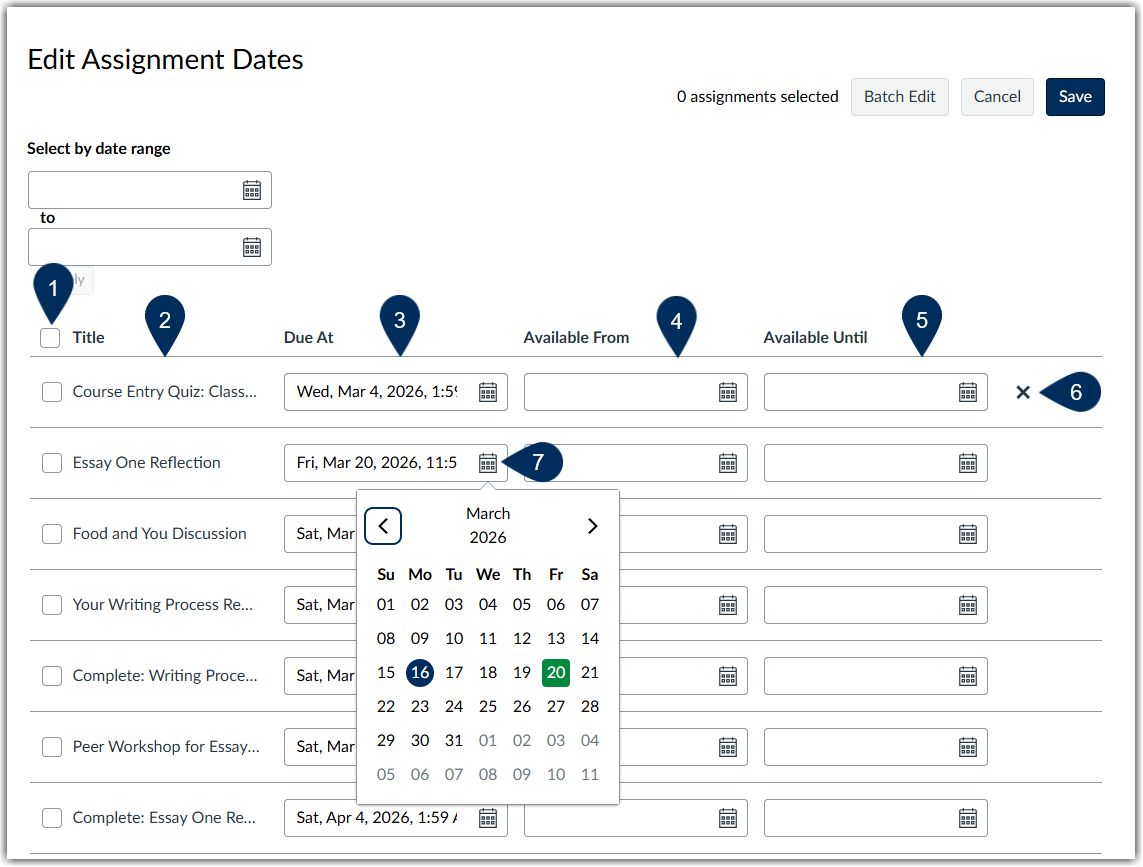
The page will refresh to list all of your created assignments, quizzes, and discussions. From this page, you will see:
- Empty check boxes for each assignment
- Assignment title
- Due at (due date)
- If you have multiple due dates for an assignment, both will appear on this page as well.
- Available From
- Available Until
- If you have edited a date for an assignment, you can revert date changes by selecting the Remove icon.
- Calendar icons to edit the dates for individual assignments
Batch Edit Assignment Dates
You can edit multiple assignment dates at the same time
- Select the check boxes next to the assignment names. Once you have selected your desired assignments, in the upper right-hand corner, you will have a batch edit button
- Select batch edit
- You will have the option to shift due dates and assignment availability dates forward by a number of days or remove dates
- Click Ok to save changes
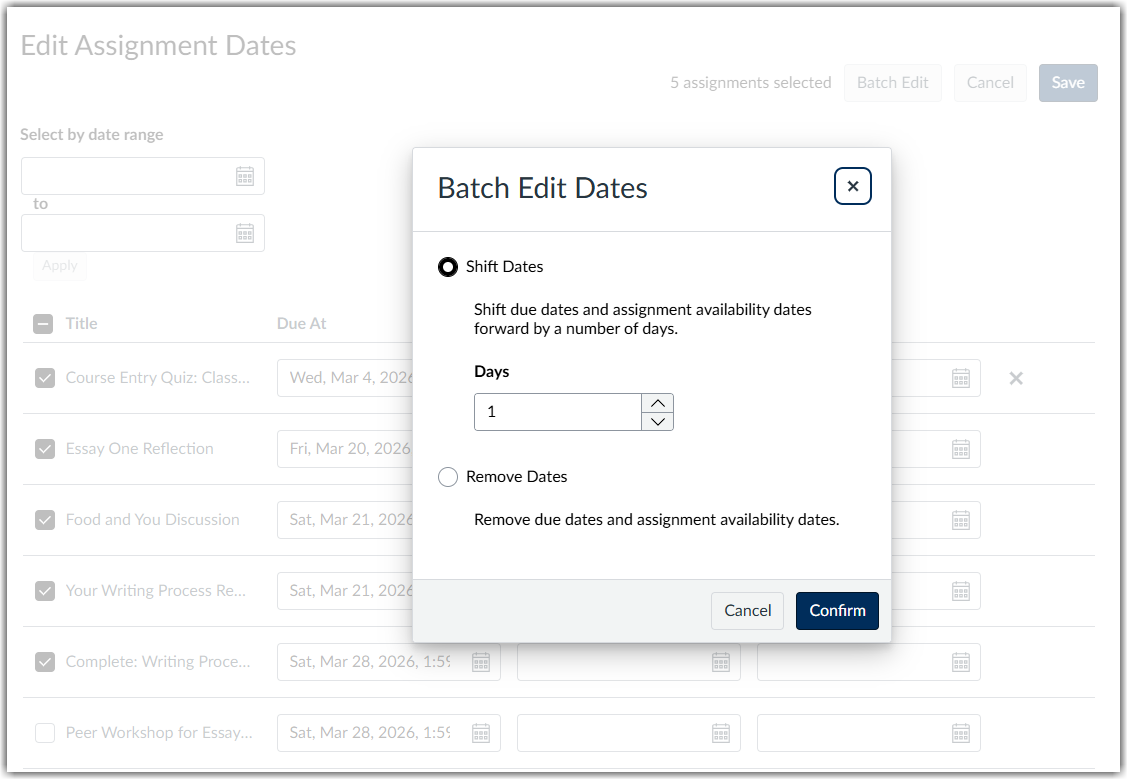
Once you are done with editing individual or bulk assignment dates, save your changes.
Was this article helpful?
That’s Great!
Thank you for your feedback
Sorry! We couldn't be helpful
Thank you for your feedback
Feedback sent
We appreciate your effort and will try to fix the article