TABLE OF CONTENTS
Introduction
As an instructor, you have access to the Copyleaks Teacher Scan Tool. You must upload the Scan Tool into your Canvas course the first time you use it. Then, you can copy the tool into future Canvas courses through a Canvas Import.
Uses for the Copyleaks Teacher Scan Tool:
If you do not create a Canvas assignment with Copyleaks' Plagiarism Detection the Scan Tool is best used for:
- Manually scanning individual assignment submissions, discussion posts, or short answer quiz text.
- Quickly upload documents, including Word, PDF, and PPT, or copy and paste text into the scan tool
- Creating a database for student or teacher-created content that can be used for comparison scans
Add the Scan Tool to your Course
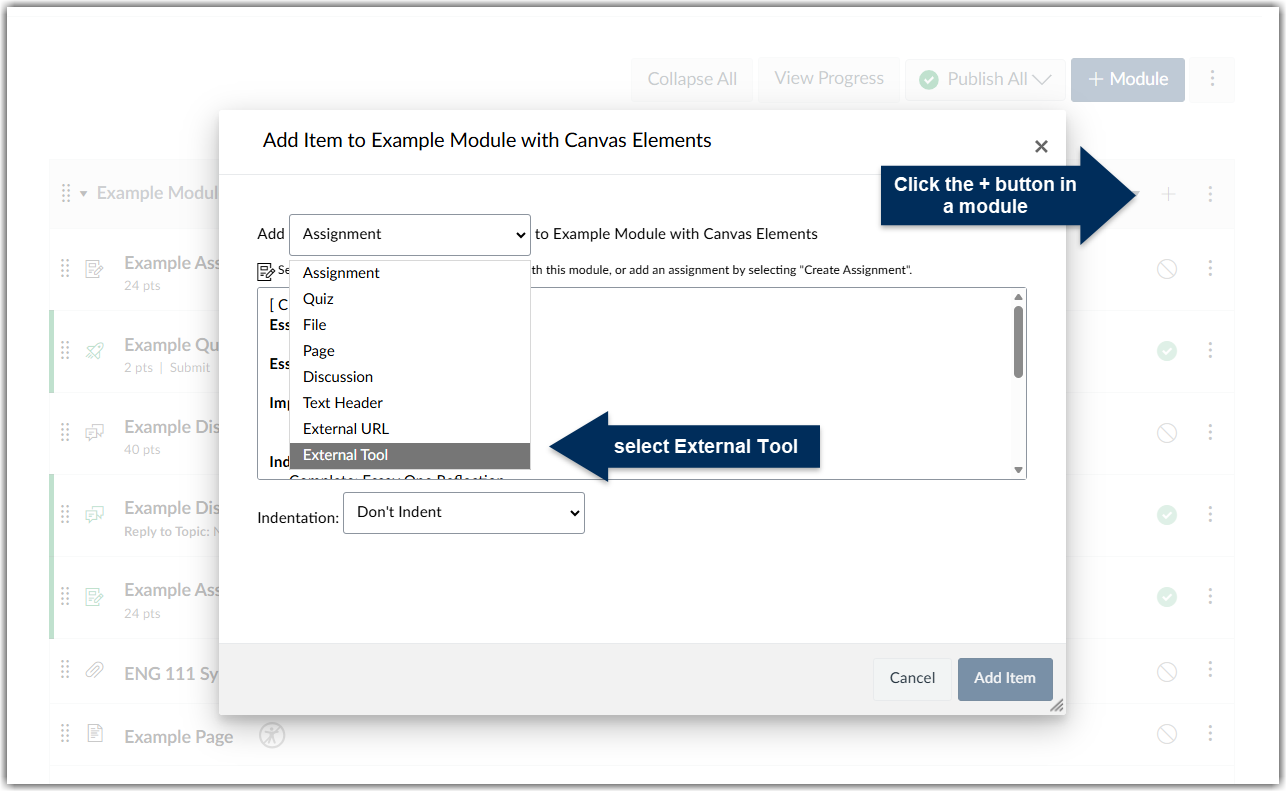
- Select a module from your Canvas course and click on the plus symbol to add An External Tool to the module
- Scroll through the list to find and click on Copyleaks Teaching Scanning Tool. The popup box will visually connect to Copylinks before returning to the Add Item window with the URL populated.
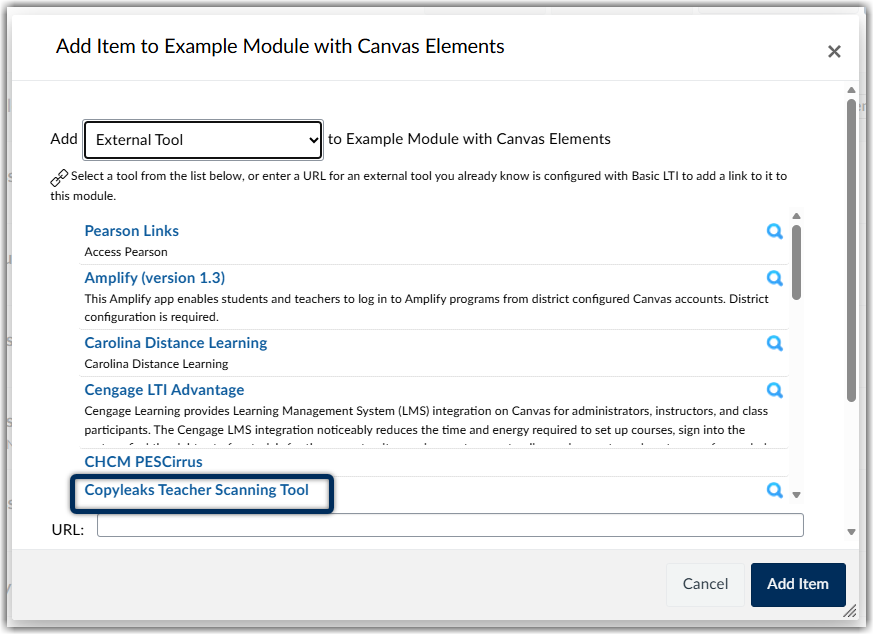
- Click Add Item. The external will be added to the end of the module, unpublished.
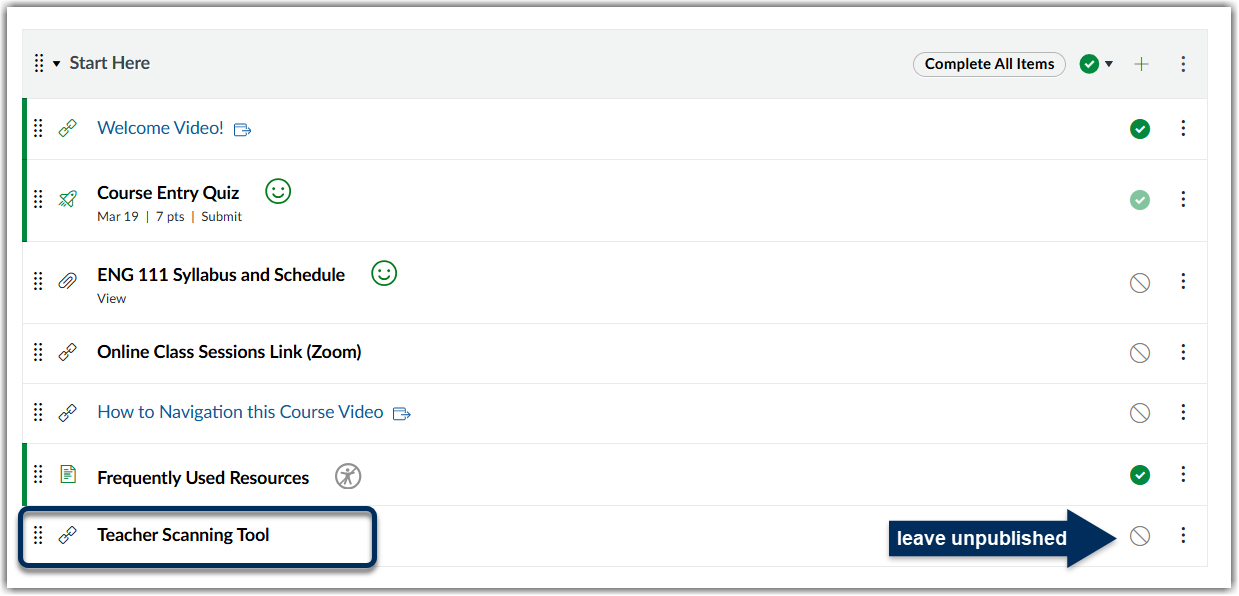
- Leave the link unpublished, but feel free to move it where you see best fit.
- Click on the URL to open Copyleaks in a new window to access the scan tool.
To adjust your scan settings and upload documents to build your database, you can refer to the Using the Copyleaks Scan Tool guide provided by Copyleaks.
Was this article helpful?
That’s Great!
Thank you for your feedback
Sorry! We couldn't be helpful
Thank you for your feedback
Feedback sent
We appreciate your effort and will try to fix the article