TABLE OF CONTENTS
Introduction
The quickest way to provide students with additional attempts or to honor an accommodation is through the Moderate this Quiz feature in Classic Quizzes. If you want to learn more about quiz attempt resets and accommodations, you can read the Canvas tutorials for Extra Attempts and Giving Students More Time. The quiz must be published before you can edit your moderation settings for students.
Providing a Quiz Extension
Open the quiz page and locate the menu options listed on the right-hand side of the page.
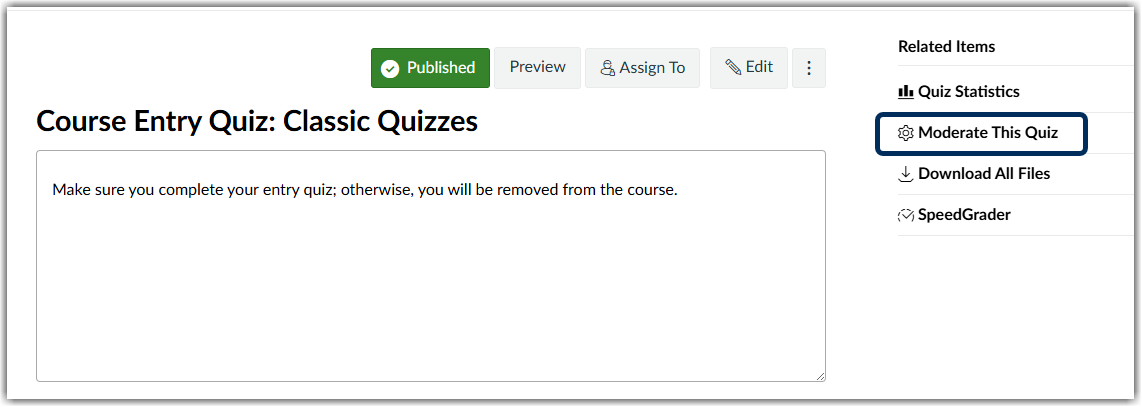
- Select Moderate this Quiz
- Select the pencil Edit icon next to the student's name
- If you want to offer additional attempts or time extensions for multiple students, first select the student names, and then click on the blue hyperlink labeled Change Extensions for # Selected Students. This hyperlink will appear at the end of your student list
- A popup box will appear for you to manually enter the number of attempts and the extra time.
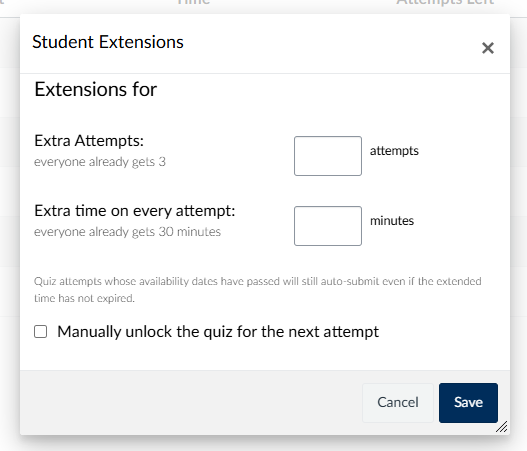
- Depending on your quiz settings, the popup box may or may not have additional reset settings available for you to moderate.
- If the quiz closes while a student is taking a quiz, it will automatically submit the student submission, even if the student did not use all of the allotted time provided.
- Click Save
Extend Time for a Current Attempt
If you need to extend time while a student is currently taking their attempt,
- Open the Moderate this Quiz for the quiz
- You will see a clock icon next to the student's current, and open, attempt. Click on the clock.
- With the popup window that appears, you can manually enter the number of additional minutes to grant the student.
- If a student is currently taking an attempt, and you provide a time extension, you can allow up to 1440 minutes (24 hours).
- Click Extend Time.
Was this article helpful?
That’s Great!
Thank you for your feedback
Sorry! We couldn't be helpful
Thank you for your feedback
Feedback sent
We appreciate your effort and will try to fix the article