Overview
This tutorial will help you post your video quizzes to Canvas and help you grade any questions that aren’t self-grading. Most of the video quiz question types (multiple choice, true/false, select multiple, and fill in the blank) can be graded automatically, but short answer questions have to be checked by the instructor.
Post a Video Quiz in Canvas
To post a video quiz in Canvas, you’ll need to follow these instructions to connect the quiz to the Canvas gradebook.
- Create an assignment.
- Enter the assignment name and desired point value for the assignment.
- Configure assignment options as needed.
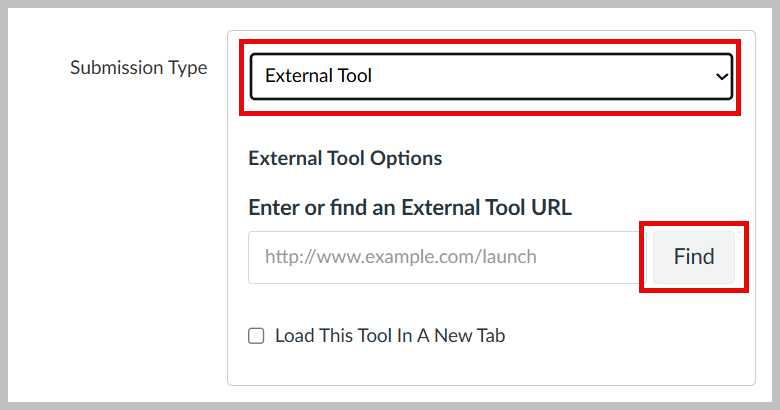
- Scroll down to "Submission Type". Use the drop-down menu to choose "External Tool".
- Click Find to bring up the list of External Tools.
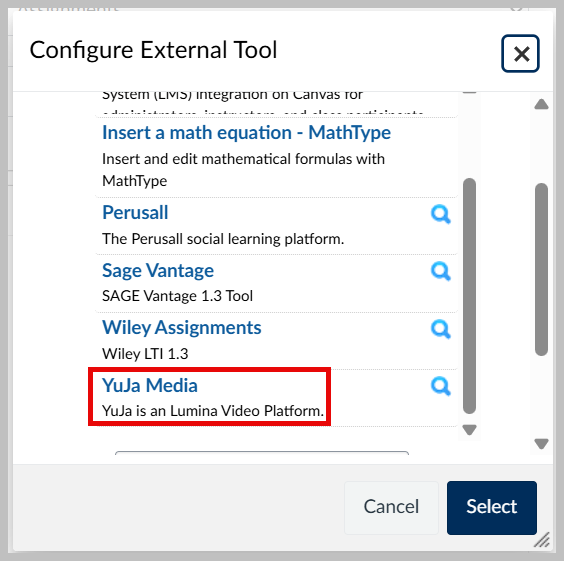
- Scroll down to "YuJa Media" and click on it.
- Open the list of quizzes by choosing "Quizzes" from the options at the top left.
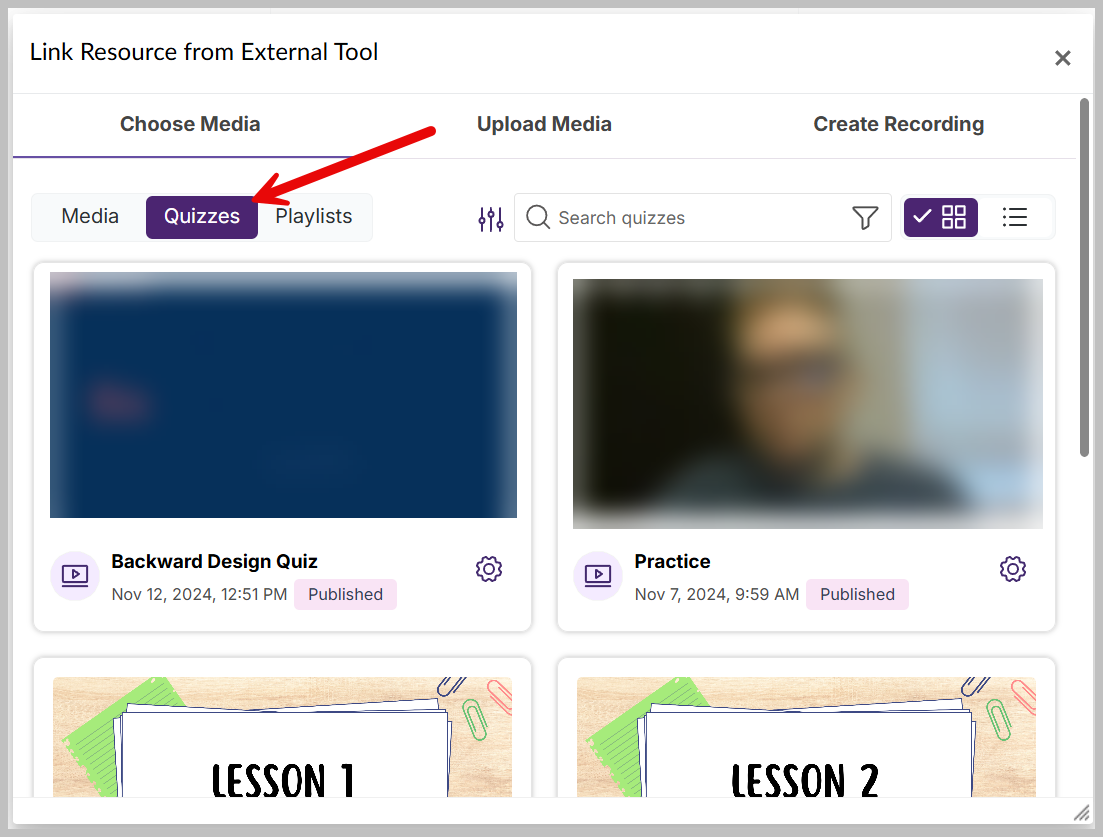
- Choose the video quiz you want to embed from the options by clicking on it.
- You will be returned to the list of External Tools and the URL of the video will be filled in. Click "Select" and finish setting up your assignment.
Was this article helpful?
That’s Great!
Thank you for your feedback
Sorry! We couldn't be helpful
Thank you for your feedback
Feedback sent
We appreciate your effort and will try to fix the article