
Overview
There are multiple ways to add YuJa content to your Canvas course using a text box or the YuJa external tool. Read the options below to find an option that works best for you. Note: If you want to add a video quiz that connects to your Canvas gradebook, you will need to add it to an assignment. See our tutorial on posting video quizzes for more information.
Using the Canvas Text Editor
Using the Moodle text editor, you can embed a video directly from your YuJa media library. Click the YuJa icon button to open the media chooser and select a pre-recorded video or record a new one.
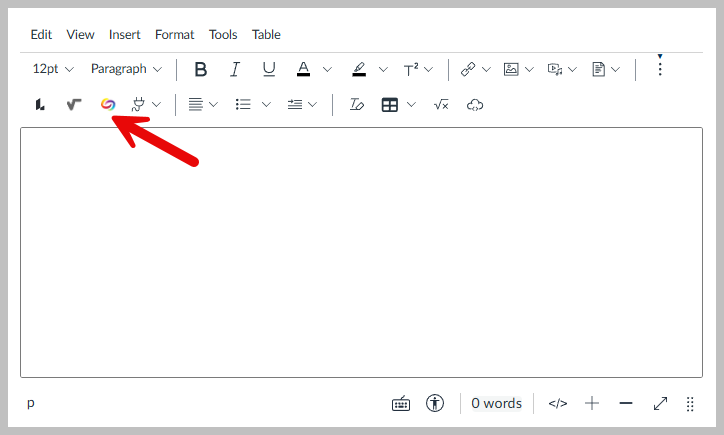
YuJa Media Chooser
You can click on the YuJa icon in the Moodle Text Editor to bring up your list of videos from YuJa. From there, you can
- select a video or playlist to embed.
- upload a video from your computer.
- record a video to be embedded into the text box.
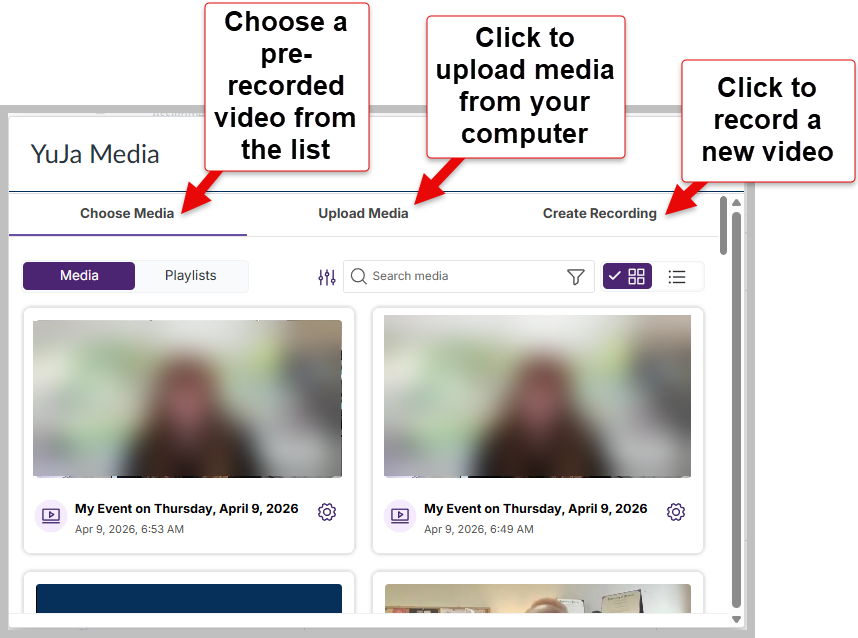
Click on the video(s) you want to add and then click "Insert Content" or "Embed as Playlist" to add the content to your Canvas page. You can add more than one video at a time by clicking on multiple videos and then checking the box for "Select all media files".
Adding a YuJa video using Canvas's External Tool
This option allows you to add a video as a link that will be listed as an item in your module rather than as an embed to a Canvas page.
- In your Canvas course, click the plus button on the module where you would like the item to appear.
- Use the drop-down menu to choose External Tool.
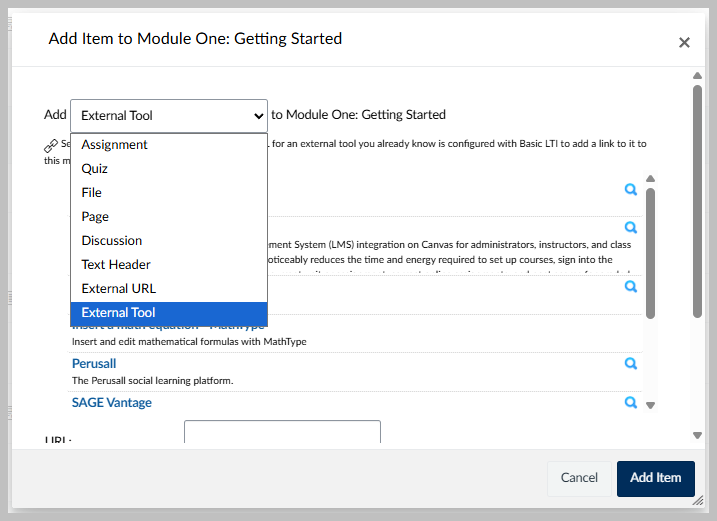
- Scroll down to find the option for "YuJa Media". Click this link to open your media chooser.
- From the YuJa media chooser, find the video you want to add.
- Click on the video.
- You'll be returned to the External Tool options where you can change the Page Name or leave it as the title of the video.
- Click Add Item.