When you are hyperlinking text in your Canvas course, you will be given the option to use a Course Link or an External Link.
- Course Link - This is an internal link that links your words to another page in your Canvas course. For example, you might want to have a link to the Grades page on the Front page of your course so that students can have an easy way to check their grades each time they enter the course.
- External Link - This is a link that takes students outside of your course.
To create a hyperlink, you will need to click the "Edit" button on the page you wish to edit. In the text box, highlight the words you would like to be a link. (Remember that for accessibility best practices, the words being linked should be descriptive and specific so that someone who was reading only the linked words would know exactly where the link is taking them.) Then click the icon that looks like links in a chain and choose Course Link or External Link depending on where the link will take the student.
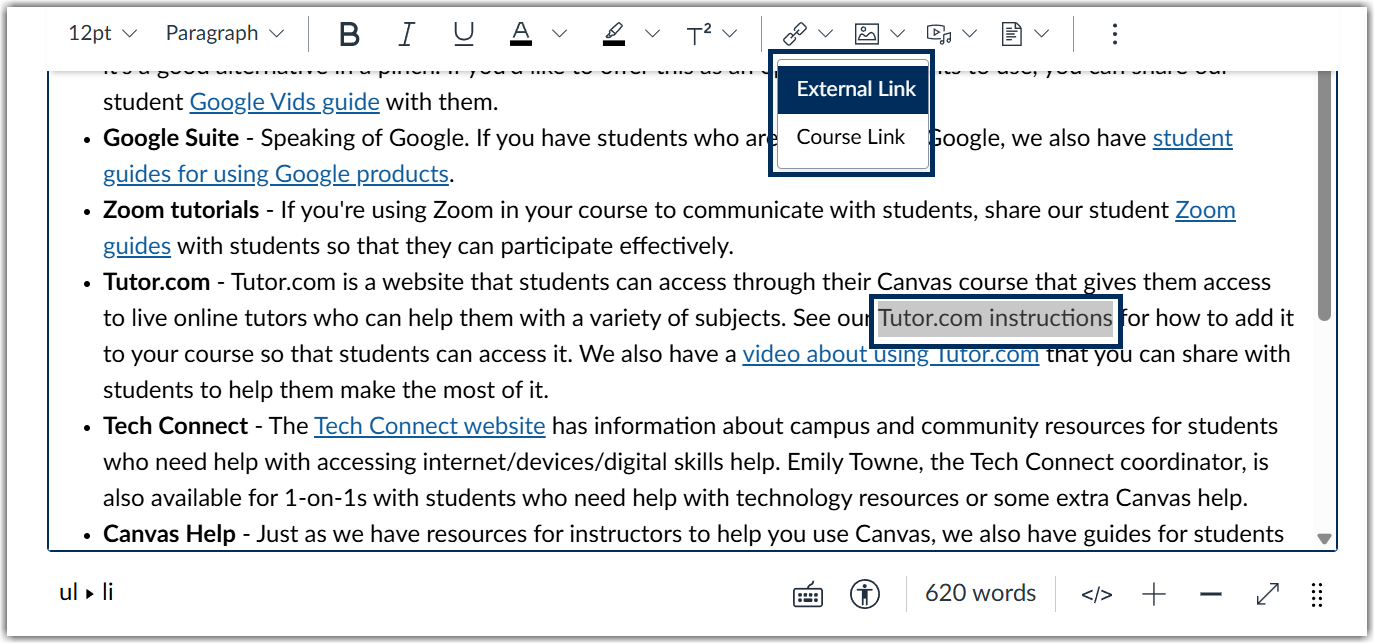
External Link
For an external link, paste the URL into the box that pops up when you click External Link. The words you highlighted should now turn blue and be linked to that URL.
Course Link
For a Course Link, click "Course Link" and a menu of options will open on the right side of the screen.
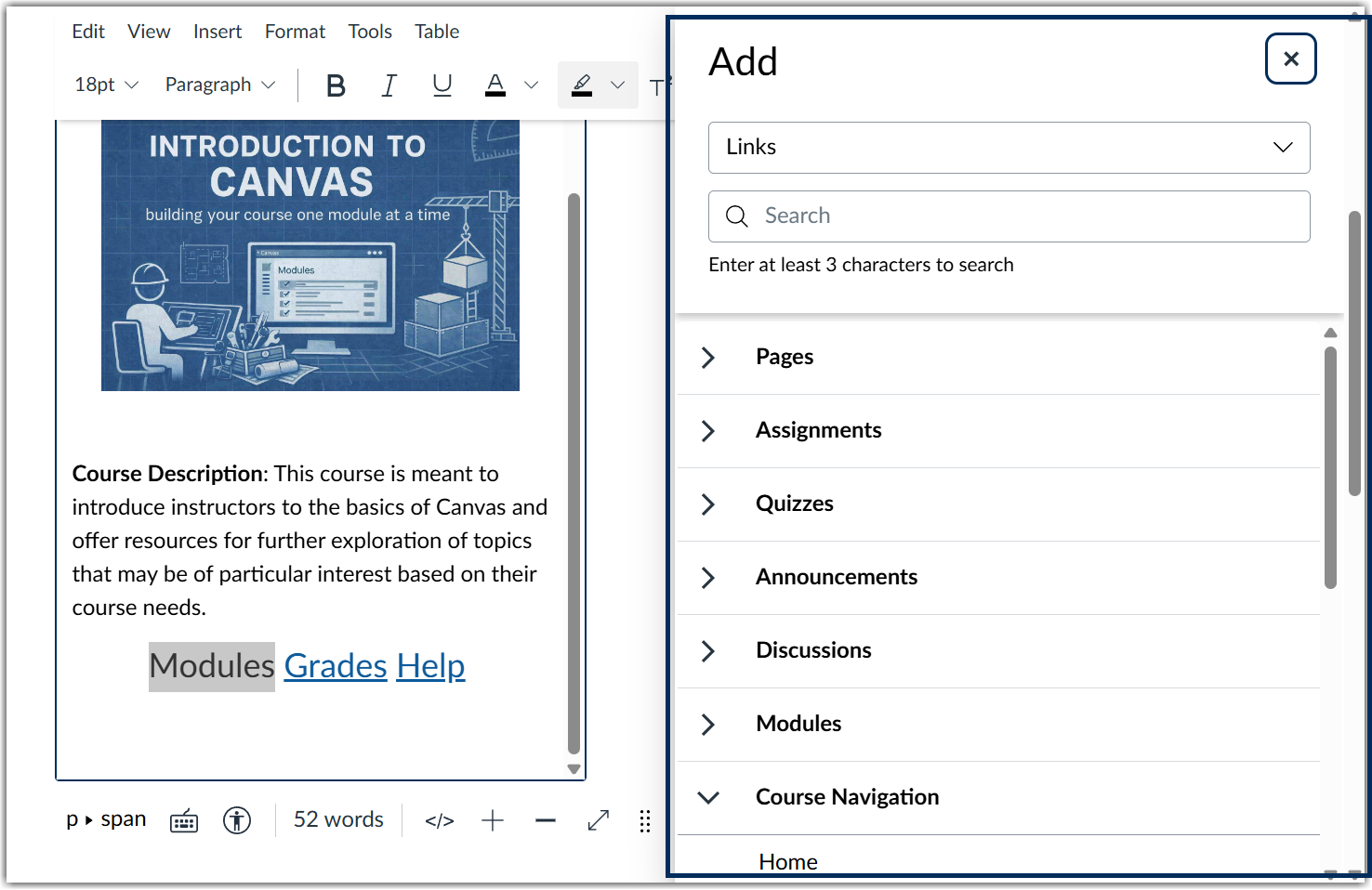
You can link to a page, an assignment, a quiz, an announcement, a discussion, a module, or a link from the Course Navigation. This can be a helpful way to guide students around your course.
Was this article helpful?
That’s Great!
Thank you for your feedback
Sorry! We couldn't be helpful
Thank you for your feedback
Feedback sent
We appreciate your effort and will try to fix the article