TABLE OF CONTENTS
Tutor.com is a resource available to Davidson-Davie students. Linking to it from your course will help students access this tool. Below you will find instructions for adding the link to your course for student use. You can also share a link to our Tutor.com tutorial video for students. The video explains what students can and cannot expect from their tutoring sessions and how to make the best use of these sessions.
Add the Tutor.com tool to your course:
Add as a Navigation Link
On the left side of your Canvas course, you will see a list of links that let you and students navigate the course. These links can be adjusted to show only the links you want students to see. You can have the Tutor.com link in this list simply by not hiding it in the Navigation settings. This way students can access the link from the Navigation menu where it is always visible and easy to access. If you would rather add it as an external tool, follow the directions below.
Add as an External Tool
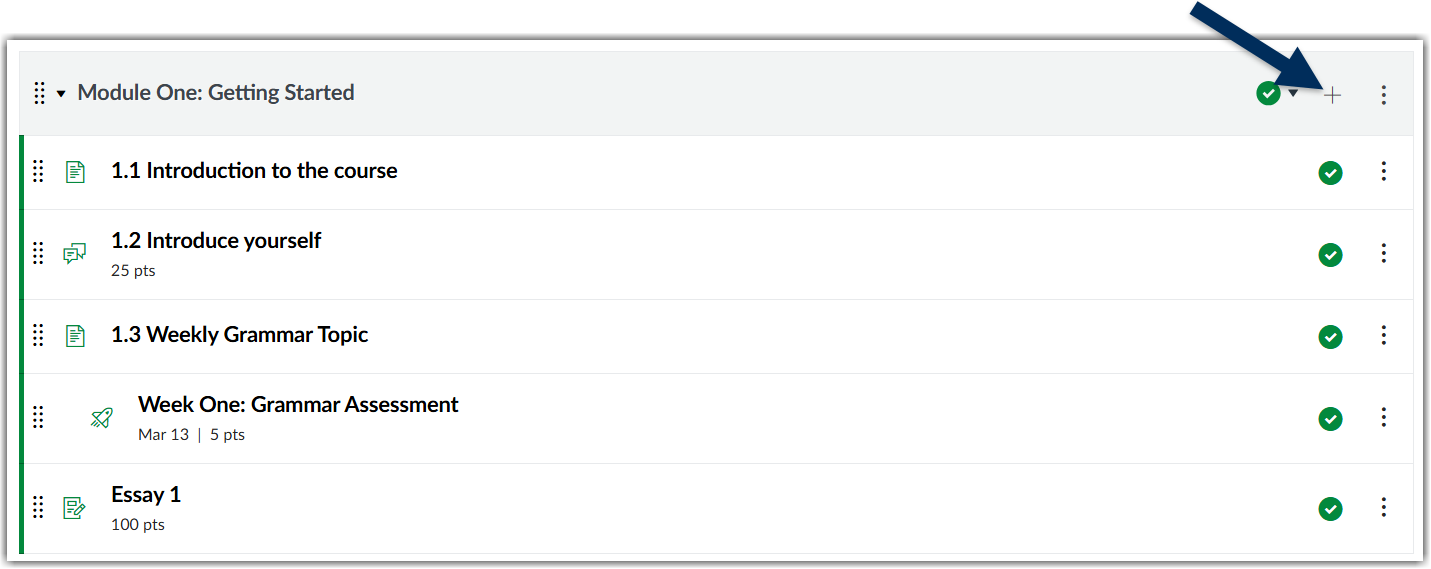
- In your Canvas course, click the + symbol at the right end of the Module name box where you want to add the link.
- In the box that pops up, use the drop down box to choose to add an External Tool.
- Scroll down to select Tutor.com.
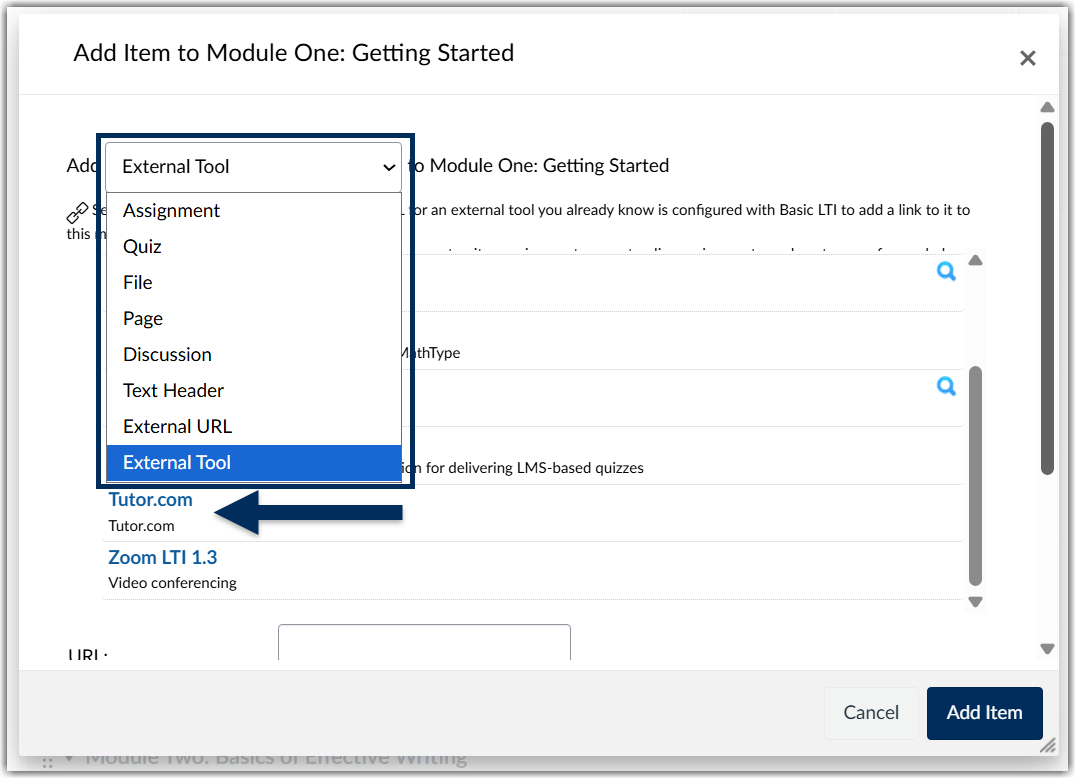
- You do NOT need to insert a link or URL or any other details, just click Add Item.
Accessing your Tutor.com portal:
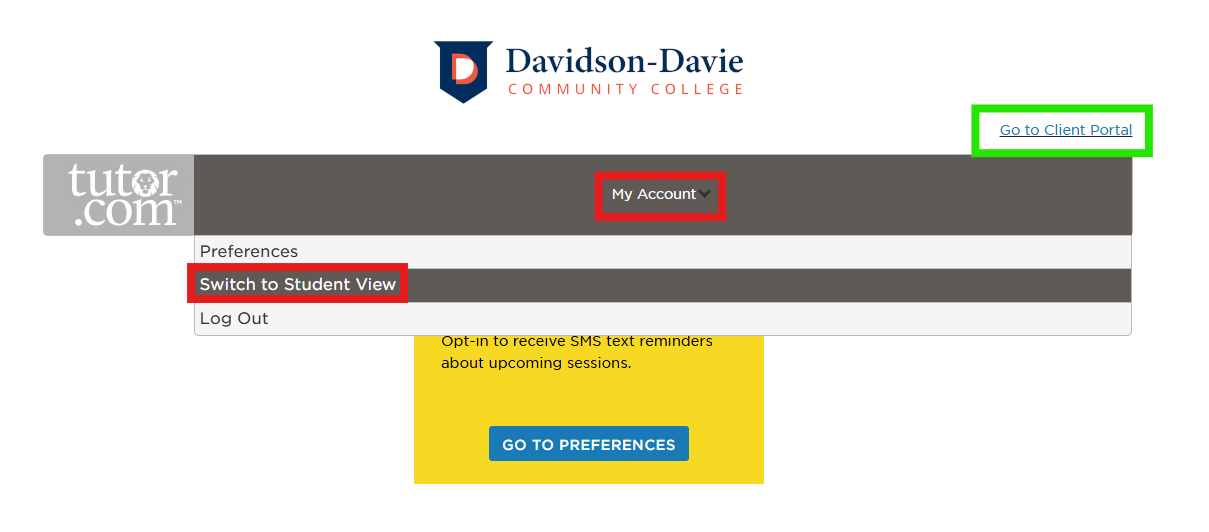
When you click the Tutor.com link in your Canvas course menu you can manage your Preferences and see Student View by clicking the My Account menu. If you click Go to Client Portal, you can see details about Tutor.com sessions associated with your Canvas course.
Was this article helpful?
That’s Great!
Thank you for your feedback
Sorry! We couldn't be helpful
Thank you for your feedback
Feedback sent
We appreciate your effort and will try to fix the article