TABLE OF CONTENTS
- Introduction
- Add A Discussion to Your Canvas Course
- General Discussion Settings
- Grading Discussions
- Advanced Discussion Features
Introduction
The Discussion activity allows students and teachers to exchange ideas by posting comments as part of a 'thread'. Discussions are versatile in that students also have the option to include links, multimedia, and upload documents. As the instructor, you can choose to grade and/or like discussion posts and make it possible for students to like others’ posts and/or engage in peer review.
Add A Discussion to Your Canvas Course
You can add a discussion to your Canvas course through the Discussions tab or by selecting the plus symbol in the module you would like to add your discussion and select “add discussion” from the drop-down menu.
- Create a unique Topic Title. This can help you differentiate your discussions more easily in case you need to relocate a discussion or you wish to link your discussion to another element of your Canvas course.
- Enter your Topic content using the Rich Content Editor. This is where you will provide your instructions and criteria or guidelines for success such as word count or how many times you want the students to reply. You have the ability to also add multiple media, external and/or course links, and attach documents to your Topic content.
- Adjust your Options Settings. Depending on the purpose of your discussion, you can adjust your options setting to determine if you would like full or partial anonymous grading, how you want students to see threads, if you plan to grade your discussion, allow liking, assign the discussion to a student’s to-do list is the discussion is ungraded (it is automatically added to a student’s to-do if it is graded), or create a group discussion.
- Optional: Assign graded checkpoints. If you enable this feature, you will be able to add checkpoint settings for the Reply to Topic (their initial post), replies to their peers, and due dates for each, should you require separate deadlines.
- Adjust your View Settings. To set and lock the default thread view option for students. If you selected the graded option, you will select the assignment group, number of points possible, and required number of replies in the View settings.
- Assign Access. By default, the discussion is assigned to everyone. If you selected the grading, and assign graded checkpoints in your Options settings, you will have additional due dates to enter, one for Reply to Topic (initial post), and Required Replies.
- Save and Publish
General Discussion Settings
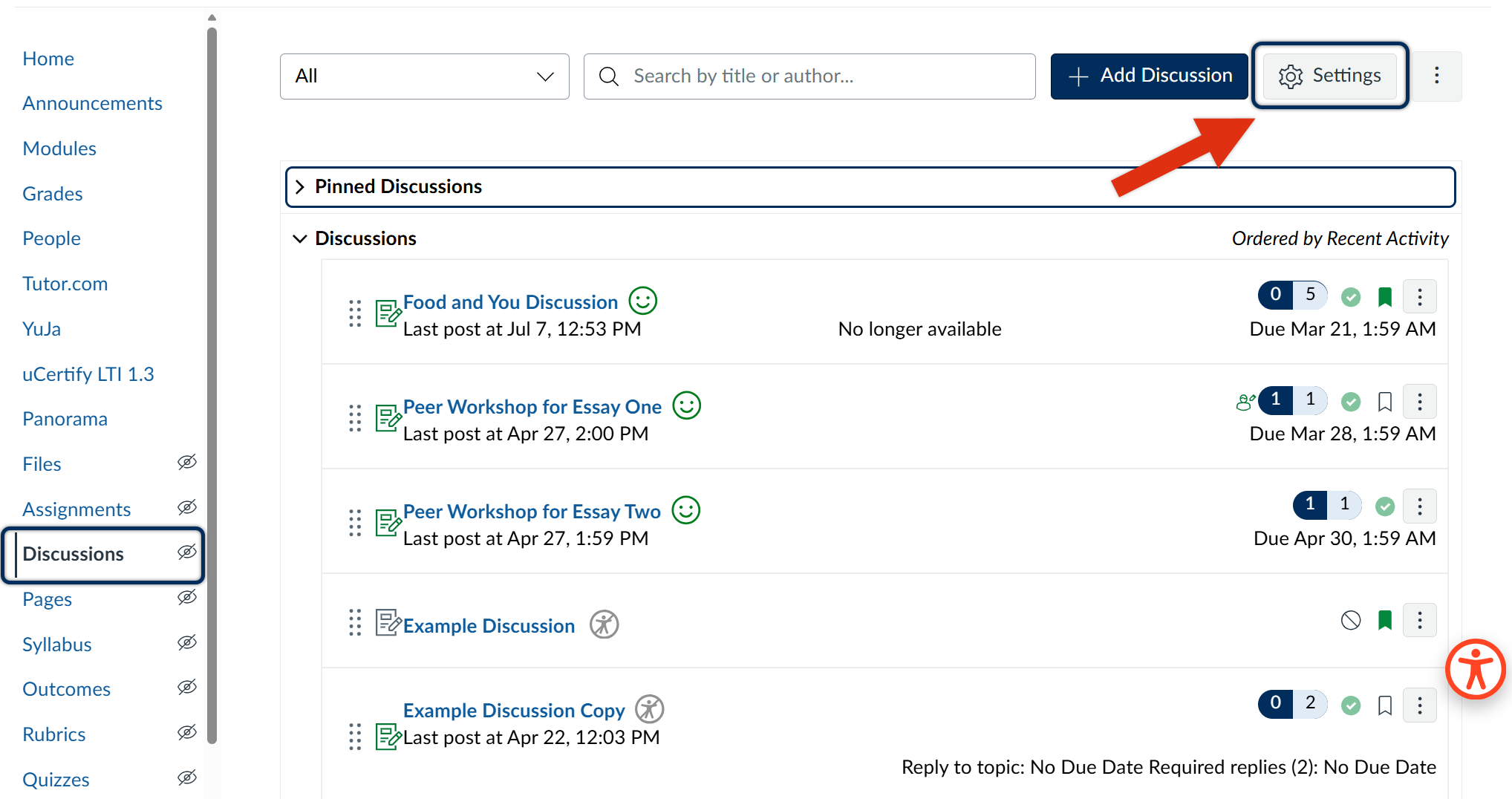
Canvas has a feature to enable you to apply general discussion settings to all of your discussions. To access your general discussion settings, click on the Discussions tab in the course navigation menu and select the Settings button located on the right-hand side of the Discussions homepage.
Instructor Settings
Manually mark replies as read to help you keep track of your threads
Student Settings
You can limit or change how your students are able to access a discussion as well through these general settings to allow or not allow students to
- Create discussion topics
- Create anonymous discussion topics
- edit and delete their own replies
- Attach files to discussions
- Report replies
Grading Discussions
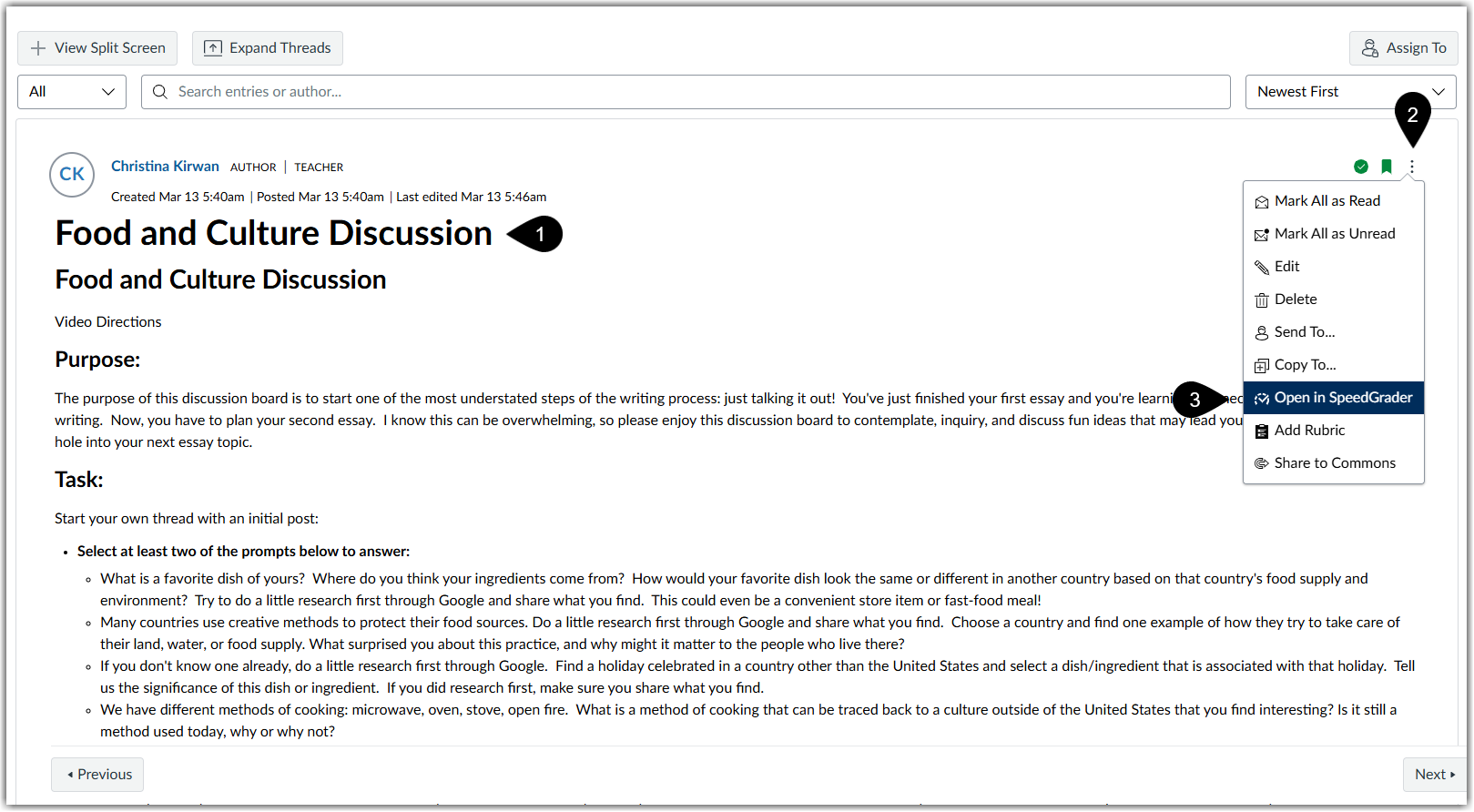
To grade your discussions once students have completed the discussion, you can grade the activity with Canvas’ SpeedGrader to easily see student posts and replies with submission dates. There are many ways you can access the SpeedGrader. With this tutorial includes steps to access the SpeedGrader through the individual assignment.
- Open the assignment you wish to grade (marker 1).
- Along the right-hand side of the page, select the three-dot menu to access the discussion features (marker 2).
- Click on Open in SpeedGrader (marker 3).
Advanced Discussion Features
You can also reference Canvas’ guide for How do I Create a Discussion as an Instructor and other advanced features for Canvas Discussions, including:
Creating and Linking Canvas Rubrics
How do I Enable a Podcast Feed
How do I Create Group Discussions
How do I Assign Peer-Reviews for a Discussion
Prevent Students from Deleting their Posts
Was this article helpful?
That’s Great!
Thank you for your feedback
Sorry! We couldn't be helpful
Thank you for your feedback
Feedback sent
We appreciate your effort and will try to fix the article