TABLE OF CONTENTS
- Introduction
- Canvas Activities and Resources
- Add a Canvas Element
- Removing Canvas Elements from a Module
Introduction
Canvas contains a number of built in tools that instructors can use to create assignments and resources. This chart provides information about each one and ways they can be used. When you add a Canvas element to your course, the icon associated with the assignment or activity will be gray to denote it is unpublished. If you publish the element, it will change to green.
Note: The icon for an external URL and external tool is the same. Make sure you're naming for each is unique to reduce confusion for students. Canvas Activities and Resources
| Canvas Element Icon | Element Description | Element Uses |
|---|---|---|
| Assignment | Used to create a graded task for students. It links to the gradebook and creates a column where grades can be entered. Instructors can attach resources, videos, or examples for students to view as well. | Graded tasks for submission of
Files can be restricted to particular file types. Online Text can include MathType, ChemType, and YuJa videos. Use the TILT framework to design transparent assignments and learning tasks for your students. |
| Quiz | Used to create graded or ungraded quizzes or surveys within Canvas | Formative and summative assessments of student progress and mastery of content Gather student perspectives with survey questions |
| File | Used to add a variety of media to a Canvas course. This can include text documents, images, or videos. |
|
| Page | Used to create a link to a page that displays the content created by the instructor. The Text editor allows the page to display many different kinds of content such as plain text, images, audio, video, embedded code or a combination of all these. |
|
| Discussion | Used to post and manage asynchronous discussions |
|
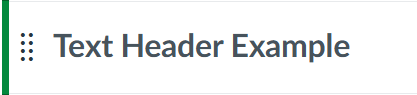
| Text Header | Used to add text between other resources in the different sections. | Create clear labels between items listed with a module to denote which are instructional materials and which are assignments |
| External URL | Used to provide students with web links. In the settings you can choose whether the link opens a page, creates a pop-up, or embeds into Canvas. |
|
| External Tool | If you need to link a third-party LTI in a module, you can do so with the external tool option. Notice that the icon for an external tool and external URL look the same. Make sure you use a unique, student-friendly naming system to help students know the difference. | Third-party course materials and LTIs such as
|




Add a Canvas Element
The process for creating content in your Canvas course follows the same basic steps. First, decide how you want to create your content:
- Directly in the module for which it belongs
- Through the individual tabs located in your Course Navigation menu
If you add your Canvas element to your module first, it will automatically populate in on the appropriate index page in your Course Navigation menu.
- Select the plus button located in the right corner of the module you would like to add your content. A popup window will appear for you to select your Canvas element
- Name your Canvas element. Make sure this is unique enough to easily identify the element from a list.
- Determine your desired level of indentation
- Click on the Add Item button
- Click on the element name to add your content
- Save and/or Save & Publish to make the element visible to students
Removing Canvas Elements from a Module
Should you decide to Remove any Canvas created content from the Modules page, the Canvas element will still exist within the Index tab it aligns to. For example, if you create a Page for a module, and then remove the page from the module, the page will still exist on your Pages Index tab located through the Course Navigation menu.
This can be helpful if you decide to undo your changes to the module. However, if you decided to create a new page later with the same title as the previously removed page, you may end up with duplicate page names, similar content, a Page list longer than you expected, and potentially a frustrating experience when it comes to adding or linking Canvas elements within your course.
Therefore, you may wish to remove Canvas elements directly from its element's index page to remove the content from your course entirely.
Was this article helpful?
That’s Great!
Thank you for your feedback
Sorry! We couldn't be helpful
Thank you for your feedback
Feedback sent
We appreciate your effort and will try to fix the article