TABLE OF CONTENTS
- Introduction
- Creating a Classic Quiz in Canvas
- Edit your Classic Quiz Settings
- Create your Classic Quiz Questions
- Additional Features
Introduction
This reference guide covers how to create a Canvas Classic Quiz and a brief explanation of different quiz settings. Feel free to reference this guide when creating your quiz and deciding which features and behaviors of the quiz best meets your goals for the course and the individual assignment.
Canvas has two quiz options: New Quizzes/Surveys and Classic Quizzes. Right now, Classic Quizzes is more accessible for students who use ReadSpeaker to help them complete the quiz. Therefore, New Quizzes has been disabled.
Creating a Classic Quiz in Canvas
- Select the plus button located in the right corner of the module you would like to add your content
- From the Canvas elements option menu, select Quiz.
- Enter your quiz details:
- Quiz name
- Assignment group, if applicable
- your desired level of indentation as it appears in the module
- Click on the Add Item button
If you are ready to edit your quiz setting details, move on to the next section of this tutorial.
Edit your Classic Quiz Settings
- Click on the Quiz name link
- Click the Edit button located in the menu along the top of the page
- Your screen will refresh to so two tabs: Details and Questions. From the Details tab, add your settings. You can edit the following quiz items:
- Quiz Instructions
- Quiz Type
- Assignment group
- Options to shuffle answers
- Set a time limit
- Allow multiple attempts
- Allow or limit how students view their responses after they take the quiz
- Show one question at a time (the default lists every question on the same page)
- Add additional quiz restrictions
- Add a Due date, Availability date, and Until date as applicable
- Save the quiz.
If you are ready to start building your quiz, move on to the next section of this tutorial.
Create your Classic Quiz Questions
- Click on the Quiz name link
- Click the Edit button located in the menu along the top of the page
- Your screen will refresh to so two tabs: Details and Questions. From the Questions tab, create individual questions, a question group, and/or find questions within your question bank
Add a New Question:
To add a question: Click on the Add New Question button
For Classic Quizzes, you can add the following question types:
- File upload
- Formula
- Matching
- Multiple choice
- Multiple dropdowns
- Essay
- Fill in the blank
- Multiple answer
- Numeric
- True or false
- *text block
* This is not questions, but, if added, enables you to provide content and/or context for questions
- Select your question type. Don't know which is best? Here is a Classic Quizzes Question Types Overview.
- Enter the number of points you would like for the question
- Depending on your question type, the page will walk through creating your question, answer(s) choices, and feedback options.
- You can insert feedback for individually selected correct and incorrect answers as well as general feedback for correct, incorrect, and submitted answers. All feedback appears at the end of the question during a student review.
- Click on the Update Question button to save your question.
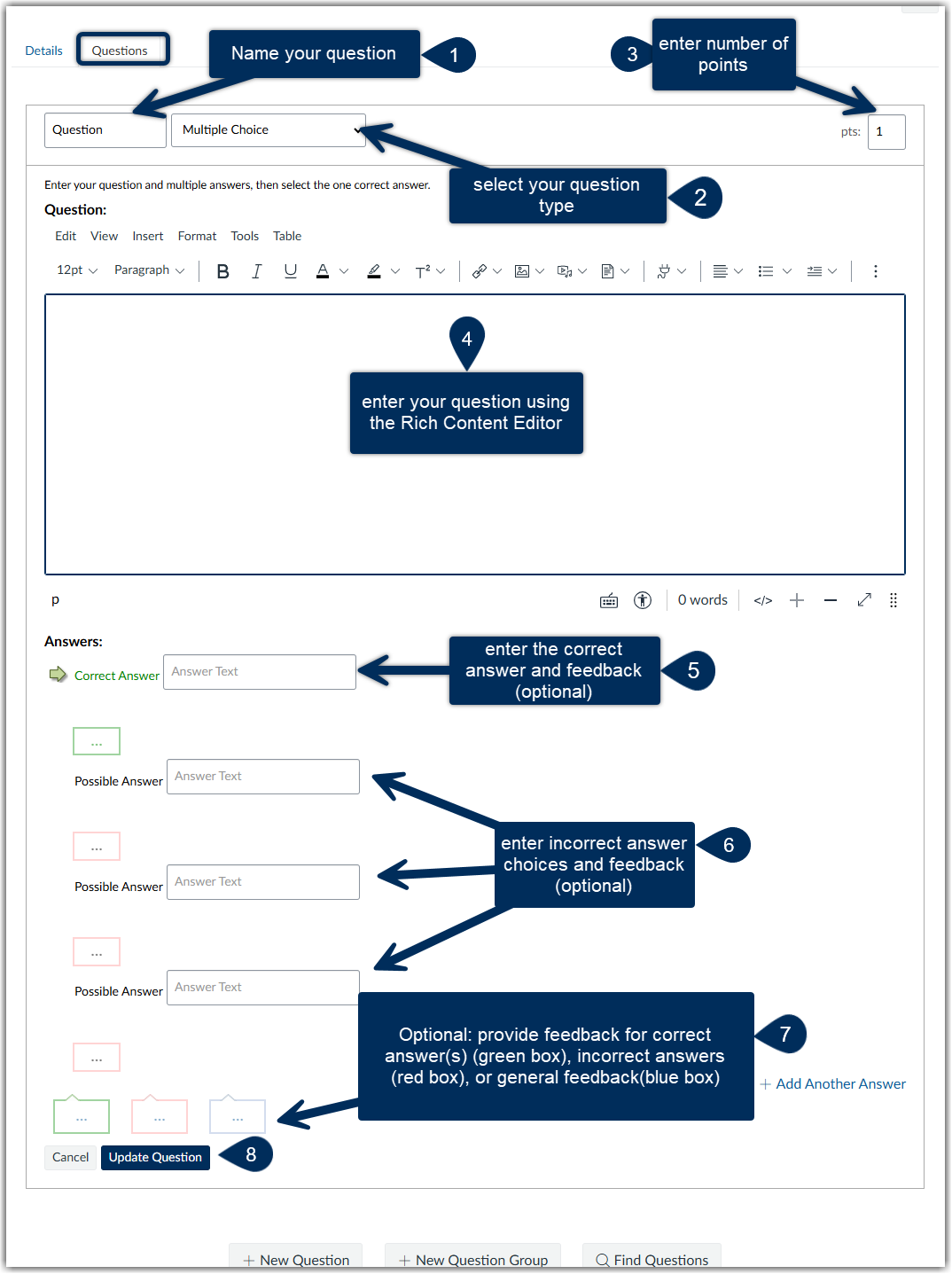
Once your question is created, you have additional options to edit or delete your question. Once you have more than one question, you can use the handle to rearrange your questions as needed.
When you are done creating your questions, click the Save button. You will be returned to the main quiz page where you can preview your quiz.
Add a New Question Group:
You can create a question group to randomize quiz questions for students to answer. You choose the number of questions that should be answered from the group then add questions to the group that is greater than the number of questions you want students to answer.
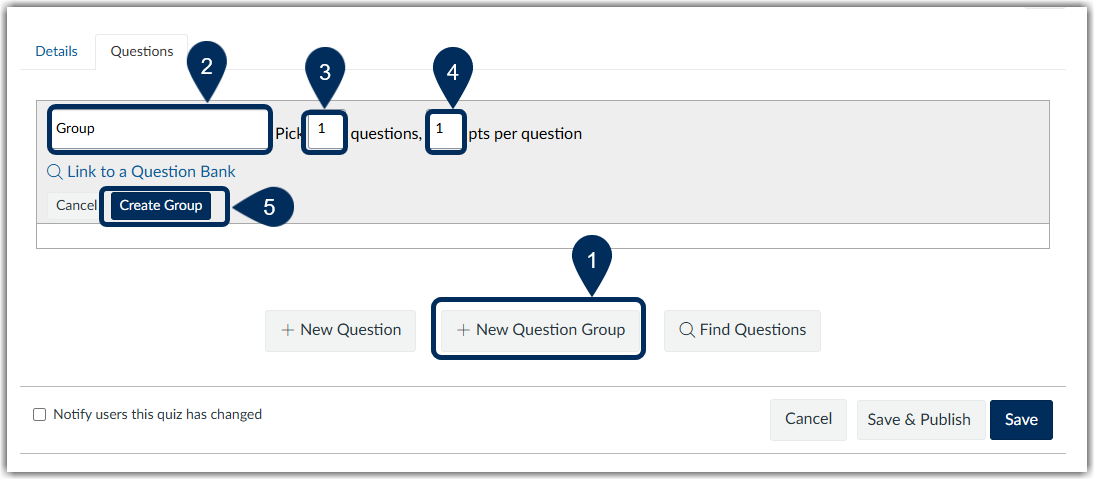
- Select the Add New Question Group button (marker 1)
- Give your group a unique name (marker 2)
- Enter the number of questions students must answer (marker 3)
- Enter how many points each question is worth (marker 4)
- Each question with will worth the same number of points
- Select Create Group (marker 5)
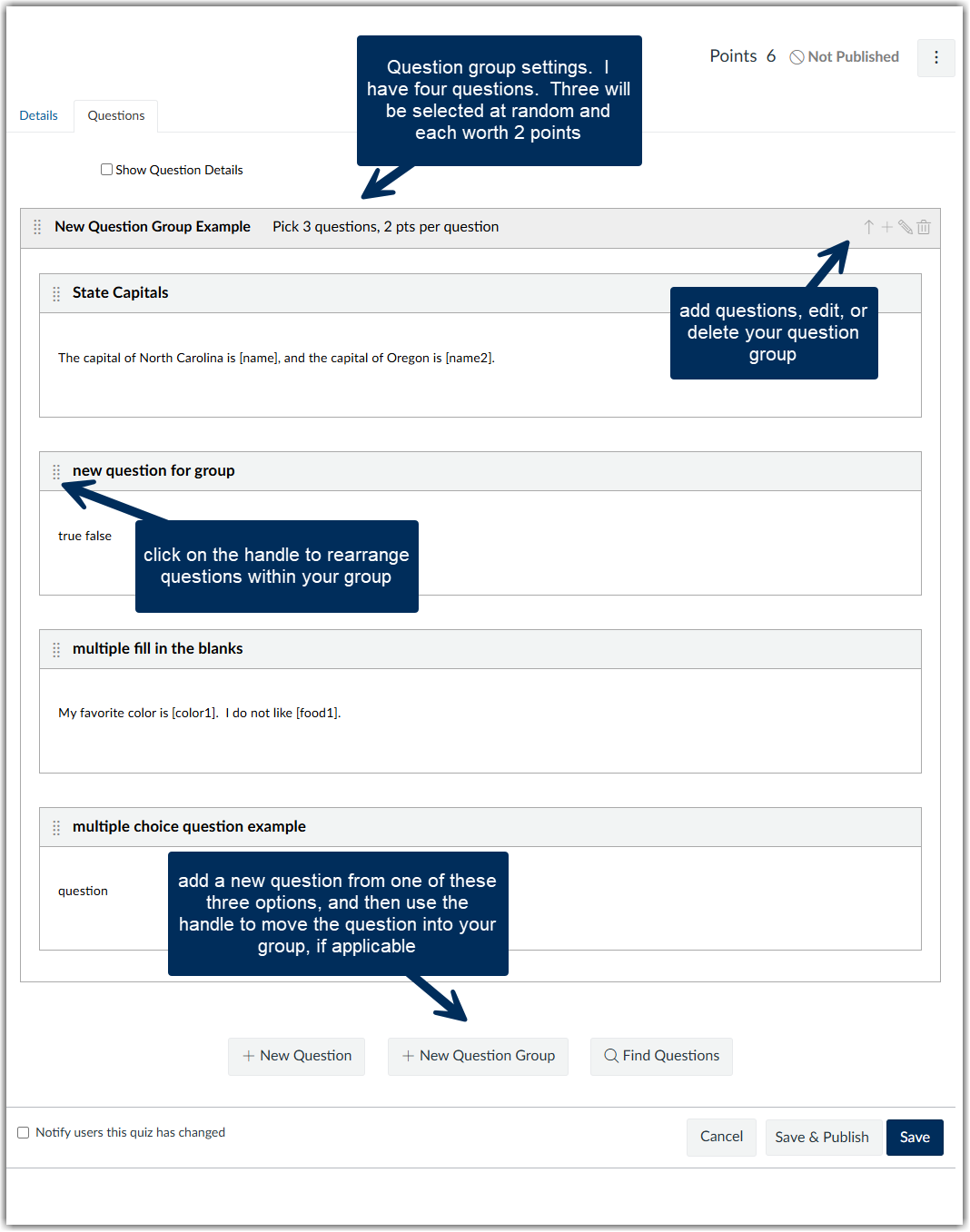
- Add questions to your group by selecting the plus symbol in the editing menu next to the question group name or by using the buttons located under the question group. You can create new questions or select questions from a question bank.
- Make sure you add more questions than the number of questions you have entered for your group settings
- If you need to move questions in your question group, you can use the handle to drag the question into the group.
Additional Features
Was this article helpful?
That’s Great!
Thank you for your feedback
Sorry! We couldn't be helpful
Thank you for your feedback
Feedback sent
We appreciate your effort and will try to fix the article