Introduction
This article covers different ways to set up grading, automatic feedback for individual quiz questions, and layout.
Adding Quiz Questions
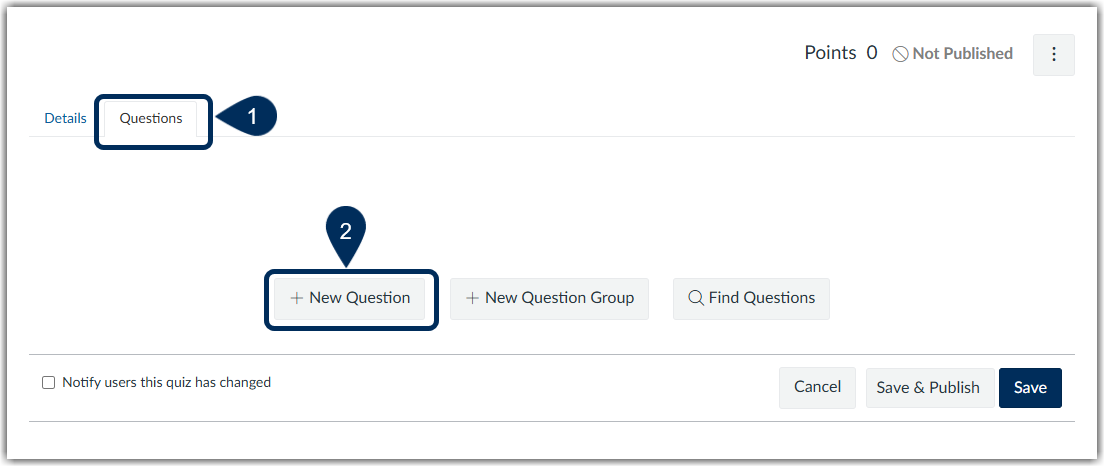
To add quiz questions and manage your quiz settings, you will need to open up the Questions tab in Classic Quizzes:
- Click on the quiz name
- Select the second tab along the top menu labeled Questions (marker 1)
- Click the Add Question button (marker 2)
Classic Quizzes Question Types
| Question Type | Question Type Overview | Canvas Guides for Additional Question Type Support |
|---|---|---|
| File upload | Students can upload a single file as a PDF, image, video file, etc. You are not able to test a file upload question from the preview screen. To test the question, the quiz must be published. This question needs to be manually graded, but you can insert general feedback to appear automatically. The DocViewer commenting and annotations tools are not available when grading file uploads in the SpeedGrader. | Adding a File Upload Question |
| Formula | For single-variable formula questions, you can enter your formula definition and the correct answer. For simple formula questions, you can enter text and your formula definition. Regardless of formula question, students can only type in the correct numerical answer. | Adding a Single-Variable Formula Question Adding a Simple Formula Question |
| Matching | Matching questions support text only. Students are required to match the answer column (on the right) with drop-down list of questions (on the left) and distractors (optional). Partial credit will be given for correct selections. | Adding a Matching Question |
| Multiple choice* | Your traditional multiple-choice question. Students can only select one answer. | Adding a Multiple-Choice Question |
| Essay | Students are required to enter a text response using the Rich Content Editor. Instructors can add general feedback that will show automatically for students. Quizzes will be marked as incomplete until manually graded. | Adding an Essay Question |
| Fill-in-the-Blank | Fill in-the-blank questions can have one or multiple blank spaces. Student answers are not case-sensitive, and you can add as many possible correct answers as needed. Students need to type answers to match exactly in order to automatically receive credit. You may need to manually override an answer submission you will accept. For multiple fill-in-the blank questions, partial credit can be given. | Adding a Fill-in-the-Blank Question Adding a Fill-in-with Multiple Blanks Questions |
| Multiple Dropdown | This question operates like a multiple fill-in-the blanks question. Partial credit can be given. This question type can also be used to create a Likert Scale question | Adding a Multiple Dropdown Question Adding a Likert Scale Question |
| Multiple answer* | Students can select more than one correct answer. You identify correct answers by hovering in front of the correct answer to click on the arrow. Partial points are awarded for correct answer selections and partial points are deducted for incorrect answer selections. | Adding a Multiple-Answer Question |
| Numerical Answer | Numerical questions are used to accept numerical answers. You can decide if the answer needs to be an exact match, within a range, or answer with precision. | Adding a Numeric Question |
| True or False* | A standard question type, select the correct answer by clicking on the button either next to true or false. | Adding a True or False Question |
| Text block | This is not a question type. Add context that is not linked to specific questions, such as instructional content or other relevant information to guide students. | Adding a Text Block |
*Question types with an asterisk next to the name can be regraded.
Question Features
General Requirements
Regardless of question type, you will be required to:
- Name your Question: Questions are not automatically numbered. Creating unique question names will help when you go to search for a question later.
- Add Point Value: You can customize the point value for each question.
- Enter Question Text: Use the Rich Content Editor to enter the question, additional instructions, and information
- Enter Answers:
- Correct answer(s): green box outline
- Incorrect answer(s): red box outline
- Distractors: For matching questions only, you can enter distractors
Optional Requirements
- Add Question Title: This is not visible to students
- Set Options: click on this drop-down menu to enable the calculator
- Add Automatic Feedback:
- Individual answer choice feedback will appear immediately after the attempt is submitted and directly under the selection.
- For feedback to appear at the bottom of the question, you can enter feedback for correct (denoted with a green box), incorrect (denoted with a red box), or general feedback (denoted with a blue box).
- Feedback for individual answer choices and/or general feedback regardless of answer will be entered using the Rich Content Editor block will open. Therefore, your feedback can include written text, images, videos, and hyperlinks.
Editing Questions
If you need to edit your questions after you have created them:
- click on quiz name
- click on the edit button
- click on the Questions tab
- You can rearrange your questions as needed by using the handle
- select the pencil icon next to the question you wish to edit to update the question, point value, and feedback back comments
- select the X icon to delete the question
If you want to change how your questions display, either all on one page, or one at a time, you will need to edit this quiz question setting from the Details tab
Was this article helpful?
That’s Great!
Thank you for your feedback
Sorry! We couldn't be helpful
Thank you for your feedback
Feedback sent
We appreciate your effort and will try to fix the article