TABLE OF CONTENTS
Introduction
This article covers manually grading Canvas Classic Quizzes using the Canvas SpeedGrader. Manually grading quizzes may be necessary for overriding graded questions, manually grading uploaded files or essay questions, if you're grading with a rubric, or adding extra credit.
SpeedGrader for Quizzes
There are many ways to access the Canvas SpeedGrader. For this tutorial, we list the steps for how to grade the quiz from the main modules page.
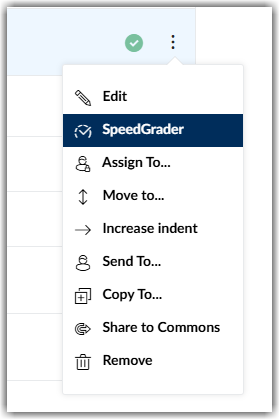
Click the three dot-menu next to the quiz name to select the SpeedGrader.
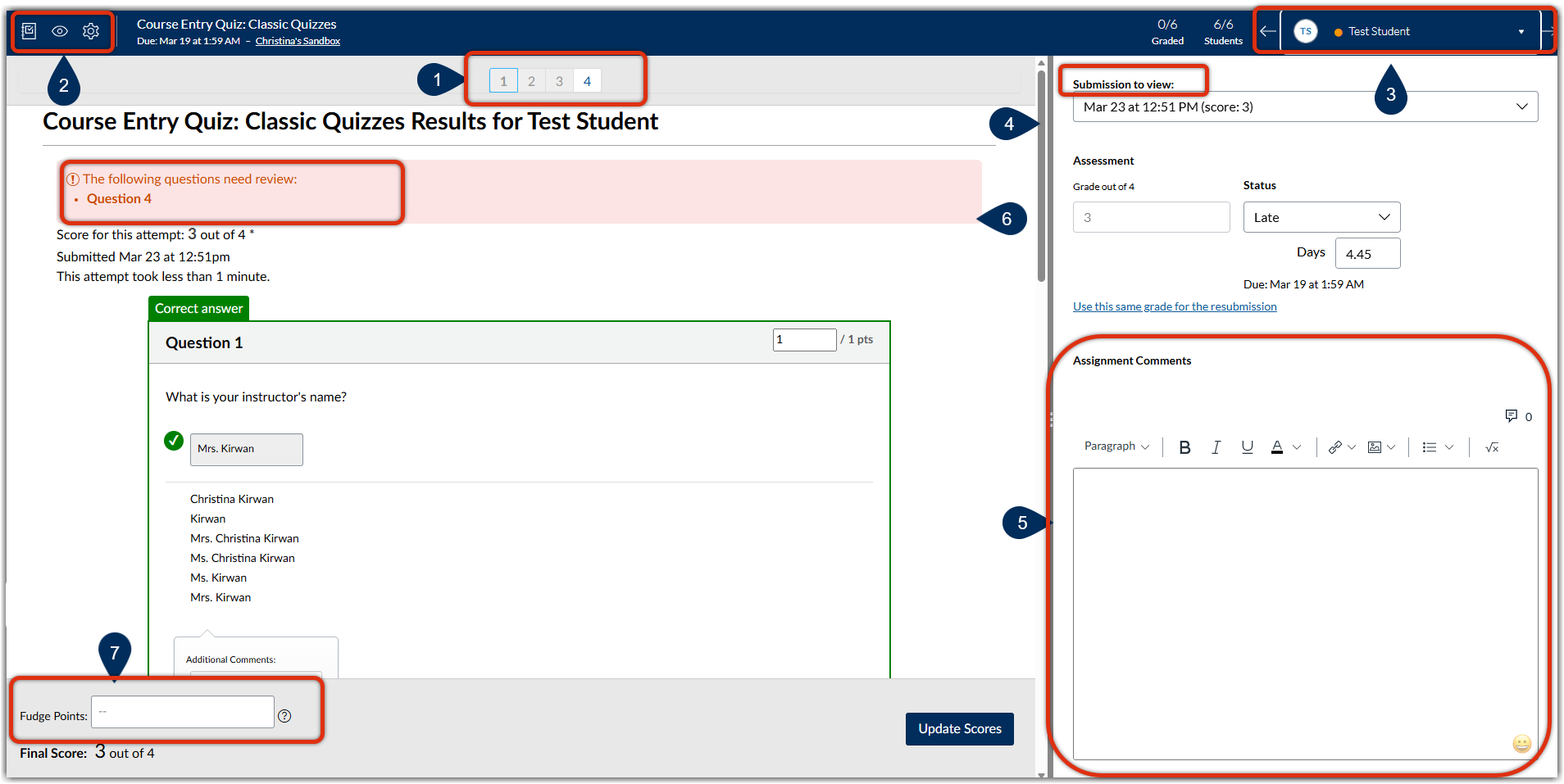
Through the SpeedGrader, you will see both automatically graded questions and questions that still need to be graded manually.
- Question Navigation Menu: Quickly jump to questions by selecting the question number (marker 1)
- SpeedGrader Menu: there are three menu options (marker 2)
- Gradebook Icon: return back to the Grades tab
- Visibility Icon: Hide grades until you are ready to post them
- Setting Icon: Sort the submission views, hide student names, grade by question, and edit how you view discussion submissions
- Not all of these features are available for grading Classic Quizzes
- Student Name: toggle back and forth between individual students or click on the student's name to see the full list of students (marker 3)
- Submission details (marker 4)
- Leave assignment comments: this can be written or multimedia feedback (marker 5)
- Questions that Need Review: click on the hyperlink for each question that needs manual grading (marker 6)
- Fudge points: located in the sticky footer, you can manually add extra points to the quiz (explained more below) (marker 7)
Grading and Feedback Options
Overriding or Manually Grading Questions
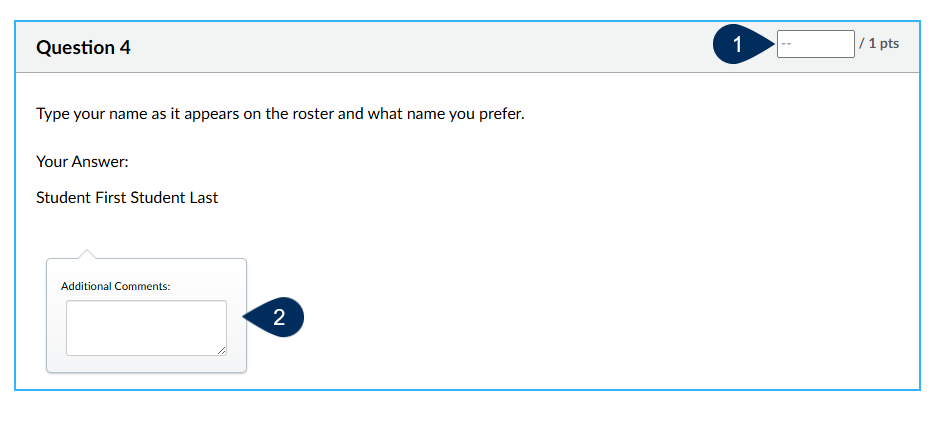
- Quickly manually grade or override an automatically graded question by entering the point value located on the right-hand side of your question name (marker 1)
- Additional features enable you to provide specific feedback for the question (marker 2).
Changes are not updated automatically. Make sure you select the Update Scores button located in the sticker footer.
You are unable to use the DocViewer Canvas' commenting and annotation tools, with essay and file upload questionsGrade with a Rubric
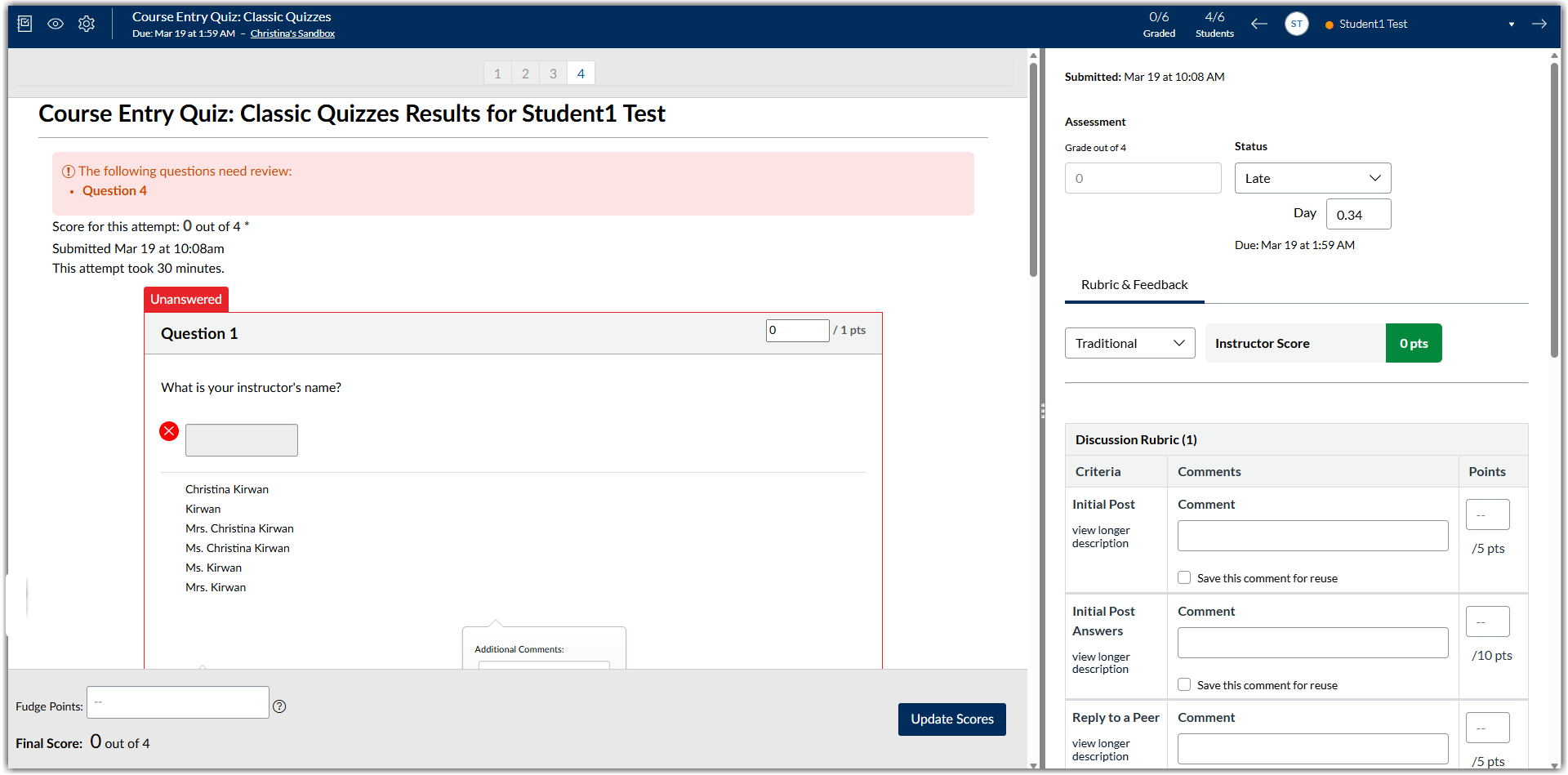
If you wish to add a rubric to your quiz, when you open the SpeedGrader, the rubric will open automatically. You will still have access to provide general feedback as well.
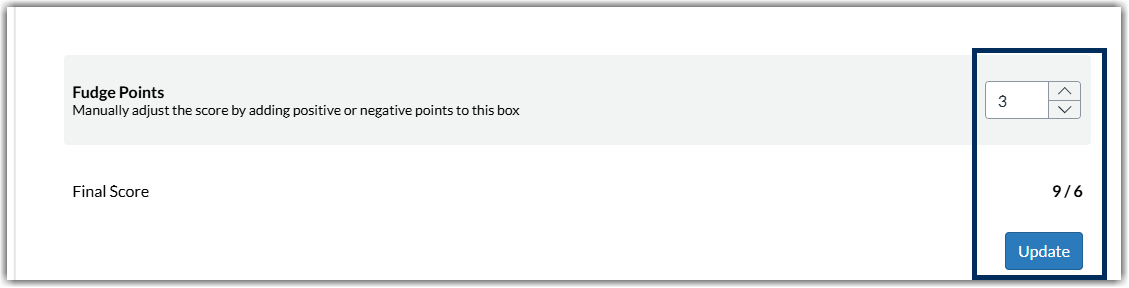
Adding Extra Credit (Fudge Points)
If you want to add extra credit points, or fudge points, for a quiz, use the fudge points sticker footer. You can add more points than the maximum points. Make sure you select Update Scores to save the grade.
Was this article helpful?
That’s Great!
Thank you for your feedback
Sorry! We couldn't be helpful
Thank you for your feedback
Feedback sent
We appreciate your effort and will try to fix the article