There are multiple ways to access the SpeedGrader. Regardless of the method you choose to open the SpeedGrader, the SpeedGrader will always open in a new tab.
TABLE OF CONTENTS
- Through the Grades Tab
- Through the Grade Detail Tray
- Through the Assignments Tab
- From the Individual Assignment Page
Through the Grades Tab
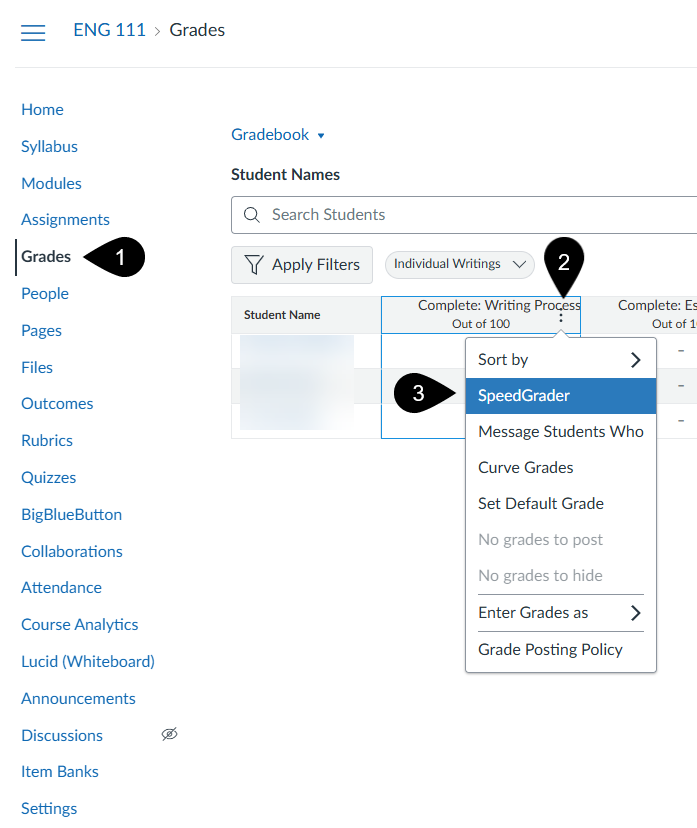
- In your Course Navigation Menu, click the Grades tab (marker 1)
- Hover over the assignment column header and click the Options icon (marker 2)
- Select the SpeedGrader link (marker 3)
Through the Grade Detail Tray
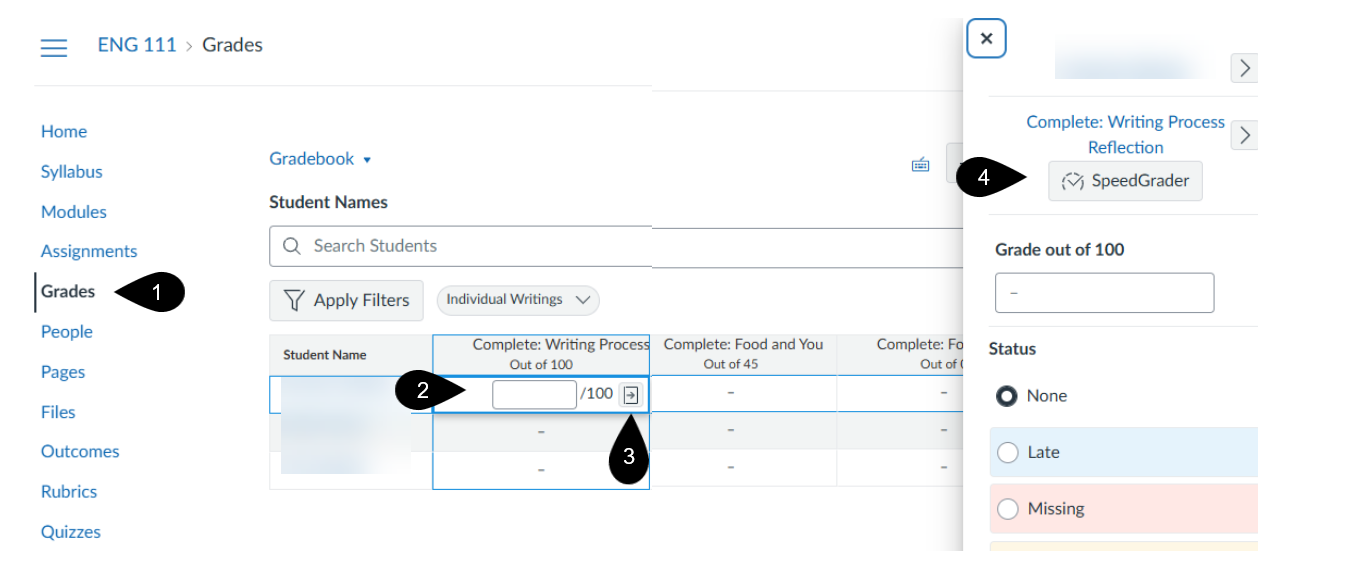
- In your Course Navigation Menu, click the Grades tab (marker 1)
- Select a cell from the column of the assignment you would like to grade (marker 2)
- Click on the Grade Detail Tray Icon to open the Grade Detail Tray for an individual student (marker 3)
- Click on the SpeedGrader button (marker 4)
Through the Assignments Tab
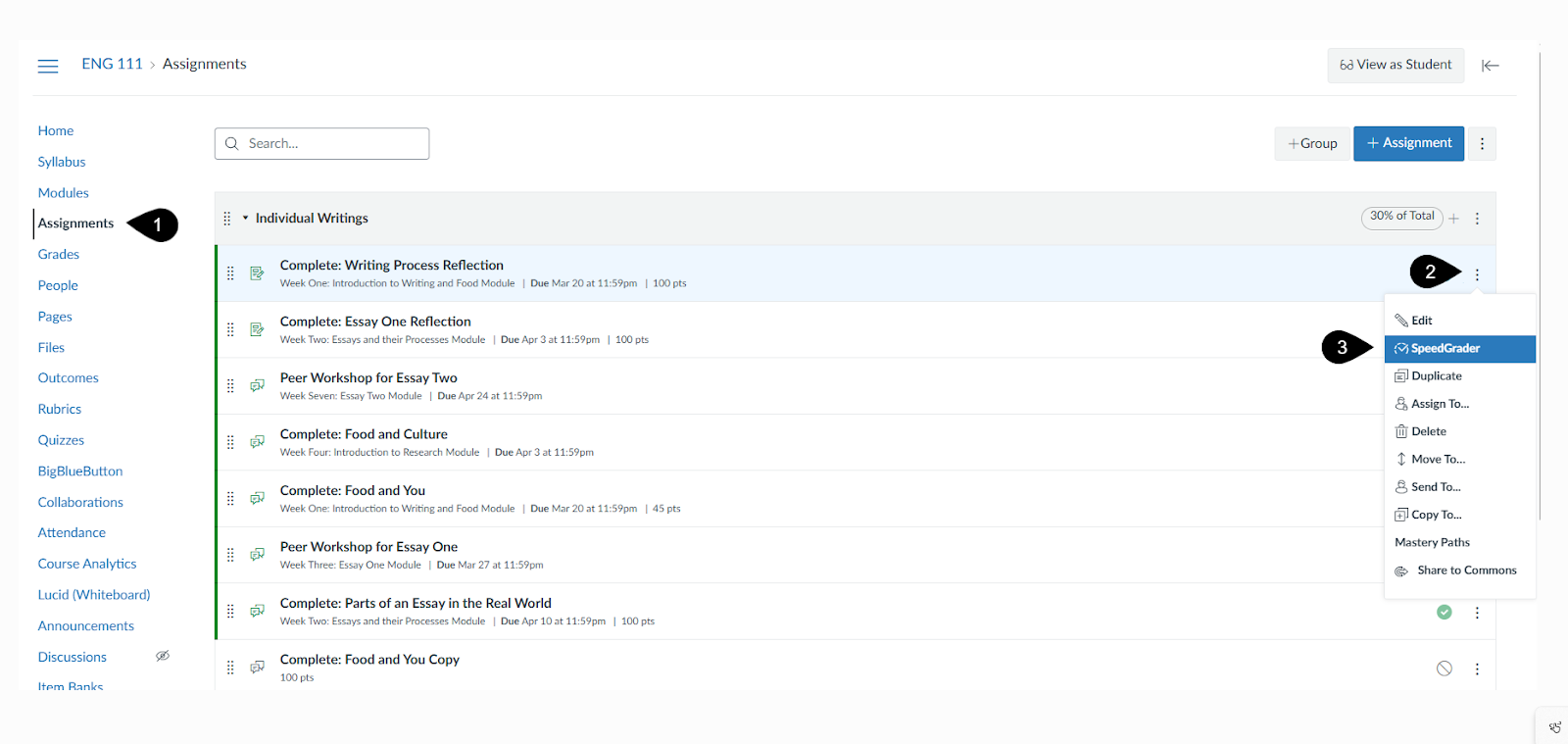
- Click on the Assignments tab in your Course Navigation Menu (marker 1).
- Select the Options menu next to the assignment name you would like to grade (marker 2).
- Click on SpeedGrader (marker 3).
From the Individual Assignment Page
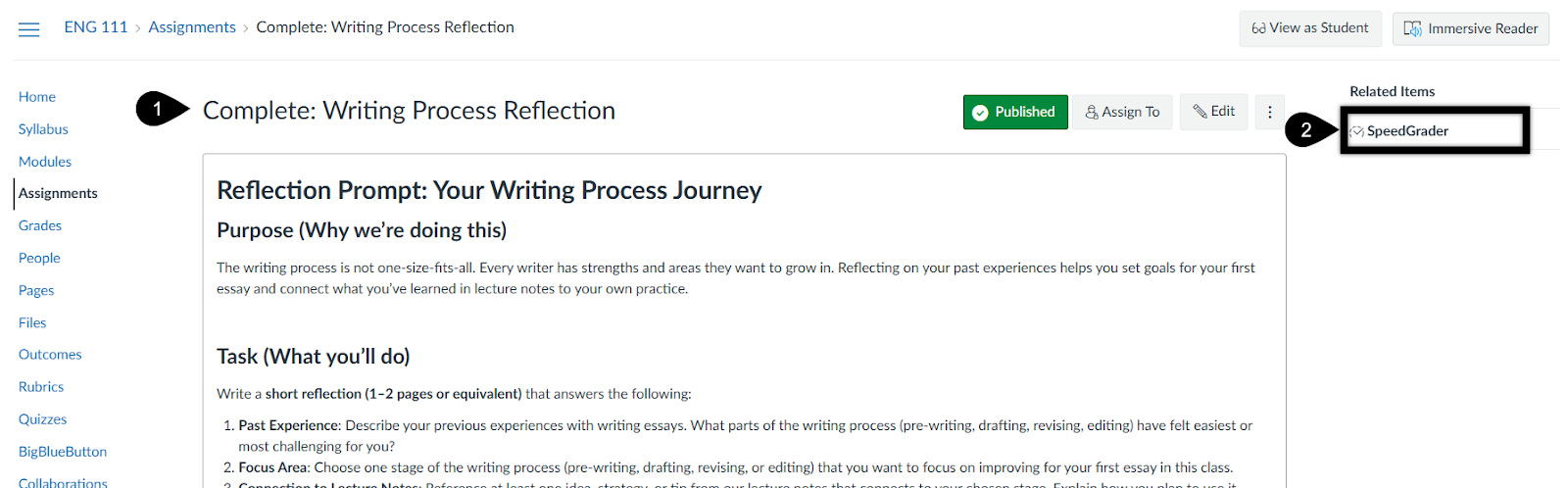
- Open the assignment you wish to grade (marker 1). Along the right-hand side of the page, you will see a menu with the option to click on SpeedGrader.
- Click on SpeedGrader.
Was this article helpful?
That’s Great!
Thank you for your feedback
Sorry! We couldn't be helpful
Thank you for your feedback
Feedback sent
We appreciate your effort and will try to fix the article