You can toggle between how and what you want to view your gradebook. This tutorial will cover the following elements for Gradebook View Settings:
TABLE OF CONTENTS
Traditional Gradebook View
The default gradebook view is traditional, or a full report, including all of your students, assignments, categories if applicable, and total grade. You can automatically sort the view of your traditional gradebook or manually adjust where assignments are located in the full report.
Automatically Sort and View the Traditional View
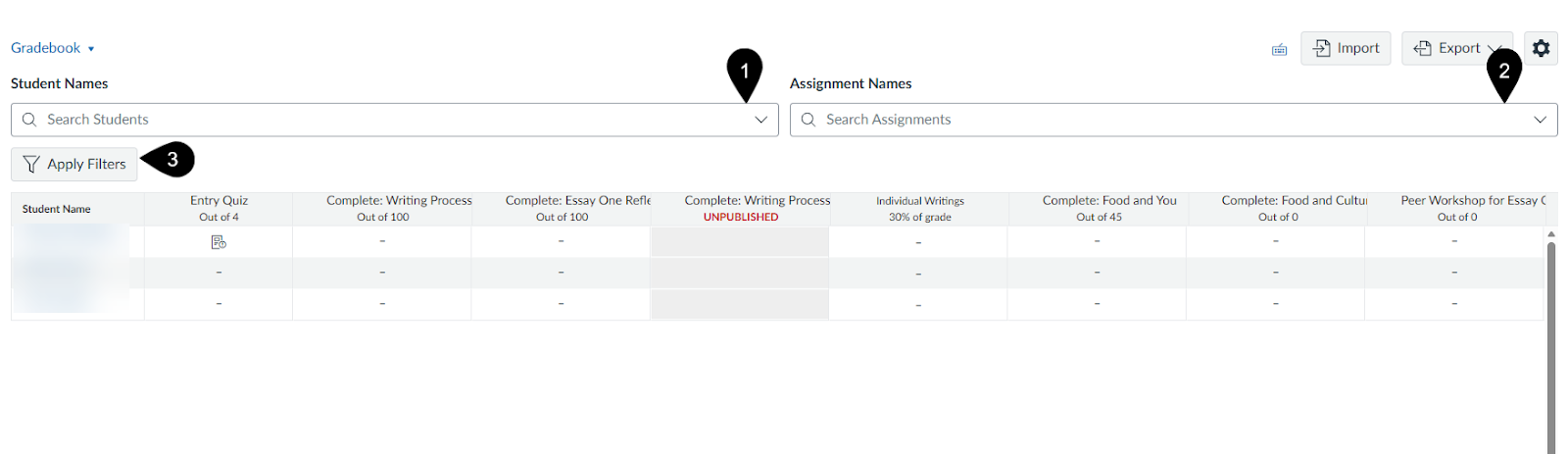
- Select one or more students to view at a time with the Search Students drop down menu (marker 1)
- Select one or more assignments to view at a time with the Search Assignments drop down menu (marker 2). This will allow you to view only those selected assignments as well as category totals (if applicable) and the total course grade.
- Quickly apply one or more filters from the main gradebook page by selecting the Apply Filters button (marker 3). This will allow you to decide if you wish to view one or more modules at a time, individual assignment groups, assignment status submissions (i.e. ungraded, unposted), or assignments within a stated beginning and end date.
Another way you can edit your view options is to adjust your automatic sort and filter features through the Grades Settings.
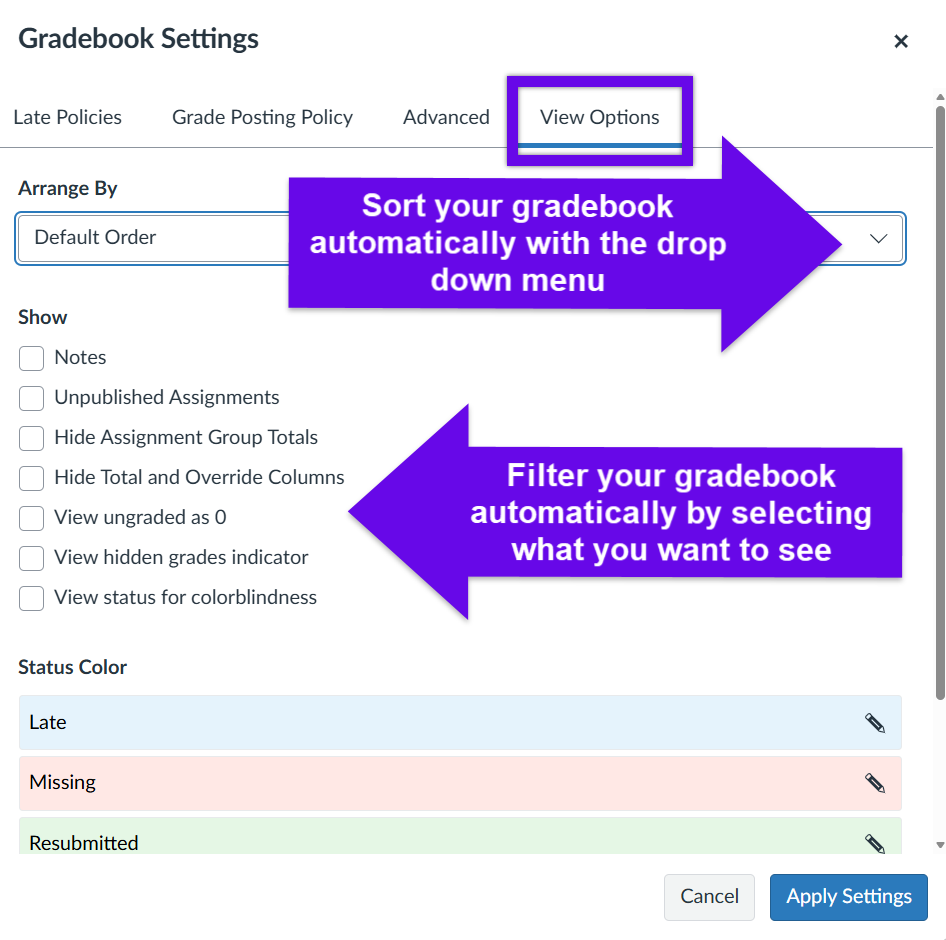
- Select the Settings Icon located in the upper right corner of the Grades page
- Select the View Options tab
- From the View Options tab, you are able to sort your traditional gradebook by selecting a pre-setting from the Arrange by drop down menu:
- Default order
- Assignment Name A-Z
- Assignment Name Z-A
- Due Date, oldest to newest
- Due Date, newest to oldest
- Points, highest to lowest
- Points, lowest to highest
- Module, first to last
- Module, last to first
- Further sort your gradebook view by checking the box(es) next to what you would like the gradebook to show.
- Click the Apply Settings button
Manually Sort the Traditional Gradebook
If you would like to rearrange the columns in your gradebook to reflect the way you have your assignments grouped through the Assignments tab in your Course Navigation menu, you can click and drag the individual columns to move their location in the gradebook.
Note: If you have manually reordered your columns, any new assignment added to the Gradebook will display at the end of the gradebook.Note: Moving items in the gradebook automatically or manually will not change where they are located in the assignments tab (your gradebook setup) and will not change how an assignment weighs toward the overall student grade.
Individual Gradebook View
If you would like to view individual students or assignments, you may want to change your gradebook view to Individual Gradebook.
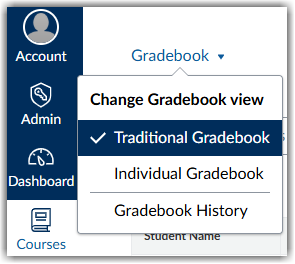
To switch to Individual Gradebook:
- Select the drop-down arrow next to Gradebook.
- Select Individual Gradebook.
- Select your course section and how you want to sort the assignments
- Narrow down what you would like to see further in the content section.
- If you select an individual student and an individual assignment, you can edit the grade directly and/or post a comment.
- If you select an individual assignment, you will see the possible points, average score, highest score, and lowest score.
The Individual Gradebook View can be most helpful if you need to download scores for an assignment and upload them elsewhere.
Note: Inactive or students who are considered “concluded” also show in downloaded CSV files.
Course Total View
The default setting in the traditional gradebook view is for the total column to display at the end of the grade. However, if you prefer to see your total grades appear at the front of your gradebook, follow these simple steps:
- Select the Options menu located in the total column
- Select Move to Front
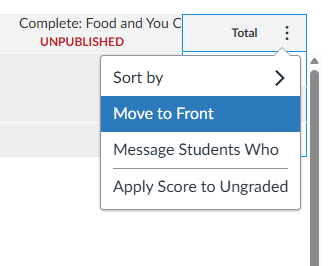
This setting will remain unless you decide to change it back.
Note: This will not change how a student views their grades.
Was this article helpful?
That’s Great!
Thank you for your feedback
Sorry! We couldn't be helpful
Thank you for your feedback
Feedback sent
We appreciate your effort and will try to fix the article