TABLE OF CONTENTS
- Introduction
- Leaving Comments through the Grade Detail Tray
- Leaving Comments through the SpeedGrader
- Additional Resources
Introduction
Providing students with comments through the gradebook is a great way for you to build instructor presence and promote transparency in your courses. Comments can include constructive feedback or kudos for a submitted assignment, and a way to keep track of any manual changes that may have been made to a student's grade. Providing comments is different from sending students messages through the gradebook. Currently, you can provide students with feedback comments two different ways through the gradebook:
- Through the Grade Detail Tray
- Through Canvas’ SpeedGrader
Leaving Comments through the Grade Detail Tray
Leaving comments through the grade detail tray is ideal if you are leaving a quick comment for an individual student’s assignment.
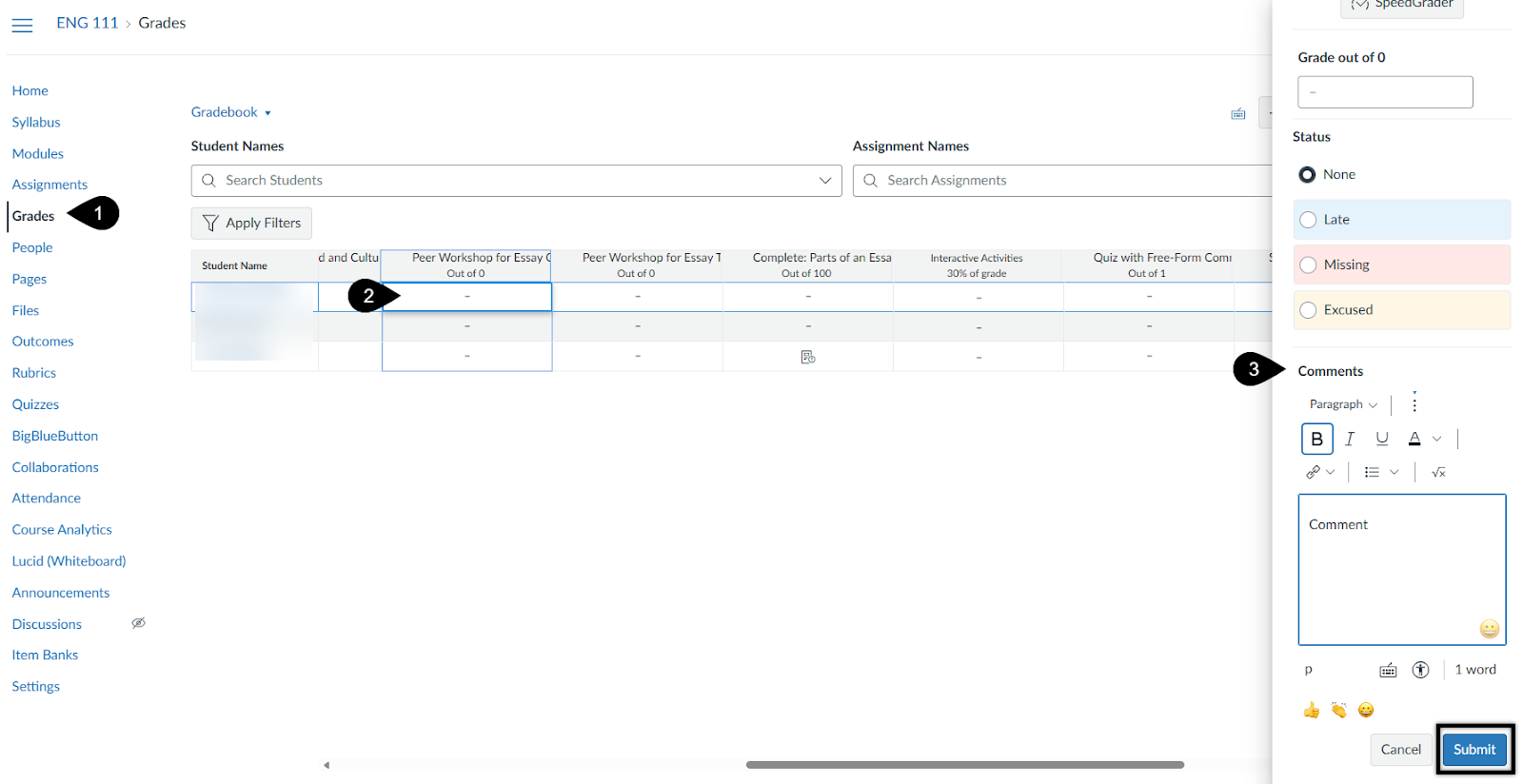
- Click the Grades tab in the Course Navigation menu (marker 1)
- Click on the cell for the assignment and student for which you want to provide comments to access the Grade Detail Tray Icon. (marker 2)
- Select the Grade Detail Tray Icon that appears when you click into the cell. The tray will open on the right side of the screen.
- Type your comment in the Comments (marker 3) field. From the grade detail tray, you have the option to also include external and internal course links.
- Click Submit.

If you add an additional comment later, comments will be listed in chronological order with the oldest comment appearing at the top. You can easily edit or delete a comment using the icons next to each submitted comment.
Leaving Comments through the SpeedGrader
Providing students comments through the SpeedGrader is ideal if you are commenting on multiple student submissions for a single assignment or adding your comments to a rubric. While there are many ways you can access the SpeedGrader, this tutorial is going to only focus on the Gradebook. If you want to learn more about how you can access the SpeedGrader, check out this Accessing the SpeedGrader article.
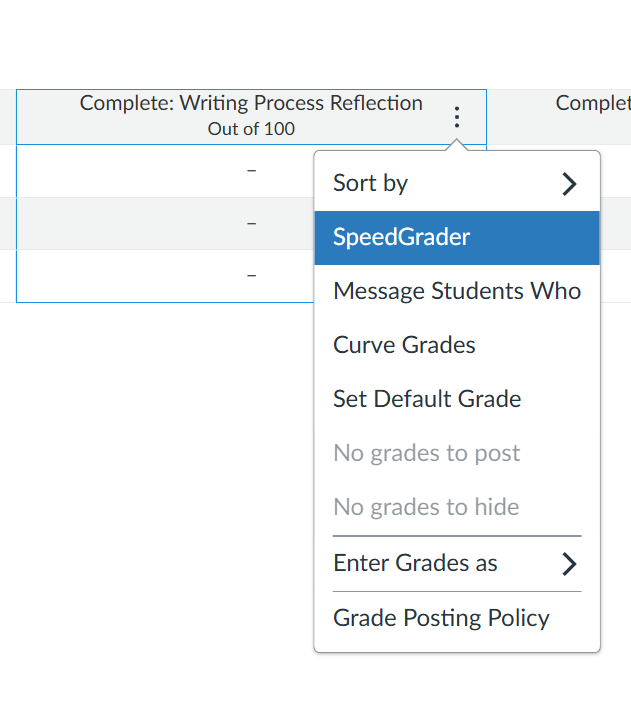
- Click the Grades tab in the Course Navigation menu
- Find the Options menu for the assignment for which you will provide comments
- Select SpeedGrader
- If you need to adjust the size of your grading screen, place your cursor over the split screen divider and drag the horizontal bar to the right or left.
- Enter comments in the general comments section.
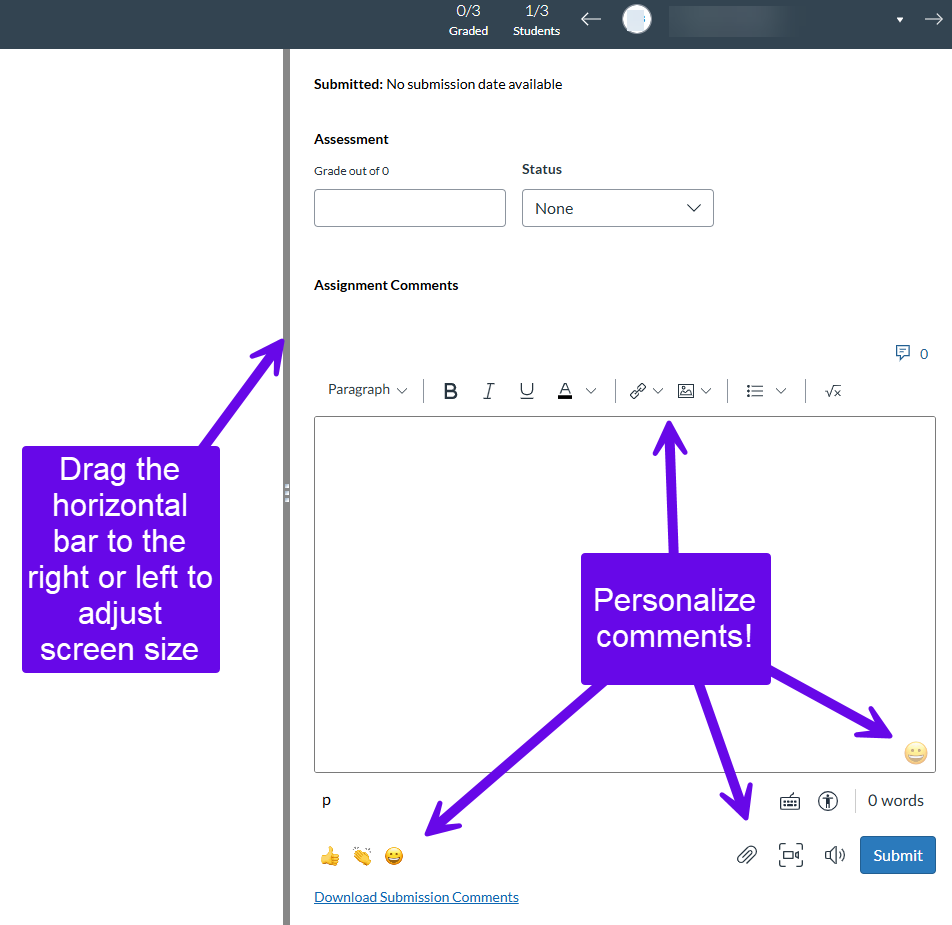
There are so many exciting ways you can personalize your comments for your students through the SpeedGrader. Features include providing external and internal course links, inserting external and internal course images, emojis, attached documents, and multimedia files.
Additional Resources
Want to learn more advanced ways to provide comments through the SpeedGrader? Check out these other tutorials:
- Read our Grading with a Rubric article if you want to leave comments using a rubric
- Read our Create a Comment Library to store frequently used comments for a course
Was this article helpful?
That’s Great!
Thank you for your feedback
Sorry! We couldn't be helpful
Thank you for your feedback
Feedback sent
We appreciate your effort and will try to fix the article