There are two ways to set up your gradebook in Canvas:
TABLE OF CONTENTS
Simple Weighted Mean of Grades
To set up your course using simple weighted mean of grades, you will determine how many points the individual assignment is worth when you create your assignment, quiz, or discussion. You can also decide how the grade will appear in the gradebook, either as points, a percentage, a letter grade, or GPA. Rather than having category weights, the higher the number of points an assignment is worth, the more weight the individual assignment will have towards the overall grade.
- Create your assignments, discussions, quizzes, and exams.
- As you create each one, assign the number of points the item is worth and how you would like the grade to display in the gradebook: points, percentage, or letter grade.
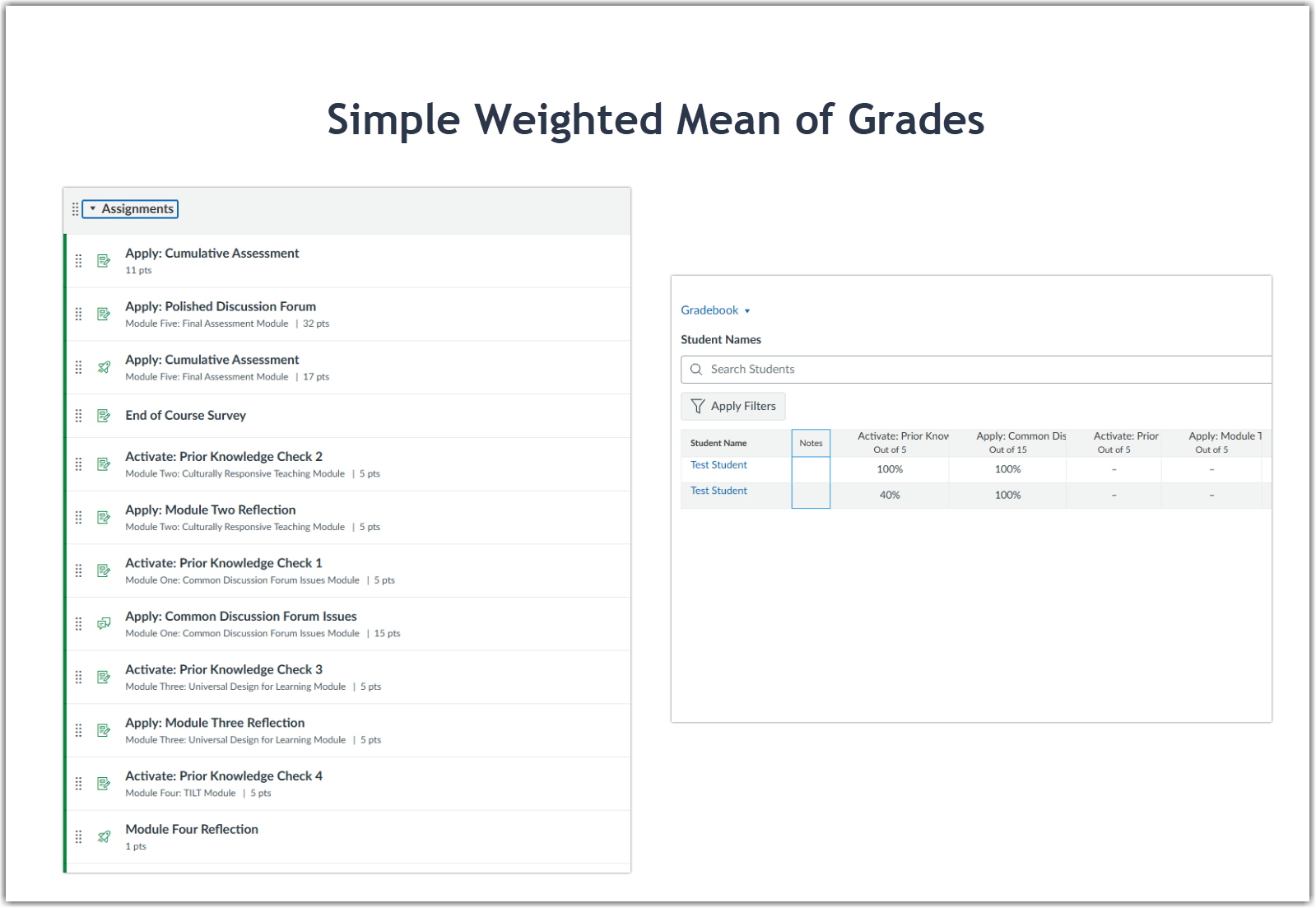
As you create your graded items, all of them will appear in individual columns. Or, you can view every graded item through the Assignments tab in the Course Navigation Menu.
Categories with No Weights
If you want to set your gradebook up using simple weighted mean of grades but still have category names to organize your gradebook by assignment type, you can add an Assignment Group for each category.
To Create an Assignment Group:
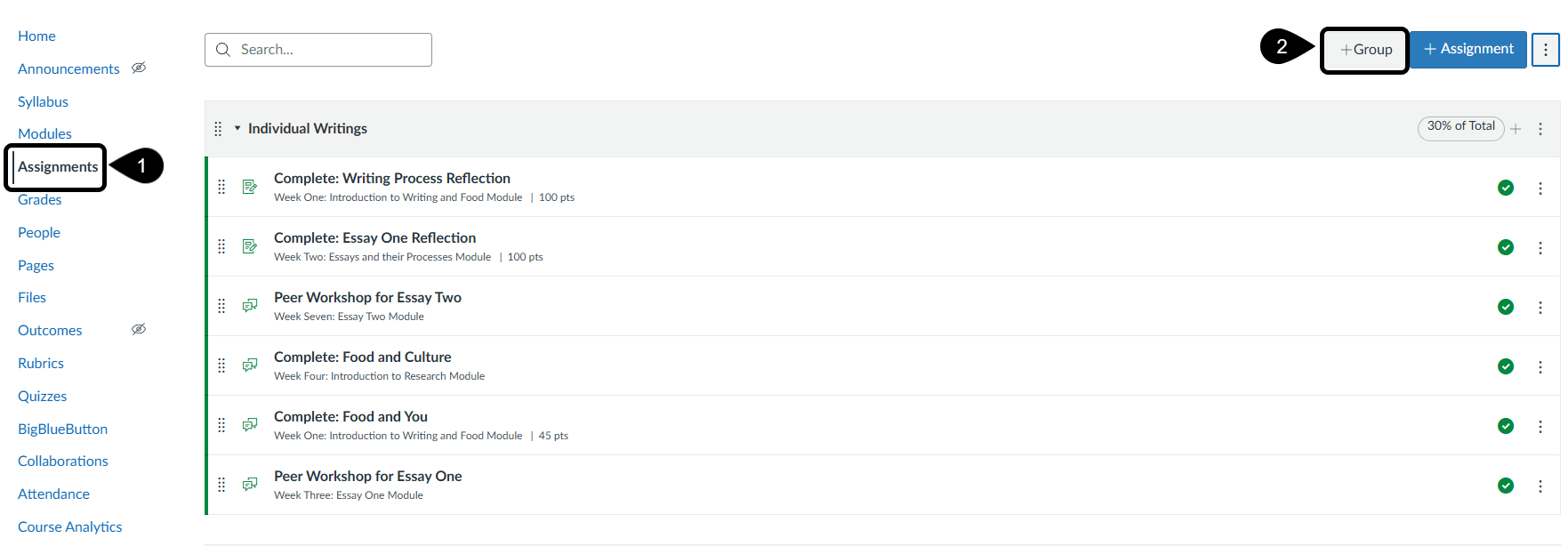
- Select the Assignments tab from your Course Navigation menu
- In the upper right-hand corner, select the +Group button.
- Enter the name of your assignment group into the popup window and click save.
- Repeat for each assignment group you need to complete.
You can place your assignment into its appropriate category two different ways:
- As you create your assignment, use the drop-down down menu in the settings to select which category the assignment belongs to.
- Easily move assignments into different categories through the assignments tab in your Course Navigation menu. Click the and drag the handle along the left-hand side of the assignment name to move your assignment into the correct category.
All of your created graded items will appear in individual columns with your category names appearing at the end of the gradebook, before the total. If you would like to rearrange the columns in your gradebook to reflect the way you have your assignments grouped through the Assignments tab in your Course Navigation menu, you can click and drag the individual columns to move their location in the gradebook.
Note: Moving items in the gradebook will not change where they are located in the assignments tab (your gradebook setup) and will not change how an assignment weighs toward the overall student grade.
Weighted Mean of Grades
If you would like to use weighted mean of grades to include categories with weights, you will set this up using the Assignments tab in the Course Navigation Menu. Once you have your category weights set, you are still able to decide if you would like every assignment in that category to be worth the same number of points, or if you would like individual assignments to weigh more toward the category total than others.
To Create a Gradebook with Weighted Categories:
- Select the Assignments tab from your Course Navigation Menu.
- In the upper right-hand corner, select the +Group button.
- Enter the name of your assignment group into the popup window and click save.
- Repeat for each assignment group you need to complete.
- Add your weights for each assignment group.
- Click on the drop-down down menu to select the option for Assignment Group Weights. This will give you a popup window to quickly adjust your weights for each group.
- Check the box for “Weight final grade based on Assignment groups.” Bonus, it will automatically calculate your course total to help you ensure your weights equal 100.
You can place your assignment into its appropriate category two different ways:
- As you create your assignment, use the drop-down menu in the settings to select which category the assignment belongs to.
- Easily move assignments into different categories through the assignments tab in your Course Navigation menu. Click the and drag the handle along the left-hand side of the assignment name to move your assignment into the correct category.
All of your created graded items will appear in individual columns with your category names appearing at the end of the gradebook, before the total. If you would like to rearrange the columns in your gradebook to reflect the way you have your assignments grouped through the Assignments tab in your Course Navigation menu, you can click and drag the individual columns to move their location in the gradebook.
Note: moving items in the gradebook will not change where they are located in the assignments tab (your gradebook setup) and will not change how an assignment weighs toward the overall student grade.Was this article helpful?
That’s Great!
Thank you for your feedback
Sorry! We couldn't be helpful
Thank you for your feedback
Feedback sent
We appreciate your effort and will try to fix the article