Note: You can find a video version of these instructions at the end of the article.
Auto-captioning has been enabled in YuJa, so your videos should be captioned once they’ve been uploaded and processed, but you will still need to check them for accuracy.
Steps
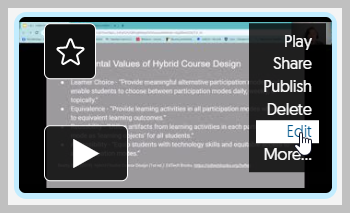
To find and edit a video’s captions, you’ll need to open the editing screen by hovering over the video and clicking on “Edit”.
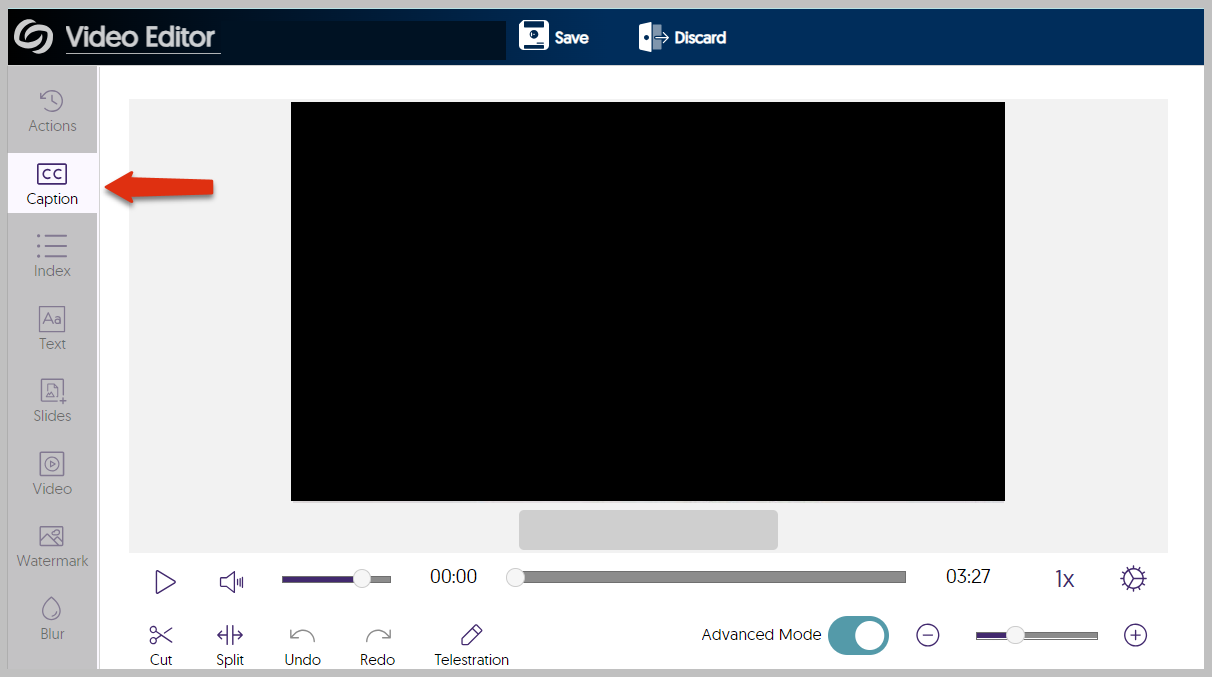
Click the "Caption" button to bring up the current captions.
You can do the following with your captions:
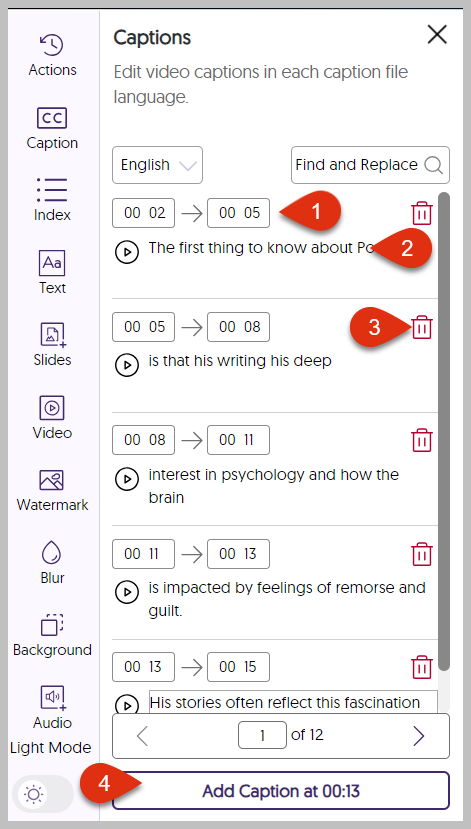
Adjust the start and end times for each closed-caption line by filling in the correct times in the boxes.
Edit the closed-caption texts: Correct punctuation and spelling, add capitalization, ensure accurate wording
Delete a closed-caption line by clicking on the Trash icon right next to the line.
Add a new closed-caption line to any point of the media by clicking on the button “Add Caption” button.
Once done, click the Save button at the top of the edit screen to save the new changes.
Quick Tips
Use the magnifying glass icon to access the Find and Replace feature.
Was this article helpful?
That’s Great!
Thank you for your feedback
Sorry! We couldn't be helpful
Thank you for your feedback
Feedback sent
We appreciate your effort and will try to fix the article