Introduction
The Canvas gradebook has a comment library feature. You can create and store comments to future use either for the individual assignment you are currently grading, or more general comments for the course for you to reuse for multiple assignments.
Creating a Comment Library
- Open any assignment through the SpeedGrader.
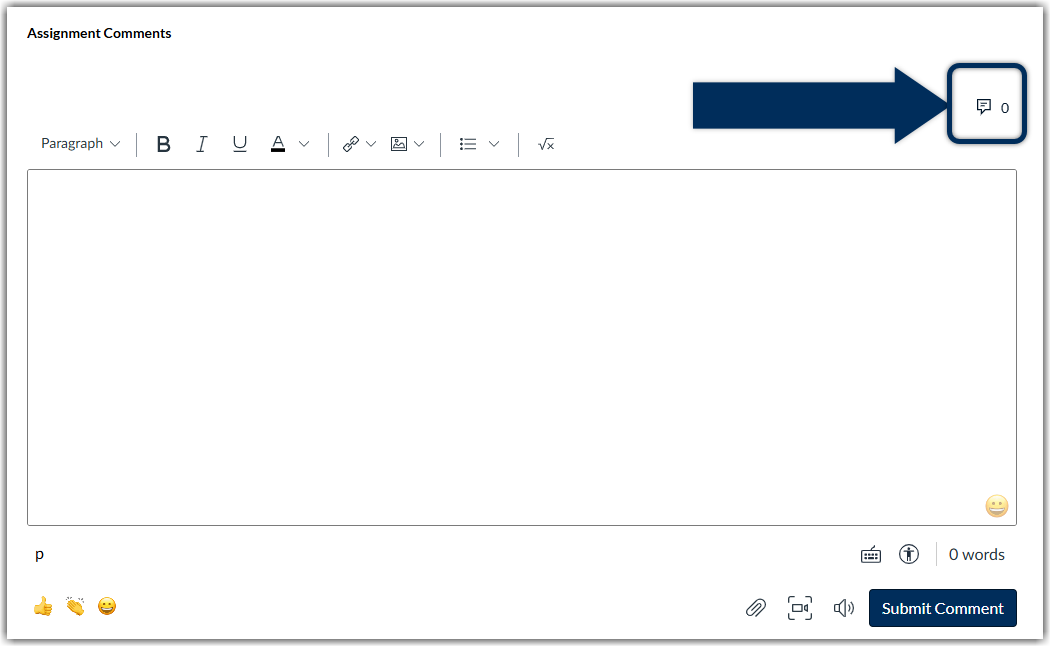
- Before the general comments box, you will see a linked conversation bubble icon next to the number zero. Click on this button to open your Manage Comment Library drawer.
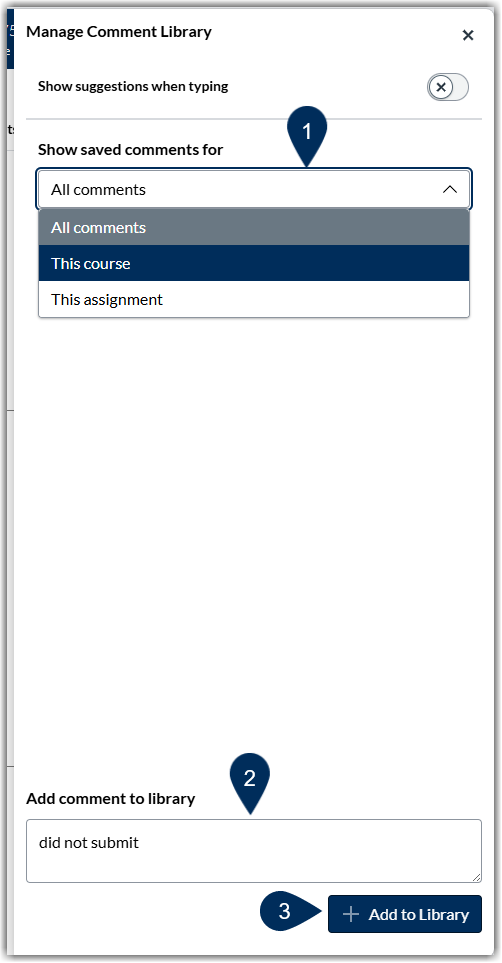
- Decide if you want to show saved comments for either:
- This course: Use this option if your comments will be general for multiple assignments (marker 1).
- This assignment: if you know these comments will be more specific and not able to be reused for different assignments (marker 1).
- Add comment to library by writing the comment in the text box (marker 2).
- Select the +Add to Library button (marker 3).
- Close the drawer.
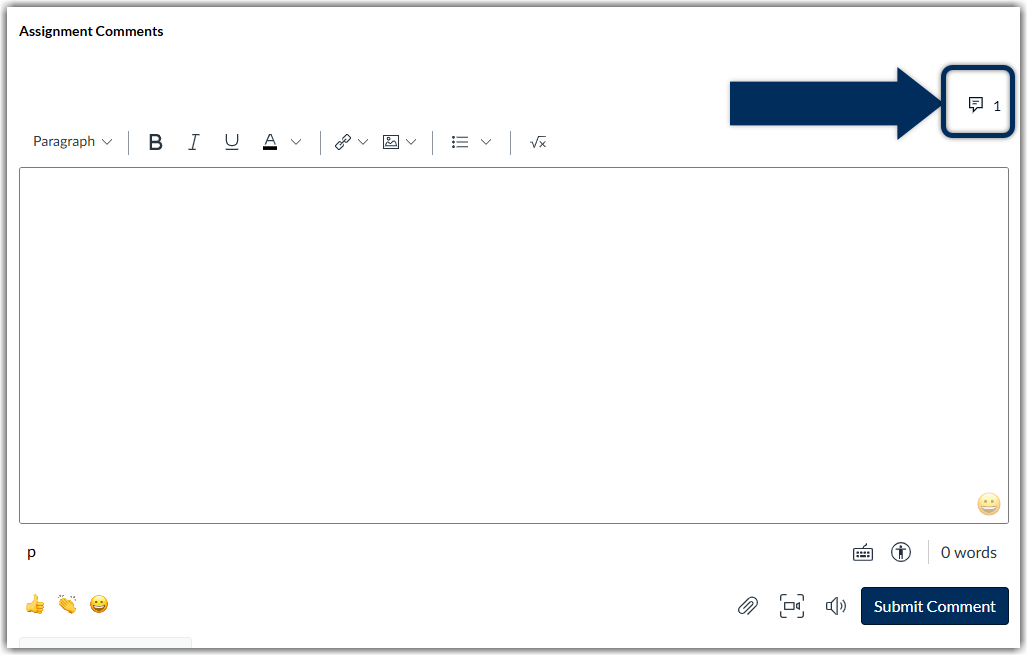
- Now, as you grade the assignment, you will see the linked conversation bubble icon now includes the number of comments you have created that can be used for that assignment.
- Easily select the comment you want to enter into the general comments box.
- Edit the comment for personalization as needed.
Was this article helpful?
That’s Great!
Thank you for your feedback
Sorry! We couldn't be helpful
Thank you for your feedback
Feedback sent
We appreciate your effort and will try to fix the article