Maintaining communication with your students is always important, and Canvas has a way that you can personalize and contextualize this message through the Canvas gradebook. You can message students two different ways through the Gradebook.
- Individually from the Gradebook by using the student context card
- Through the Message Students Who option.
Messaging Students through the Student Context Card
You can locate the Student Context Card in multiple locations in Canvas:
- From the People page
- The Moderate page from moderated assignments
- The Gradebook
You can message students individually through the Student Context Card found in the Gradebook. You may wish to use this method to communicate with students when the topic covers a student’s overall grade or as an additional form of messaging the student can access beyond a traditional email.
From the Gradebook:
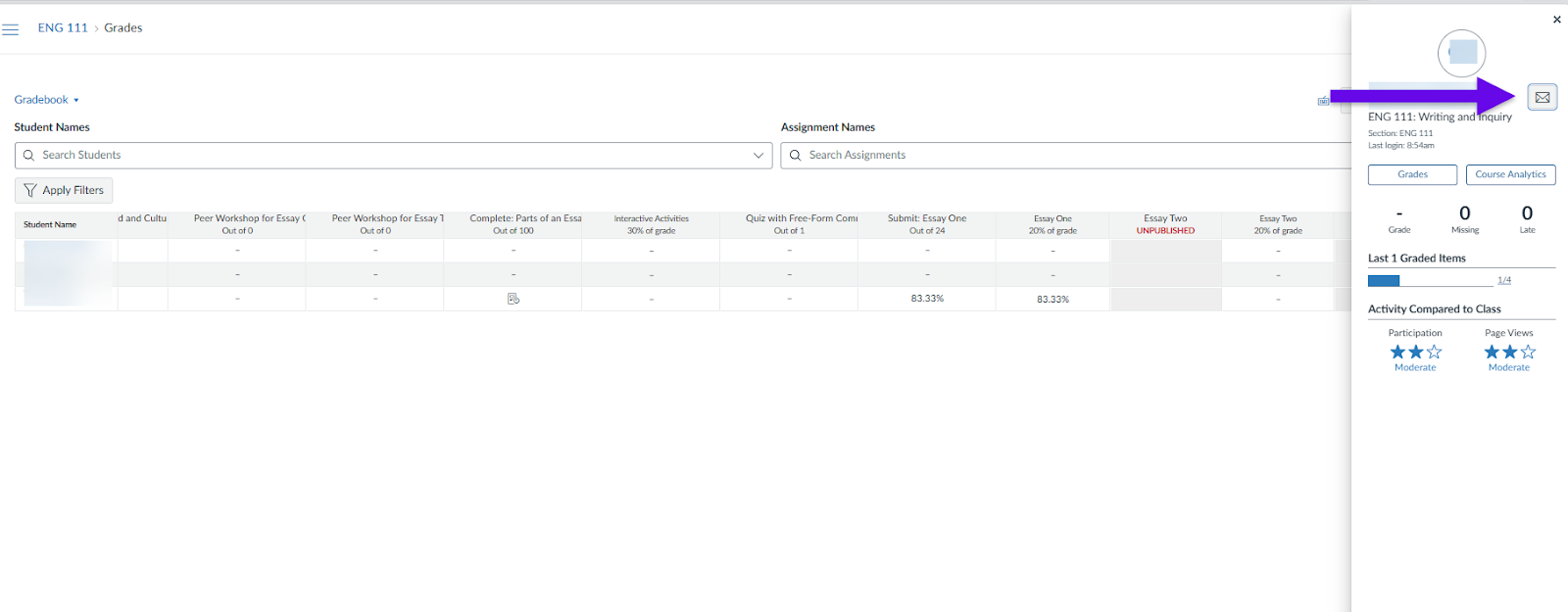
- Select the student name link for whom you would like to message. Their context card will open on the right side of the screen.
- Select the message icon (an envelope). A popup window will appear.
- Include your subject and message. You are only able to input written text.
Messaging students from the Gradebook with Message Students Who
The Message Students Who option allows you to message multiple students at the same time but ensuring that each student receives an individual message, maintaining privacy.
Through the Gradebook, locate the assignment column for which you would like to message students about:
- Select the Options menu to the right of the assignment name
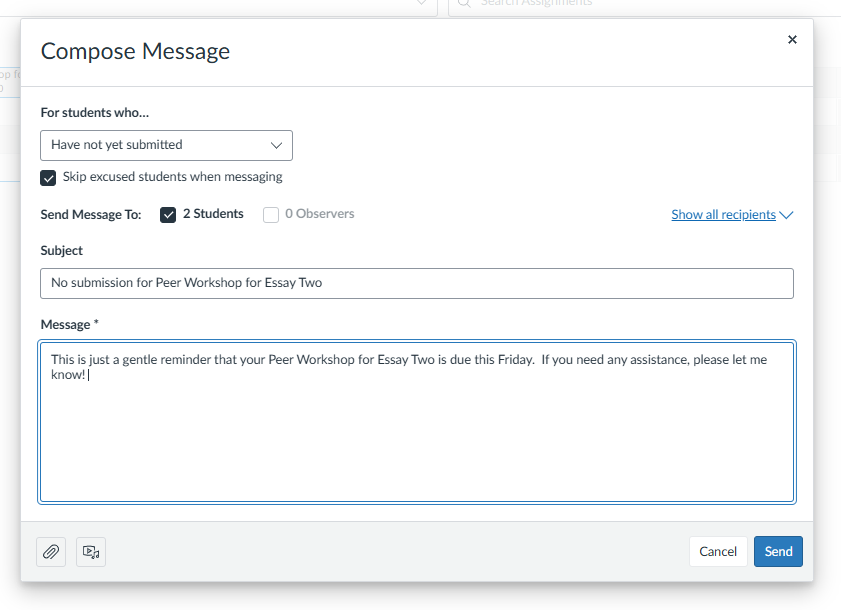
- Click on the Message Students Who. A popup window will appear.
- From the drop-down menu select which condition you would like the student(s) to meet for your message. Options include:
- Have submitted: students who have submitted the assignment, even if they have a grade or not.
- Have not yet submitted: students who haven't submitted the assignment, even if they have been manually awarded a grade.
- Have not been graded: students whose assignments have not yet been graded (submitted or unsubmitted).
- Scored less than [point value]: students who earned a grade on their assignment less than X number of points.
- Scored more than [point value]: students who earned a grade on their assignment more than X number of points.
- Reassigned: students who have submitted an assignment and you have reassigned it to them.
- Personalize your criteria for your message. Enter a score value of the assignment if applicable. The box for how many students will receive the message will be automatically selected. You have the option to Show all recipients. Clicking on this link will list all of the students slated to receive the message. If you need to remove a student from the message list, you can remove that student individually by selecting the ‘x’ next to the student’s name. The subject line will automatically populate, but you can edit this as necessary.
- Create your message. This can be written text with the option to add an attachment or upload a media file.
- Click Send
Notes:
You can also message students through the total column, but your only options include for students who have a total grade higher than or a total grade lower than.

Messages are not the same as Gradebook comments.  If you wish to provide students with comments for an assignment, enter these through the Canvas SpeedGrader.
Was this article helpful?
That’s Great!
Thank you for your feedback
Sorry! We couldn't be helpful
Thank you for your feedback
Feedback sent
We appreciate your effort and will try to fix the article