TABLE OF CONTENTS
Introduction
Now that you have linked your rubric, students can see this rubric before they submit their assignment/quiz/discussion. However, make sure you tell them in the rich content editor where they can locate the rubric.
Grading with a Traditional Rubric
Rubrics are easy to use in the SpeedGrader.
- Open SpeedGrader.
- Select the View Rubric button.
- Select the level that best describes how the student performed on each criterion. This must be done for each criterion for the grade to be calculated. Currently selected levels are highlighted with a green border.
- Provide additional comments as needed with the rubric by selecting the small conversation bubble next to the points for each criterion row if you would like to comment on this criterion specifically.
- Select submit assessment to submit your graded rubric. The box you selected for each criterion will now be the only one to appear with the total points earned for that criterion. The boxes will also be color-coded based on the rating the student received.
- Provide general comments below the rubric in the assignment comments box. Comments can be written, visual, and audio feedback and use frequently used comments through your Canvas Comment Library.
- Select Submit to ensure your general comments are also submitted for the student to view.
Grading with a Free-Form Comments Rubric
Free Form Comments is easy to use with the SpeedGrader.
- Open SpeedGrader.
- Select the View Rubric button. Your rubric will now appear, and you may wish to adjust your grading screen.
- Assign the number of points earned and enter your comments. If you believe you will use the comment more than once, check the box “save this comment for reuse” (image A). As you continue to grade additional students, you will now have the option to select a comment from your comment library or leave a new comment (image B).*
- Select Submit Assessment once you are down providing feedback to your student.
Image A
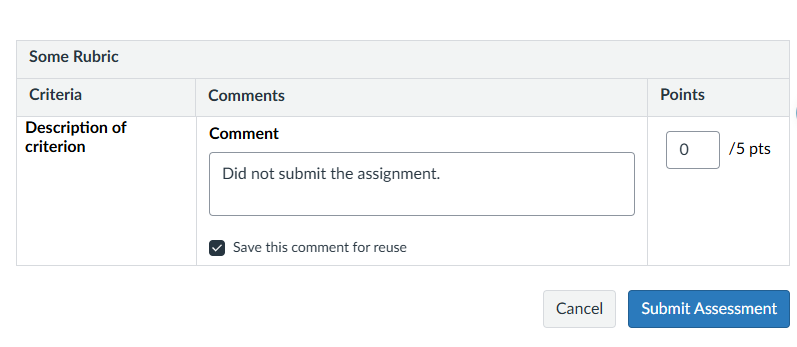
Image B
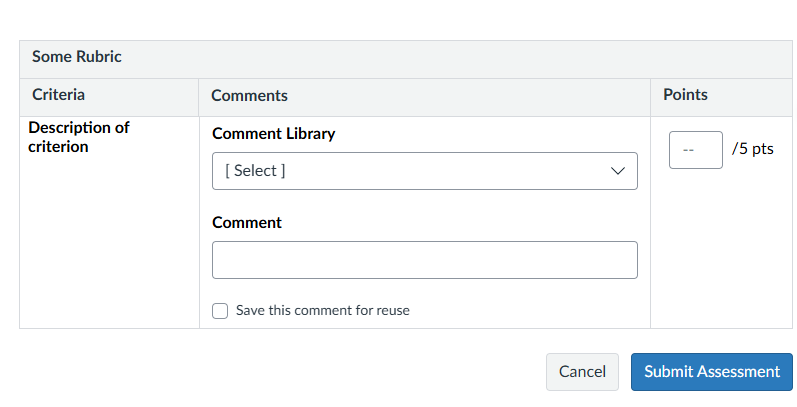
*The comment library created through your Free-Form Comments Rubric will only remain for the specific assignment. For example, if you use the same free-form comments rubric for a different assignment, you will not see your comment library next time you grade with the rubric. If you would like to create a more general comment library, read through the Create a Comment Library article.
Auto-Grading with Rubrics
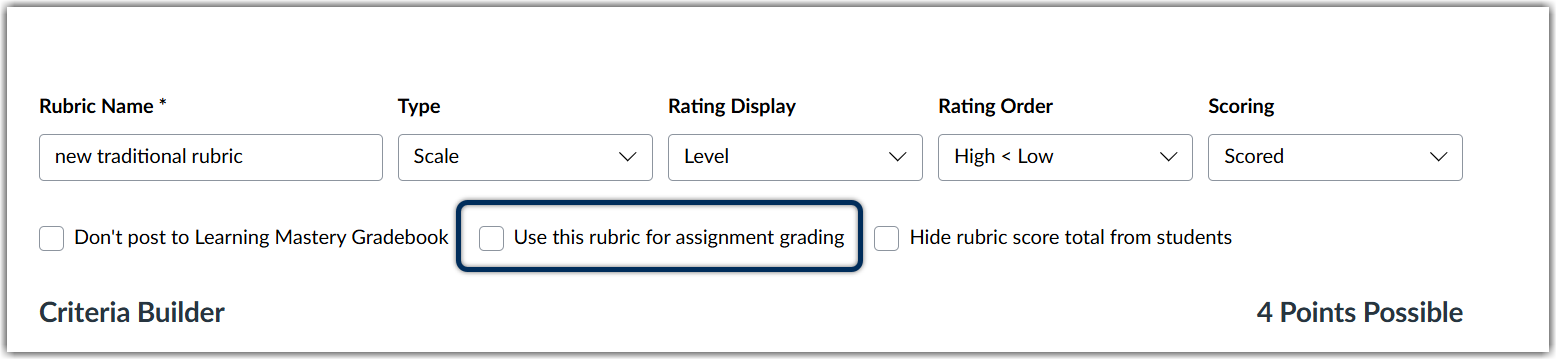
If you want the rubric grade to auto-populate in the gradebook, you will need to first return to how you linked your rubric to your Canvas element. If you do not complete these steps, you will need to manually enter student grades after you have graded their work with the rubric.
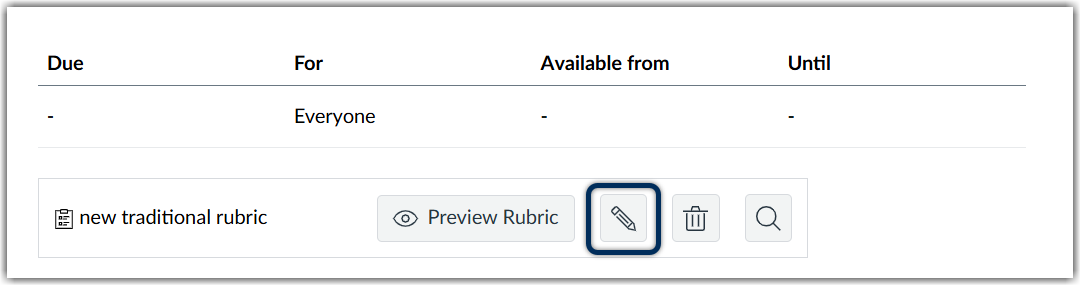
- Select the pencil icon to edit your linked rubric
- Check the box that says Use this rubric for assignment grading if you want the grade to automatically populate in the Grades tab once you grade with the rubric.
If you have enabled checkpoints for a discussion, and wish to grade with a rubric, the rubric does not auto-populate grades for checkpoints.
Editing Feedback
Easily edit your graded rubric by selecting the View Rubric button again. Additionally, you can continue to add general assignment comments after your rubric has been submitted as well, just make sure you select the Submit button. Each comment that is added will appear in a list. Delete previous comments by selecting the “X” next to the comment you wish to remove.
Was this article helpful?
That’s Great!
Thank you for your feedback
Sorry! We couldn't be helpful
Thank you for your feedback
Feedback sent
We appreciate your effort and will try to fix the article