Introduction
There are different ways you can assign extra credit points to a student either through a manual or automatic override of a student’s required assignment or by creating an optional, separate extra credit opportunity within your course.
TABLE OF CONTENTS
Adding Extra Credit
Add Extra Points to an Existing Assignment
Manually override a graded assignment to include extra credit points either through the gradebook by selecting on the individual cell or through the SpeedGrader.
You may want to include an additional comment for the assignment that extra credit points have been added.
Add Fudge Points with a Quiz
If you would like to add extra credit to a quiz through the SpeedGrader, similar to manually overriding an existing assignment, you are able to add “fudge points”:
- Open the quiz through the SpeedGrader
- Scroll down to the end of the quiz.
- Add the number of fudge points you would like for the quiz (marker 1) and select update changes (marker 2).

Embed Extra Credit into a Rubric
If you know you already want to build extra credit into an assignment, you can do so with a rubric. This tutorial is not going to cover how to create a rubric; however, you can access that article by clicking on how to create and link a Canvas Rubric.
While creating or editing your rubric:
- Make sure your assignment is only worth the number of points required for students to meet without the extra credit.
- Add a criterion row specifically for extra credit with a range from zero to the maximum number of extra credit points you would like a student to earn.
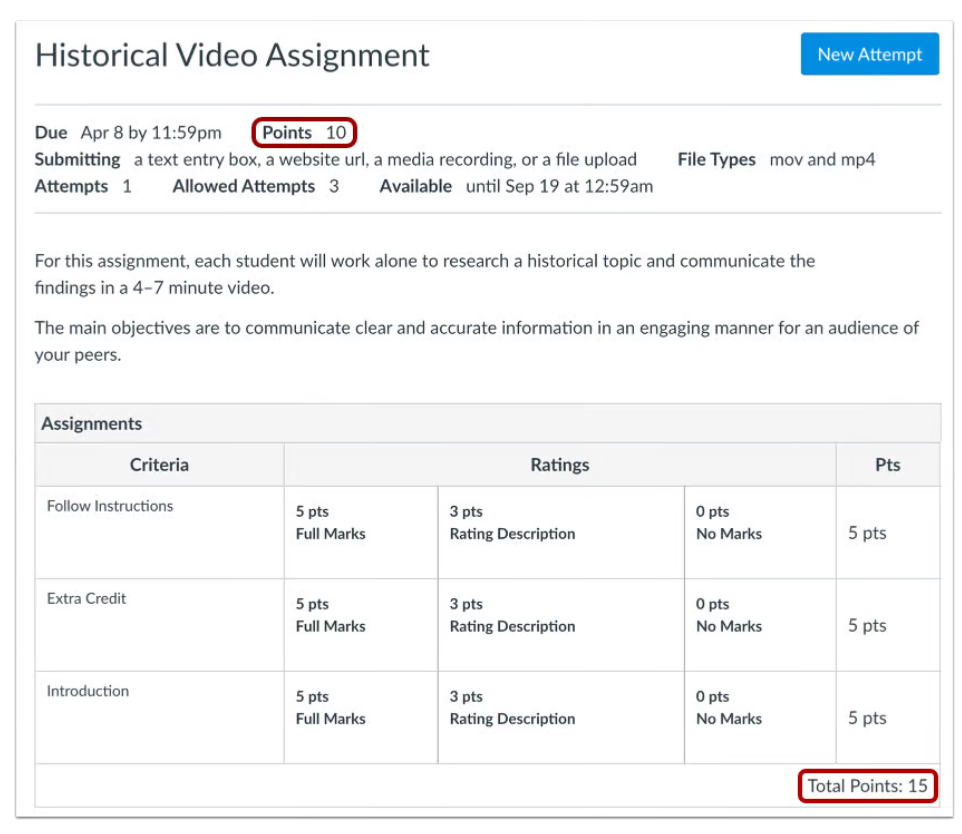
Example:
In the image taken from Canvas’ How do I Give Extra Credit in a Course article, the assignment is worth a total of 10 points, not including any extra credit. A separate row has been created in the rubric titled “extra credit” with the option for five, three, or zero points. Now, students can earn up to a 15 out of 10 for their total assignment grade using the extra credit criterion built into the rubric. However, should students not complete the extra credit portion of the assignment, they can still earn full points (10) with no penalty.
A popup box will appear letting you know the rubric has more points than the assignment is worth and recommend you change one or the other to match. However, because you want the additional points in the rubric to act as extra credit, you will want to select "Leave Different."
Manually Adding Extra Credit with a Rubric
You can manually enter more points for a criterion with a rubric. This is essentially providing students with extra credit. However, be careful with this as it may not have been your intention to add extra points.
Creating Extra Credit Assignments
If you are creating a separate assignment for extra credit (rather than manually overriding an assignment or quiz grade or automatically adding extra credit with a rubric), how you do this will look different depending on your gradebook setup. This tutorial does not cover how to setup your gradebook. If you need to know how to setup your gradebook using weighted groups or point values, view our Gradebook Setup Tutorial.
Extra Credit Assignment with Weighted Groups
Option A
If you have your gradebook setup with groups, or categories, and you only want your extra credit to impact a specific category total, follow these steps:
- Create an assignment as you would create any other assignment
- Adjust your settings to set the assignment to earn zero points
- Select your submission type (chose no submission or on paper if this is a manual submission)
- Select the assignment group to add the extra credit
- Optional: in your assignment description, include your extra credit criteria and/or include a note for students that this is a placeholder assignment for extra credit.
- Save and publish your assignment
- When grading the extra credit submissions, you can enter zeros or excuse the assignment for students who did not complete with no negative impact to the grade.
Option B
If you have your gradebook setup with groups, or categories, and you want your extra credit to impact the overall course grade, follow these steps:
- Create a new assignment group with a clear name denoting extra credit
- Assign the weight for the extra credit group that make your total course over 100
- Create your extra credit assignment as you would create any other assignment
- Decide how many points you want to the assignment
- Select your submission type
- Select your Extra Credit Assignment group to add the assignment to the gradebook
- Optional: in your assignment description, include your extra credit criteria and/or include a note for students that this is extra credit.
- Save and publish your assignment
- When grading the extra credit submissions, do not enter a zero for students who did not complete it. Instead, excuse the assignment after the due date.
Extra Credit Assignment with Point-Values (simple weighted mean of grades)
If you have your gradebook setup based on point-values only, and want to create an extra credit assignment, follow these steps:
- Create a new assignment as you would create any other assignment
- Adjust your settings to set the assignment to earn zero points
- Select your submission type
- Optional: in your assignment description, include your extra credit criteria and/or include a note for students that this is extra credit.
- Save and publish your assignment
- When grading the extra credit submissions, do not enter a zero for students who did not complete it. Instead, excuse the assignment after the due date.
Was this article helpful?
That’s Great!
Thank you for your feedback
Sorry! We couldn't be helpful
Thank you for your feedback
Feedback sent
We appreciate your effort and will try to fix the article