
TABLE OF CONTENTS
- Introduction
- How to access Panorama from your Canvas Course
- Features of the DocHub Page
- Creating Accessible Content in DocHub
- Contacting Support
- Backing Up your Files
This video covers features of the DocHub and Course Report pages in YuJa Panorama's platformIntroduction
YuJa Panorama's DocHub is the main landing page for all of your digital content. You can create folders, upload individual documents, sort, and organize your files all on one page of YuJa Panorama’s platform.
How to access Panorama from your Canvas Course
You can access your DocHub two different ways:
- Click on the YuJa Panorama URL (opens in a new tab) and enter your Davidson-Davie credentials.
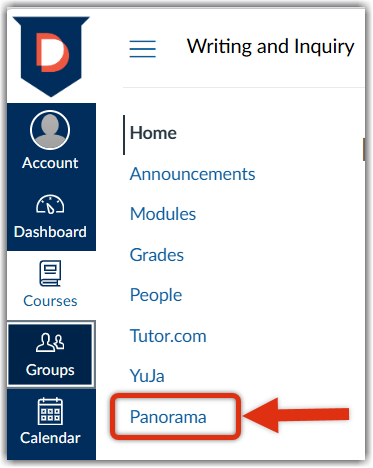
- If you have a Canvas course, select the Panorama hyperlink located in the course's navigation menu. The DocHub will open within your Canvas course
Features of the DocHub Page
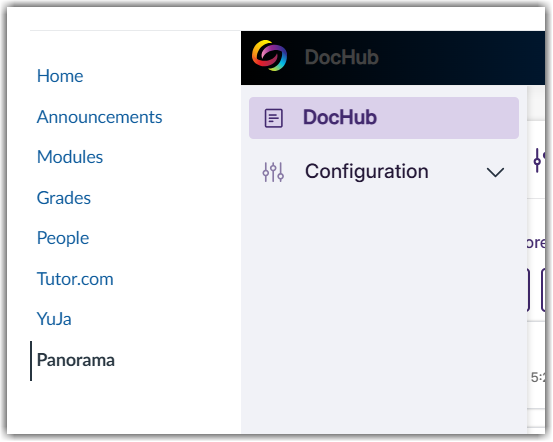
To access the DubHub page, locate the paper icon located on the left-hand side on the navigation bar.
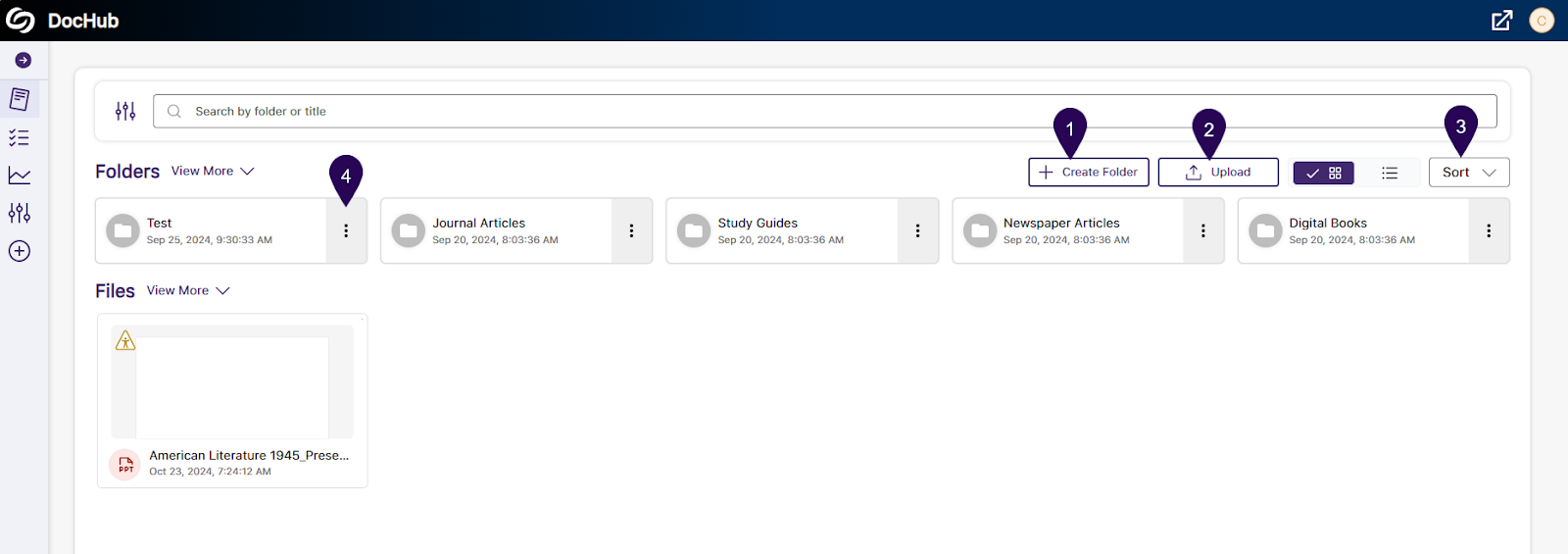
DocHub enables you to:
- Create folders
- Upload individual documents such as PPT, DOC, and PDF
- Sort your folders
- Click on the vertical ellipsis for a folder to View the individual files nested within or Delete the folder
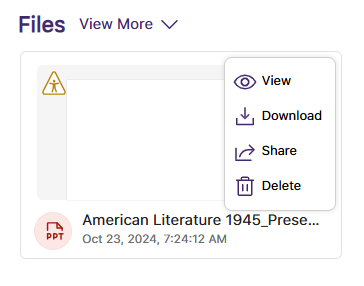
With your individual files, hover your cursor over the file image to either View the accessibility report, Download, Share the file via email, or Delete the file.
Creating Accessible Content in DocHub
Should you wish to view the accessibility report of your digital content, you will want to hover your cursor over the individual file and select View. This will open up the alternative formats and accessibility report menu. Clicking on the accessibility report, you are able to make changes to flagged issues.
For faculty and staff who plan to upload the digital content to Canvas, you will want to download the file from your DocHub rather than copy the original file from a prior Canvas course.
Contacting Support
Should you have any questions or issues with Panorama, you can quickly contact support by clicking on your account profile located in the upper right-hand corner.
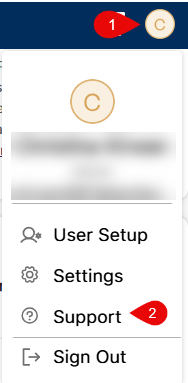
You can also explore YuJa Panorama's Support articles (opens in a new tab).
Backing Up your Files
YuJa Panorama is configured to keep all created digital content and their alternative formats for 12 months from the time they are scanned. You are able to view the original scan date on your Course Report page. Therefore, if you know you want to have the most accessible version of your media indefinitely, you will need to save your content elsewhere before the 12-month deadline.