TABLE OF CONTENTS
Introduction
The Panorama Accessibility Widget can be accessed by clicking on the Accessibility icon located at the bottom right-hand of the website page. You can also click and drag the icon to different locations on your screen.
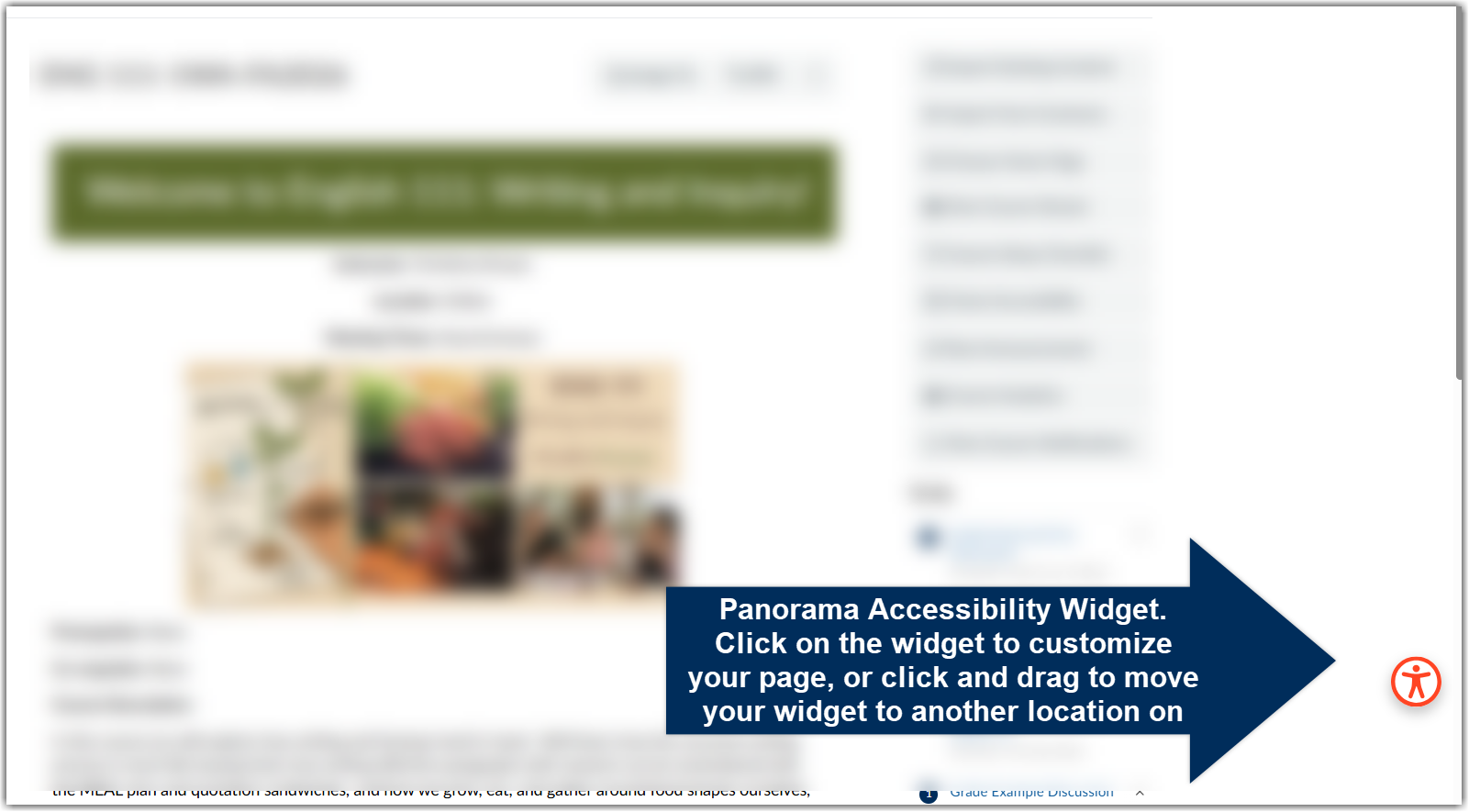
The Widget is broken down into three main categories: Adjustments, Preferences, Profiles, and Formats.
Adjustments
Adjustments (marker 1) refers to individualized changes you can make regarding the appearance of your website page. Within the Adjustments category, there are three subcategories.
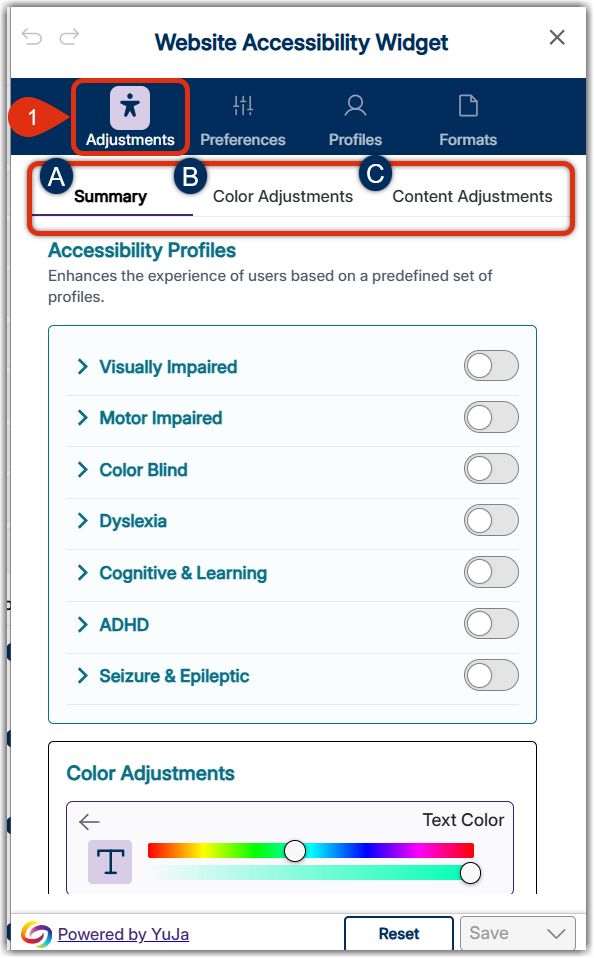
- Summary:
- The summary includes predefined profiles of accessibility improvements, making it quick to select one of the profiles to quickly adjust the page automatically. In addition to enabling the profile, you can continue to make adjustments for specific features.
- Visually Impaired: Enhance the website visuals and increase the size of text and graphics
- Motor Impaired: Choose to pause animations
- Color Blind: Alter the color palette by setting High Contrast and Medium Saturation
- Dyslexia: Focus attention on crucial sections of the website by activating Dyslexia Font and pause animations
- Cognitive & Learning: Increase the size of the text, create borders around titles, headings, and links, and activate the Reading Guide
- ADHD: Reduce or eliminate distractions. You can also click on the Reading Mask, which spotlights targeted areas of the website
- Seizure & Epileptic: Eliminating blinking, flashing, or flickering visuals as well as certain color combinations.
- The summary includes predefined profiles of accessibility improvements, making it quick to select one of the profiles to quickly adjust the page automatically. In addition to enabling the profile, you can continue to make adjustments for specific features.
- Color adjustments:
- You can adjust your desired level of contrast, saturation, monochrome, text, title and background colors, and highlight or outline titles, links, and buttons. Many features come with three different levels. If you wish to return a feature to its original setting, simply click a fourth time to remove the personalized adjustment.
- Content adjustments:
- The content adjustment refers to spacing, font sizing, line height, letter spacing, font type, the size of your cursor, image availability, a Reading Mask and Reading Guide. Click on the See More link to open additional content adjustments.
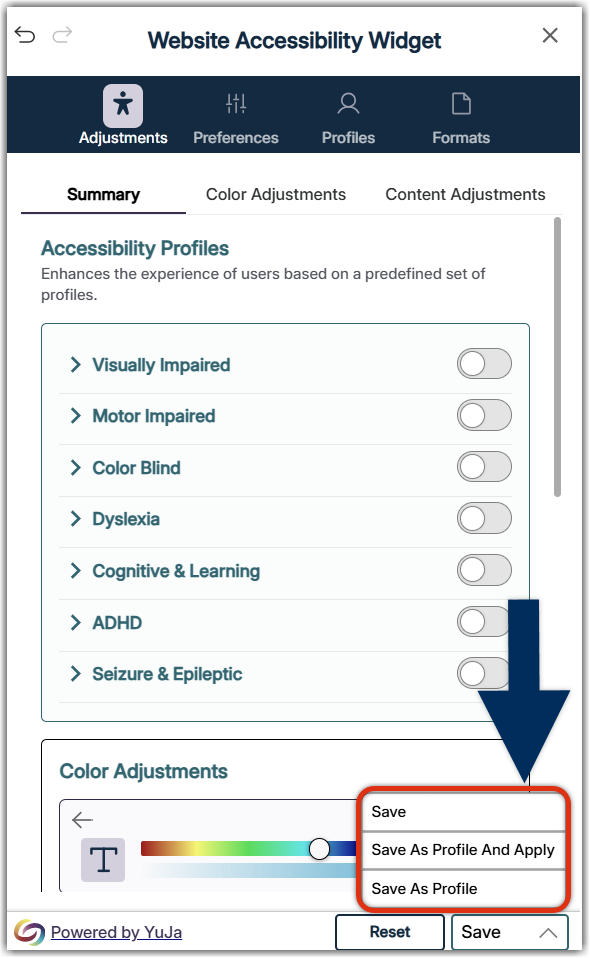
Save your adjustments to create a profile.
Preferences
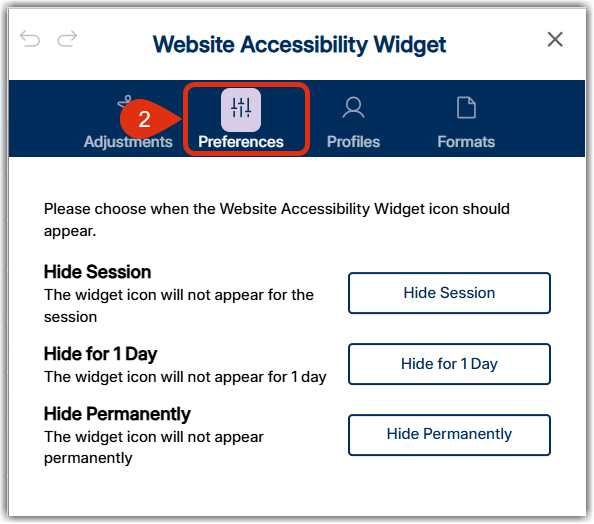
Preferences (marker 2): Should you no longer wish to see the Accessibility Widget on your webpage, you can decide to temporarily or permanently disable the widget. However, permanently disabling the widget is not advised.
Profiles
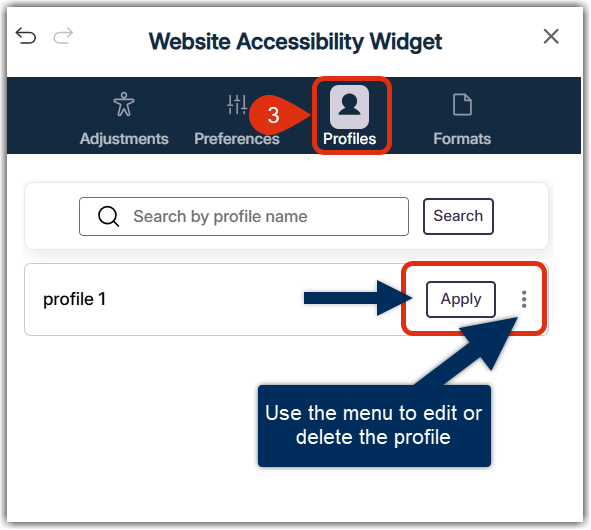
Profiles are created after you save adjustment settings. You can edit your profile name to make it easier to recall your settings, adjust a setting, or delete the profile. Additionally, you can more than one profile.
Formats
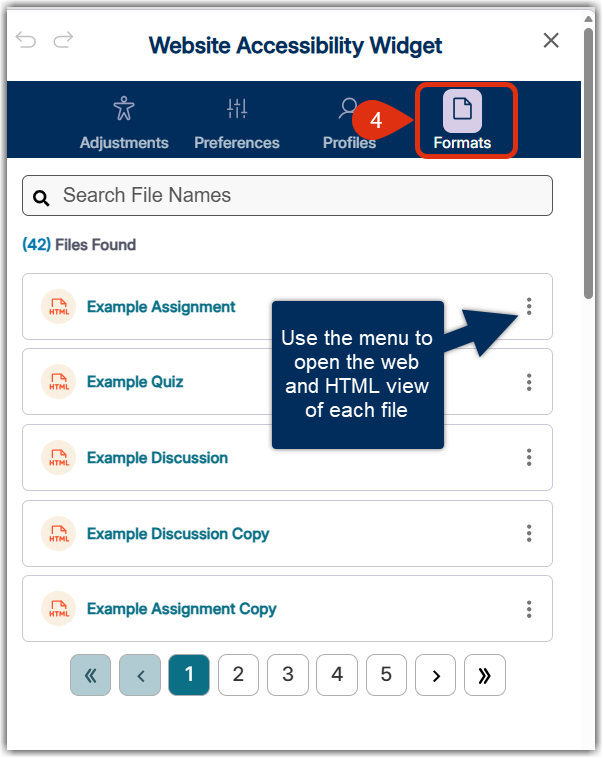
The Formats tab (marker 4) provides a list of all the documents found written on the web page so you can easily search by file name. Select the vertical ellipsis and select View to be provided with the alternative Formats menu. If you'd like to learn more about the alternative formats available, read through this Alternative Formats Guide.
This document was adapted from the original Yuja Accessibility Widget Guide (opens in a new window).
Was this article helpful?
That’s Great!
Thank you for your feedback
Sorry! We couldn't be helpful
Thank you for your feedback
Feedback sent
We appreciate your effort and will try to fix the article