
TABLE OF CONTENTS
- This video covers features of YuJa Panorama's DocHub and Course Report pages in Panorama's platform
- Introduction
- How to Download the Panorama LTI into your Canvas Course
- Features of the Course Report Page
- Contacting Support
- Backing Up your Files
This video covers features of YuJa Panorama's DocHub and Course Report pages in Panorama's platform.Introduction
YuJa Panorama’s Course Report page is a summary of all your active Canvas courses and the option for you to view the accessibility reports and alternative formats for all of the individual items therein via the Panorama platform.
How to access Panorama
You can access your course report two different ways:
- Click on the YuJa Panorama URL (opens in a new tab) and enter your Davidson-Davie credentials.
- If you have access to a Canvas course, click on the Panorama hyperlink located in the course's navigation menu. The DocHub page will open within your Canvas course.
How to access the Course Report Page
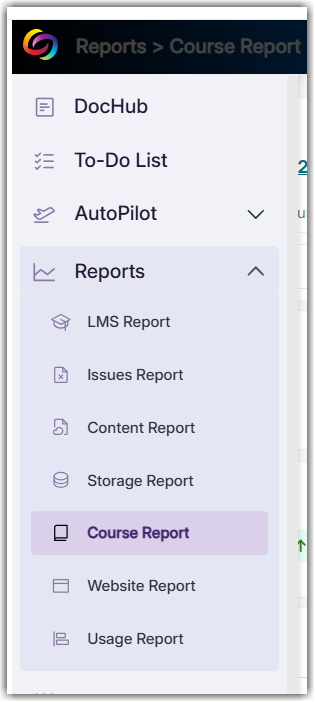
- Hover your cursor over the collapsed navigation menu located along the left-hand side of the screen
- Select the Reports dropdown menu
- Select Course Report
Features of the Course Report Page
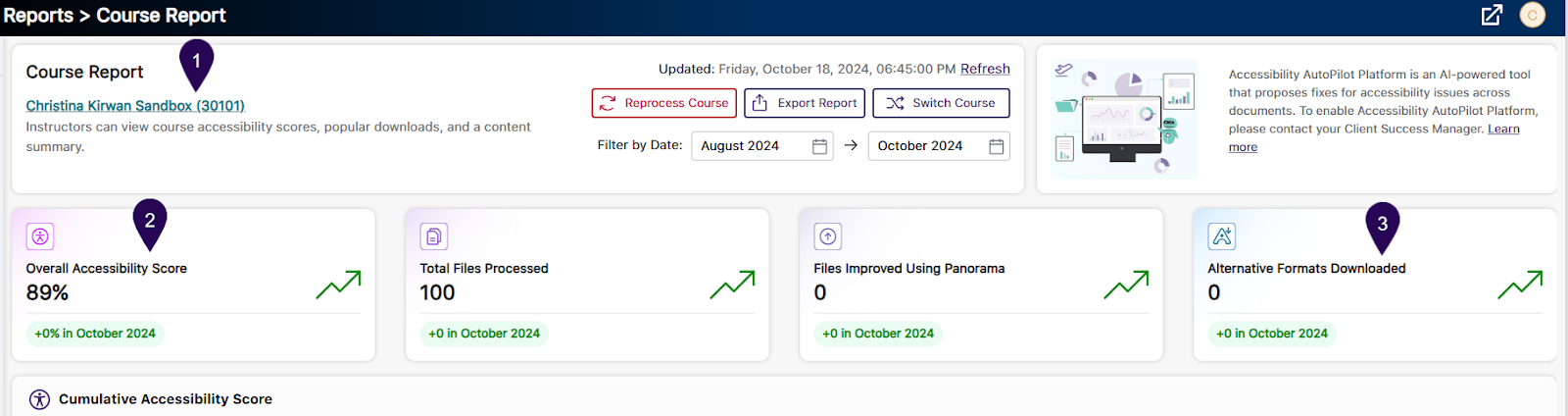
The upper half of your Course Report is an overview, and enables you to:
- Click back into your Canvas course
- View data for your overall accessibility score
- See if students are selecting alternative formats for your course content
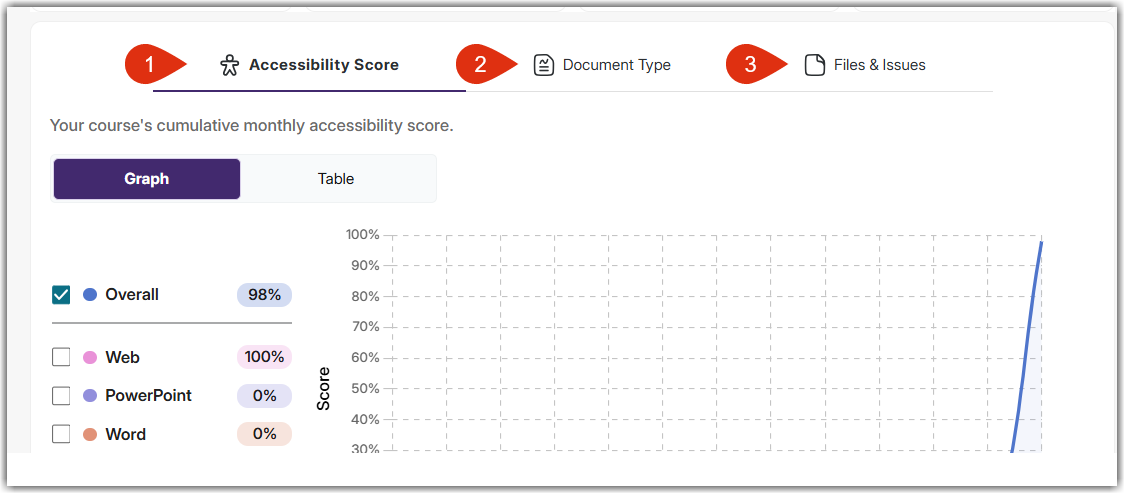
The bottom portion of the Course Report page allows you to view your Accessibility Score (marker one), Document Type breakdown (marker two), and your Files & Issues (marker three).
From the Files & Issues tab, you are able to access all of your digital material for the course, open up your accessibility report and alternative formats by clicking on the name, score gauge, or vertical ellipsis to open the menu to View your document.
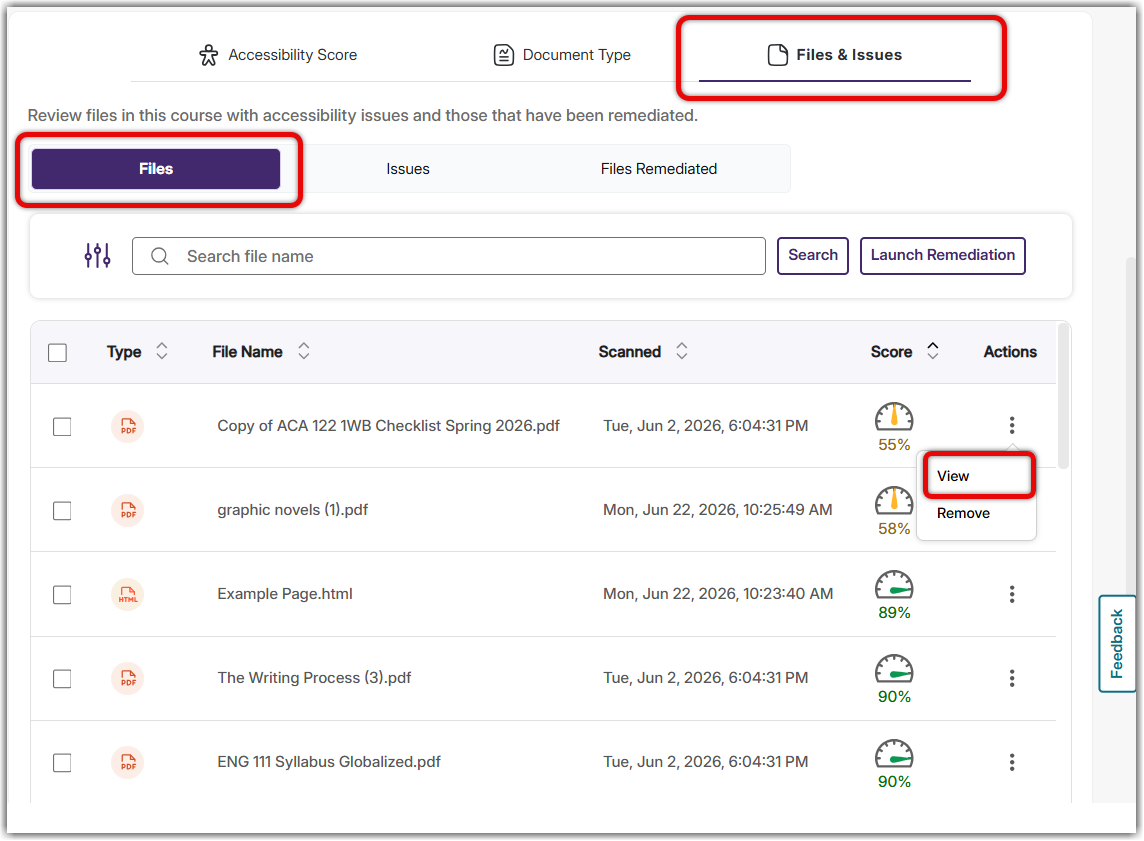
This is also where you can see the scanned date of your document. You have access to updated documents for 12 months through the YuJa Platform. This 12 month-term is dependent on the scan date. Therefore, if you need to access the most updated, accessible version of a document, make sure you download and save the file elsewhere within 12 months of the original scan.
Your content will be organized by lowest to highest accessibility score. From this list, click on the vertical ellipsis and select View. This will open up the alternative formats and accessibility report menu.
Clicking on the accessibility report, you are able to make changes to flagged issues. If you fix changes or upload a more accessible version of a document from the Course Report page, those changes will be saved and updated automatically in your Canvas course.
Of course, it is always important to double-check that those changes were automatically updated. If they did not, you can always download the new version of your document and upload it to your Canvas course.
Contacting Support
Should you have any questions or issues with YuJa Panorama, you can quickly contact support by clicking on your account profile located in the upper right-hand corner.
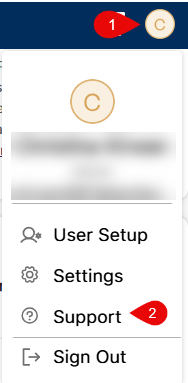
You can also explore YuJa Panorama's Support articles (opens in a new tab).
Backing Up your Files
YuJa Panorama is configured to keep all created digital content and their alternative formats for 12 months. Therefore, if you know you want to have the most accessible version of your media indefinitely, you will need to save your content elsewhere before the 12-month deadline.