Logged into Canvas and can't find your courses? Don't panic! There are some common causes to this issue. Try these options to see if it helps you find your courses.
Gentle reminder: Courses that are not currently in session will not show on your Dashboard. Courses will appear on your Dashboard on the first day of the term.
TABLE OF CONTENTS
Delete Your Cache and Cookies
Canvas is very sensitive to any cache and cookies that may be on your browser. This can cause it to malfunction and often hide classes, especially in the Dashboard. Follow the steps below to properly get rid of the cache and cookies:
- Log out of your Canvas account
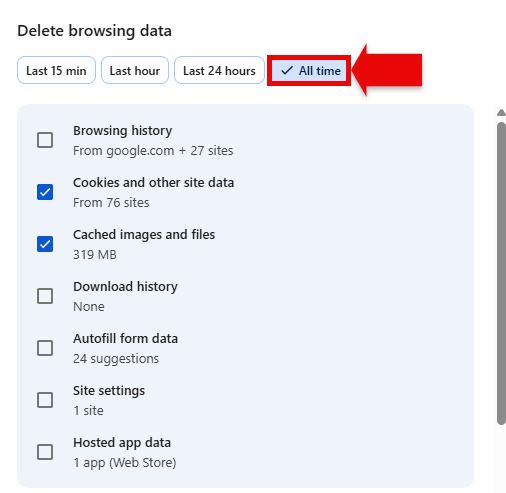
- Clear you cache and cookies
- Log into your Canvas account
Tip: Make sure to select "All time" when deleting. Sometimes there are old cookies that will still mess with your Canvas account. See the screenshot below for where to find this:
Un-favorite Your Classes
Some students will favorite classes so only specific classes will show on their Dashboard. While this can be useful at times, it is not recommended to favorite courses as all other courses will be hidden from the Dashboard. This includes your currently enrolled courses and can potentially cause you to miss important course work.
Already favorited and want to undo this? Follow the steps below to un-favorite courses:
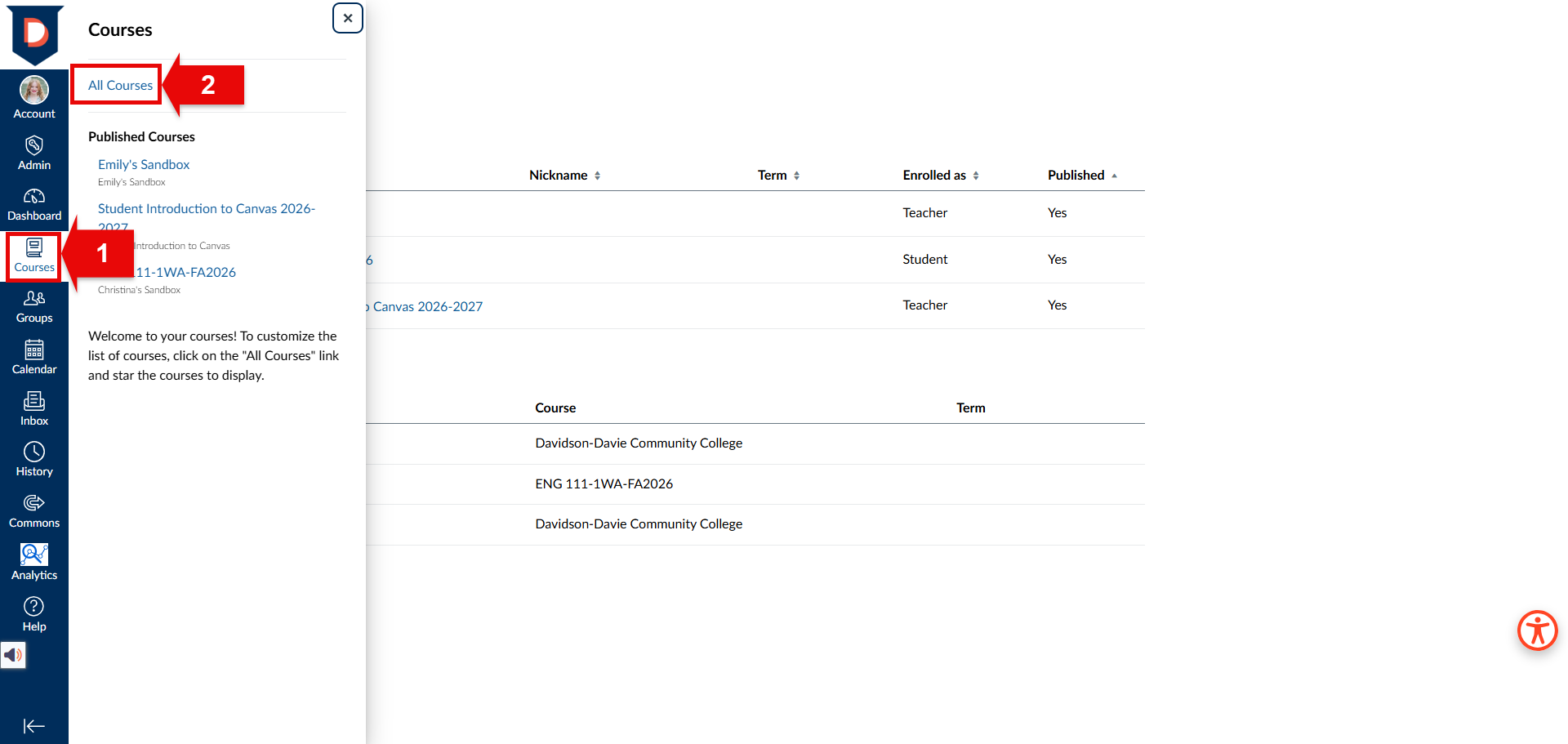
- Select Courses in your Global Navigation bar on the left side of your screen
- Select All Courses in the white bar that appears to the right of the Global Navigation bar.
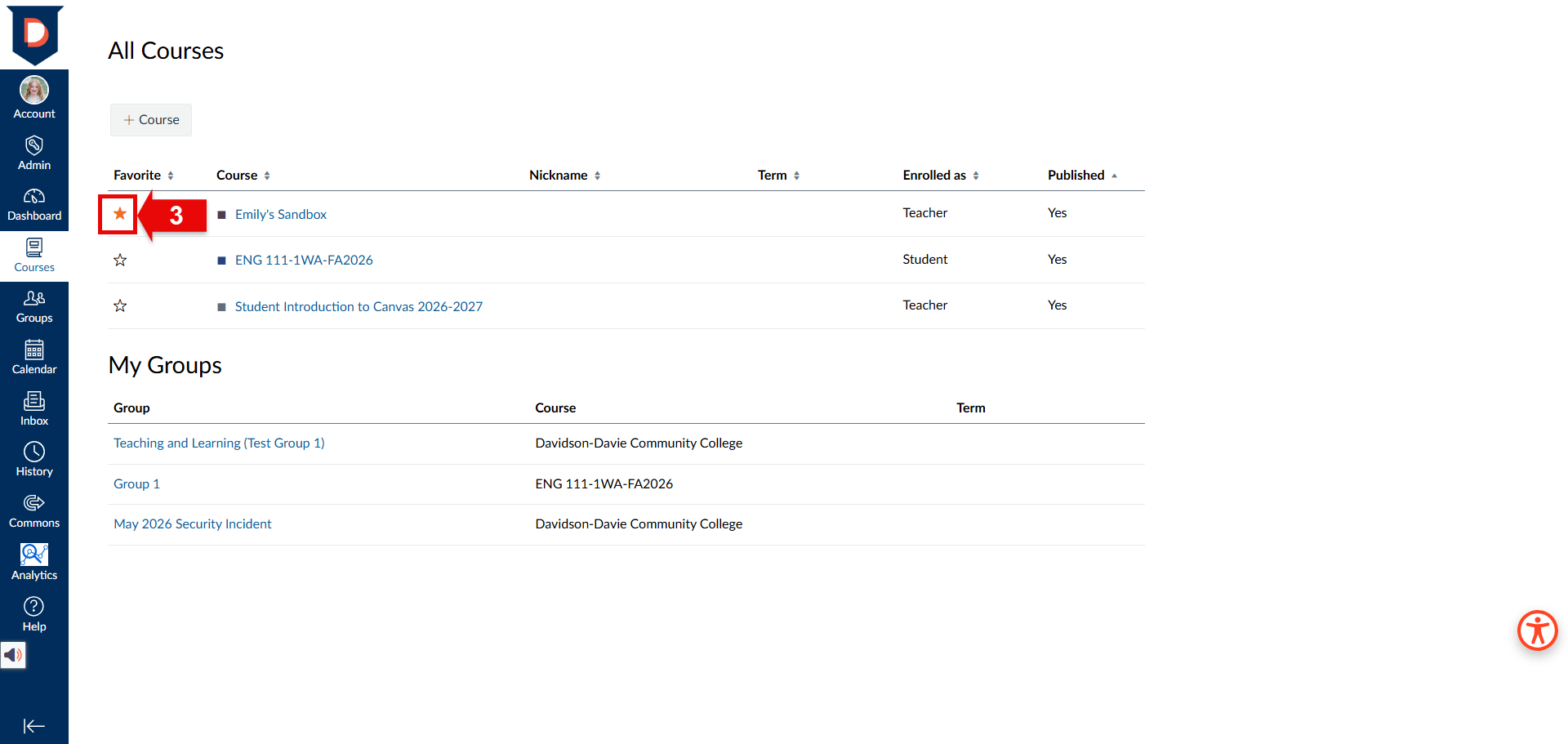
- Select the solid yellow star that is beside your course name. The star will turn to a black outline of a star when selected meaning it is no longer favorited. If the star is only a black outline, do not select it. This will favorite the course and hide others from your Dashboard
See the images and GIF below for a visual of these steps:
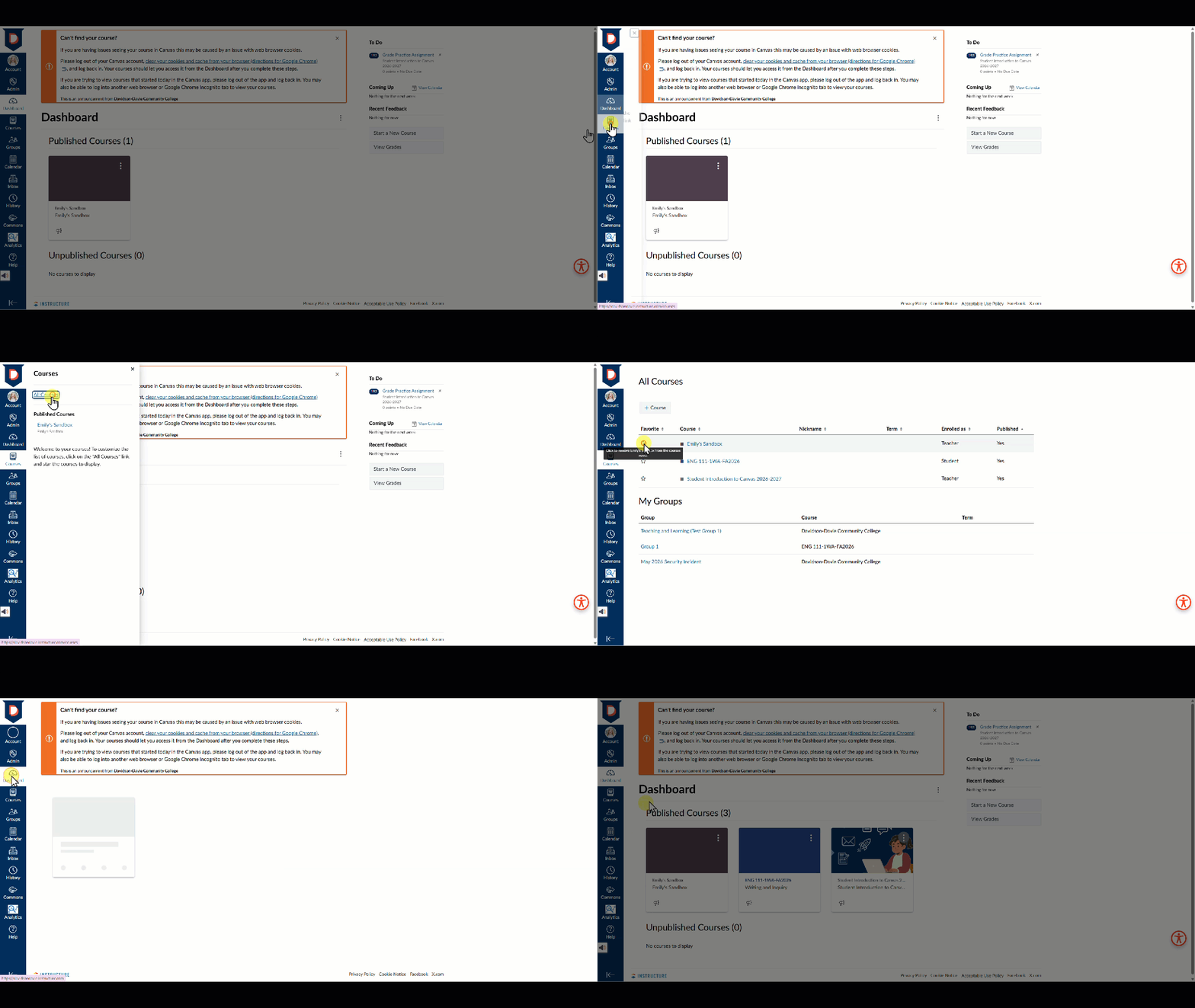
Gentle reminder: The Global Navigation bar and Dashboard look slightly different from your view as this is not a student view. However, the options selected in the images and GIF are available to you.
Was this article helpful?
That’s Great!
Thank you for your feedback
Sorry! We couldn't be helpful
Thank you for your feedback
Feedback sent
We appreciate your effort and will try to fix the article