TABLE OF CONTENTS
- Introduction
- Ignore Grades from an Assignment Category
- Keep Assignments While Ignore is in Place
- Impact of the Ignore Rule
Introduction
If you would like to enable dropping assignments within a category in your gradebook, you must set this up through your assignments tab in the navigation menu. Canvas "ignores" the grade, rather than “dropping.” Therefore, from here on out, “ignore” will be used.
Ignore Grades from an Assignment Category
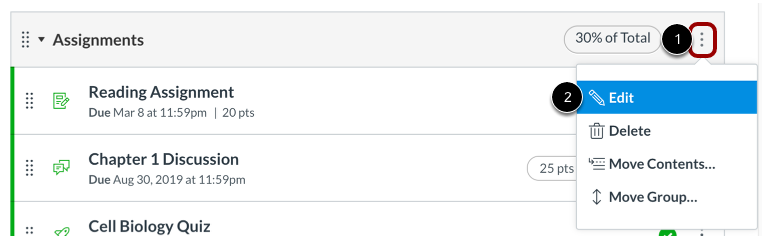
- Select the Assignment Group Options drop-down menu (marker 1)
- click Edit (marker 2)
- A popup box will appear for you to enter the number of lowest scores you would like to ignore.
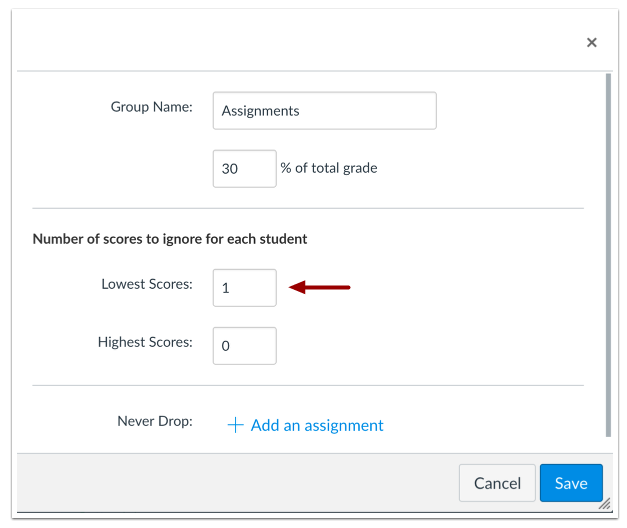
Why might you want to ignore the highest scores: You also have the option to ignore the highest scores. Though ignoring the highest score would decrease a student’s overall grade, if you ignore the lowest and highest score, you could potentially remove any outliers and, instead, create an assignment group grade based on the student’s middle scores, better reflecting an average grade.Keep Assignments While Ignore is in Place
Depending on what type of assignments you want to keep within a category, there may be an assignment or two you want to make sure is never dropped. For example, you may have an assignment within a category necessary for accreditation. To make sure that this grade is not dropped (even if it is a student's lowest grade).
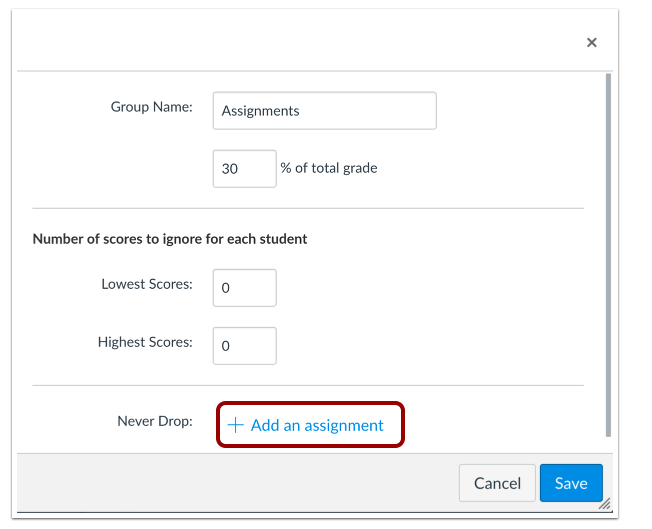
In the same popup box for you to enter the number of lowest (and highest) scores you would like to ignore, keep a specific assignment by selecting the link labeled: add an assignment. Add as many assignments as you need to never drop from that category by selecting the plus symbol.
Note: The assignment needs to already be created so that you can select it from your list. Add as many assignments as you need to never drop from that category by selecting the plus symbol.
All images used here were taken from How do I create rules for an assignment group?
Impact of the Ignore Rule
Have students taking quizzes but the math in the gradebook doesn't seem to be "math-ing" correctly? If you have an ignore rule in place, say "ignore the lowest one," Canvas recalculates the assignment group grade with every submission. If a new grade is entered, and it is lower than a previous score, then that new low grade will be dropped. This might not seem unusual. However, if the rule is to ignore more than one low grade, then students may see their assignment group grade fluctuate (for better or for worse) more often, with no grade being recorded until the student has completed more activities than the number of activities that will be dropped (wow that was a mouthful!). You may wish to convey this information to your students or let them know in the syllabus or early on that their grade will not be accurate until all activities in a group with a rule have been graded.
Was this article helpful?
That’s Great!
Thank you for your feedback
Sorry! We couldn't be helpful
Thank you for your feedback
Feedback sent
We appreciate your effort and will try to fix the article