OWL Camera needing an update? Keeping the cameras up-to-date can help them continue to run smoothly. This tutorial is a step-by-step guide on how to update your camera.
TABLE OF CONTENTS
- Plug In The OWL Camera
- Open The Meeting OWL App
- Select Device Update Available
- Select Update Device
- Update Now Option
- Select Update without Wi-Fi Connection
- Download Update
- Downloading Update Status
- Transferring Software Status
- Installing Update On The Camera Status
- Update Complete
- Manually Checking For Updates/Checking Software Version
Plug In The OWL Camera
Plug in the OWL Camera to a power source and computer.
Open The Meeting OWL App
You may have this app on your computer or on your phone. If not, you can download the app from OWL Labs or on your mobile device. The mobile app is called "Meeting Owl."

Select Device Update Available
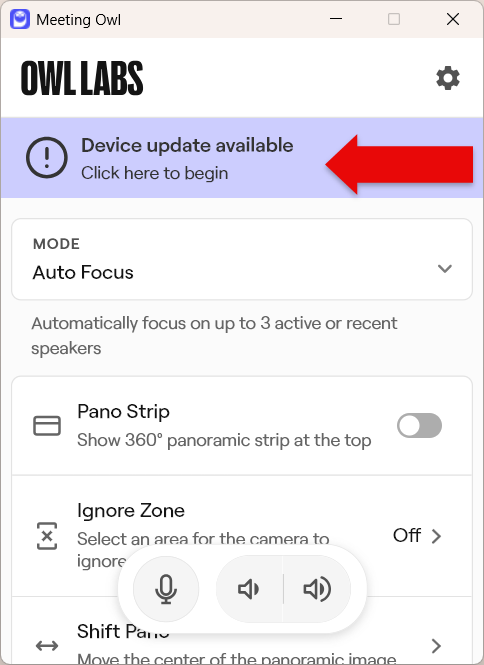
Once in the app, look for the light blue/purple notification at the top of the window (or screen on mobile). This notification will have an exclamation point in a circle to the left and say "Device update available Click here to begin." You will select this and it will begin prompting for the update.
Select Update Device
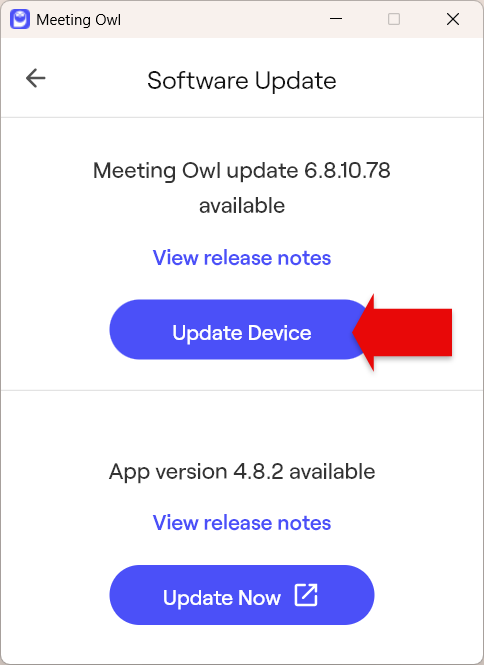
You may be given the option to update your device and the app. These will list what update version is available, show a link to view release notes, and a button to begin the update. To update the camera, you will want to select the button that says Update Device. This is in the top section and the app option is in the bottom section.
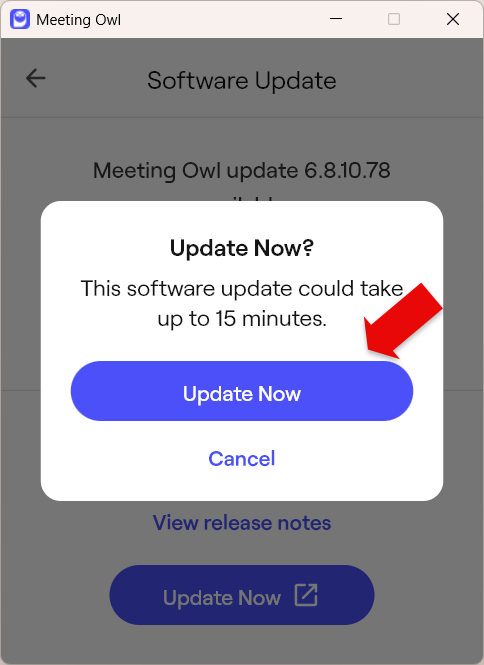
Update Now Option
You will be prompted with a notification saying "Update Now? This software update could take up to 15 minutes." To continue with the update, select the Update Now button. If you decide you'd like to wait, you can select Cancel which is right below the button.
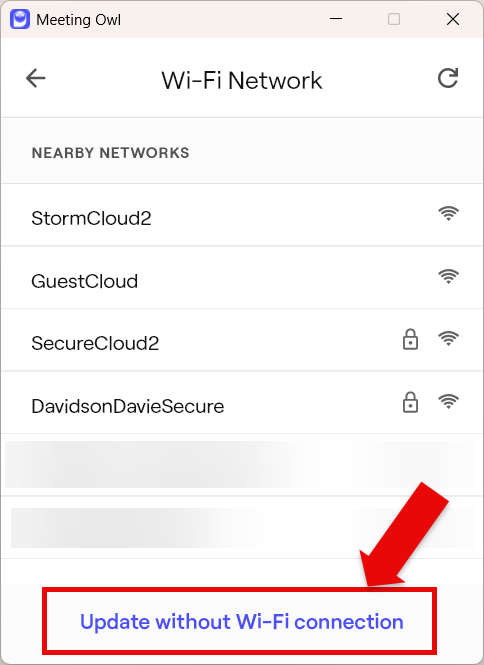
Select Update without Wi-Fi Connection
You will be given the option to select a Wi-Fi network. It is important that you select "Update without Wi-Fi Connection at the bottom of the window (or screen). The camera does not offer a way to input a password and the update cannot happen.
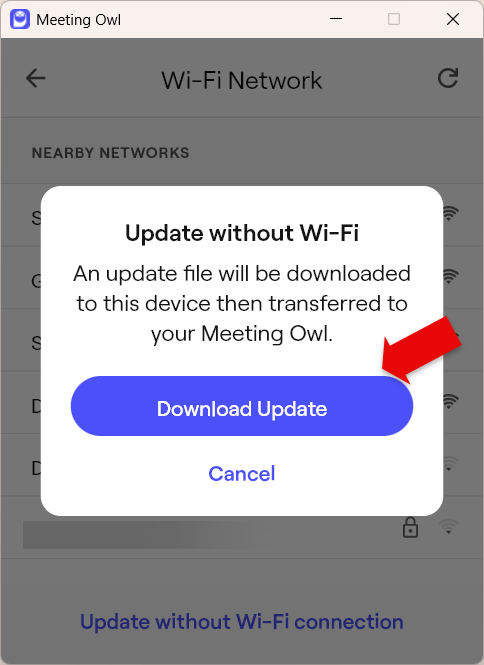
Download Update
You will receive a prompt that says "Update without Wi-Fi. An update file will be downloaded to this device then transferred to your Meeting Owl with a Download Update button." This download will not stay on your device. It downloads to your device from the app and transfers to the camera from your device. Select the Download Update button to continue the update. If you change your mind, you can select Cancel underneath.
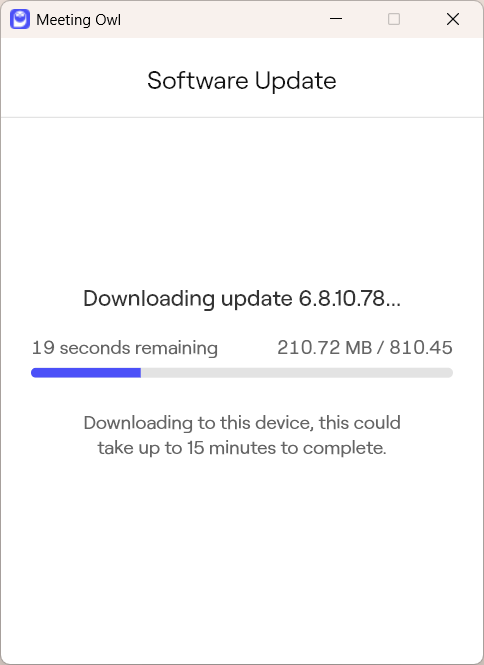
Downloading Update Status
After following the prompts, the app will show that the software update is being downloaded to your device and give you the estimated time remaining and the amount of the file being downloaded. It will also have a completion bar.
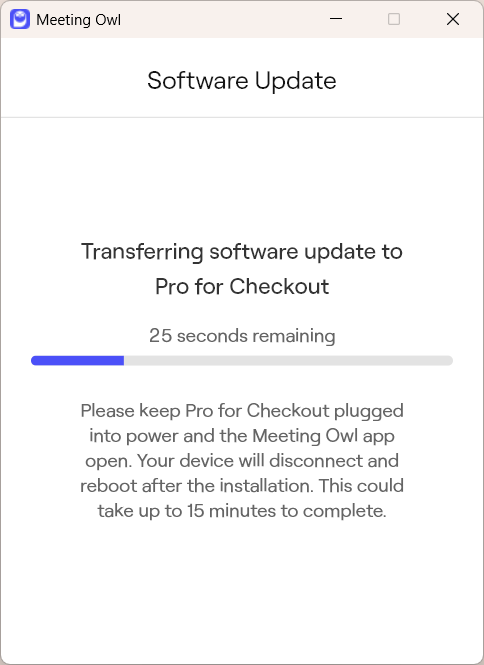
Transferring Software Status
Once the app has downloaded the update to your device, the update will begin transferring from your device to the OWL camera. The status of this transfer will show as well as the estimated time left, a completion bar, and a reminder stating "Please keep *camera nickname* plugged into power and the Meeting Owl app open. Your device will disconnect and reboot after the installation. This could take up to 15 minutes to complete."
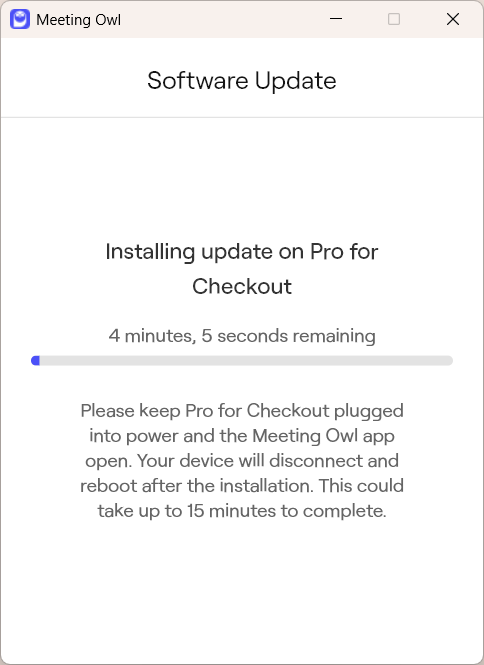
Installing Update On The Camera Status
Once the transfer is complete, the update will be installed on the OWL Camera. The status of this update will show as well as the estimated time left, a completion bar, and a reminder stating "Please keep *camera nickname* plugged into power and the Meeting Owl app open. Your device will disconnect and reboot after the installation. This could take up to 15 minutes to complete."
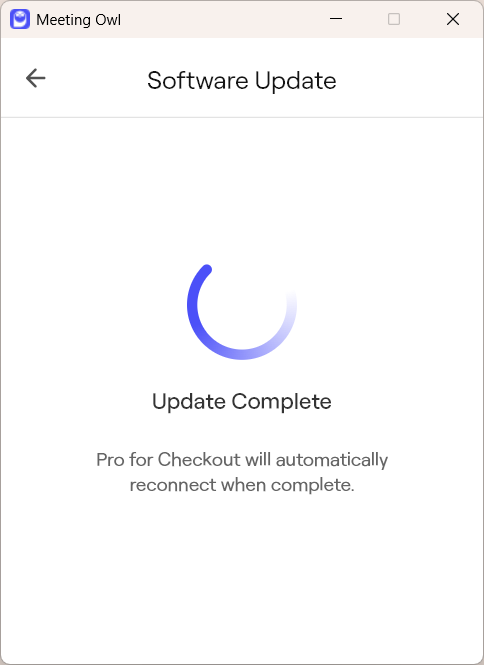
Update Complete
Once the update is complete, the camera will disconnect and reboot. The window or screen will remind you this with its update complete status stating "Update Complete. *Camera name* will automatically reconnect when complete." The camera will also make a celebratory hoot sound when it powers back on, slightly different than the hoot sound it makes when regularly powering on.
Manually Checking For Updates/Checking Software Version
Wanting to double check for more updates or see what software version is currently on the OWL Camera? Follow these steps:
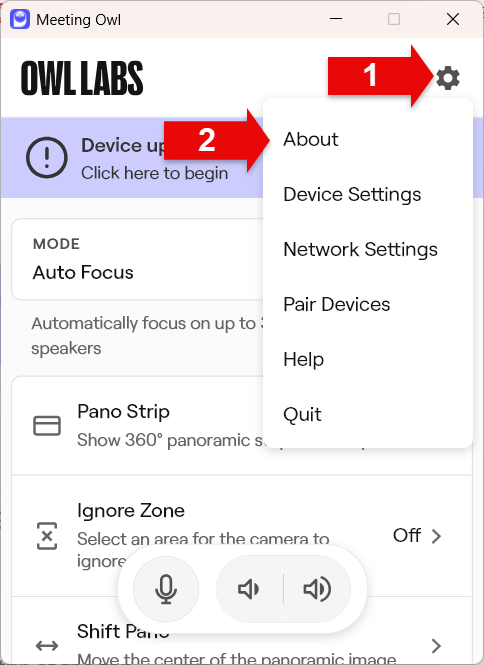
- Select the gear icon at the top right of the Meeting Owl window/screen
- Select the first option: About
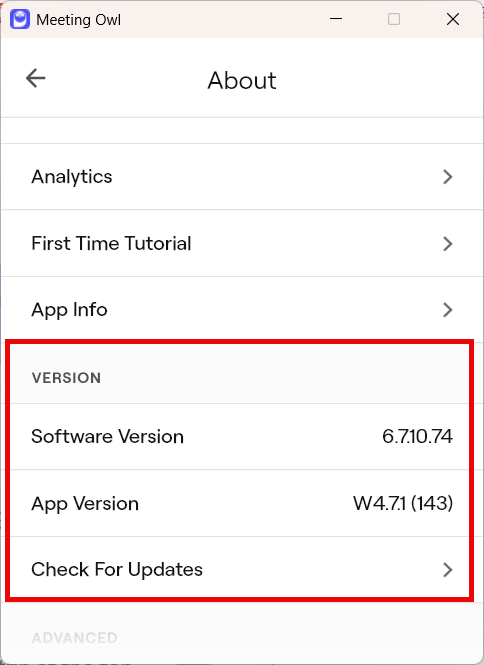
- Scroll down to the Version section
- View:
- Software Version
- App Version
- Check For Updates (select this if you want to view potential updates)
Check out the images below for a visual of these steps!