TABLE OF CONTENTS
- Introduction
- Canvas Traditional Rubrics
- Canvas Free-Form Comments Rubrics
- Linking Your Rubric to a Canvas Element
- Showing Students Where to Find the Rubric
- Editing a Rubric
- Dive Deeper with Canvas Created Tutorials:
Introduction
Canvas Traditional Rubrics and Free-Form Comments Rubrics are tools you can use for scoring subjective assessments. They allow you to perform standardized scoring according to specified criteria. You can also share the criteria with your students in advance. You can add rubrics to different Canvas elements including an assignment, discussion, or quiz.
This makes grading simpler, more consistent, and more transparent. You can create rubrics two different ways in Canvas; however, this guide is going to help you learn how to create and link each type of rubric once your rubric is created using the Rubric Index Page. Regardless of which rubric you decide to create, you will be able to preview your rubric before linking it to a graded Canvas element to ensure it is the one you would like to use.
We recommend linking your rubric before students complete the work. This can help them organize their efforts to meet the requirements of an assignment. You can also use it later on to explain your evaluations. However, they might not know there is a rubric unless you tell them. Depending on what Canvas element you attach your rubric to, a student may need to know where to look!
Canvas Traditional Rubrics
Traditional rubrics spell out to students exactly what is expected of them. It also lists the criteria you can use to assess student work with different levels of success.
- From the Navigation Menu, select the Rubrics Index Tab.
- Select +Add Rubric button
- Type a name for the Rubric. Make sure this is unique enough for you to quickly identify the rubric once you are ready to link it to a graded Canvas element.
- Select Scale. This will create a traditional rubric.
- Decide your other rubric settings for how you want to display your ratings (level or points), rating order (high to low or low to high), and scoring (scored or unscored).
- Select the Draft New Criterion button. A popup box will appear for each criterion you add.
- Name your criterion
- Add a general description
- Max number of points
- Qualifying information for each level of success
- Adjust the points weights, rating name, and specific description as needed.
- Click on the trashcan icon to delete a criterion row or specific rating block.
- Click on the plus symbol between rating blocks to add additional levels of success for your criterion.
- Repeat A-E as need for each new criterion.
- Select Create Rubric to make it ready.
Canvas Free-Form Comments Rubrics
Free-Form Comments Rubrics inform students what is expected of them for the assignment. It also gives makers the flexibility of grading within a range of points. For example, if you have a criterion worth 15 points, you can give it a score between 0 and 15. Free-Form Comments also provides you with an opportunity to save frequently used comments.
- From the Navigation Menu, select the Rubrics Index Tab.
- Select +Add Rubric button.
- Type a name for the Rubric. Make sure this is unique enough for you to quickly identify the rubric once you are ready to link it to a graded Canvas element.
- Select Written Feedback. This will create a free-form rubric.
- Decide if you with this rubric to used for scoring.
- Use the +Draft New Criterion button to create each criterion. A popup box will appear for you to enter information for each criterion.
- Enter the criterion name
- and the criterion description.
- Decide the number of points possible. This will be the maximum number of points a student can earn for that criterion.
- Save Criterion and repeat a-d as needed.
- Select Create Rubric to save your rubric.
Creating rubrics through the Rubric Index Page gives you a rubric bank. With your rubric bank you can easily edit, duplicate, copy to a new course archive, or delete your rubric(s).
Linking Your Rubric to a Canvas Element
If you have created your rubric through the Rubrics tab, you are now able to quickly able to link your rubric to a Canvas element. How you link a rubric will be different depending on the Canvas element.
Linking a Rubric to an Assignment or Classic Quiz
Click on the assignment or classic quiz name.
Scroll down to the end of the assignment or quiz page to click on the Find Rubric button
A block drawer will open on the right-hand side of the page for you to select the rubric you wish to add.
- If you want to preview the rubric before you add it to your Canvas element, you can click on the arrow to open the rubric
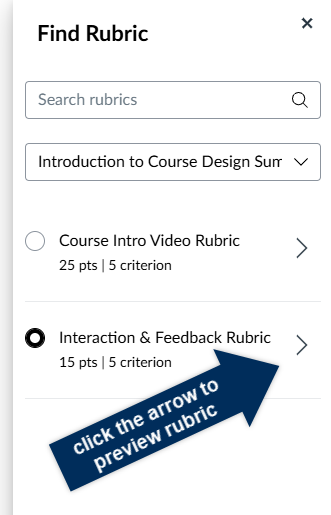
- If you want to preview the rubric before you add it to your Canvas element, you can click on the arrow to open the rubric
Use the radio buttons to select the rubric you want to add and click the Add button at the bottom of the screen.
Linking a Rubric to a Discussion
Click on the discussion name.
From the three-dot option menu, select the Add Rubric from the dropdown menu
A popup box will appear for you to click on the Find Rubric button
A block drawer will open on the right-hand side of the page for you to select the rubric you wish to add.
- If you want to preview the rubric before you add it to your Canvas element, you can click on the arrow to open the rubric
- If you want to preview the rubric before you add it to your Canvas element, you can click on the arrow to open the rubric
Use the radio buttons to select the rubric you want to add and click the Add button at the bottom of the screen.
Confirm your rubric is linked to your Canvas element
Now that you have linked your rubric, students can see this rubric before they submit their assignment/quiz/discussion. However, make sure you tell them in the rich content editor where they can locate the rubric.
Optional:
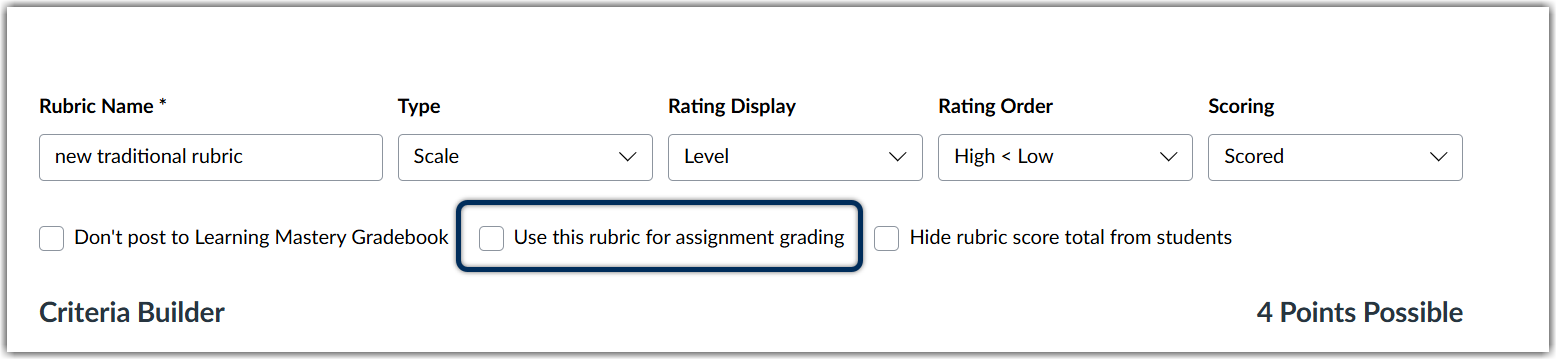
If you want the rubric grade to auto-populate in the gradebook, continue linking your rubric with the next two steps. If you do not complete these steps, you will need to manually enter student grades after you have graded their work with the rubric.
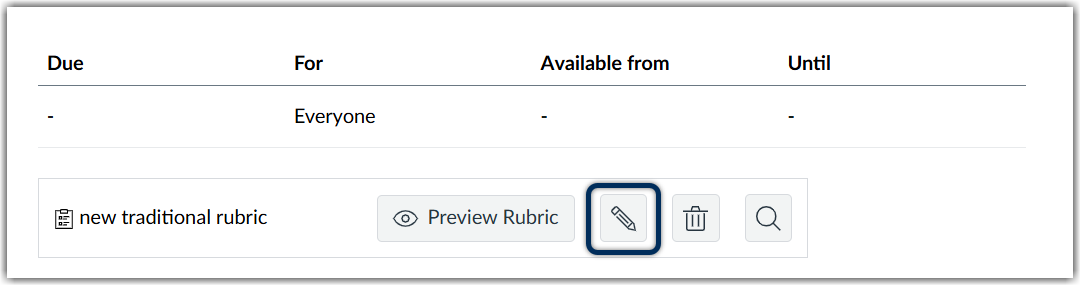
- Select the pencil icon to edit your linked rubric
- Check the box that says Use this rubric for assignment grading if you want the grade to automatically populate in the Grades tab once you grade with the rubric.
Showing Students Where to Find the Rubric
Locating the Rubric for an Assignment
When the student opens the assignment, the rubric will appear automatically on the page.
Locating the Rubric for a Classic Quiz
To view the rubric before the student takes the quiz, the student must follow these steps:
- Go to the Grades tab.
- Click on the quiz name. The student will be redirected to the submission details page
- Click the Show Rubric link.
Locating the Rubric for a Discussion
- When the student opens the discussion, have them click on the three-dot options menu to select Show Rubric from the dropdown menu.
- A popup window will appear for students to Preview Rubric.
Editing a Rubric
If you need to edit your rubric after linking it to an assignment/quiz/discussion, it will also edit the original rubric created through the Rubrics tab. Especially if you are editing point values, this will impact a student’s already received grade. Therefore, you are not able to modify a rubric once it has been used to grade an assignment in more than one place. For example, you may have the same rubric linked to multiple discussions. If you decide to change the point value slightly for your second discussion but have already graded the first with the same rubric, this will change the score students earned for their first discussion.
If you need to change the rubric, we recommend duplicating the rubric first, making edits as necessary, rename the rubric, and link the updated rubric with the Canvas element.
Dive Deeper with Canvas Created Tutorials:
Was this article helpful?
That’s Great!
Thank you for your feedback
Sorry! We couldn't be helpful
Thank you for your feedback
Feedback sent
We appreciate your effort and will try to fix the article