How to Use Zoom
Keep in mind that zoom varies in use on devices such as a computer versus a mobile device. These differences will be noted throughout this article.
TABLE OF CONTENTS
Joining a Session
Oftentimes, when you are joining a specific Zoom session for a meeting with someone on campus, such as an instructor or advisor, you will be sent a link through your email or posted in your Canvas class that you can easily click to join.
Tip: You will not log into zoom. You will join as a guest. Davidson-Davie email accounts cannot create a zoom account.
Using Zoom Features
To access zoom features, you can move your mouse around on your screen on your computer for them to appear at the bottom of your screen. If you are using a mobile device, tap on your screen for features to appear at the bottom of your screen. To view more features on your phone, drag the features from the right to the left of your screen to scroll through them.
Audio
Muting
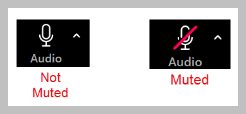
Need to mute your microphone? Click on the button that looks like a microphone and says Audio on the bottom left of your screen. This will put a red diagonal line over the microphone icon, indicating that your microphone is muted and no one can hear you. This is particularly useful when you are in a loud space, and the background noise may distract other participants. It’s also a good idea to use this feature if something urgent comes up—like a child needing attention or a barking pet. Generally, it's considered good Zoom etiquette to keep your microphone on mute unless you are actively speaking.
Switching Audio Input/Output
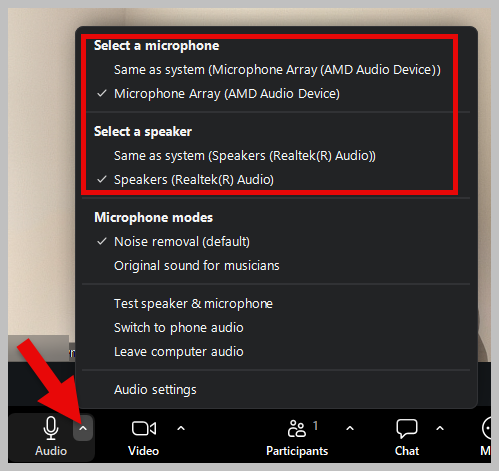
Using multiple devices for input/output or need to switch between audio devices during a Zoom session? You can do this by clicking the up arrow next to the Audio button. This opens a menu that allows you to select a microphone, speaker, test your audio, switch to phone audio, or leave computer audio. While switching to phone audio or leaving computer audio isn’t usually recommended unless necessary, these options help ensure proper sound settings for your Zoom session. If you're having trouble with your audio, testing your speaker and microphone or changing your speaker and microphone are good ways to troubleshoot.
Video
Turning On/Off Your Camera
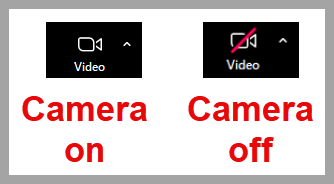
While most classes require your camera to stay on, sometimes turning it off is necessary—for instance, to protect the privacy of someone or something nearby. To do this, click the Video button (camera icon), located to the right of the Audio button. If your camera is off, there will be a red diagonal line over the icon, and your video screen will show your name. Click the button again to turn your camera back on.
Switching Your Camera
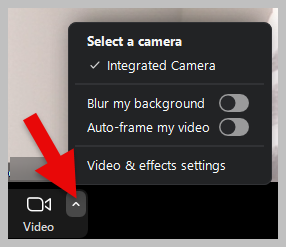
Have multiple cameras connected to your device and need to switch between them? Click the up arrow next to the Video button and select the correct camera. This menu also allows you to access video and effects settings which include options to Blur My Background, Adjust Background & Effects, Choose Video Filter, Choose Avatar, Display Avatar, and Video Settings.
View Participants
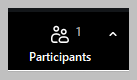
Need to see who is participating in the Zoom session but don’t want to scroll through all the video windows? Click the Participants button, located to the right of the Video button. This icon shows two people with the word "Participants" below it. Sometimes this list isn’t visible, especially in large virtual events. Clicking the button will open the list.
Interacting in Zoom
Chat
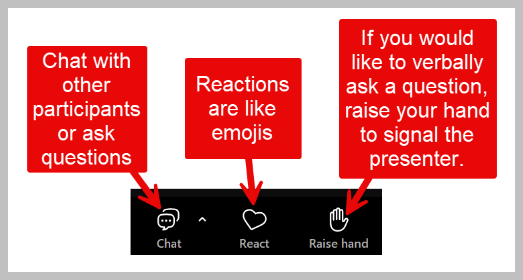
The Chat feature in Zoom is great for multiple scenarios: if you can’t use your microphone, want to ask a question without interrupting, or need to respond to a question posed to everyone. It can also be used to share links with the group.
At the bottom of your screen, click the Chat button (speech bubble icon) to open the chat window. You can view previous messages or type your own.
Want to send your instructor a private message during the session? You can do this by clicking the drop-down menu next to the recipient's name in the chat box and selecting the person you want to message privately.
To reposition the chat box, click the Pop-out button (a square with an arrow) at the top right of the chat window. This separates the chat box from the main Zoom window, allowing you to drag it wherever you like. To reconnect it, click the three dots in the chat box’s top right corner and select Merge to Meeting Window.
To minimize the chat box, click the X in the top right corner of the chat box—but be careful not to click the X for the entire Zoom window, or you'll leave the session.
React
Want to respond with an emoji? Click the Reactions button (heart icon) to the right of the Chat button. You can send emojis that float up the screen, display a static emoji in the top-left of your video window, or raise your hand. Click the three dots to search for additional emojis.
Raise your Hand
The Raise Hand feature lets the speaker know you have a question or comment.
Share Your Screen
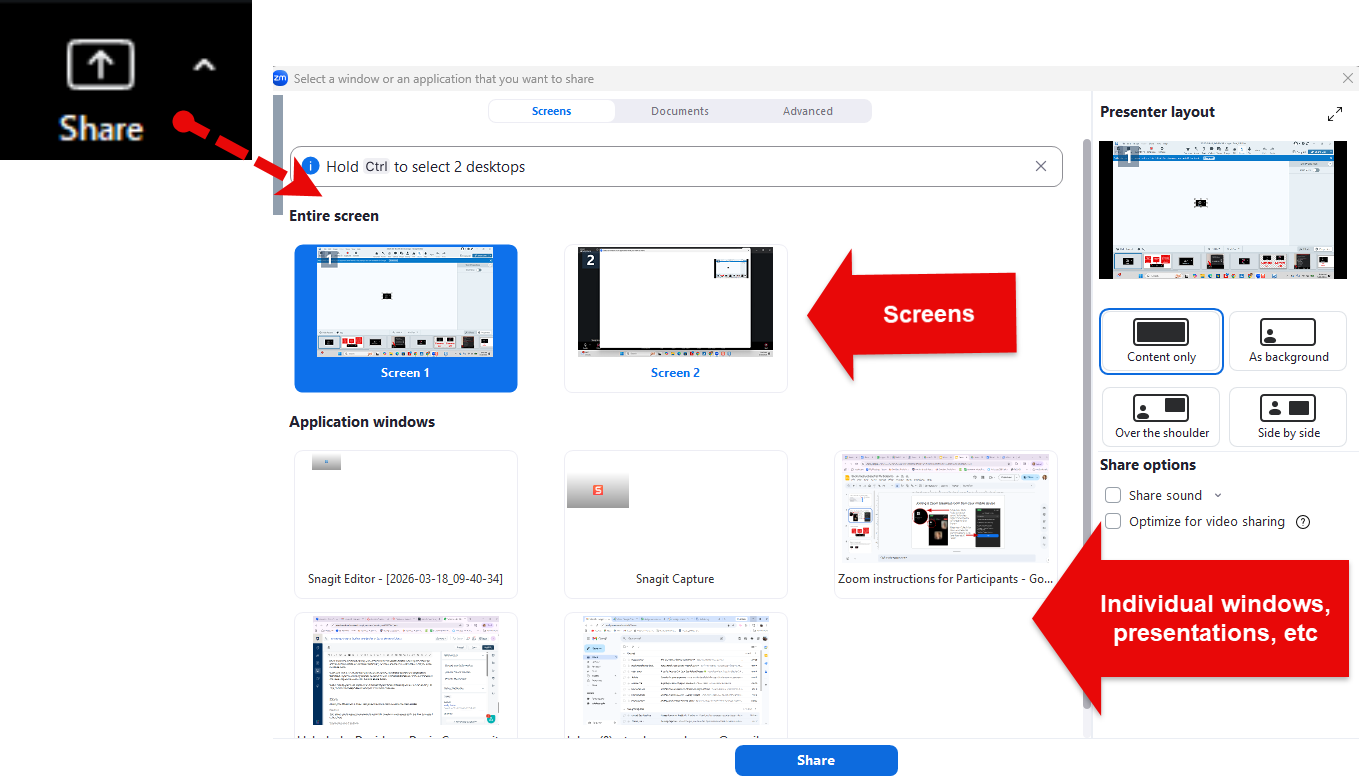
Need to present something during your session? Click the Share Screen button (green rectangle with an arrow), located at the center bottom of your Zoom window. If it’s not visible, it may be under the More menu.
When you click it, a new window will pop up with options like Entire Screen and Application Windows. If you’re switching between windows or tabs, use Entire Screen for smoother transitions. After selecting your screen, click the blue Share button.
While sharing, you’ll see a green bar at the top of your screen indicating you are screen sharing. To stop, click the red Stop Share button just to the right of the bar.
Breakout Rooms
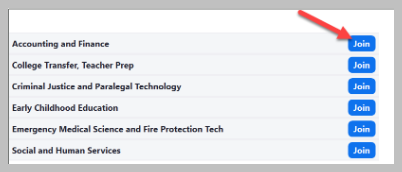
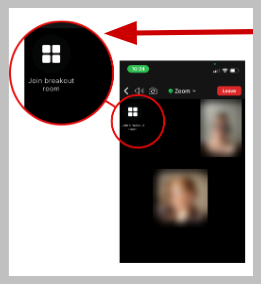
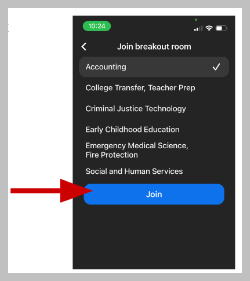
If your instructor is using Breakout rooms, they will probably send you to a specific breakout room. However, if they allow you to choose which breakout room to join, you'll choose from a list. If you are using a computer, that will look like a list and you will click the blue "Join" button next to your choice.
If you are using your mobile device, you will click the four boxes in the top right corner where you see the words "Join breakout room" to open the list. Then click the option you would like and click the blue button that says "Join".
More
Clicking the More button (three dots) shows features not included in the main toolbar.
Record
This allows you to request permission to record the session to your device or for the host to record it to the cloud.
Transcript and Captions
To enable captions, go to More and then select Captions. This activates a Captions button (CC icon) at the bottom of your screen.
You can move and resize the caption box. To move it, hover over the text, click and hold, and then drag it to a new location.
To change the text size or colors, click the up arrow next to the Captions button and select Caption Settings. Use the slider to adjust the font size, and choose different colors for your primary and translated captions.
Exiting a Zoom Meeting
When your Zoom session ends or you need to leave, click the red End button at the bottom right of your screen. You’ll be asked to confirm before exiting the meeting. This button will be at the top right of your screen on a mobile device after tapping on your screen.
Was this article helpful?
That’s Great!
Thank you for your feedback
Sorry! We couldn't be helpful
Thank you for your feedback
Feedback sent
We appreciate your effort and will try to fix the article