TABLE OF CONTENTS
- Installing Grackle for Google Workspace
- Downloading Accessible Files with Grackle
- Troubleshooting Grackle Slides
Grackle is an accessibility checker for Google Docs, Slides, and Sheets. Davidson-Davie has a subscription to Grackle so you'll need to use your Davidson-Davie account to add it to Google Docs.
Installing Grackle for Google Workspace
Open any Google Doc and click on “Extensions” in the toolbar.
Choose “Add ons” and “Get Add-Ons.”
In the Google Workspace Marketplace search bar, type in “Grackle Docs" and hit enter
Choose the Grackle Docs option.
Click the blue Install button
Choose your Davidson-Davie account and allow Grackle Docs to access your Google Account.
After installation, click on “Done” and close the Marketplace window.
To start Grackle, go to “Extensions,” hover over “Grackle Docs,” and click on “Launch.”
Tip: Add Grackle to Slides and Sheets by using these steps!
Downloading Accessible Files with Grackle
Possibly the best feature of Grackle is the option to download an accessible PDF of your file. Unfortunately, it is more common provide students with an inaccessible document than we perhaps care to admit. However, if you are able to create your own file through Google Workspace, with the aid of Grackle, you can also provide students will accessible content as well.
To download an accessible PDF version of your Google Workspace file, follow these quick steps:
- Launch Grackle
- Make any necessary accessibility changes
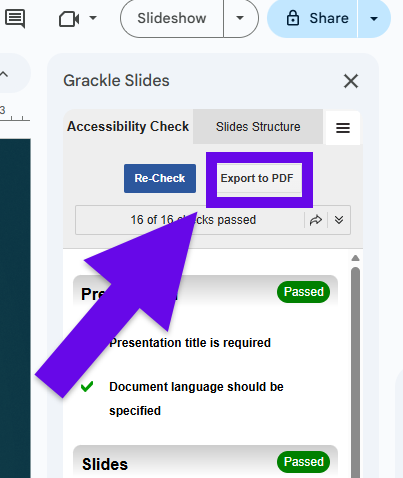
- Select the Export to PDF button
Troubleshooting Grackle Slides
If it is the first time you have used Grackle Slides to export an accessible PDF version of your slides, you will most likely encounter an issue with the initial export. If this is the case, there are just a few more additional clicks for you to make to ensure your PDF downloads. Thankfully, you should only have to do this the first time you ask Grackle Slides to export a PDF.
- Go to the menu options to the right of "Slides Structure" while Grackle is open and select "Export Options" (Image A). A popup will appear.
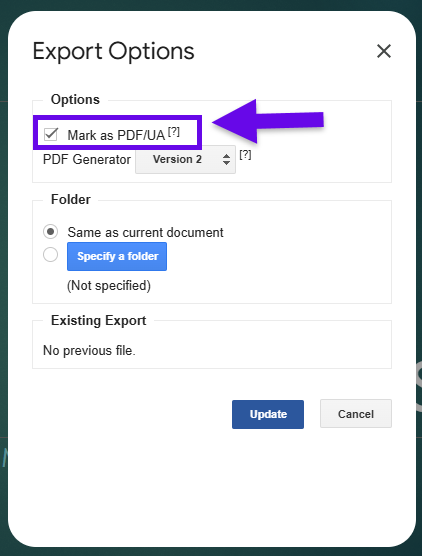
- Make sure the box is checked for "Mark as PDF/UA." (Image B)
- Select your version (either will work) and update the changes.
- Finish with the regular "export to PDF" steps.
Image A
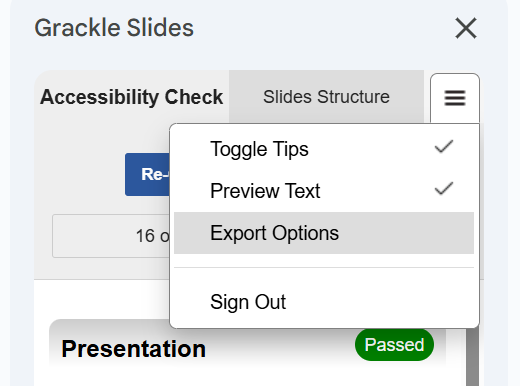
Image B
Was this article helpful?
That’s Great!
Thank you for your feedback
Sorry! We couldn't be helpful
Thank you for your feedback
Feedback sent
We appreciate your effort and will try to fix the article