ReadSpeaker webReader in Canvas
ReadSpeaker webReader is a tool in Canvas that reads the built-in activities and resources aloud. This includes quizzes, announcements, pages, discussion forums, and anything written in the Canvas text editor. The webReader doesn’t work with third party platforms (e.g. Pearson, Cengage, McGraw Hill).
webReader Location
The webReader is a small square icon that looks like a speaker. It is located at the bottom left corner of the Canvas page. If you don't see it, try zooming out your screen magnification by holding Ctrl and pressing the minus (-) key. You can zoom back in after you click the icon to activate ReadSpeaker.

Click on the icon and the player controls will appear. These controls can be clicked on and dragged around the screen so that you can place them where they are most convenient for you.
Playback Buttons
Click on the “Listen/Play” button to hear the text on the page that is currently visible. The page will be read from the top to the bottom. The alt text of images will also be read aloud. The hamburger menu (three horizontal lines) provides a variety of settings and options that can be changed.
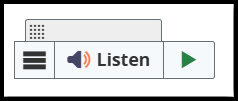
Once the “Listen/Play” button is clicked, the appearance of the webReader toolbar will change. The full listening controls options will appear.

Highlighting Text
Another way to listen to the text is to highlight the portion that you want to hear. Once highlighted, the “Listen” button appears. Click the button to hear the text.
webReader Menu
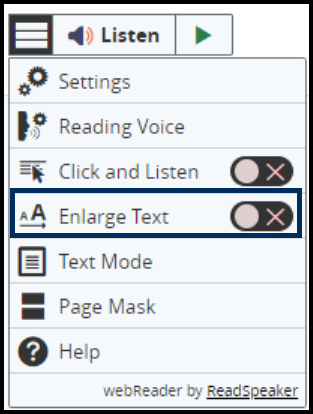
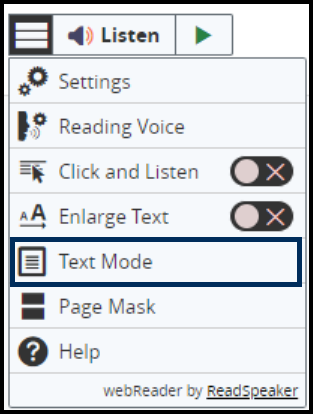
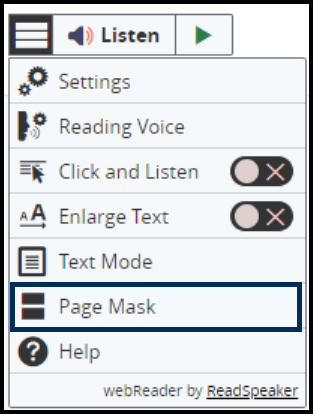
Click on the hamburger menu (three horizontal lines) to display the following options: Settings, Reading Voice, Click and Listen, Enlarge Text, Text Mode, Page Mask, Help
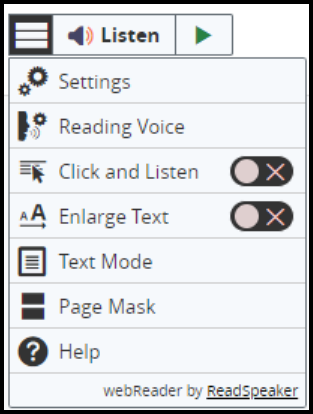
Settings
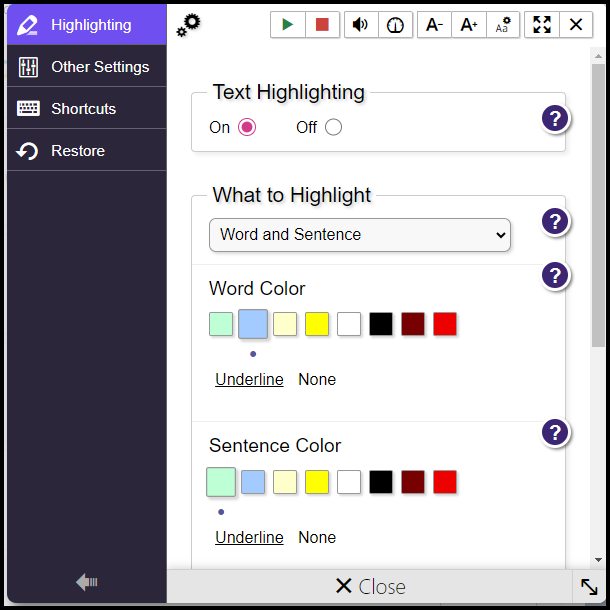
The settings submenu opens as a pop-up box. Along the top of the pop-up box, the buttons include: Play, Stop, Volume, Reading Speed, Smaller Font Size, Larger Font Size, Text Mode Settings, Maximize Dialog Window, and Close.
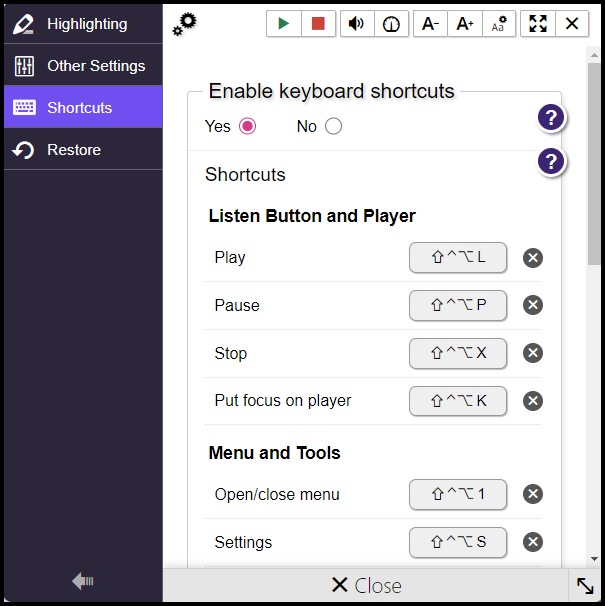
The pop-up box sidebar includes four items:
Highlighting
Turn text highlighting on or off when text is being read aloud
When turned on, there are options for word color, sentence color, and text color
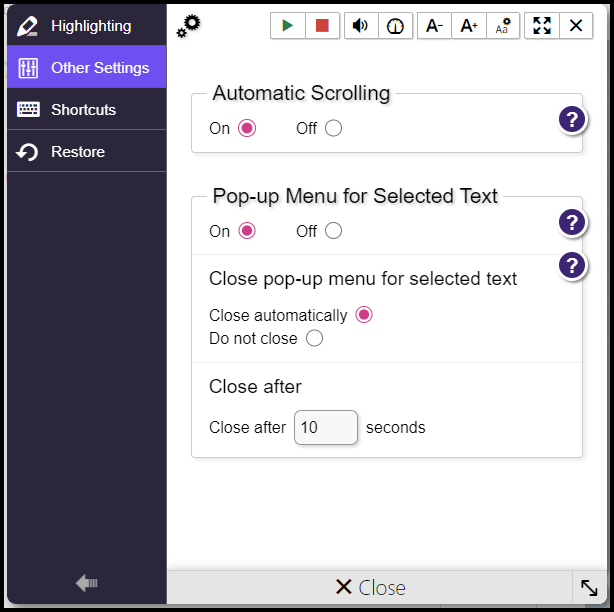
Other Settings
Turn automatic page scrolling on or off when text is being read
Pop-up Menu for Selected Text controls whether a pop-up should be displayed when text is selected
Shortcuts
Turn keyboard shortcuts on or off
When turned on, you can change the keyboard shortcuts from the default to any keys of your choice
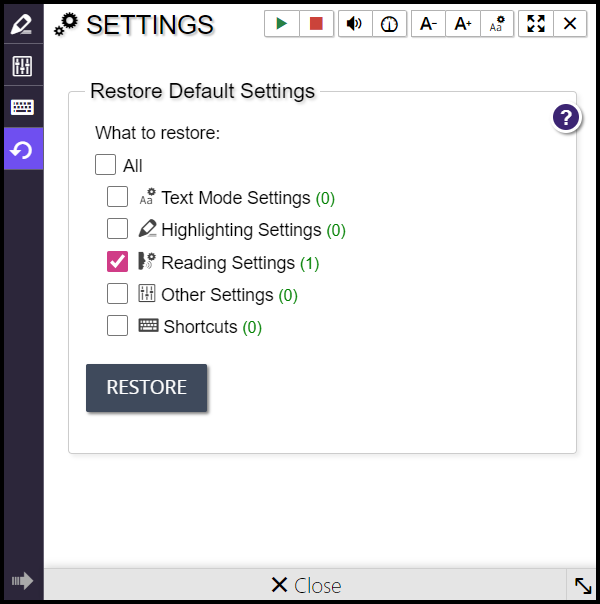
Restore
Restores settings to the default settings
Reading Voice
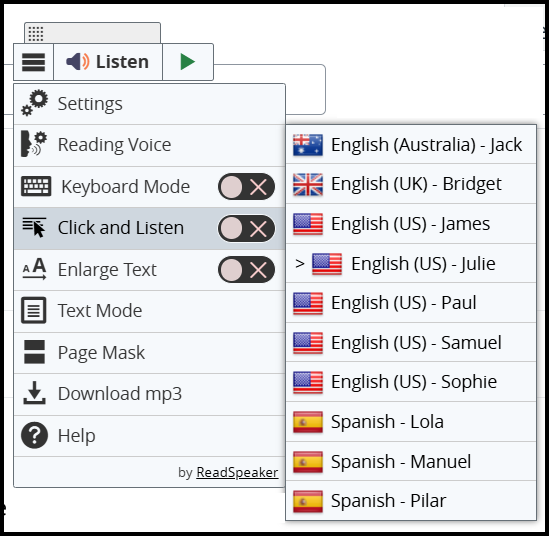
The “Reading Voice” submenu is directly underneath the “Settings” submenu in the hamburger menu. There are multiple male and female reading voices to choose from, including English with an American accent, Australian accent, British accent, and Spanish accent.
Click and Listen
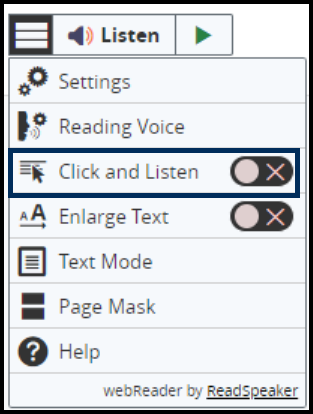
Toggle the “Click and Listen” button on to automatically hear the text read aloud with the click of the mouse/touchpad
Enlarge Text
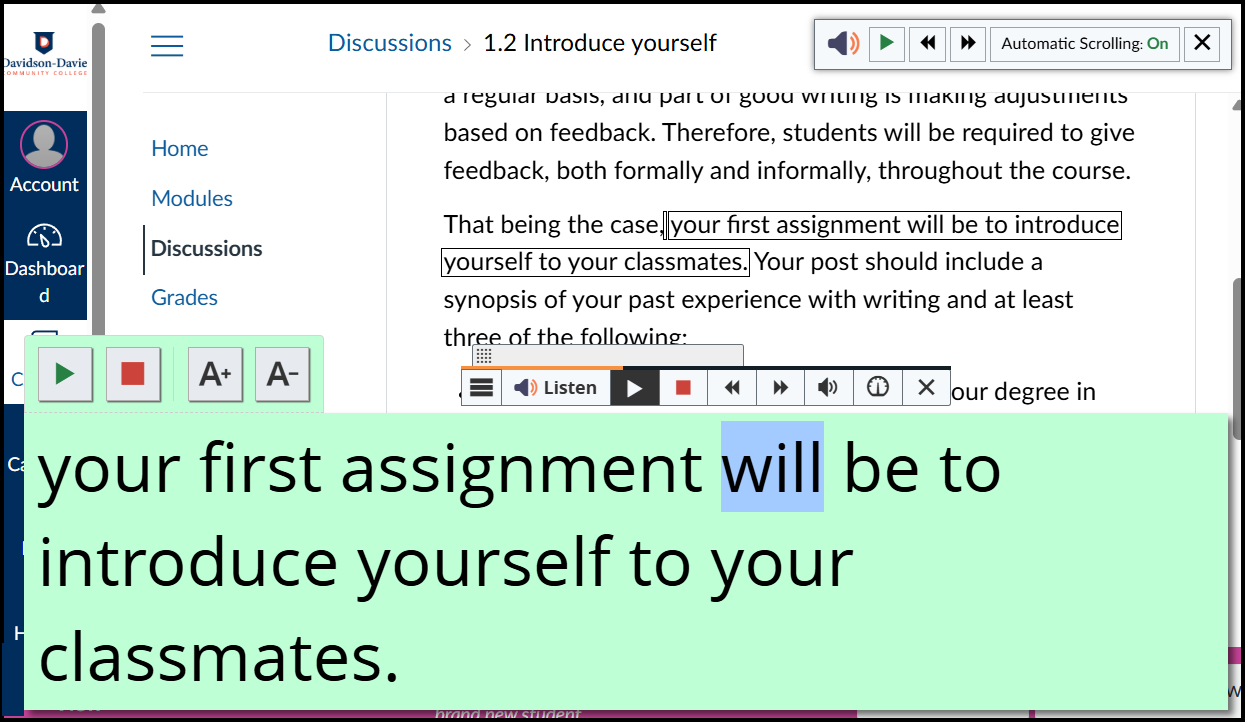
Toggle “Enlarge Text” on to see a larger version of the text appear on the screen while it reads to you. In this example, The course announcement discussion forum is visible on the screen and each sentence appears larger on the bottom of the screen as it’s being read.
Text Mode
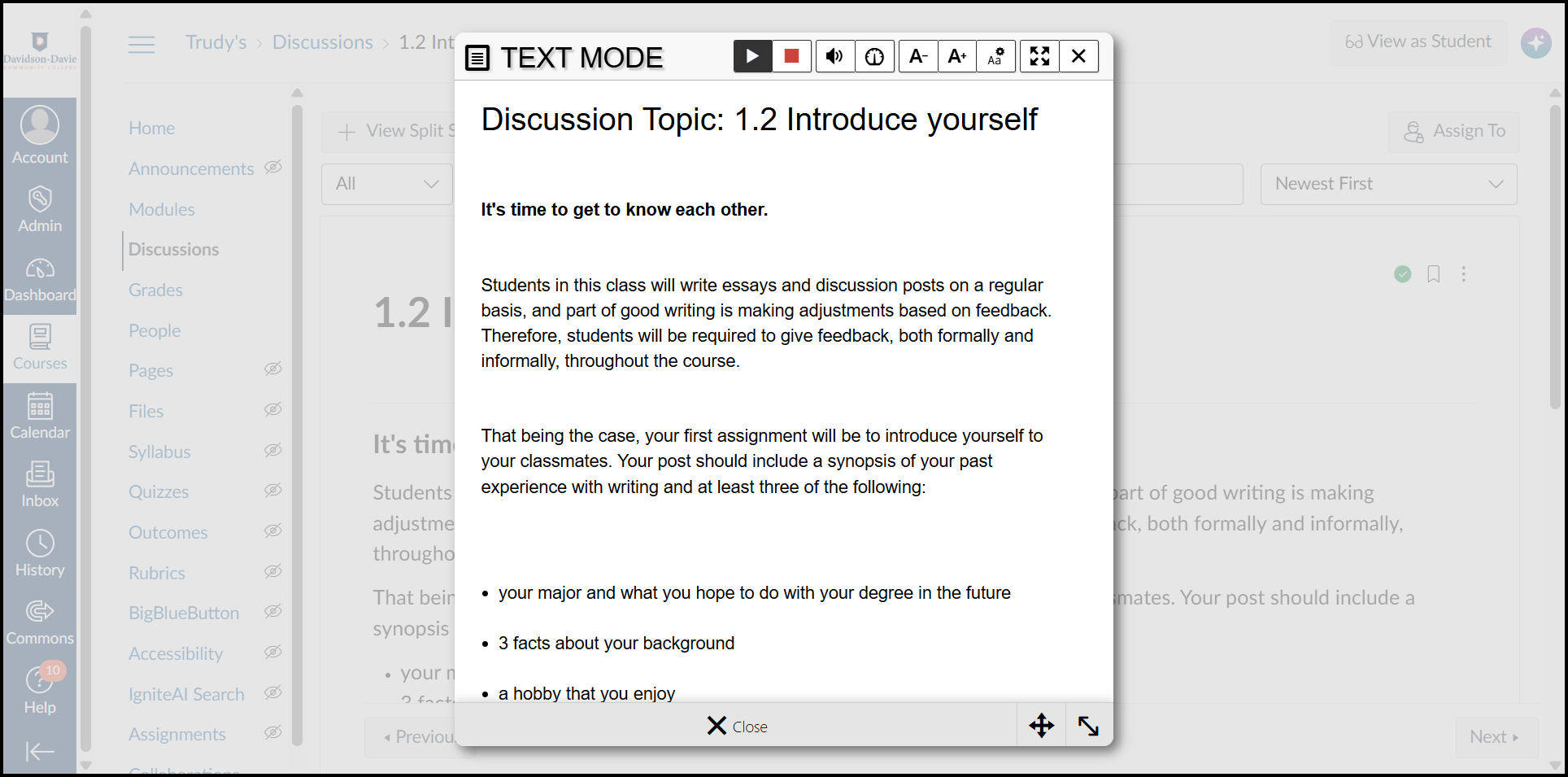
Click on “Text Mode” to open a pop-up box that contains a simplified version of the contents on the screen.
Page Mask
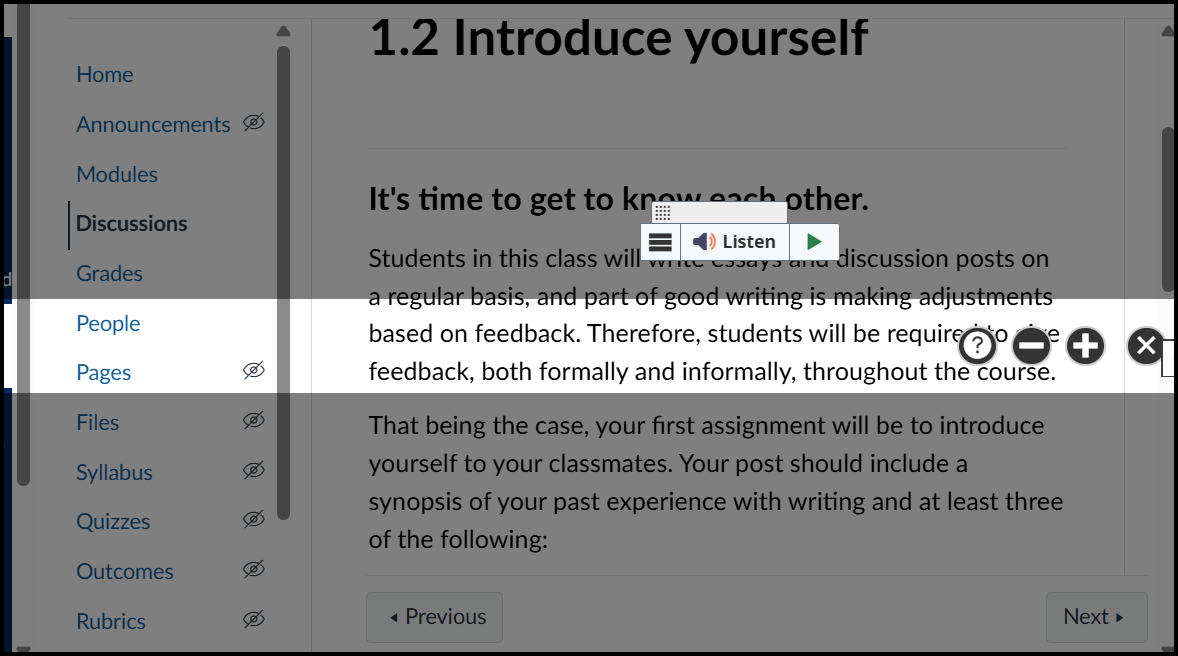
Page Mask helps you focus on a specific line, or lines, of text by darkening the background. Only the text that you need to focus on stays bright. Use the plus and minus signs on the page mask to increase or decrease the size of it.
Help
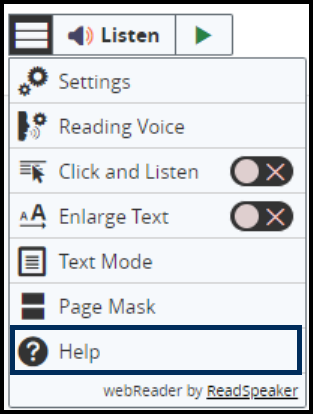
Clicking on “Help” opens a pop-up box that contains instructions for how to use ReadSpeaker webReader.
Was this article helpful?
That’s Great!
Thank you for your feedback
Sorry! We couldn't be helpful
Thank you for your feedback
Feedback sent
We appreciate your effort and will try to fix the article