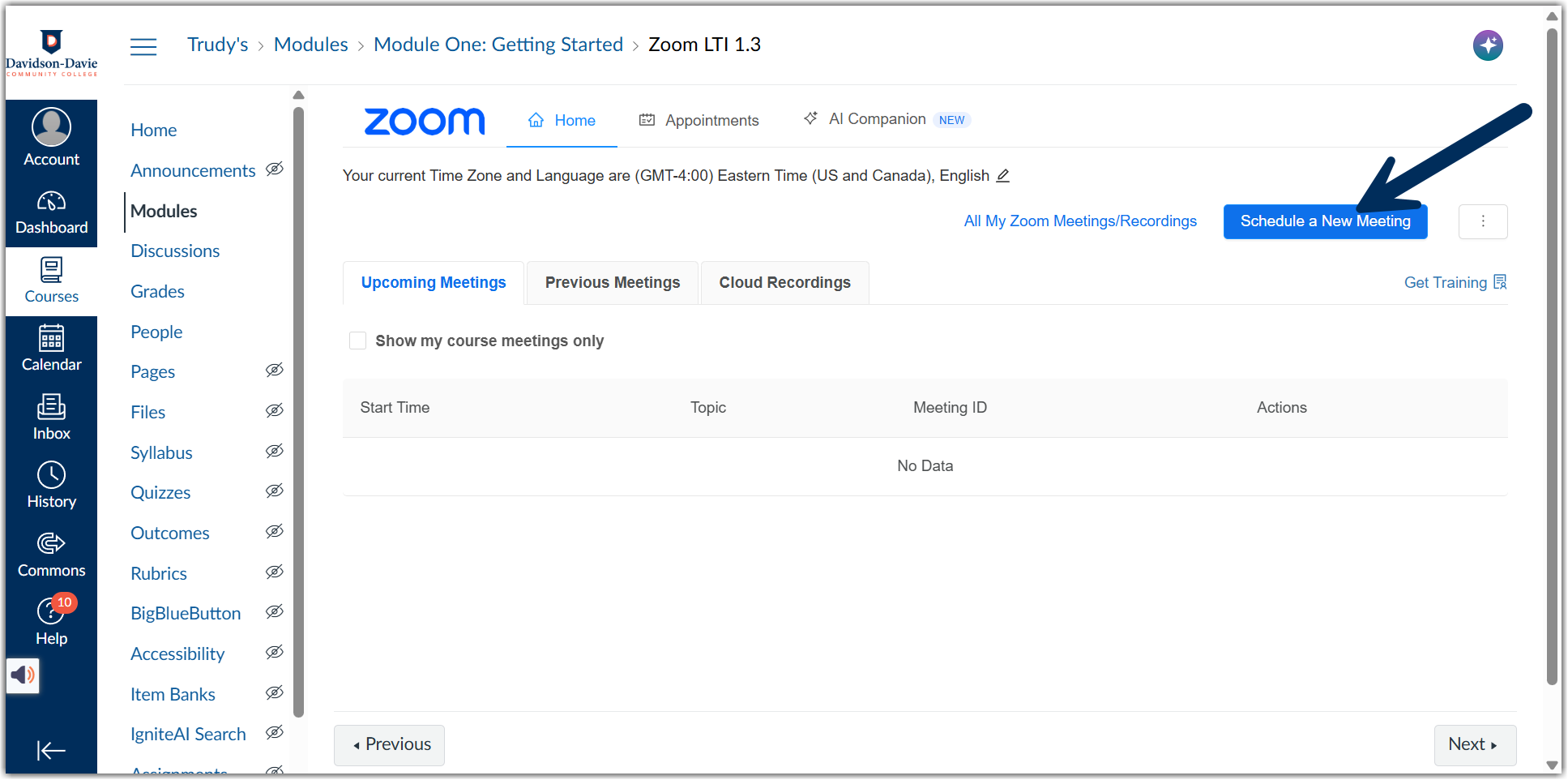
If you are teaching a course that is Virtual or Flex or if you are holding Zoom office hours, you need a way for students to join your Zoom meetings. You can do this by adding a URL that takes students to your Zoom meeting or you can use the Zoom LTI to connect your Canvas course to your Zoom account and create Zoom meetings straight from your Canvas course.
To use the LTI follow these steps:
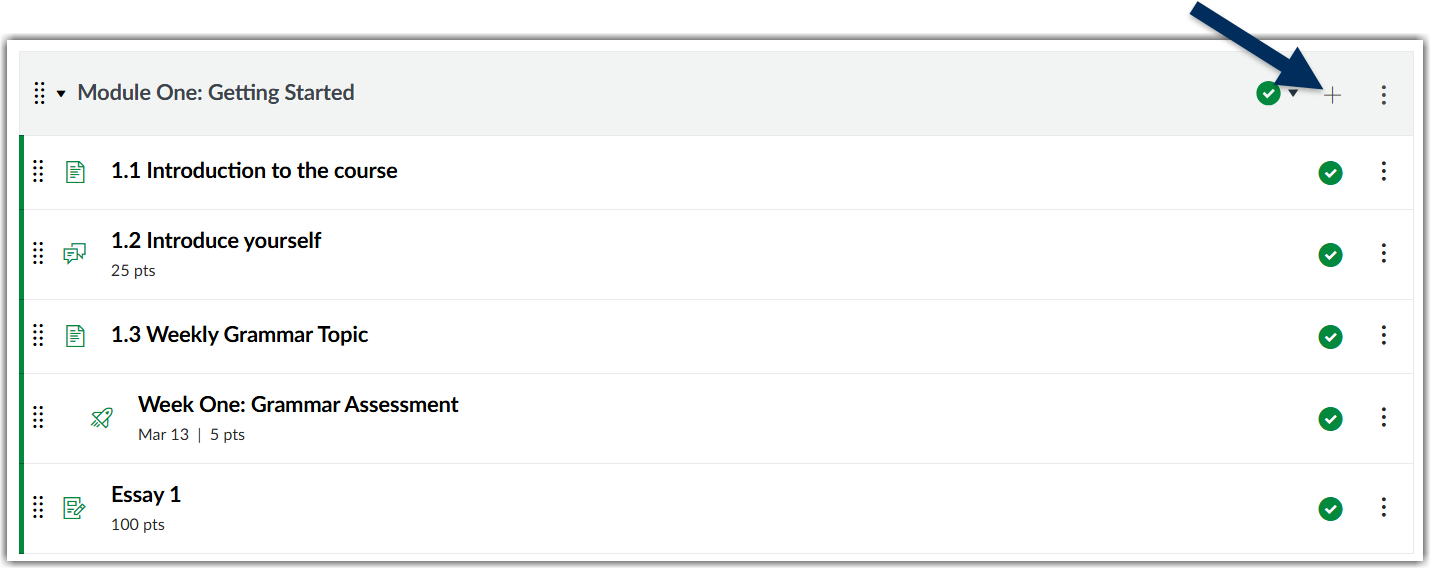
- Choose where you want to add the Zoom meetings and click the plus (+) icon on that module.
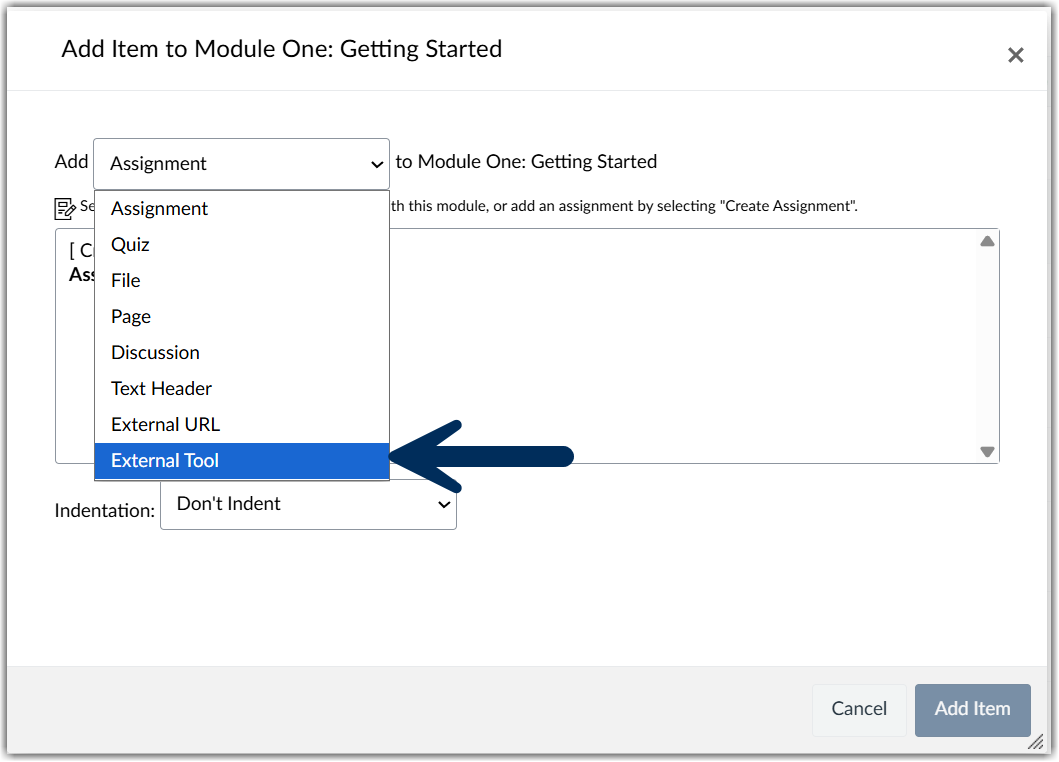
- On the next screen, use the drop-down menu to choose "External Tool".
- Scroll down the list until you find the Zoom LTI.
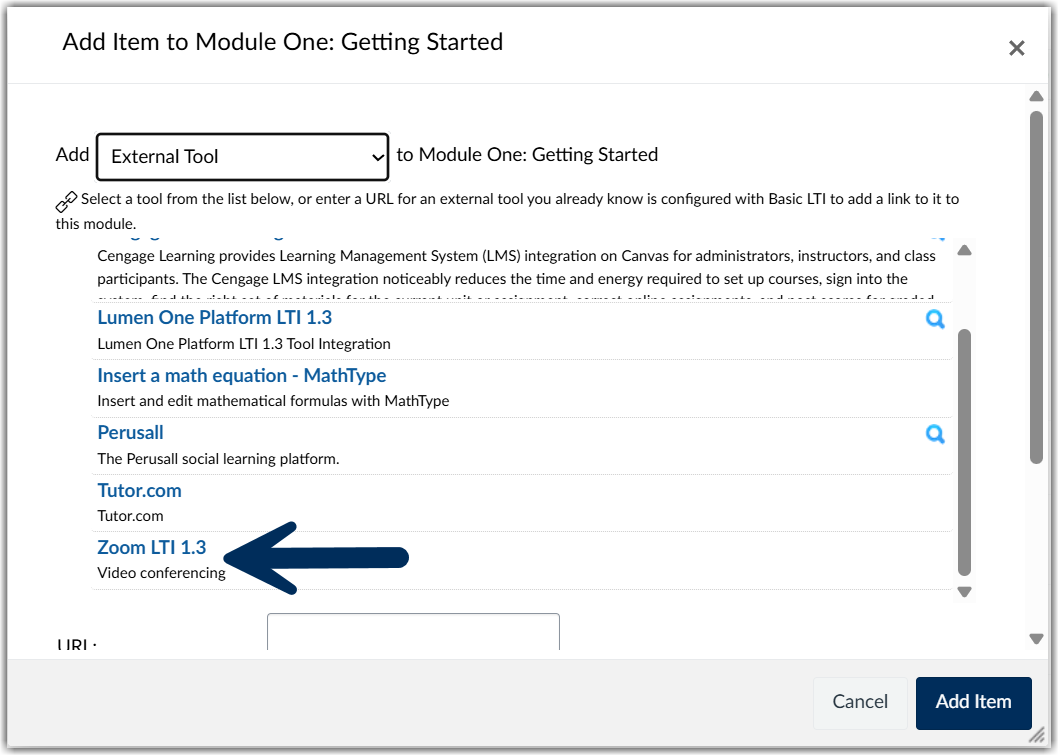
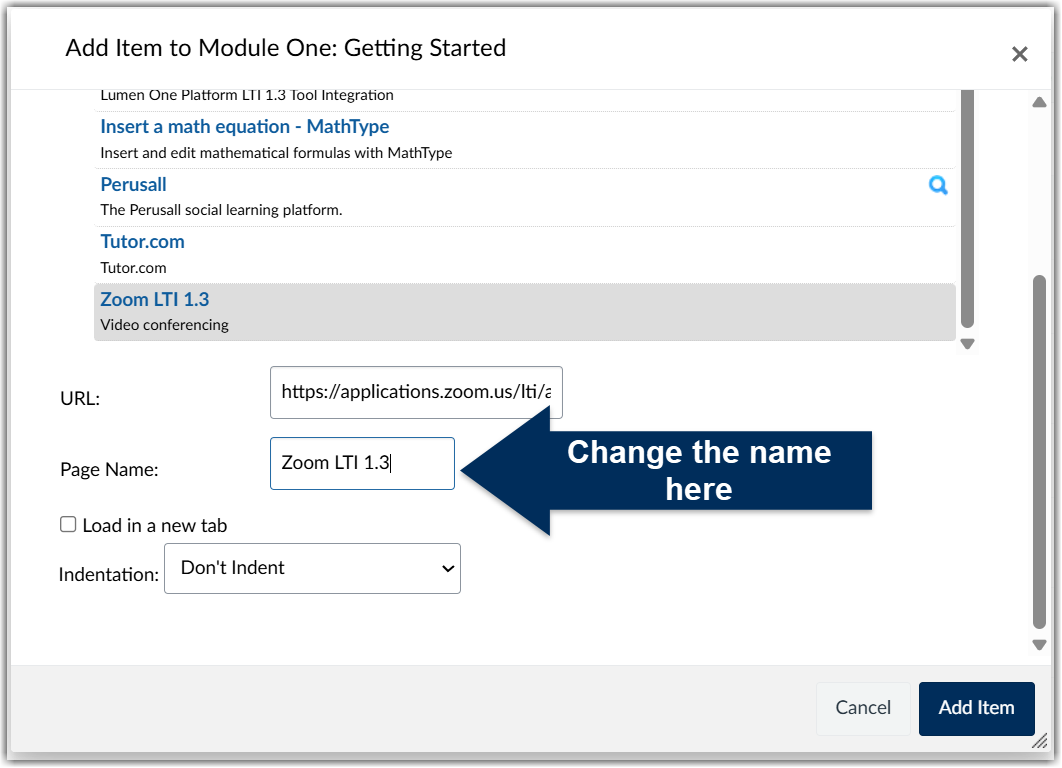
- Click on Zoom LTI 1.3 and scroll down a little further. The URL will be filled automatically. Notice the box that's labeled "Page Name". This is the text that will appear on the link so change it to something that will be meaningful for students such as "Zoom Link for Tues/Thurs meetings". Make sure to click "Add Item" to add this link to your module.
- Return to your Module Index and click on the link you just added. You'll be taken to a page that is linked to your Zoom account and you can add meetings specifically for your course that will be visible for students when they click on the link you just added. Click "Schedule a New Meeting" to begin adding meetings.