At Davidson-Davie Community College we have access to YuJa which is video creation, editing, and storage platform, but if you need an alternative to YuJa for any reason, Google Vids can also record and do basic editing.
Accessing Google Vids
You can access Google Vids in three ways:
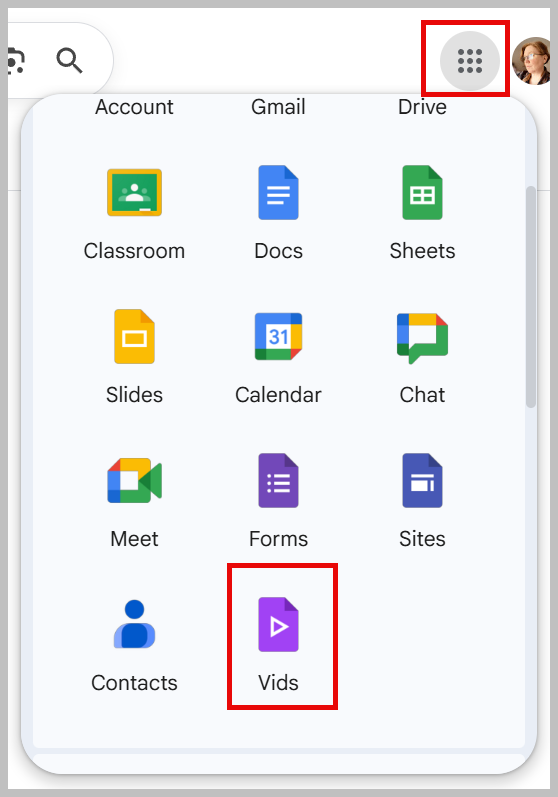
- The easiest way is to click on the 3x3 grid of dots near the top on the right side of the screen and scroll until you see Google Vids.
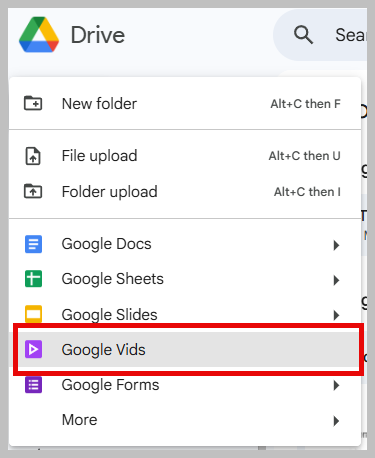
- You can go into your Google drive and click on the + New button at the top left of the screen. From there you can choose Google Vids.
- You can go to the website which looks slightly different but works the same way.
Record a video
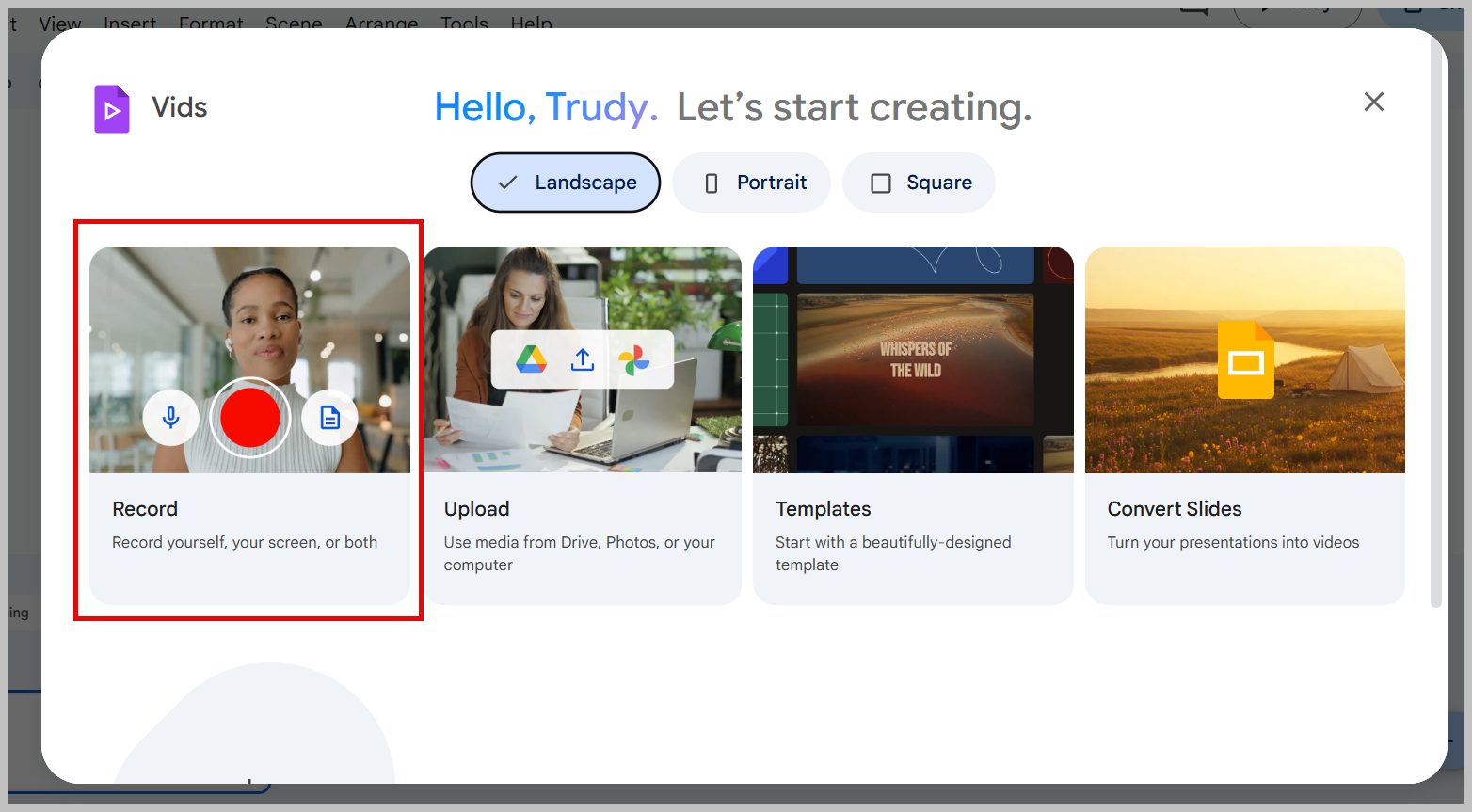
- First choose "Record" from the selections available.
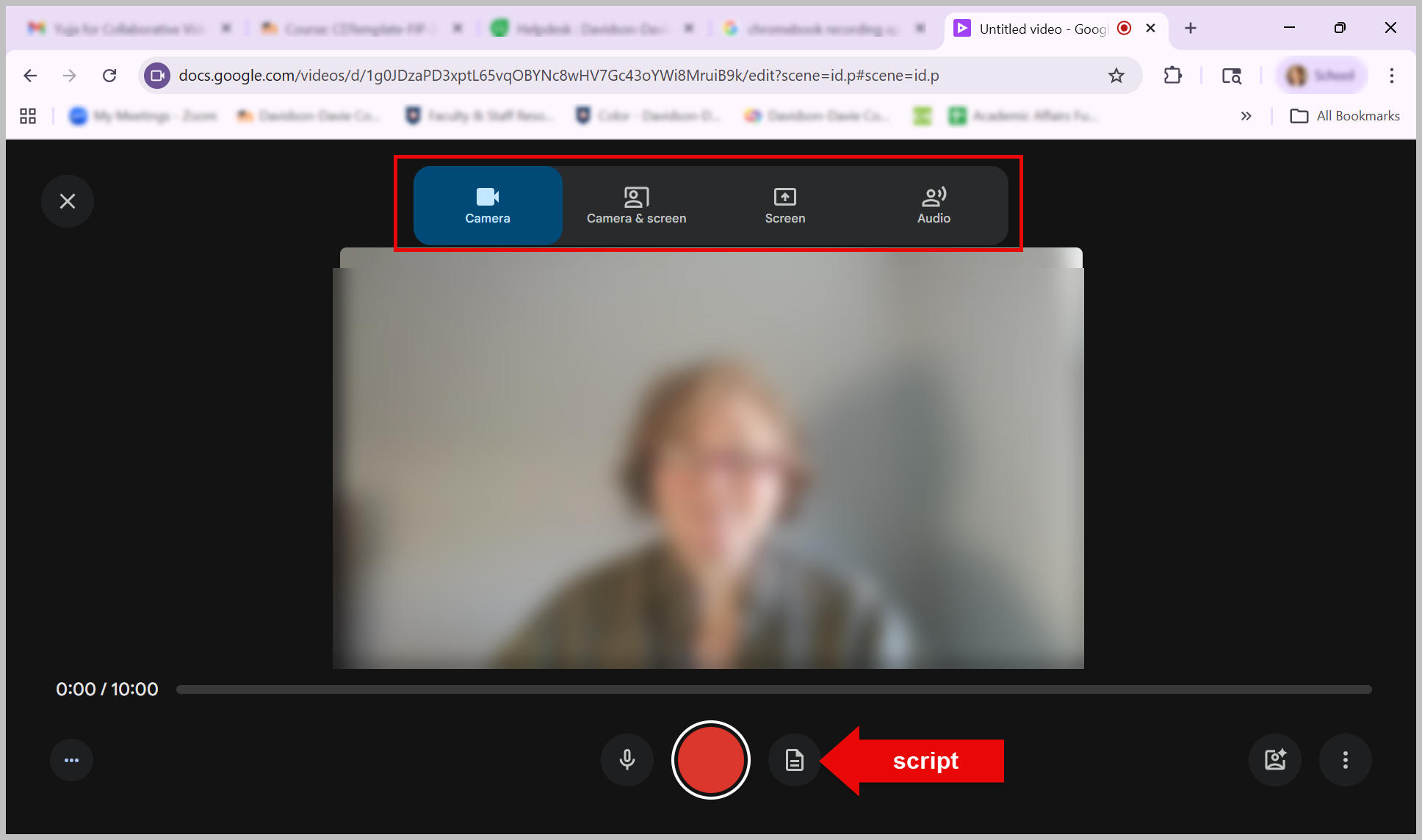
- Next, you'll be taken to the recordingz page. Notice that it is in a browser window so if you navigate away from it, you'll just need to find the browser tab to return to it.
- To prepare for your recording, choose what you want to record: only your webcam feed, your webcam and your screen, only your screen, or only audio. You can also add a script that you wrote to keep you on track.
Record your screen
If you've shared a screen in Google Meet or Zoom, this works similarly. You can choose to share an individual tab, a browser window, or an entire screen if you're using multiple screens. 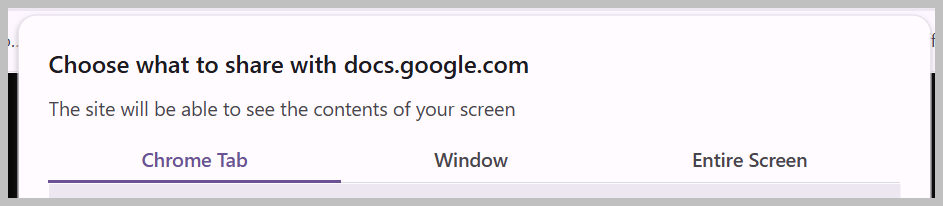 Make sure you've pulled up the document, power point, etc. that you want to share. Select it from the options and you're ready to go.
At this point, click the red circle and the recording will start. If you're recording your webcam feed, you will see what's being recorded as well as any screen you're recording. When you're finished with your video, you will have the option to preview or insert.  If you click "Insert" it will open a screen that looks like a Google Doc but with editing options. The editing is very basic but you can easily cut off blank spots at the beginning or end of the video.
Share your Video
There are several options for sharing your video. The best method depends on your instructor's assignment instructors. Most likely your instructor wants an MP4 formatted video. If you click the drop-down arrow next to the word "Share", you will get options for how to share. Most likely you will want to download it as MP4. But if you don't have space on your computer, you can choose "Export to Drive" to save an MP4 formatted version to your Google Drive. 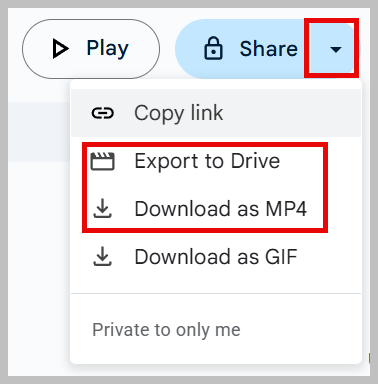 If you share it from your Google Drive, make sure you've given your instructor "viewer" permissions.
Was this article helpful?
That’s Great!
Thank you for your feedback
Sorry! We couldn't be helpful
Thank you for your feedback
Feedback sent
We appreciate your effort and will try to fix the article