If you have a question set that’s in Microsoft Word or other typed format and you don’t want to enter them into Moodle individually, there is a way to use AI to format the questions for easy upload into Moodle. We’ve tested it specifically with Copilot, so these instructions refer specifically to Copilot. There is more than one way to do most things with AI but here's what we believe to be the most streamlined version of this process:
Prepping your questions
You’ll need to indicate the answers to the questions. You can do this by putting an asterisk next to the correct answer or uploading an answer key with the questions. Even though the AI can, for the most part, pick out the correct answer without help, you want to be sure.
Consider separating out any questions that are not multiple choice, true/false, or multiple response questions and having Copilot create them separately. Copilot can do matching, fill-in-the-blank, etc. but you’ll need to tell Copilot what question format you want. For example, if you have fill-in-the-blank questions, you’ll need to instruct Copilot that you want fill-in-the-blank format. Otherwise it will turn the questions into multiple choice.
Prompt: Format the following questions in AIKEN format to be uploaded into an LMS.
Note: if you put asterisks next to the correct answer add “The correct answers are denoted with an asterisk” to the prompt.
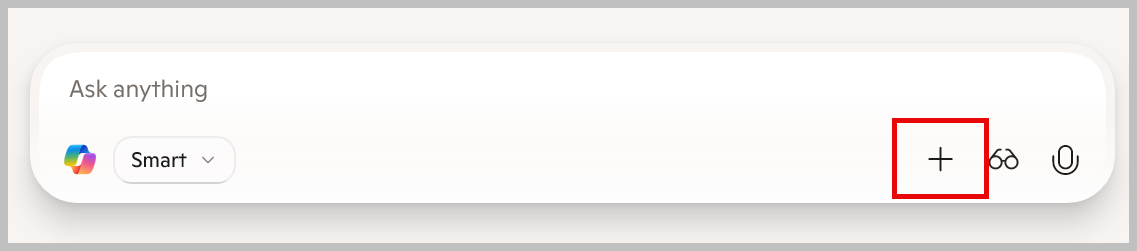
Copy and paste your questions (and answer key if applicable) into the prompt box. You can also use the “plus” to upload the document rather than copying and pasting.
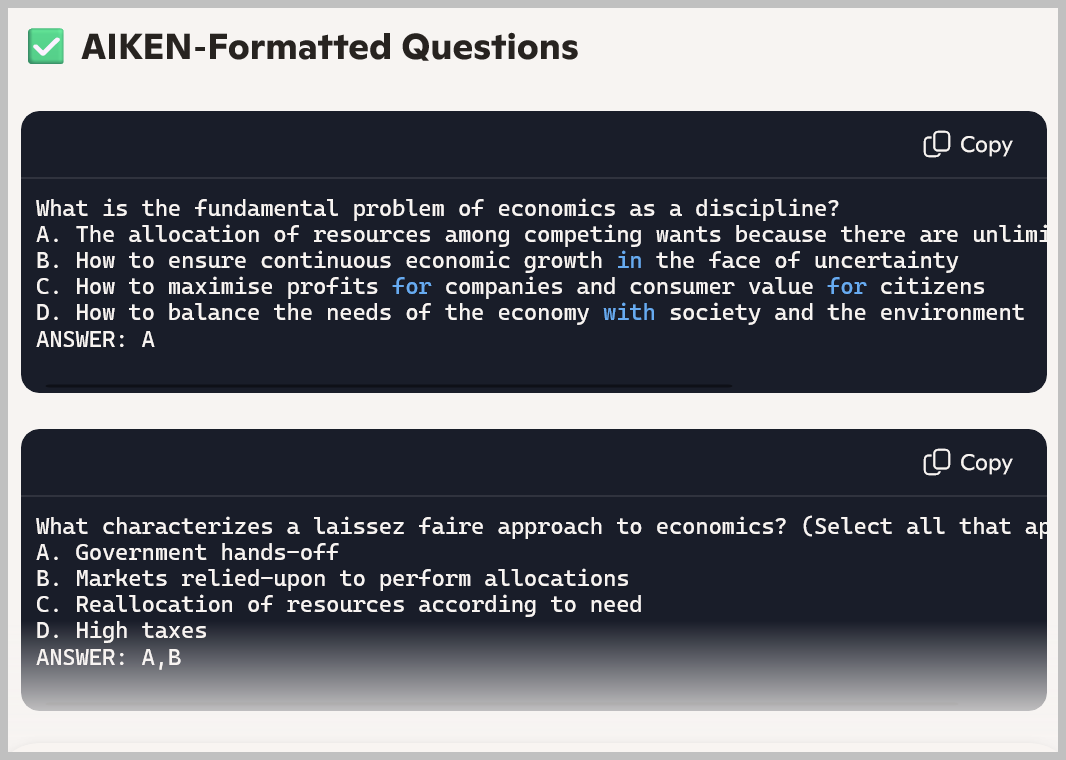
Copilot will format the questions and give you each formatted question in an individual box with a “Copy” button so that you can copy the formatted question and paste it into another document. But I don’t recommend doing it that way unless you only have a few questions. Read on for a better way.
Read through and check each question and the answers for accuracy.
Once you are satisfied that the questions and answers are correct, use the following prompt in Copilot: Create a plain text document with the AIKEN formatted questions.
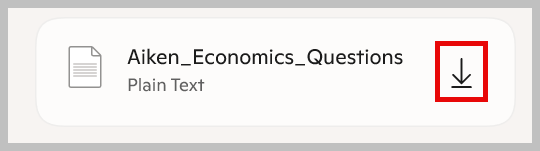
Download the file by clicking the arrow. This will give you all of the questions in one document and save you from having to copy and paste them one at a time.
Now you’re ready to head to Moodle. Go to the course where you want to import these questions.
Click on the word “More” at the top of the course and then choose “Question bank”.
In the question bank, you’ll see a drop down box on the left side of the screen. Click on the box and choose “Import”.
Note: If you want to create a category for these questions, do that before going to import by choosing “Categories” and clicking “Add category”.
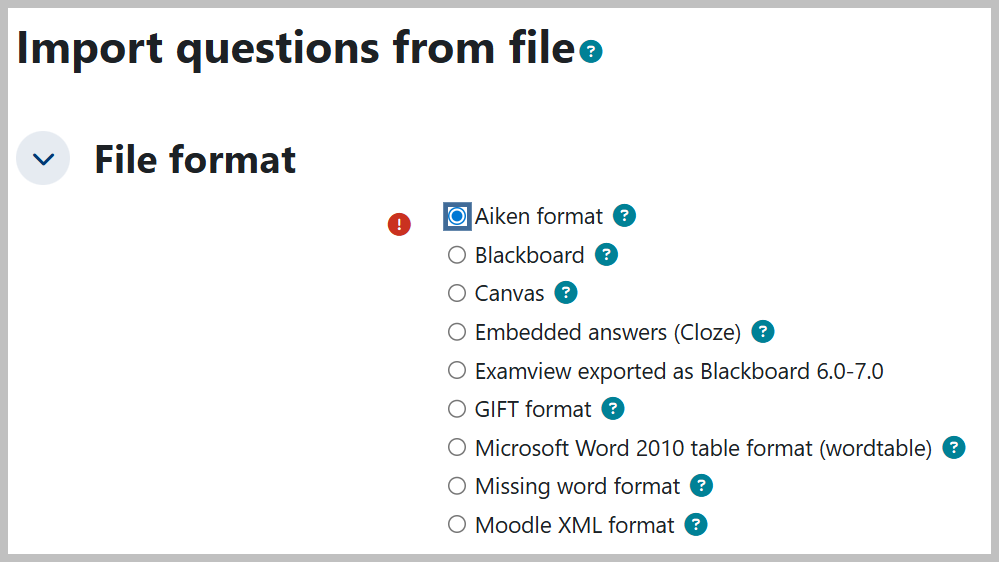
Choose “Aiken” from the file format options.
Under “General” you can use the drop down box to choose the category you’d like the questions to go into.
In the "Import questions from file" section, choose the file from your computer or drag and drop it into the box. You should see the file listed in the box.
Click import.
The next screen will show you the questions that you just uploaded. Scroll to the bottom and click “Continue”.
The questions you uploaded are now in your question bank and ready to be added to your quiz.