
TABLE OF CONTENTS
- Introduction
- Accessibility Score Icons
- Accessing Accessibility Reports
- Real-Time Accessibility Reports
- How your Accessibility Score is Calculated
Introduction
Accessibility Reports by YuJa Panorama are provided for compatible content, including uploaded documents and editable HTML text. There are two different types of reports you will have access to:
- Accessibility reports that have been processed after the document has been uploaded or after a request has been made to process or reprocess a document’s accessibility. These reports can be accessed via Canvas or on the Yuja Platform through your DocHub or Course Report Page.
- Real-time accessibility reports tracked with an accessibility gauge while you are creating editable media within Canvas only accessible through your specific Canvas course.
Accessibility Score Icons
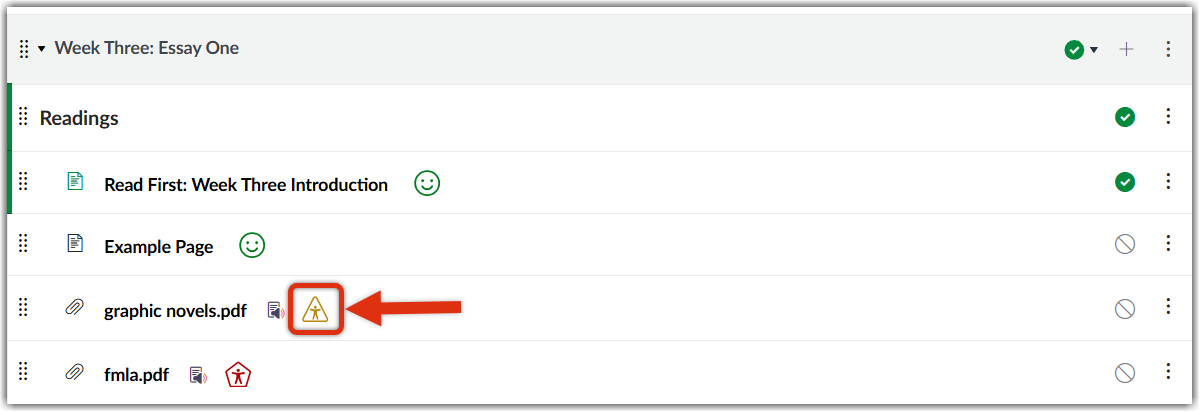
Compatible content is given an accessibility score and denoted with icons located next to individual files uploaded into your Canvas course.
The level of accessibility for each of those files is identified by colored badges.
| Accessibility Icon | Meaning |
|---|---|
Green Circle | The document has an accessibility score above 75% |
Yellow Triangle | The document has an accessibility score between 50-75% |
Red Hexagon | The document has an accessibility score less than 50% |
Blue Circle | Student View for access to alternative formats |
Gray Circle | The document does not have a score or alternative formats, most likely because there is no content available. |
Purple Person over an Ellipse | The document has not been scanned |
Accessing Accessibility Reports
The level of accessibility for a document is conveyed in an accessibility report. You can access your accessibility reports in two ways: directly in Canvas or on the YuJa Panorama Platform (opens in a new tab). For this tutorial, the images are taken from Canvas; however, the report and its features will be the same regardless of where you access the report.
We strongly encourage you to access the accessibility reports of your green smiley faces as well. While it is easy to assume green means 100%, this is not always the case. Remember that green represents a range, so there could still be accessibility issues with your file.
Locate your desired document and click on the accessibility icon to access your file, access to alternative formats, your accessibility report, and YuJa Panorama tools to help you improve the digital accessibility of your document as needed.
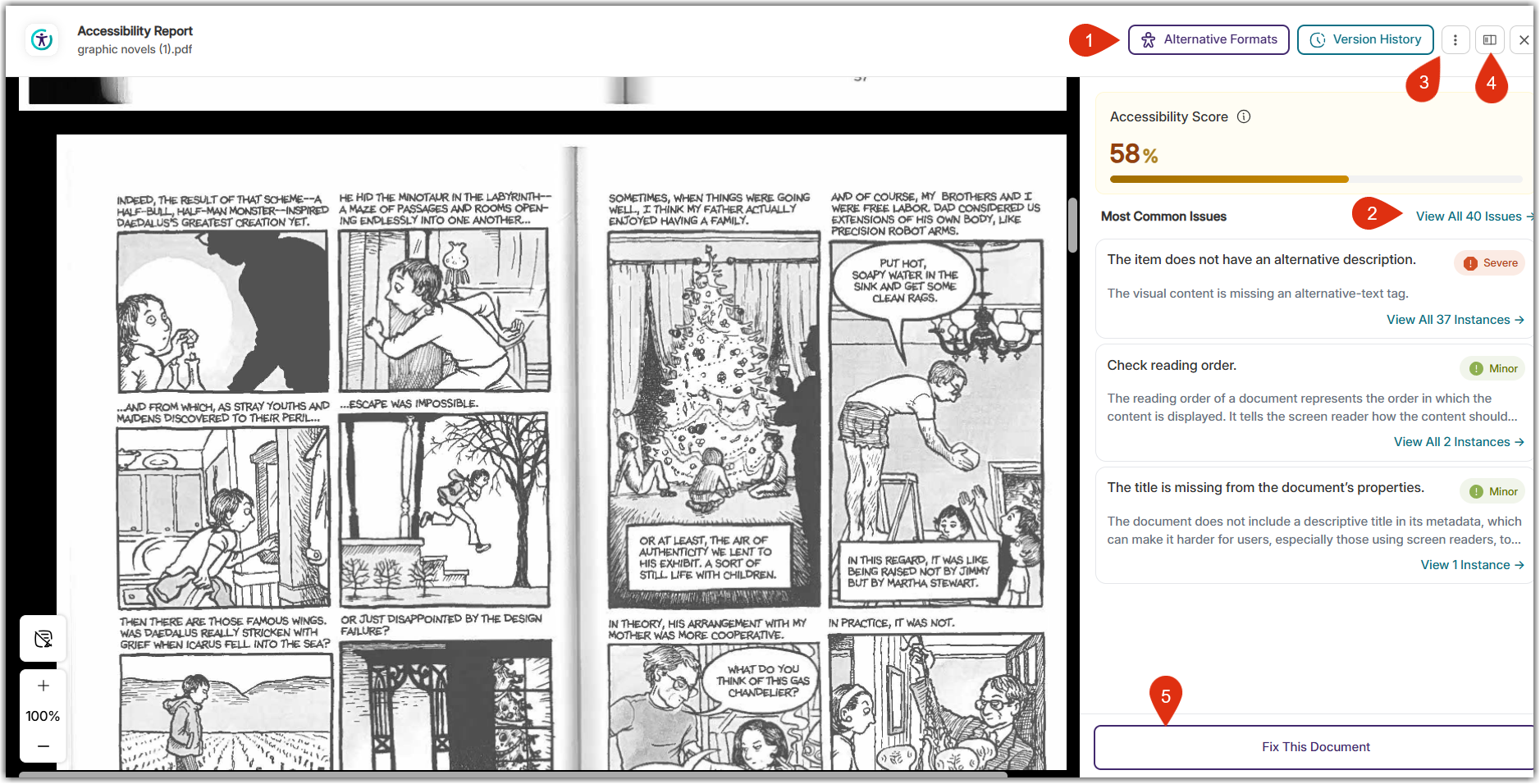
On the right-hand side of your page, the report will open with the following options:
- Alternative formats: quick access to additional ways to view your document. For which alternative format options are available, check out this accessibility formats guide.
- Issues: You will see a summary of your issues, but to access all of them, and Panorama's tools to correct the issues directly, select the hyperlink to access the "how to fix" tool.
- More actions: this menu will enable you to add revising this document to your Panorama DocHub To-Do list, export the accessibility report, download the file, customize highlight color that toggles through your file's individual issues, create a library reference for those who view your file (this is especially useful for copyright laws), and replace the file with an alternative format.
- Move report to the left: adjust how you view your accessibility report on your screen
- Fix this document: If you have a more accessible version of the document already, you can upload the new document with your report to replace your old file and run a new report. For example, if you fixed issues via the Panorama Platform, you are able to download the document from the platform and quickly upload and replace the document on your Canvas page.
Note: If you make changes to the document within your Canvas course, those changes will not save if you import the Canvas course into a future course. Only the original file will carry over. You will want to make sure you have downloaded the most accessible version of your document first.
Real-Time Accessibility Reports
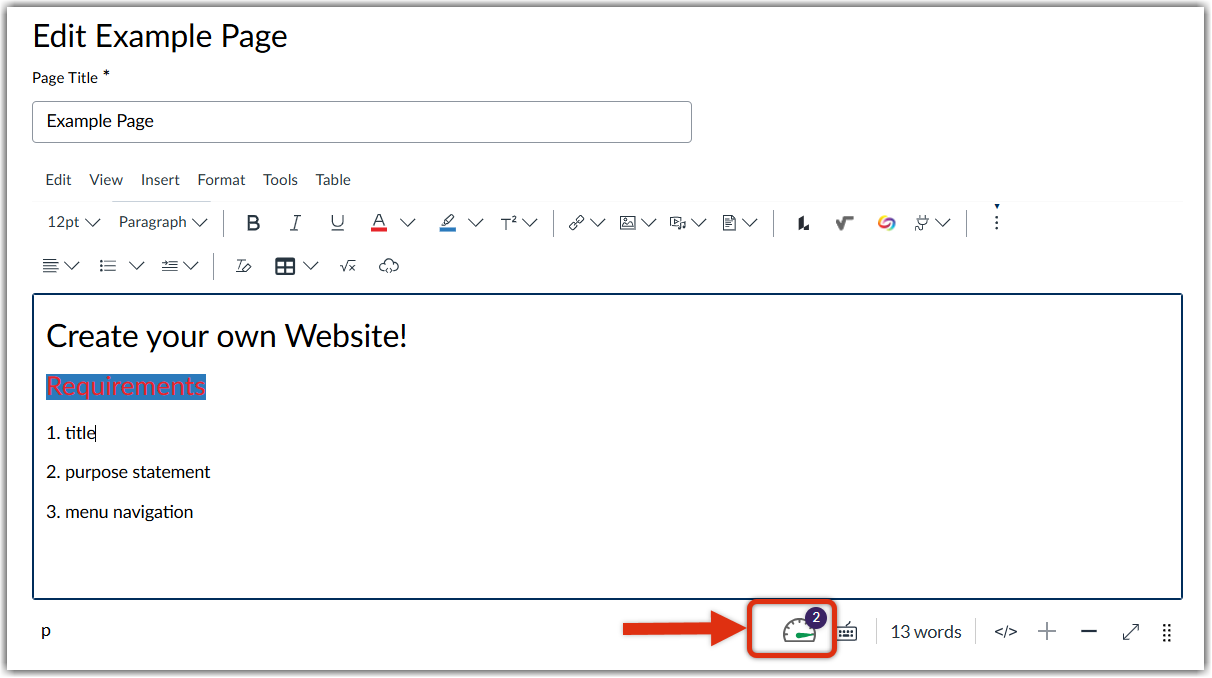
You will also have access to real time reports while you are creating your documents. To access your real-time report, you can click on the accessibility gauge icon located at the bottom of the Rich Content Editor box to see what issues you may need to address before you publish your content to your Canvas course.
How your Accessibility Score is Calculated
Your score is dependent on the number of minor, major, and severe issues found in your document. Major issues are weighed twice as much as minor issues while severe issues are weighed twice as much as major issues.
These issues are based on WCAG AA guidelines and standards (opens in a new tab) and frequency of use.
Here is a list of the major elements that are calculated in your accessibility score:
| Minor Issues | Major Issues | Severe Issues |
|---|---|---|
| Empty tables | Missing a heading one ad necessary additional headings for document | Untagged PDFs |
| non-descriptive links | Missing heading for a table | No alternative text for images |
| font size is smaller than 9-point font for editable HTML text | Insufficient color contrast for editable HTML, PDF, and DOC files | The file is malformed |
| Improper heading structure or missing headings | Font size is smaller than 9-point font for PDF, DOC files | The document is scanned (and therefore unreadable by a screen reader) |
| Incorrect list formats | Insufficient color contrast for PPT files | |
| An image is marked as decorative, but it is used as a button or linked | The font size is smaller than 9-point font for PPT files | |
| A PPT slide is missing a title |